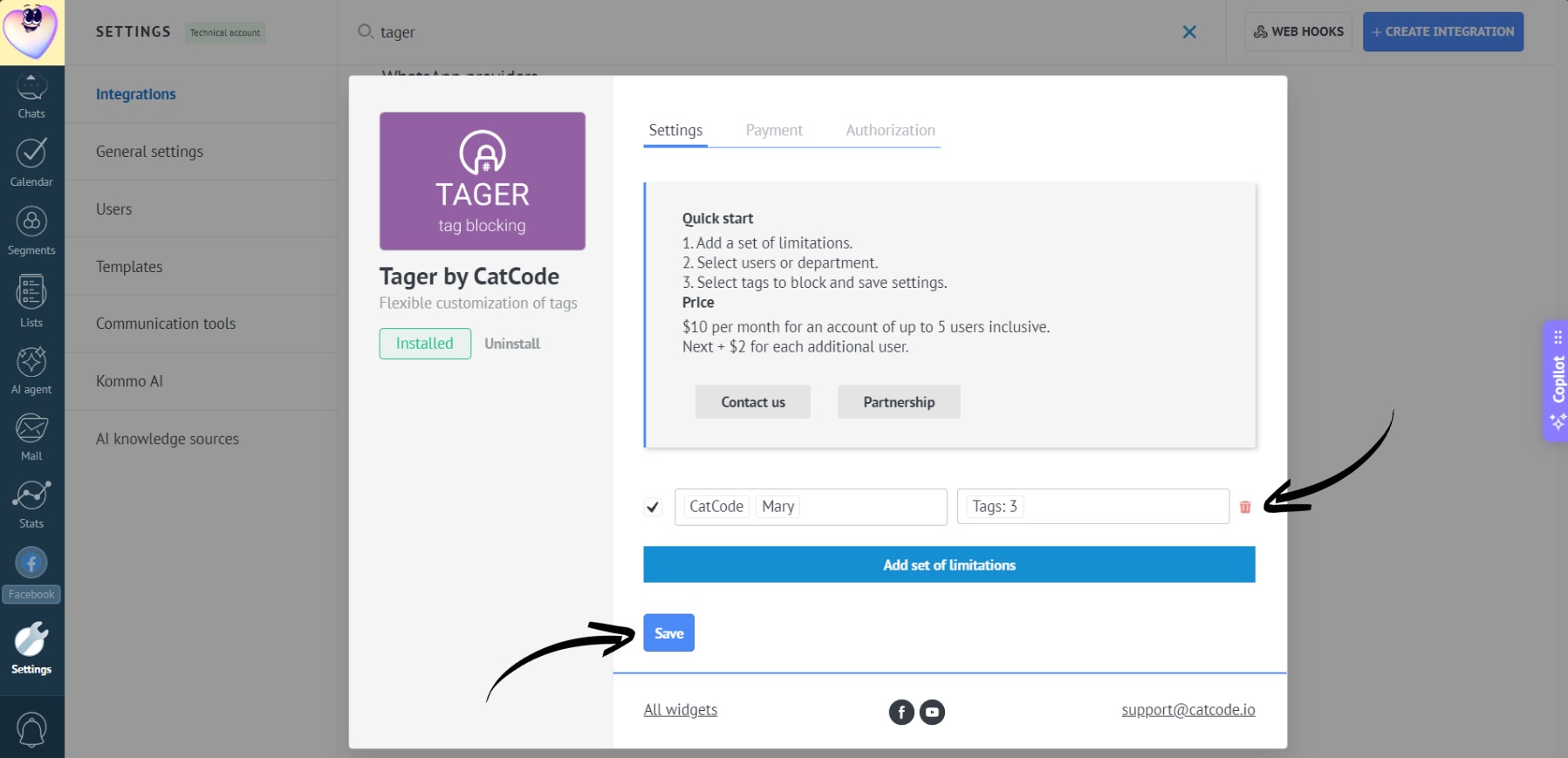
App Configuration
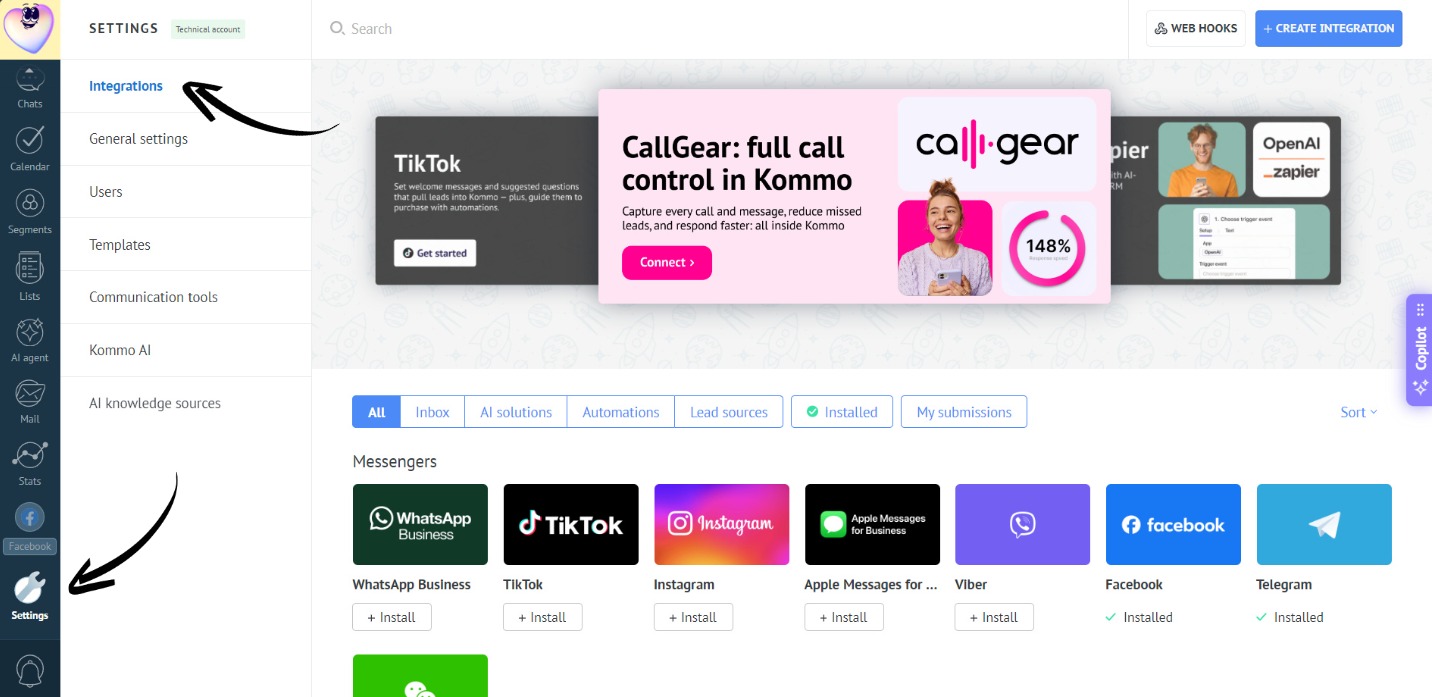
- Go to the “Settings” section. Open the “Integrations” tab:
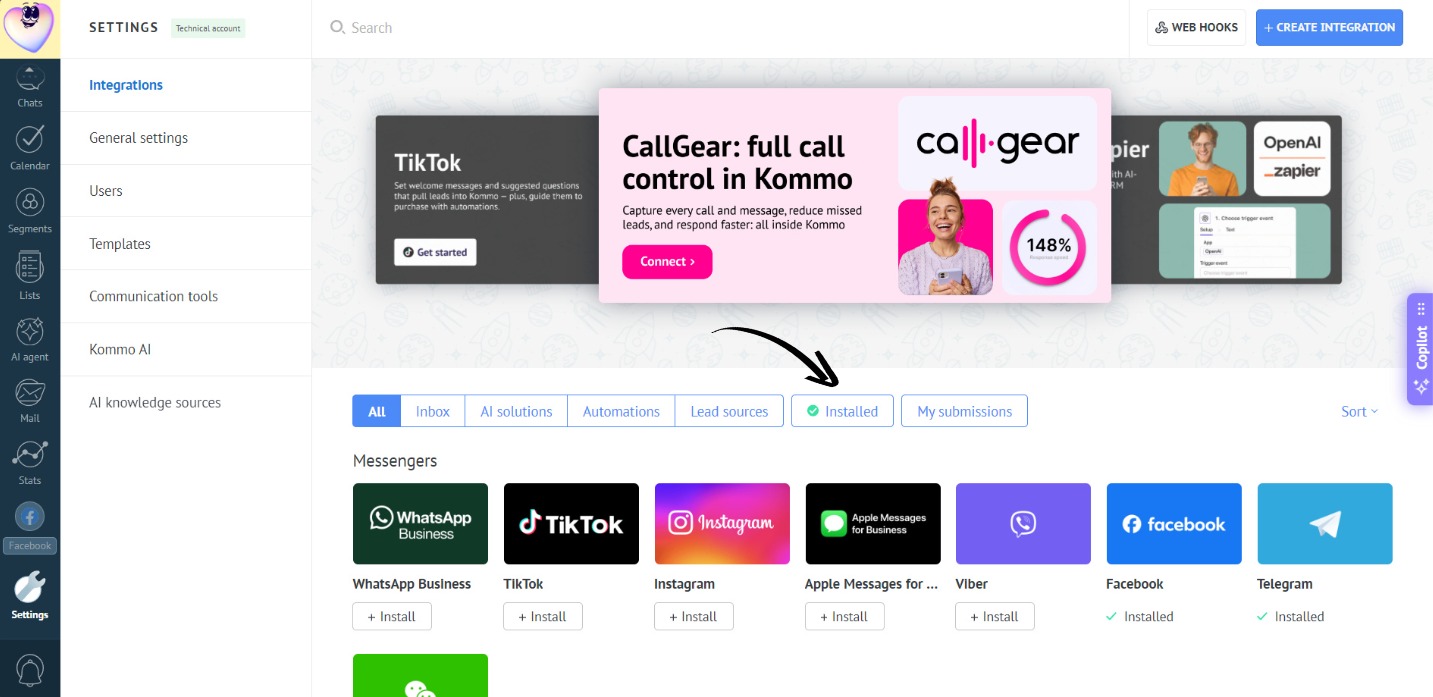
- Go to the “Installed” section:
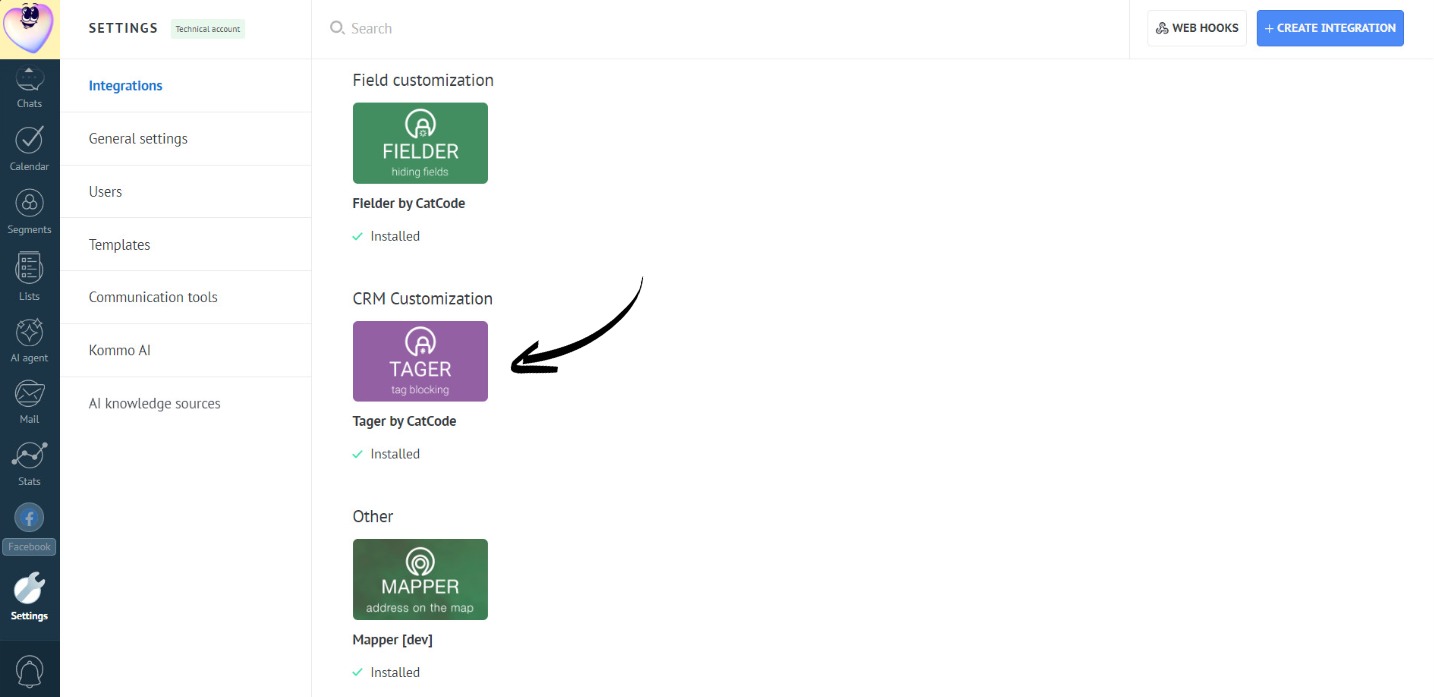
- Open the app:
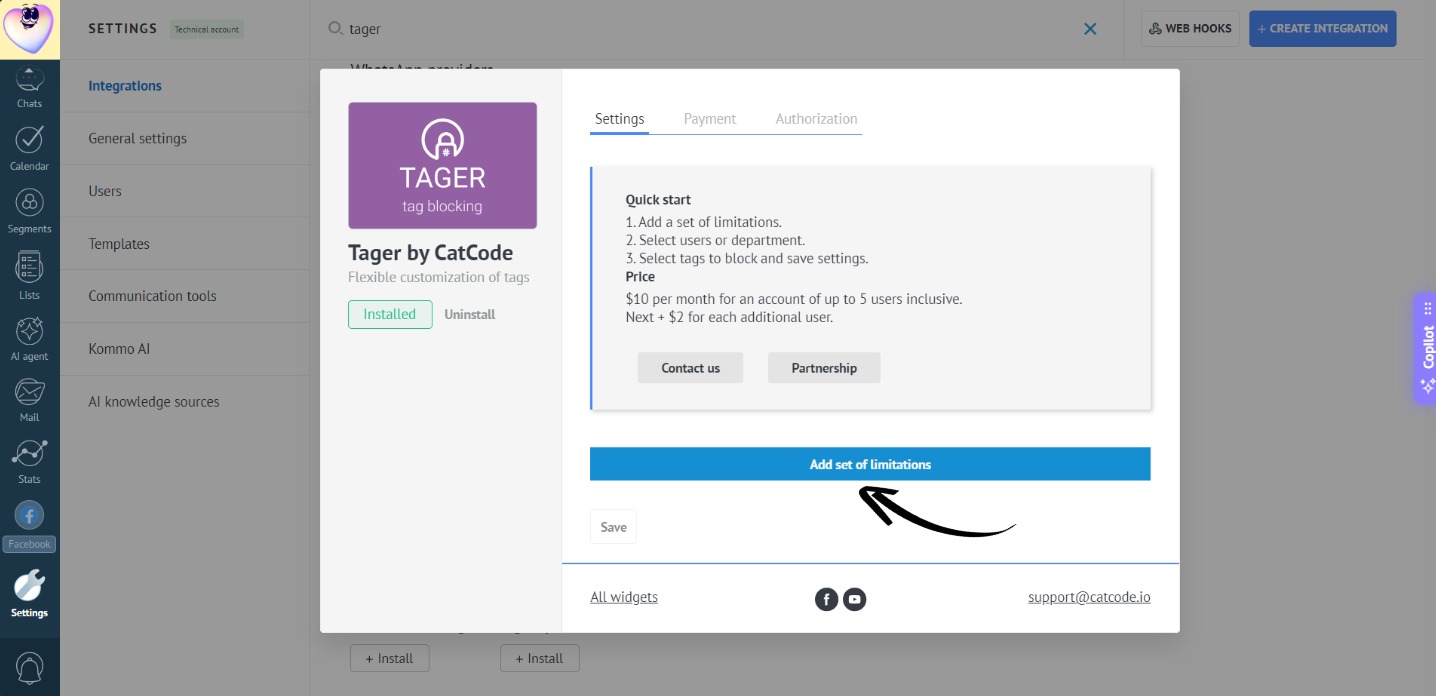
- Click “Add set of limitations”:
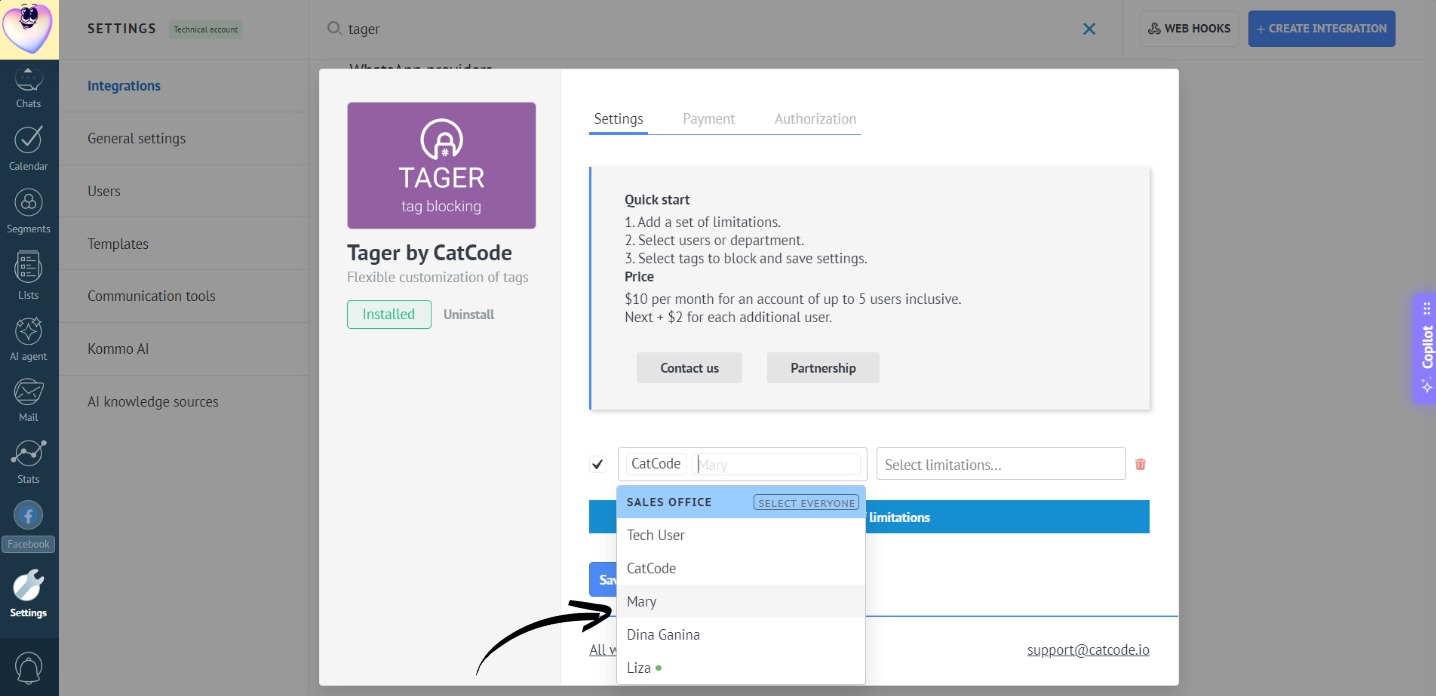
- Choose one or more employees (or an entire department) to apply restrictions to:
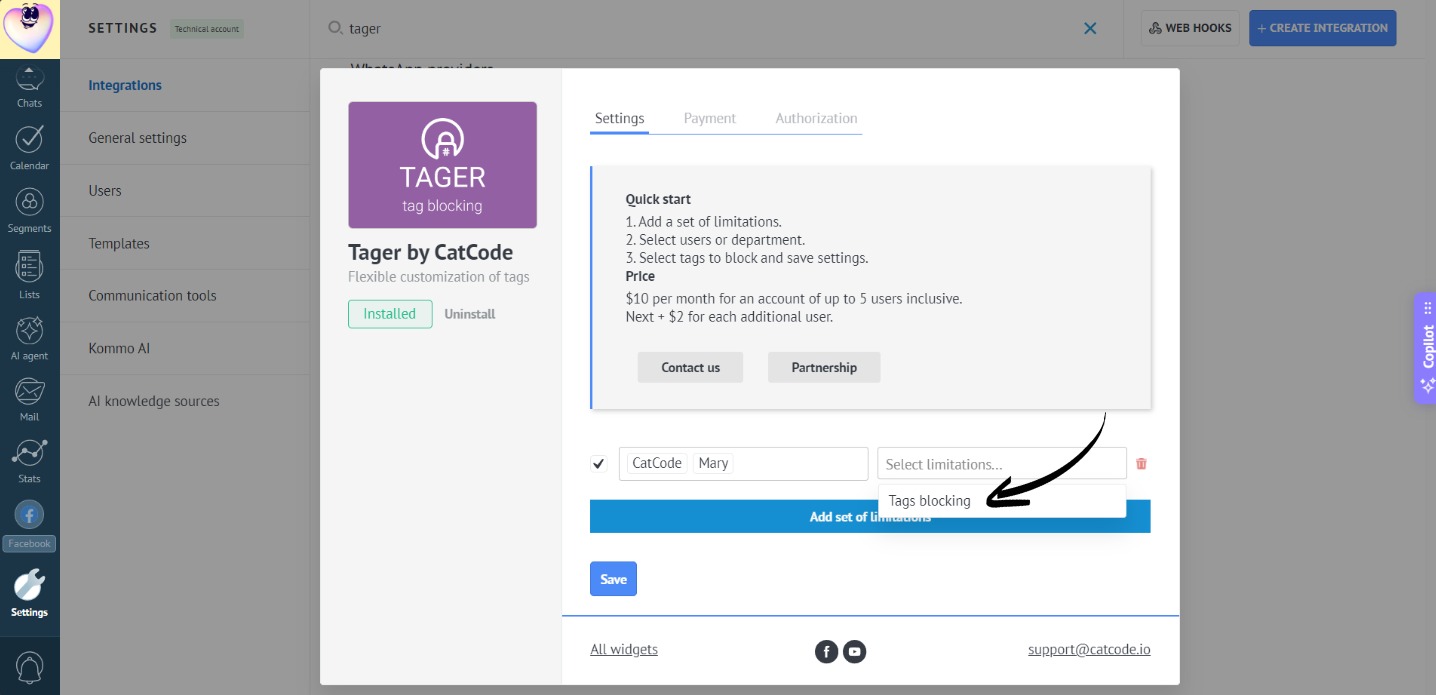
- Click on “Tags blocking”:
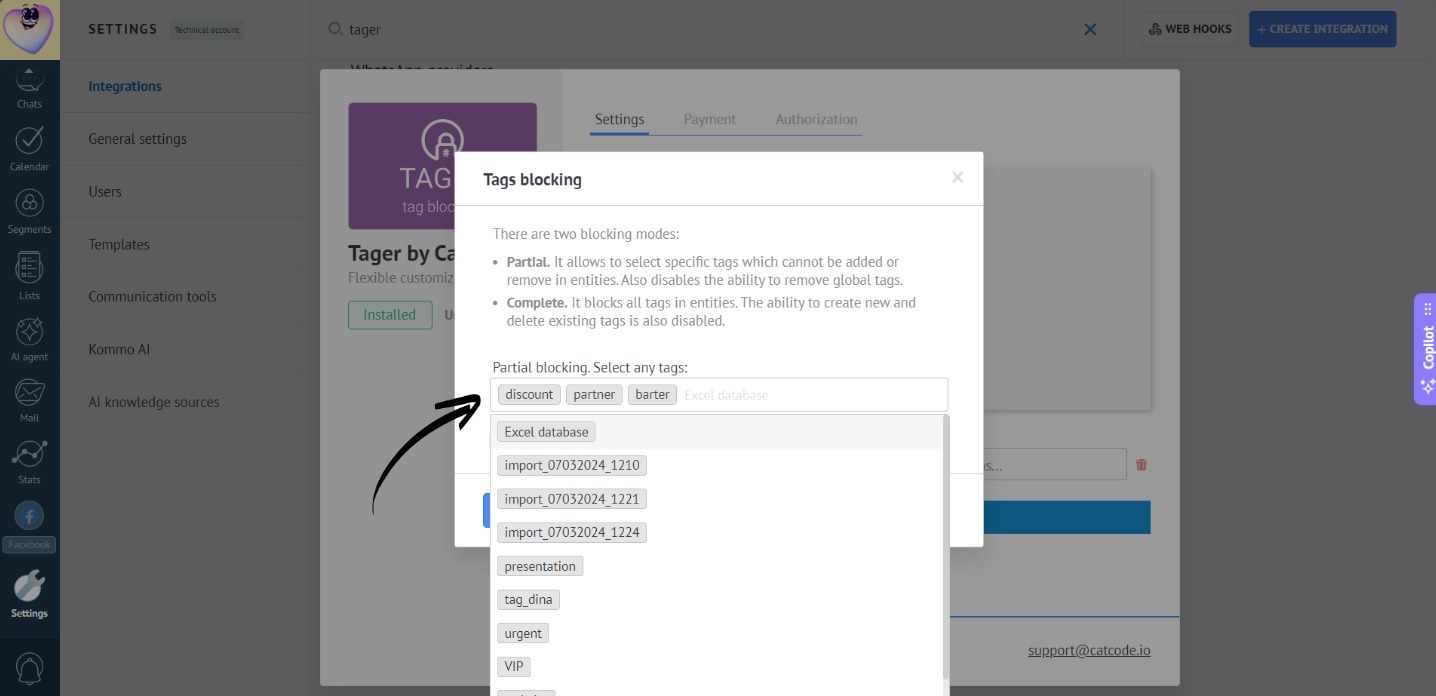
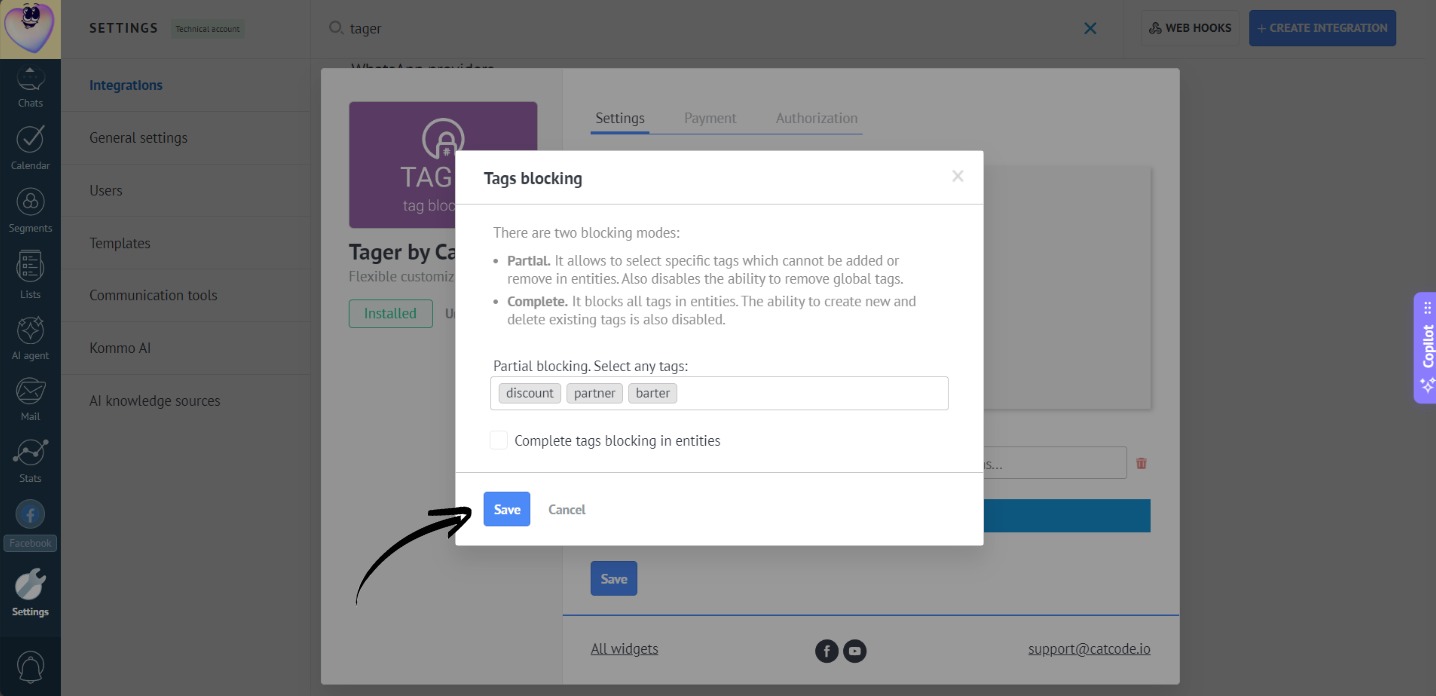
- In the opened window, select the tags that the user will NOT be able to add, remove, or delete on entities:
- Click “Save”:
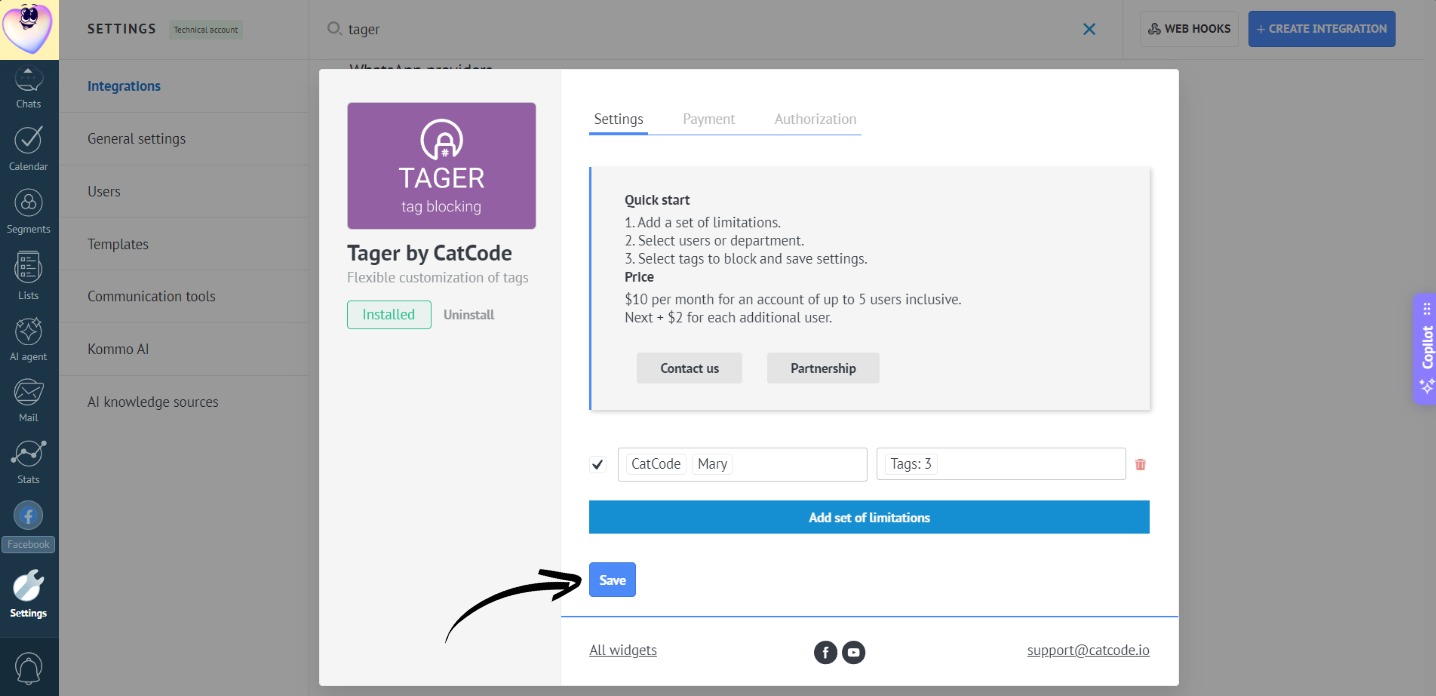
- Don’t forget to click “Save” in the app settings:
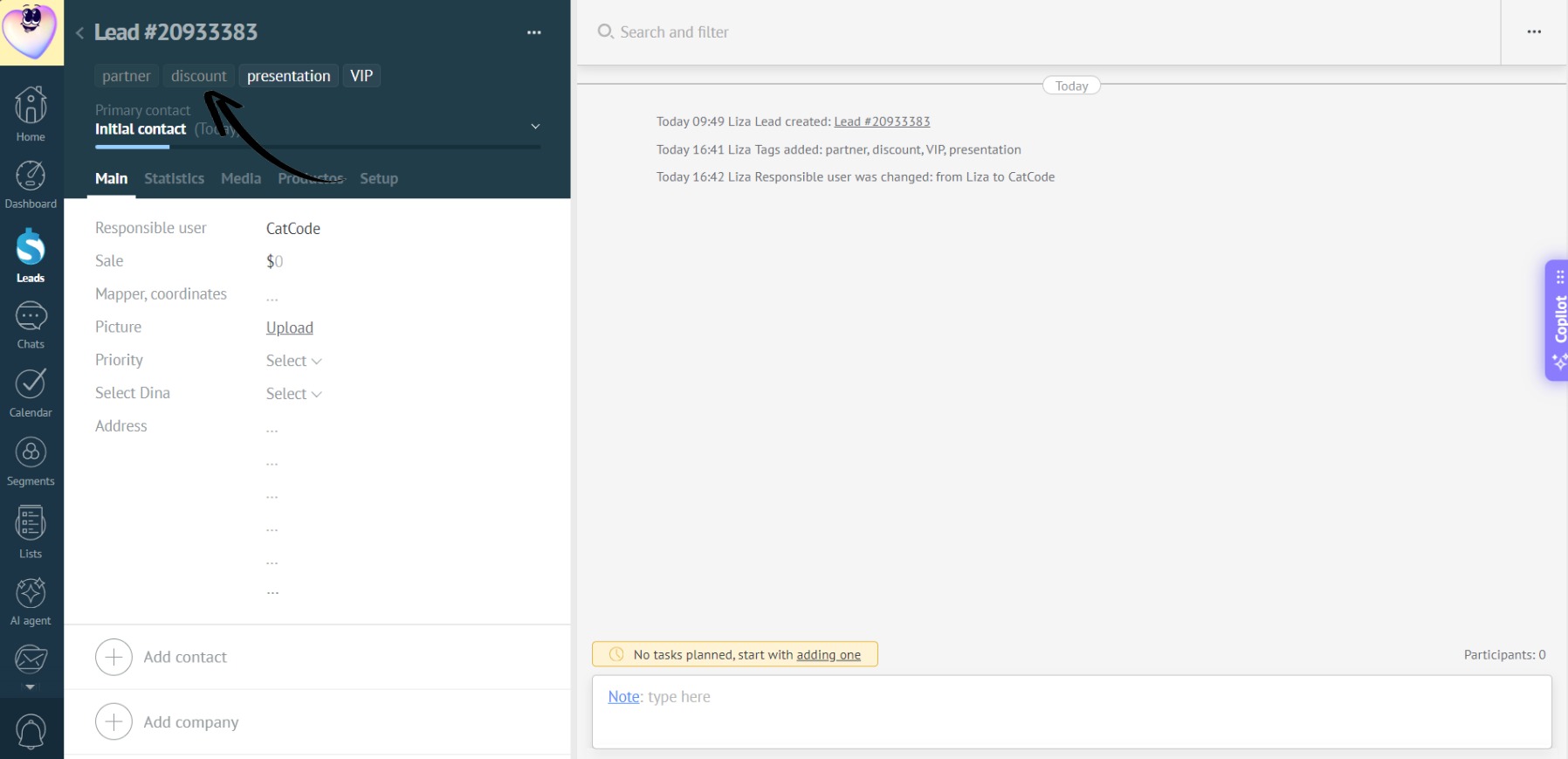
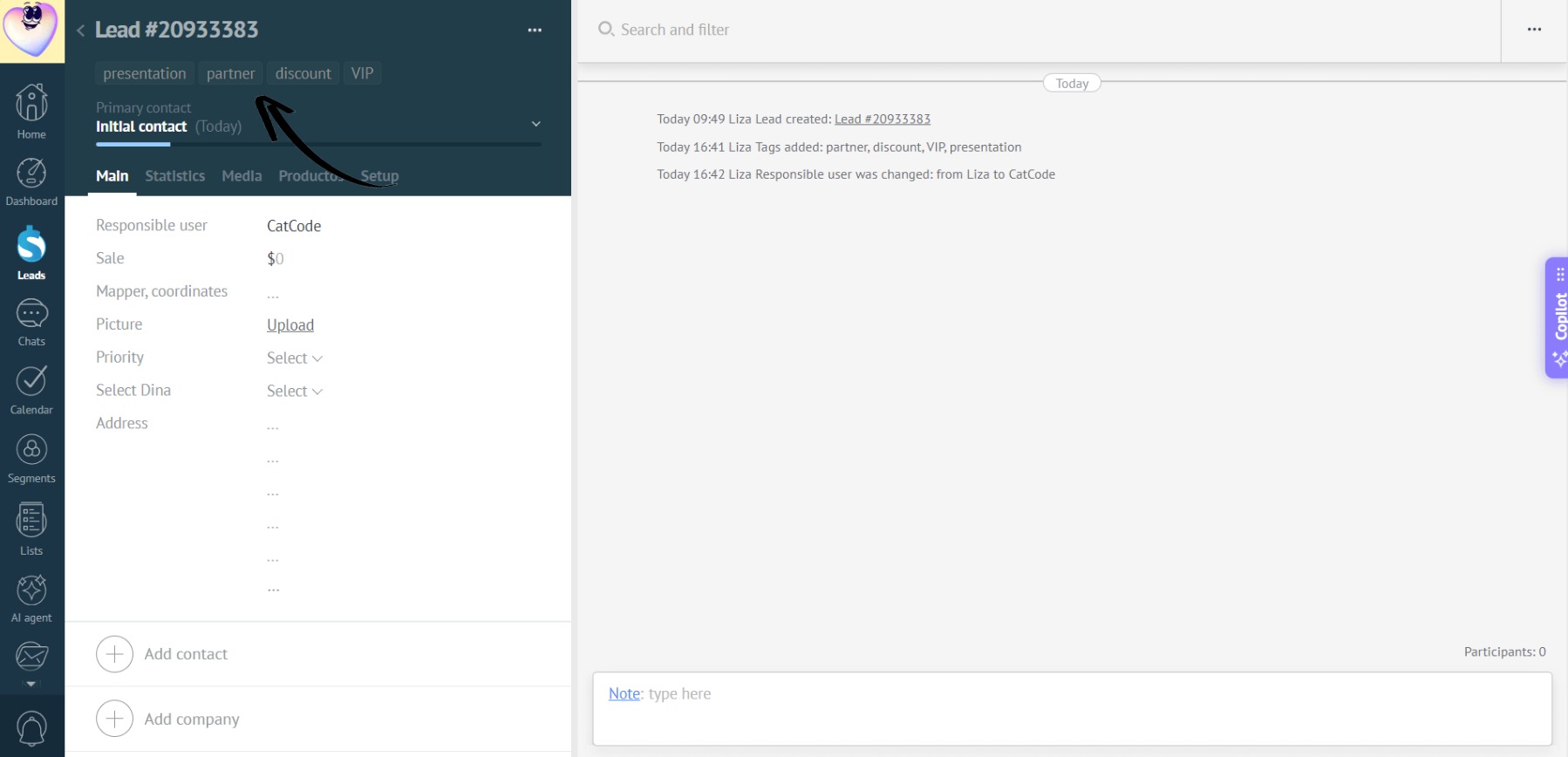
- Now, the user will only see the available tags in the lead card; the rest will be grayed out and unavailable for selection:
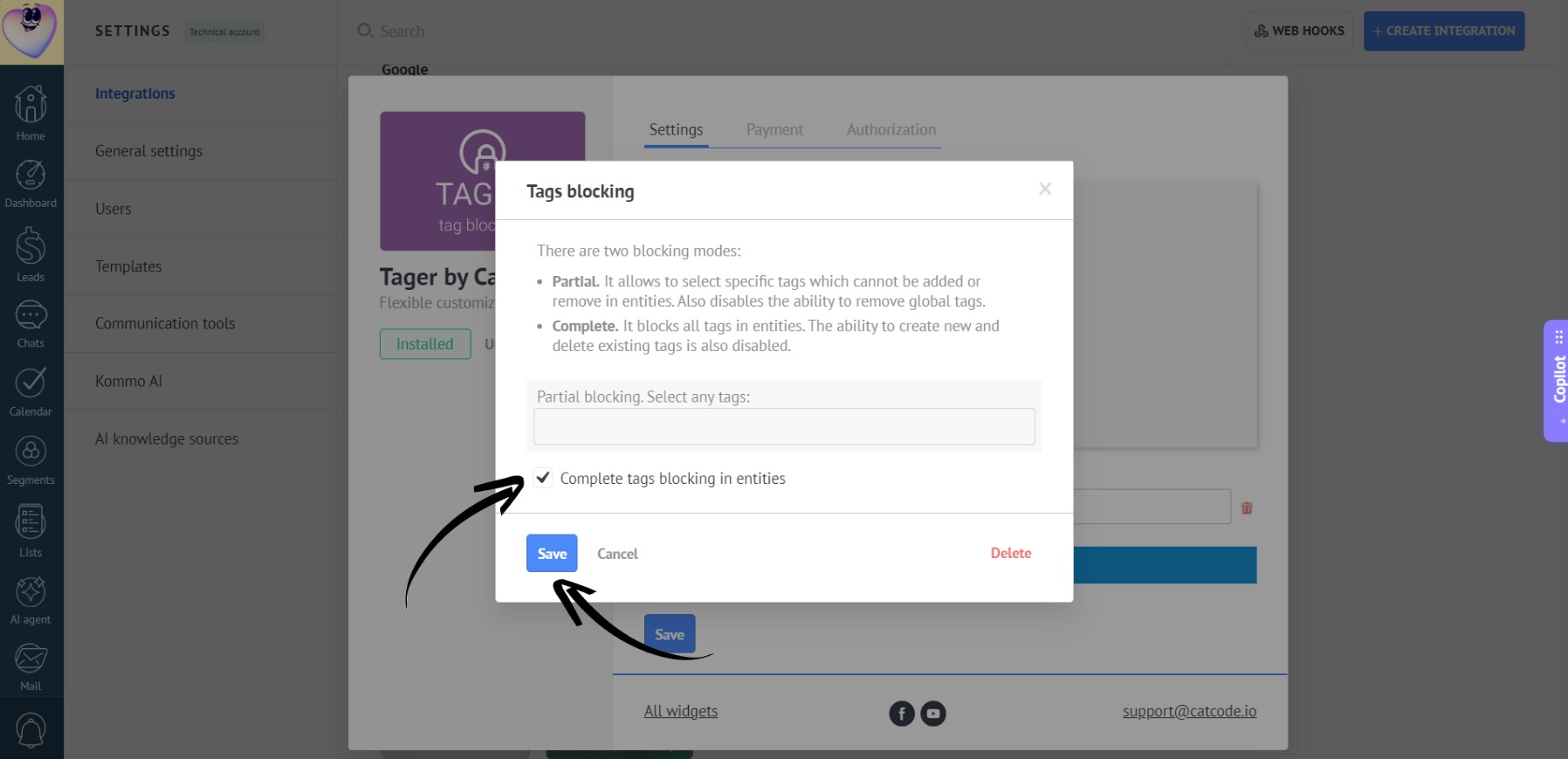
- If you want the employee to have no access to tag management at all, check the “Complete tags blocking in entities” option and click “Save”:
- Don’t forget to click “Save” in the app settings:
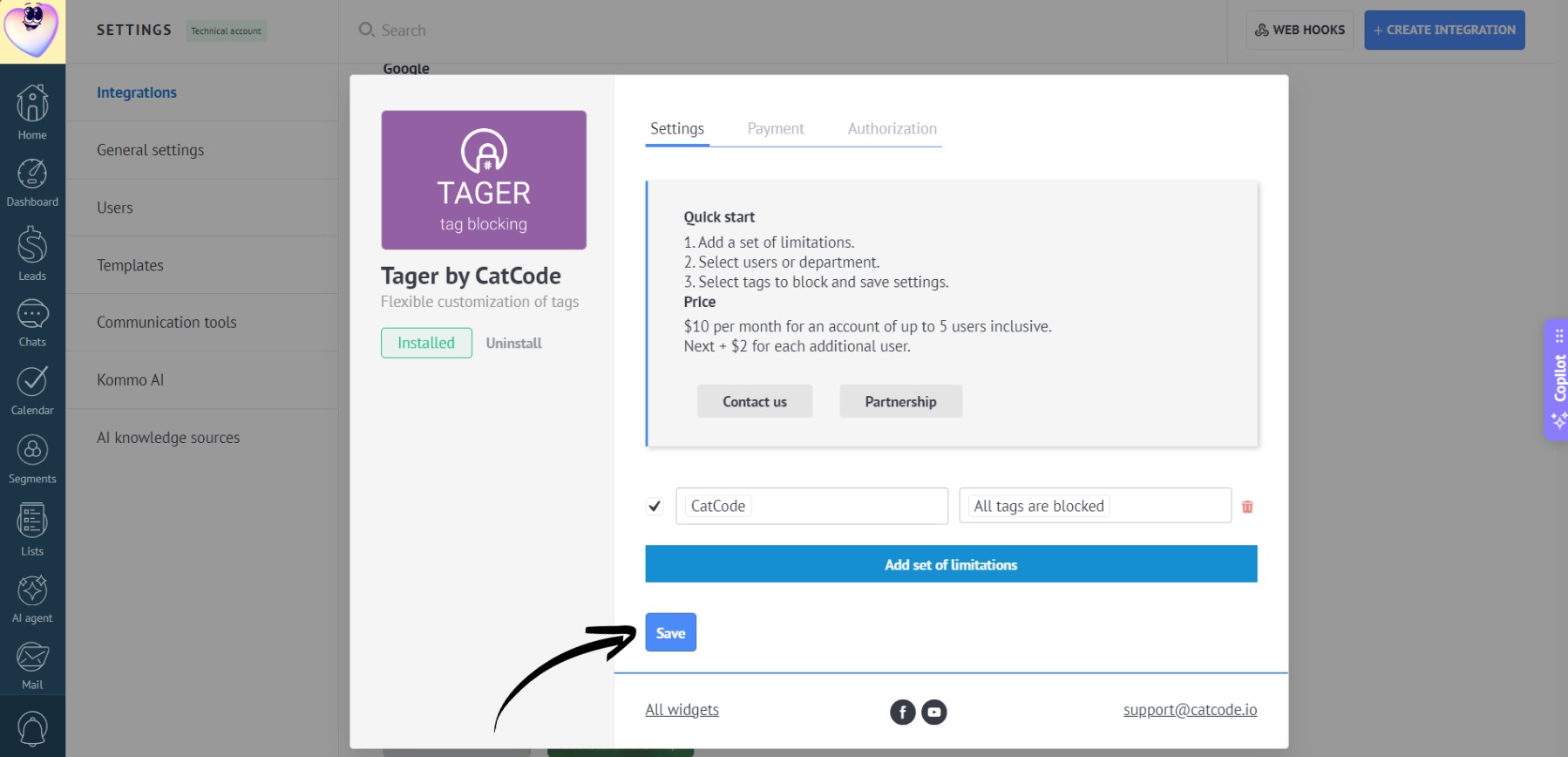
- Now, all tags will be disabled for the user:
- Different tag restrictions can be applied to different users:
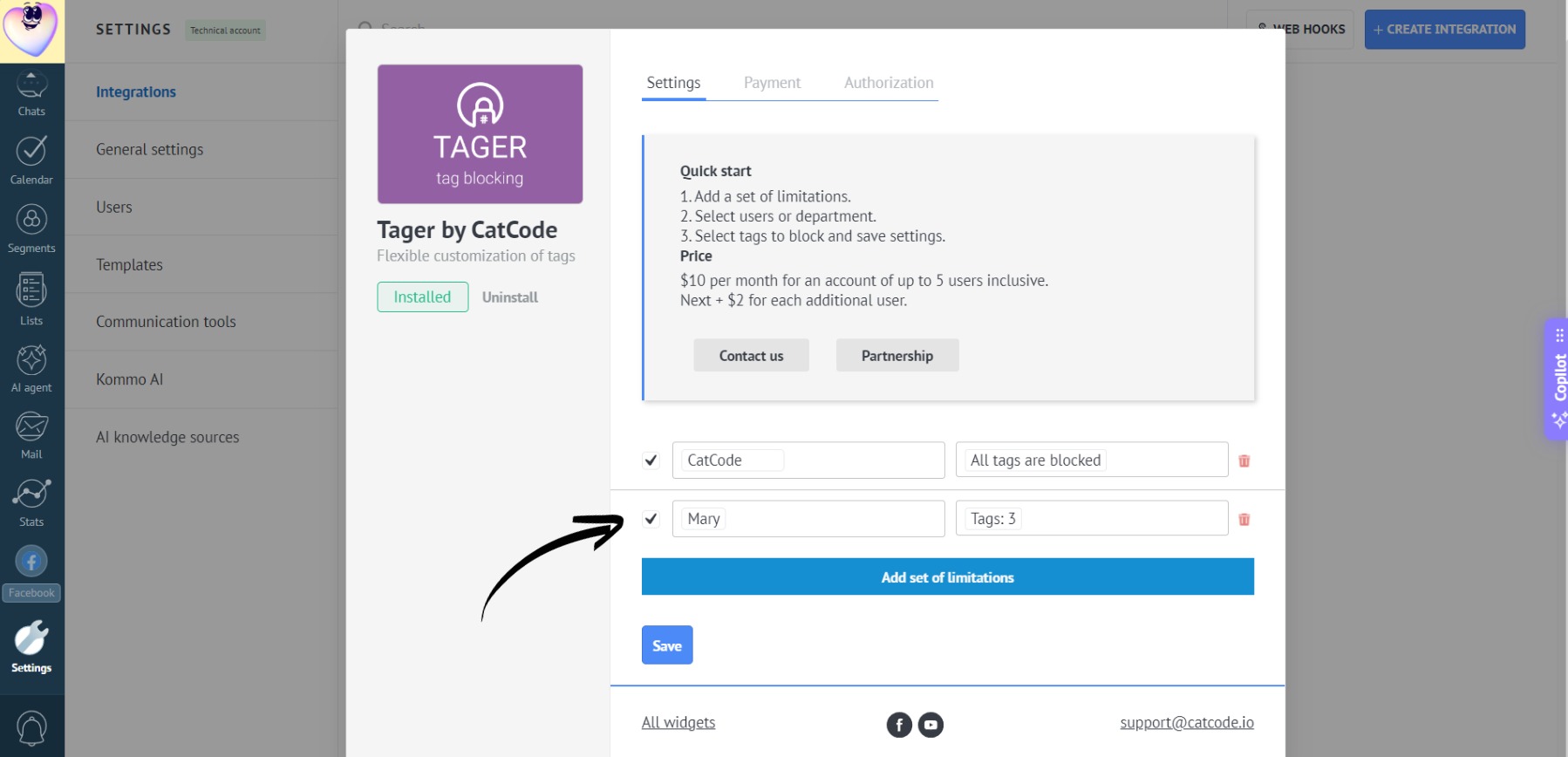
- To remove these restrictions, click the trash icon in the app settings or simply uncheck the box next to the specific user, and click “Save”: