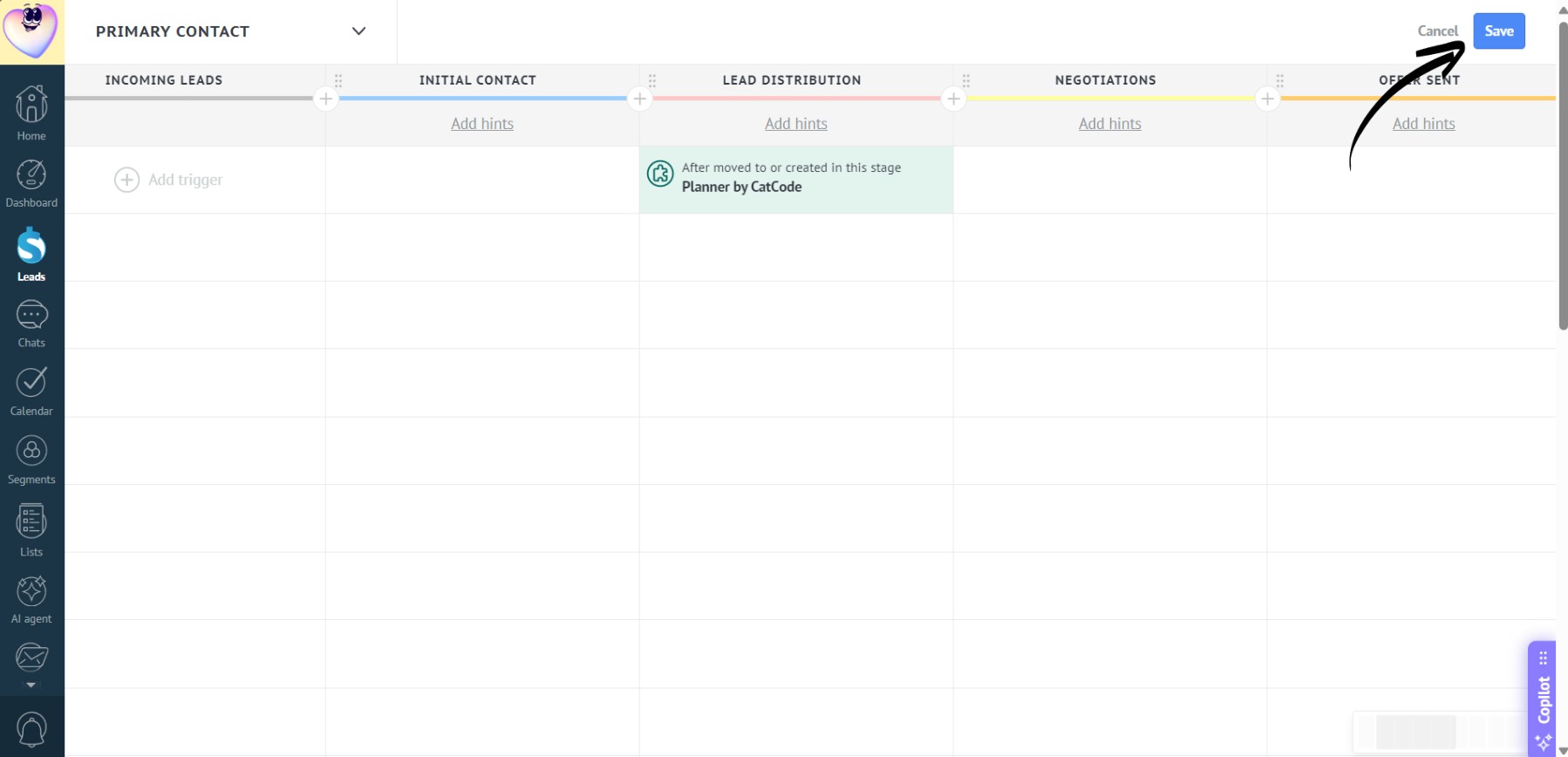
App Configuration
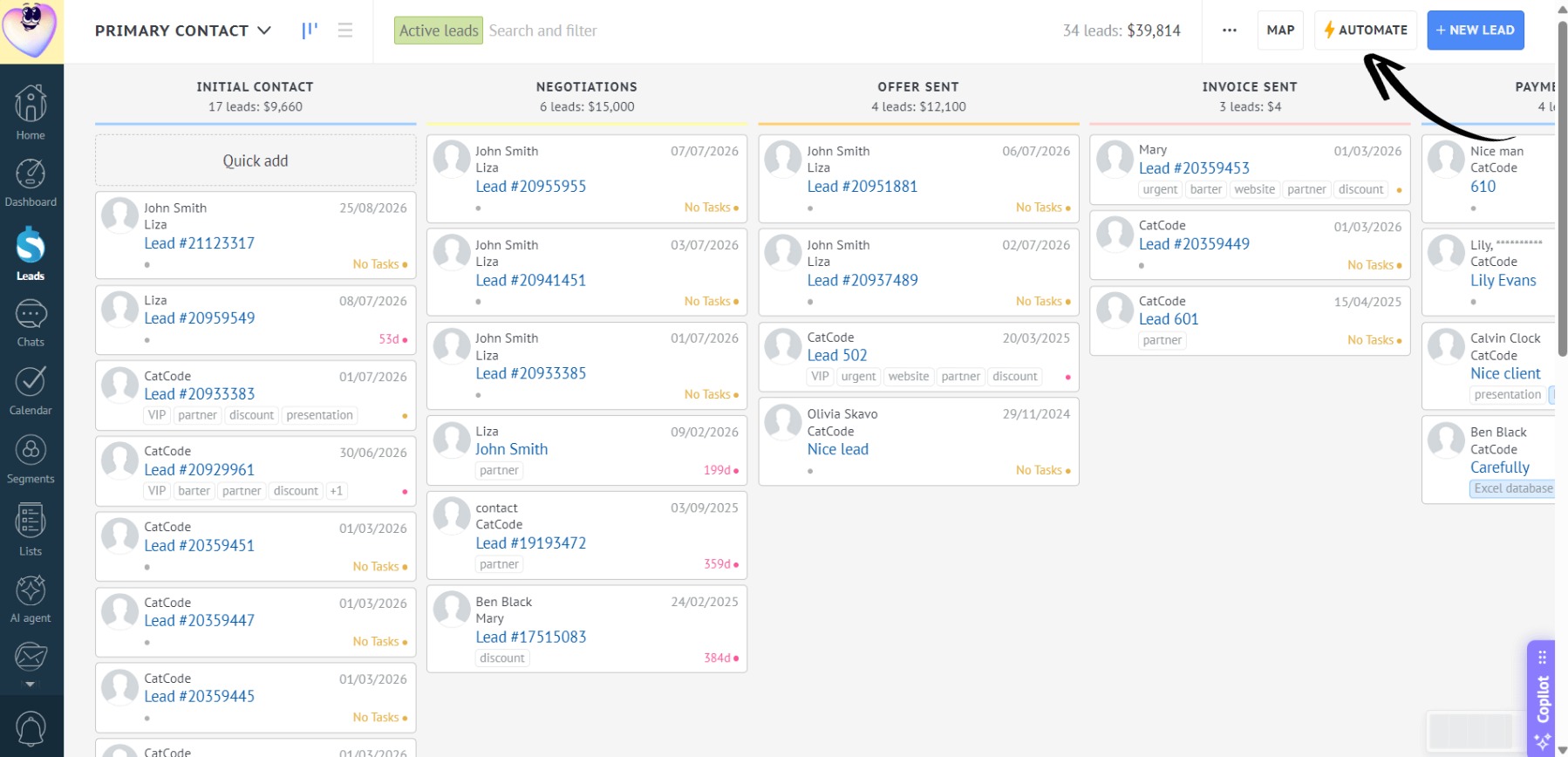
- Go to the “Leads” section and click the “Automate” button:
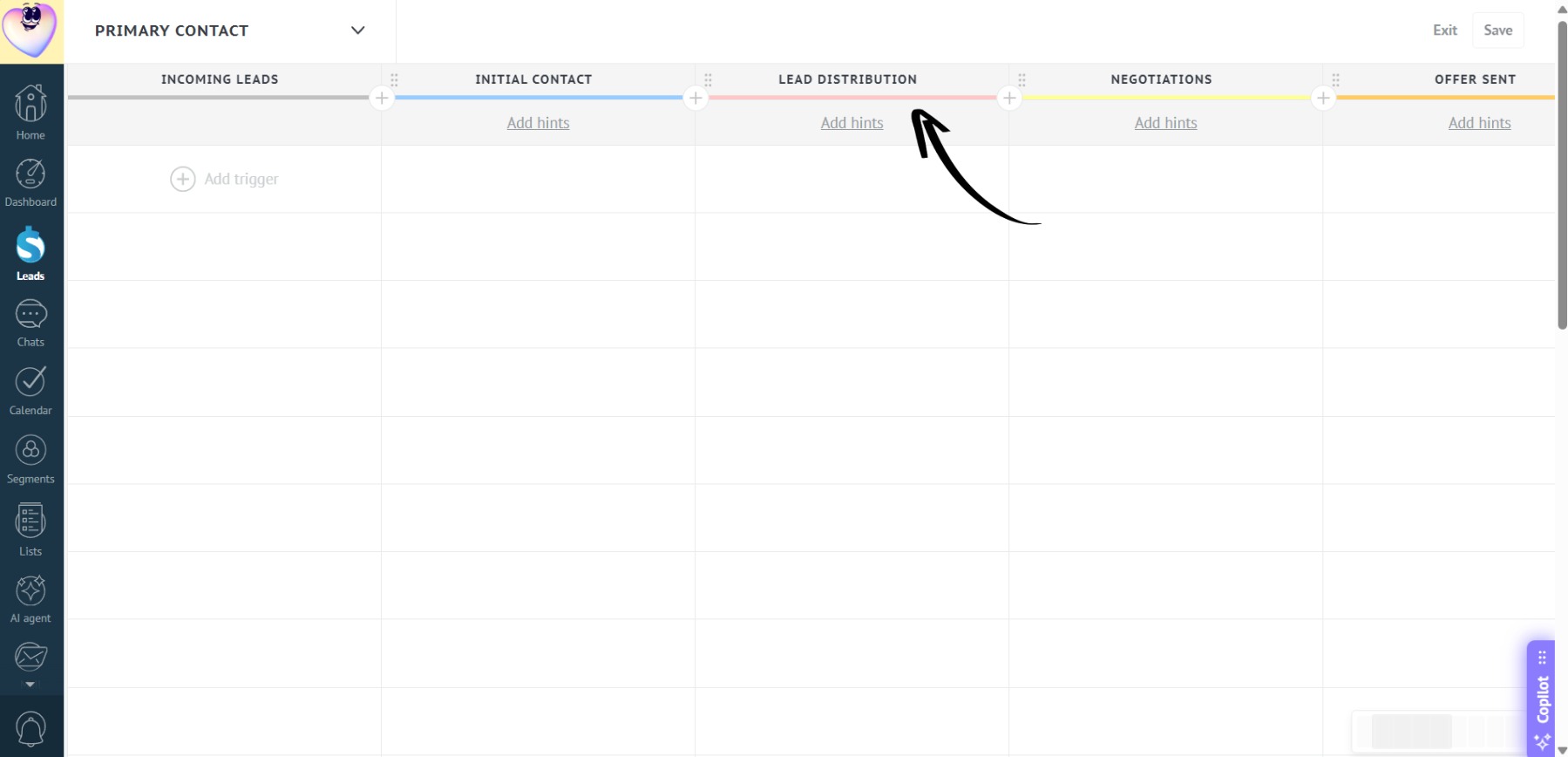
- In the pipeline that opens, create a new stage and name it, for example, “Lead Distribution”. Save your changes:
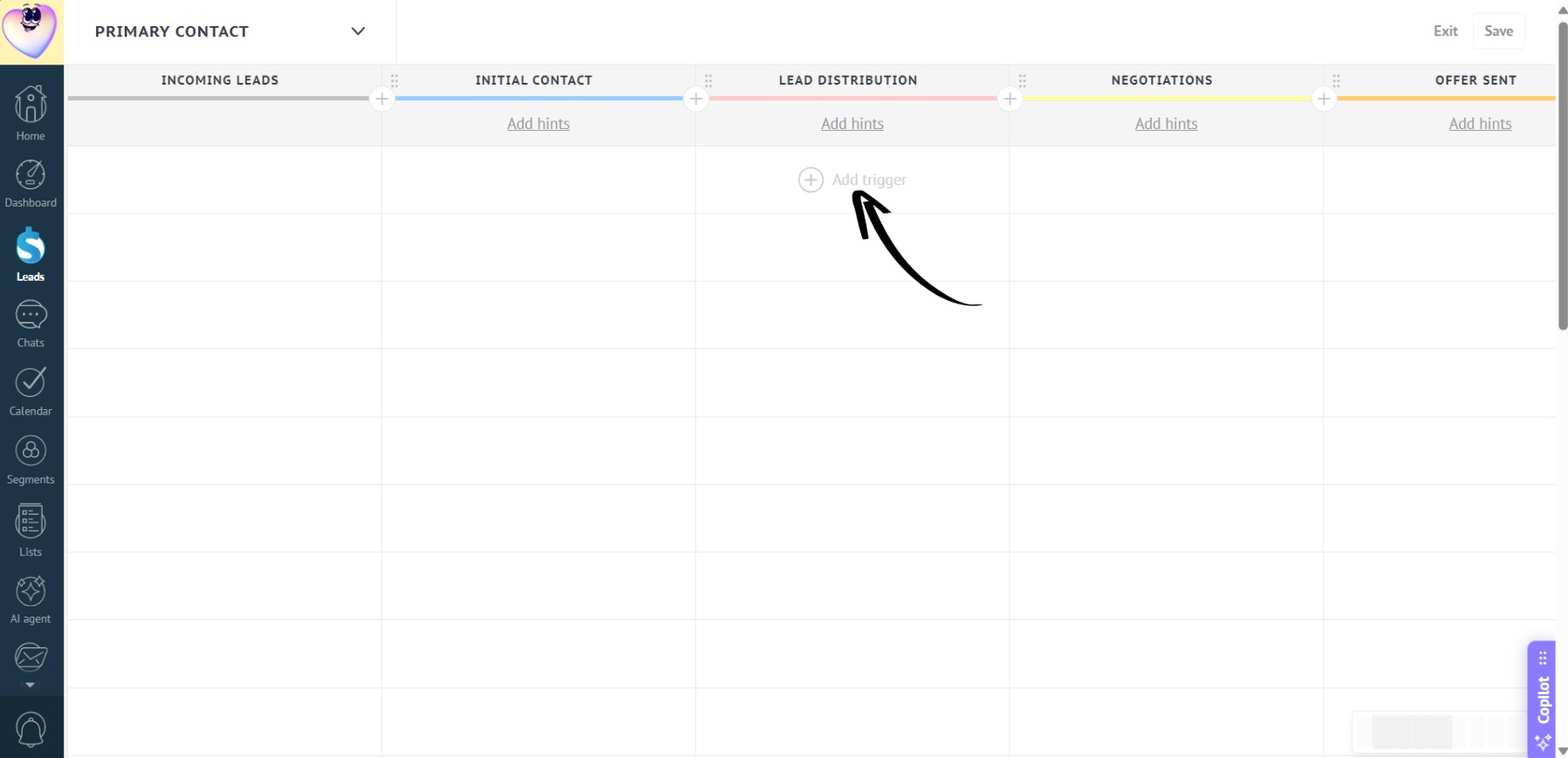
- Next, click “Add trigger”:
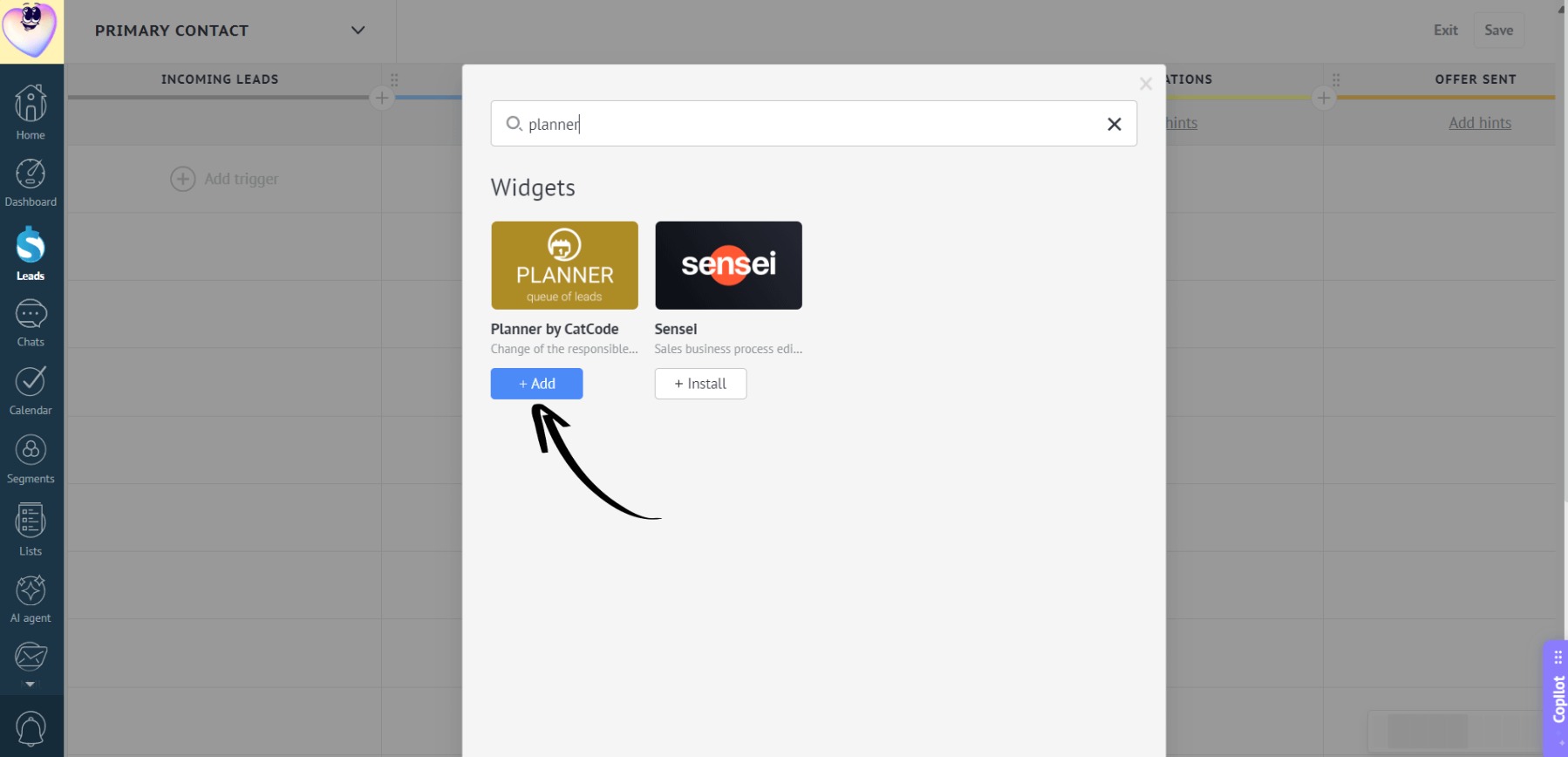
- Type “Planner” into the search bar, select the required one, and click “Add”:
- You can set conditions for when the trigger should fire. For example, only for leads with a budget of $1,000 or more:
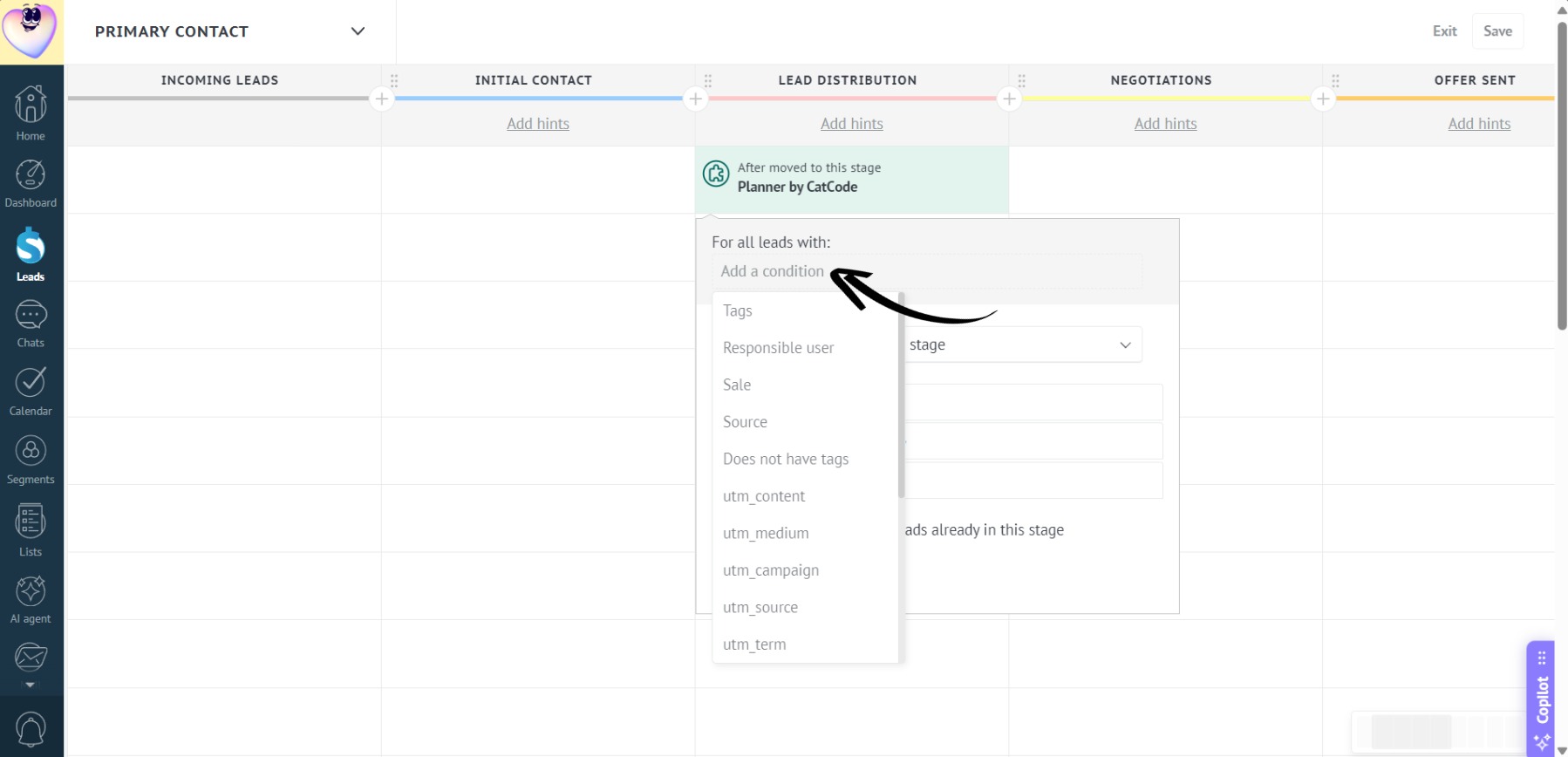
If no conditions are set, the trigger will fire for all leads in this pipeline stage.
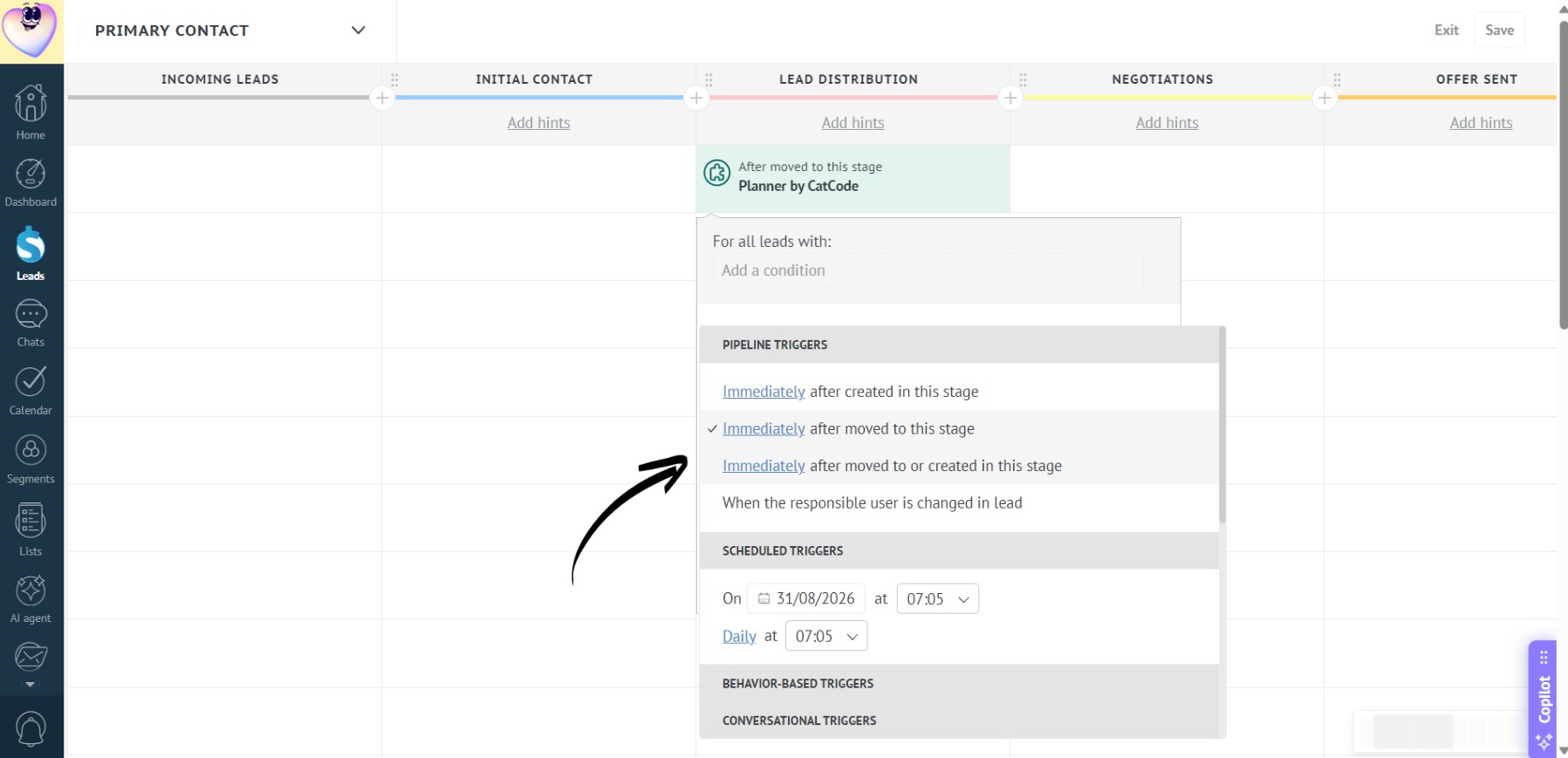
- In the “Pipeline triggers” tab, select when the trigger should perform lead distribution — for example, immediately after a lead is moved to or created in this stage:
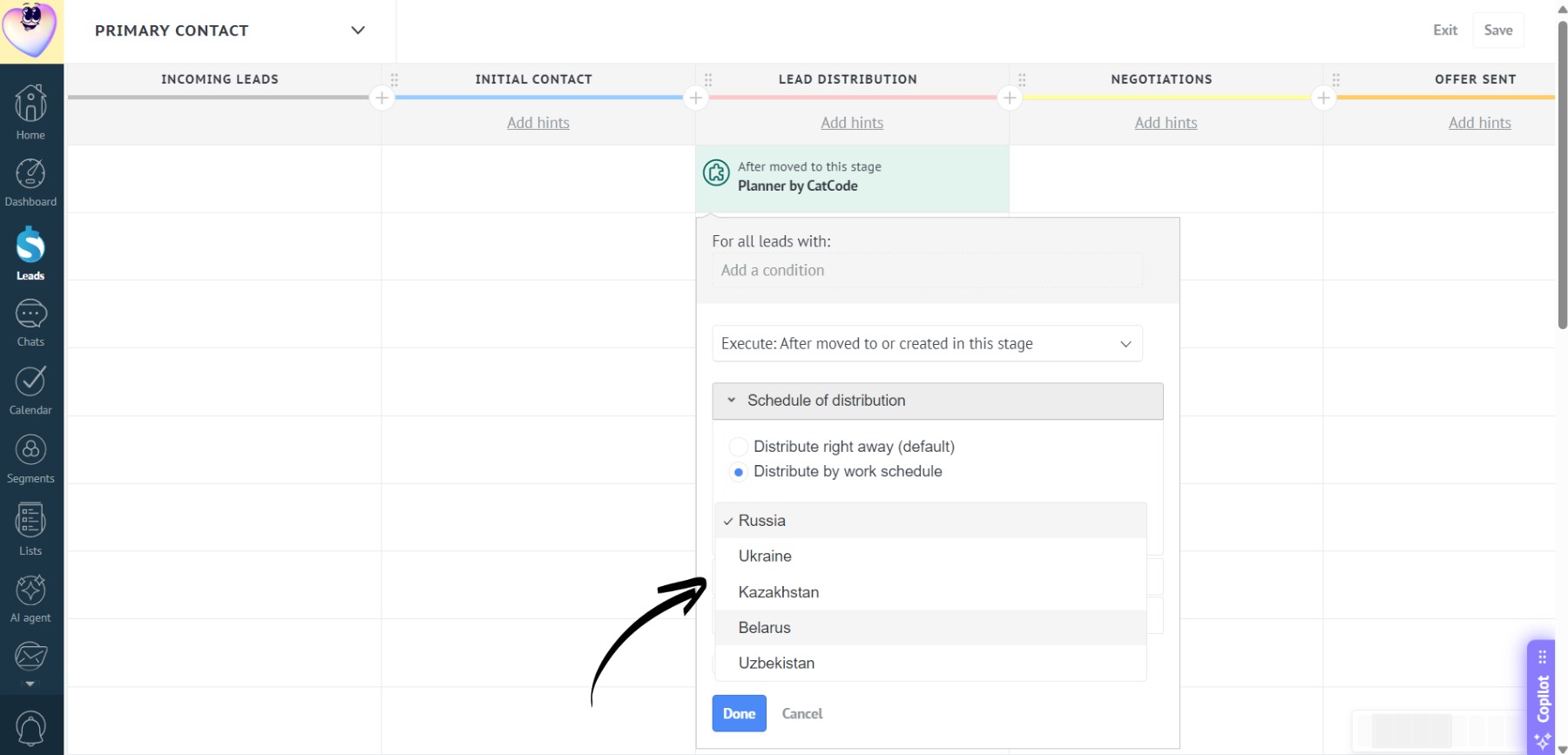
- Set up the lead distribution schedule:
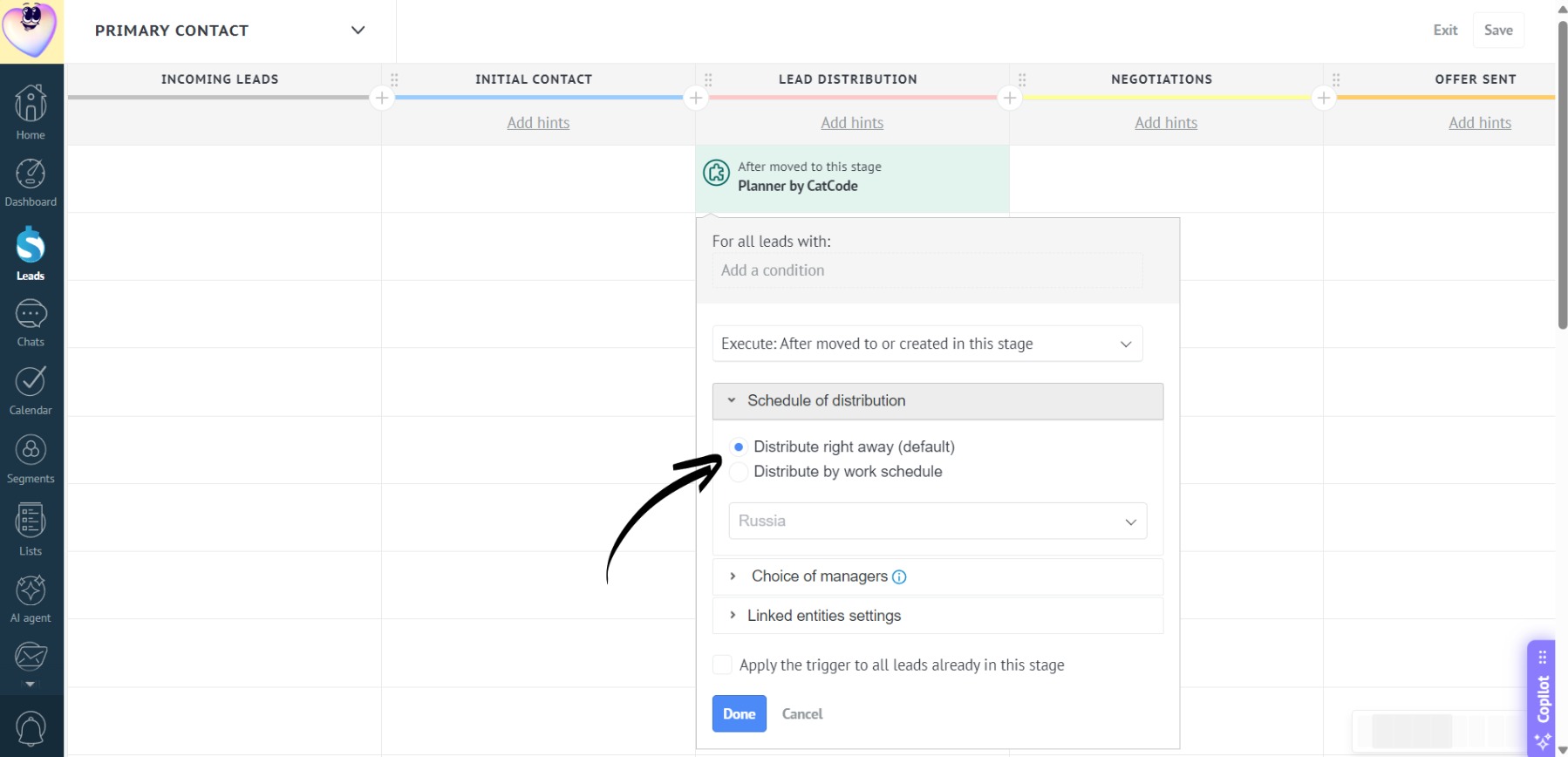
- Distribute right away — the lead is assigned to a new responsible manager immediately, regardless of the time.
- By work calendar — leads are distributed only during working hours (select a country from the list, and the calendar will adjust to its schedule):
- Select the managers among whom leads will be distributed:
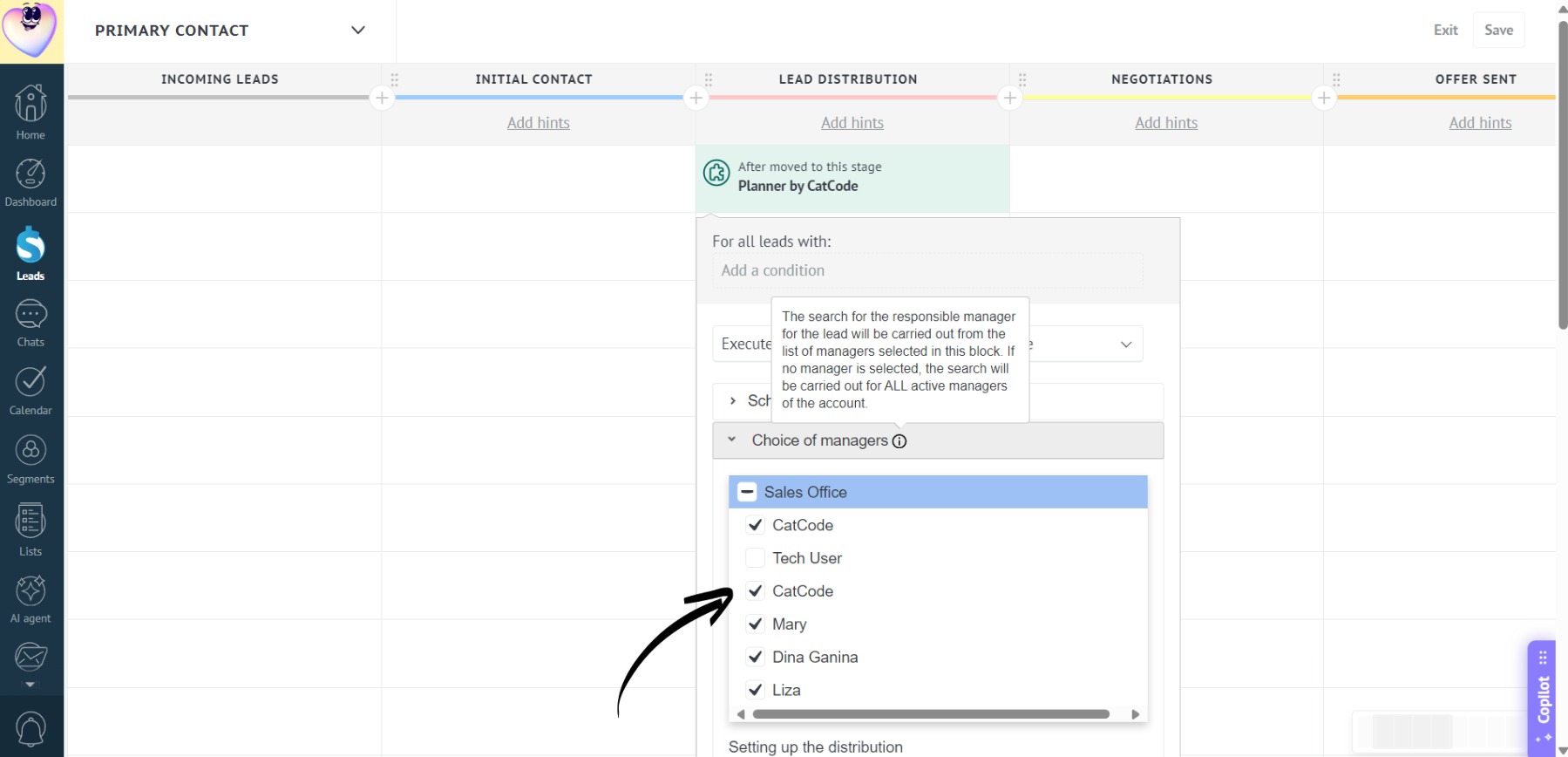
If no employees are selected, leads will be distributed across all active managers in the account.
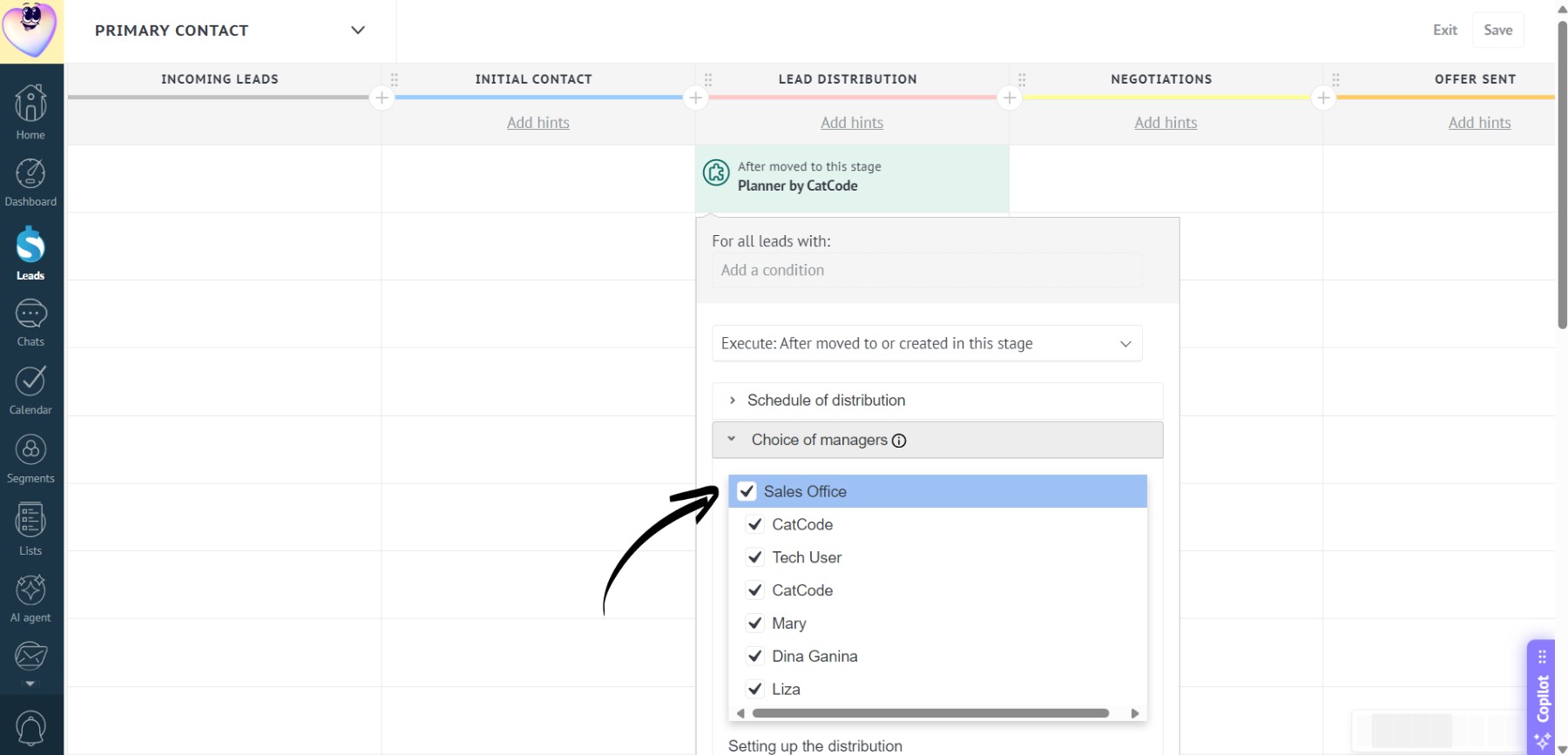
- If you want to select all managers in a department, simply check the box next to the department name — all employees will be selected automatically:
- Next, select a lead distribution setting:
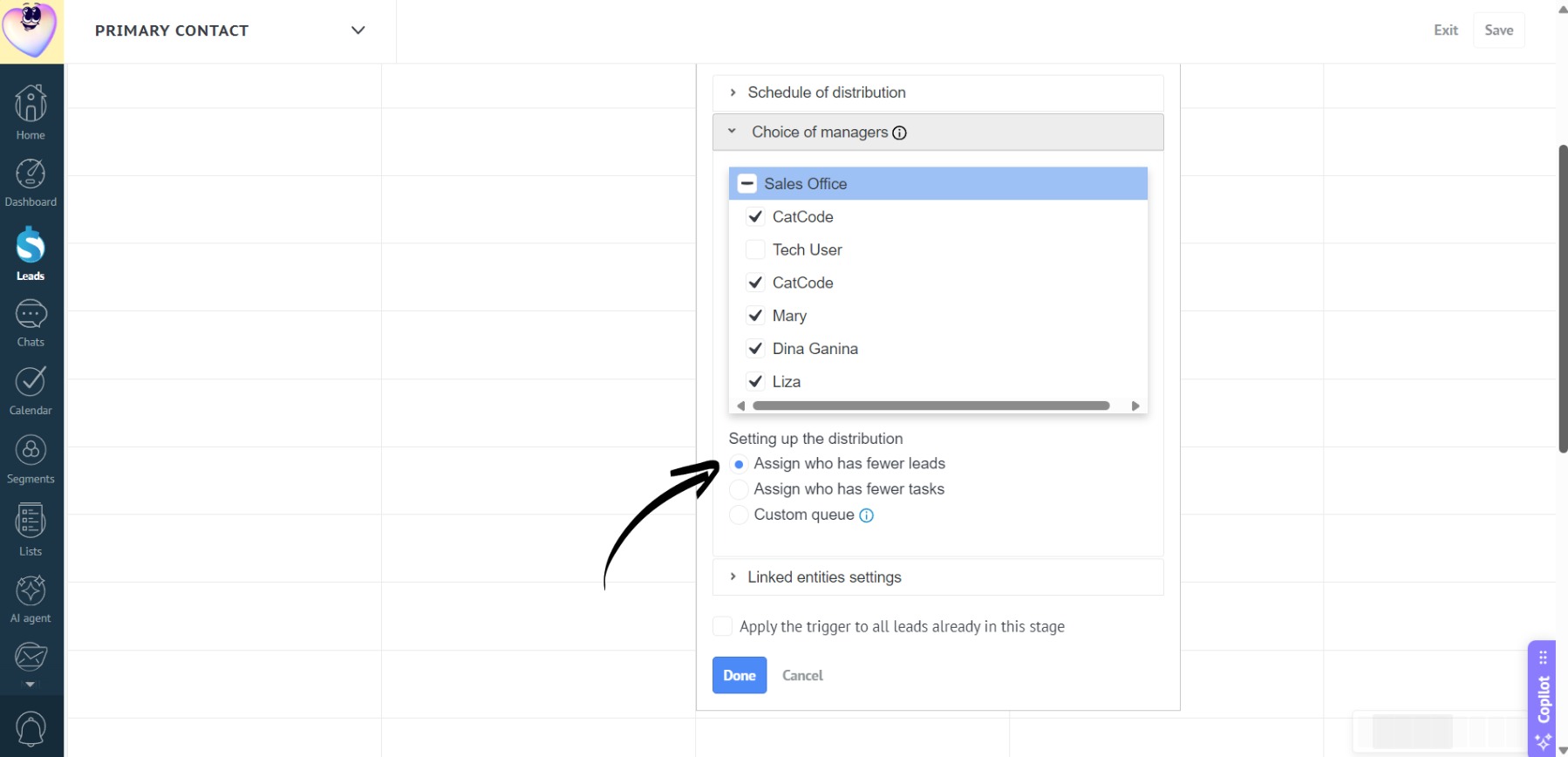
- Assign who has fewer leads — the lead is assigned to the manager with the lowest number of active leads.
- Assign who has fewer tasks — priority is given to the manager with the fewest tasks.
- Custom queue — leads are distributed in the order you specify, from top to bottom in the list below:
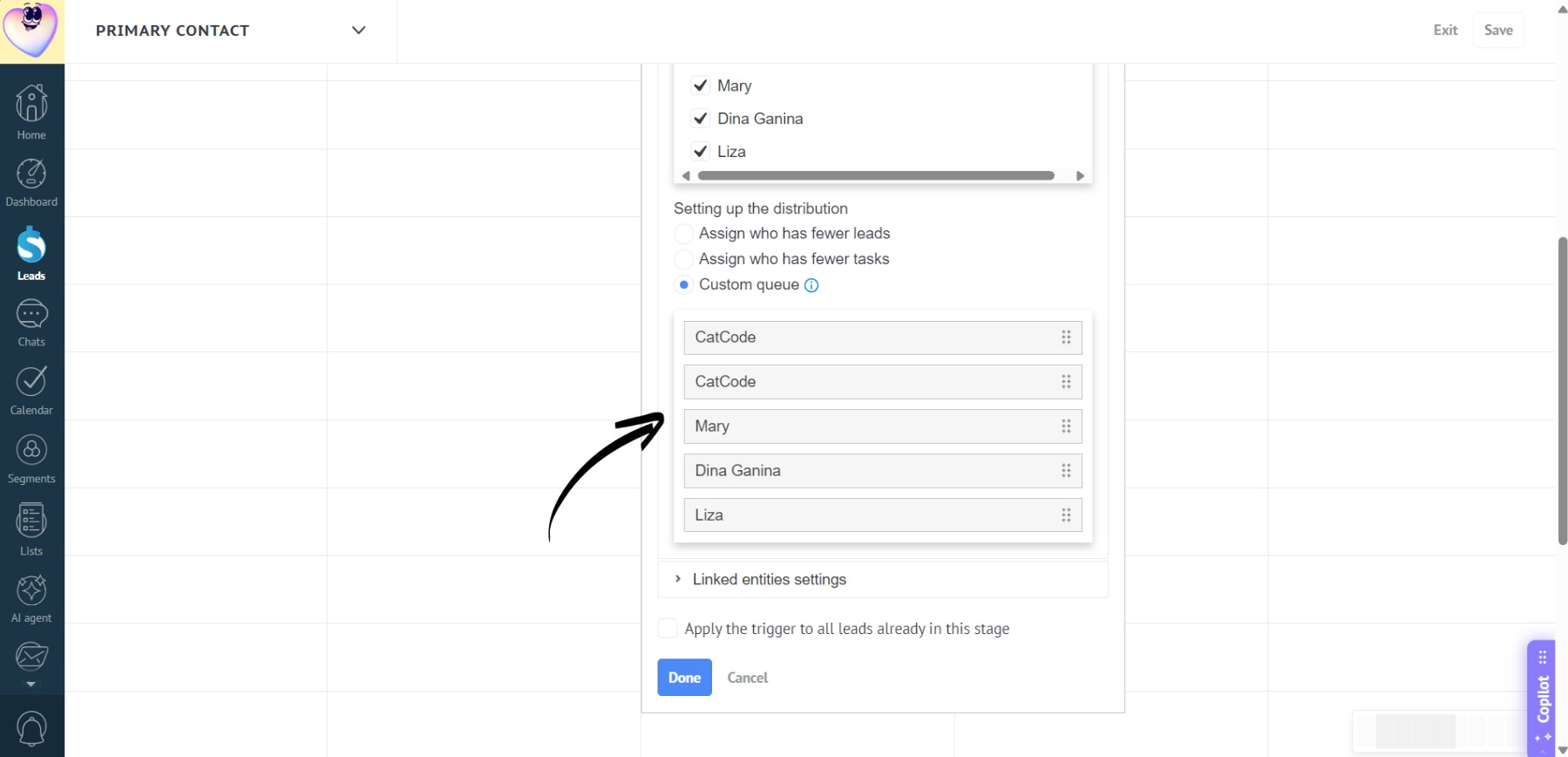
You can move managers to arrange them in your preferred order.
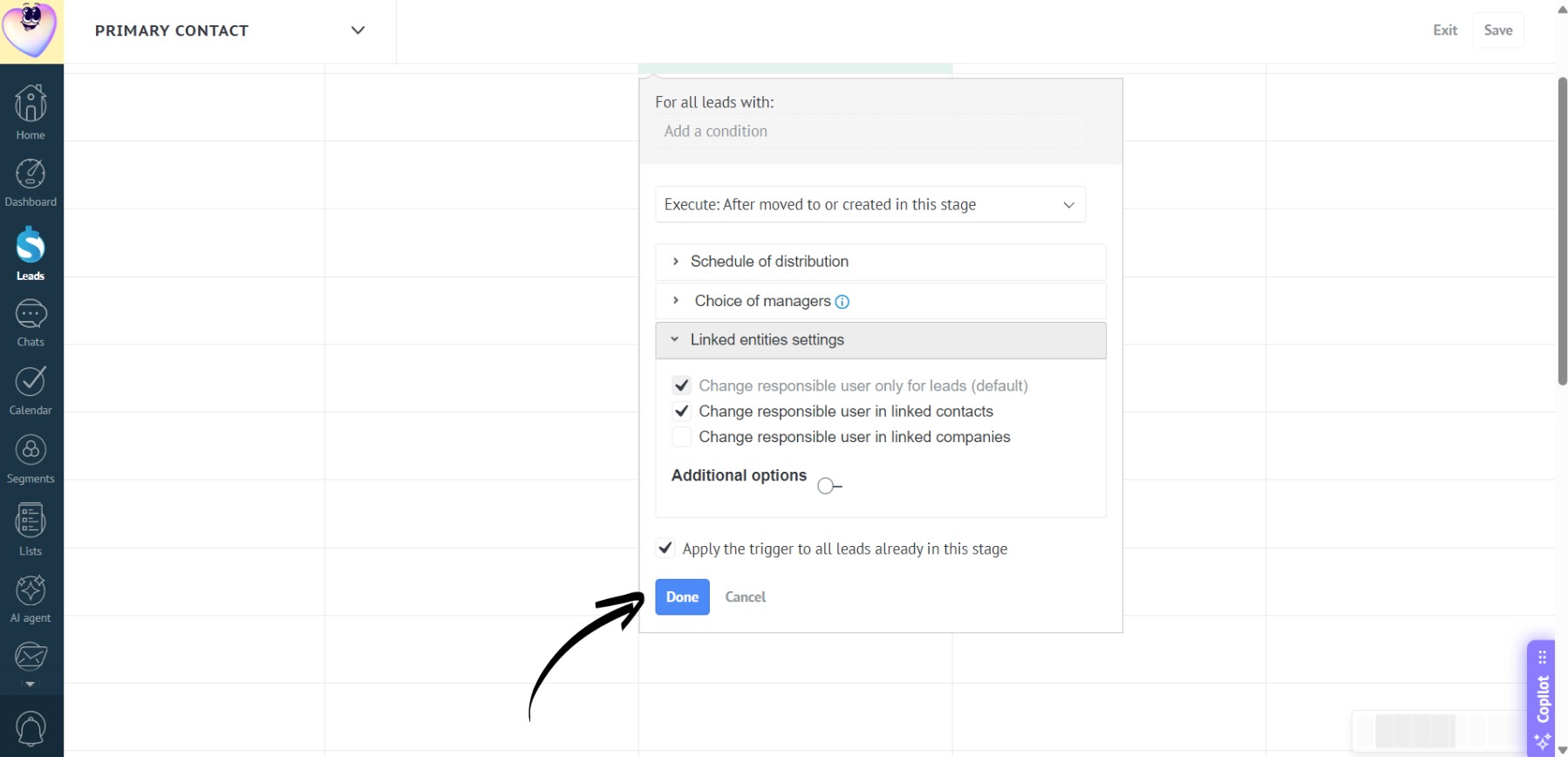
- You can enable changing the responsible manager not only in the lead, but also in its linked entities — contacts and/or companies. When the lead owner changes, it will automatically update in the linked contact and/or company:
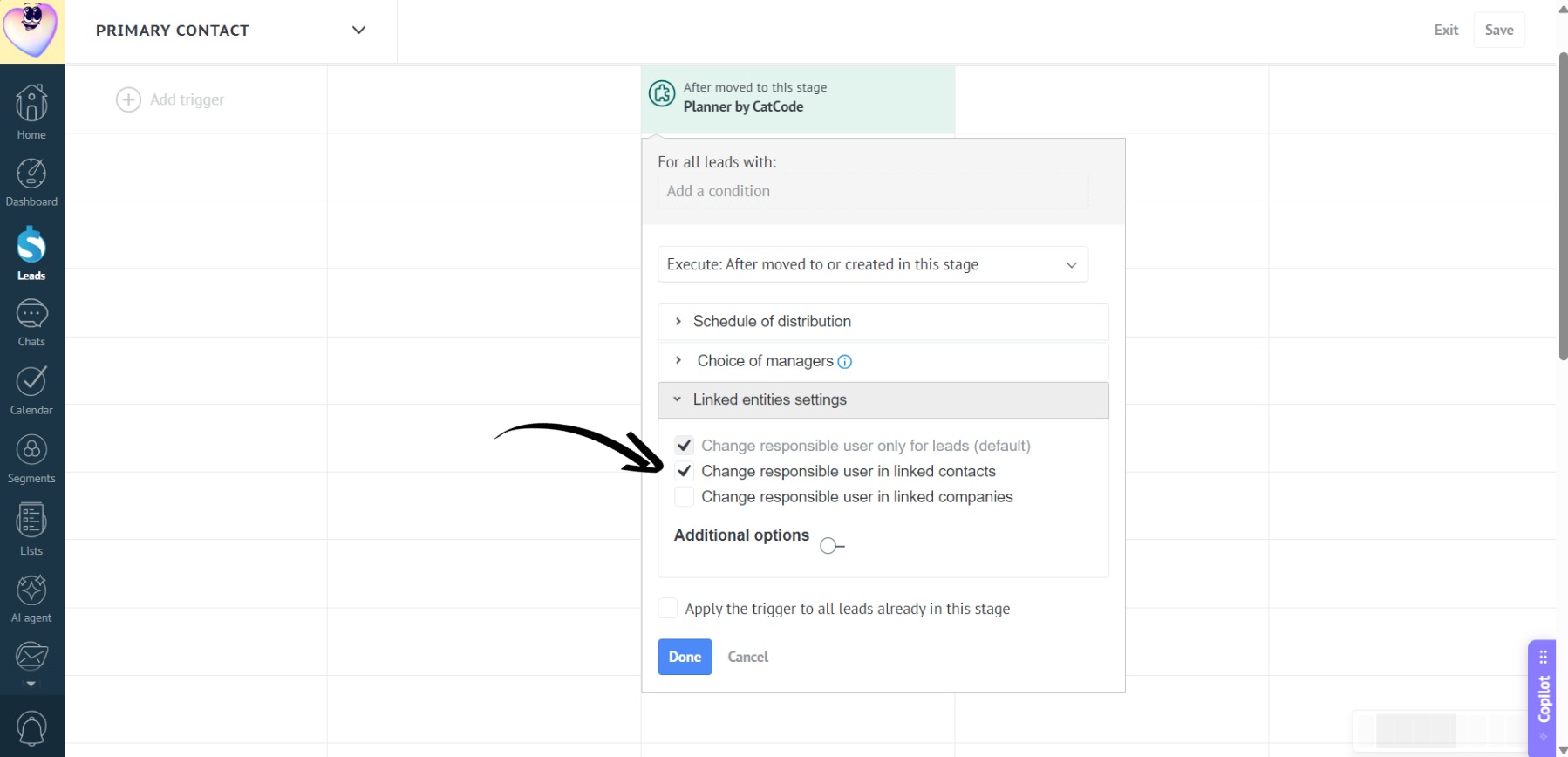
You can enable either option or both at the same time. If neither is selected, the responsible manager will only be changed in the lead.
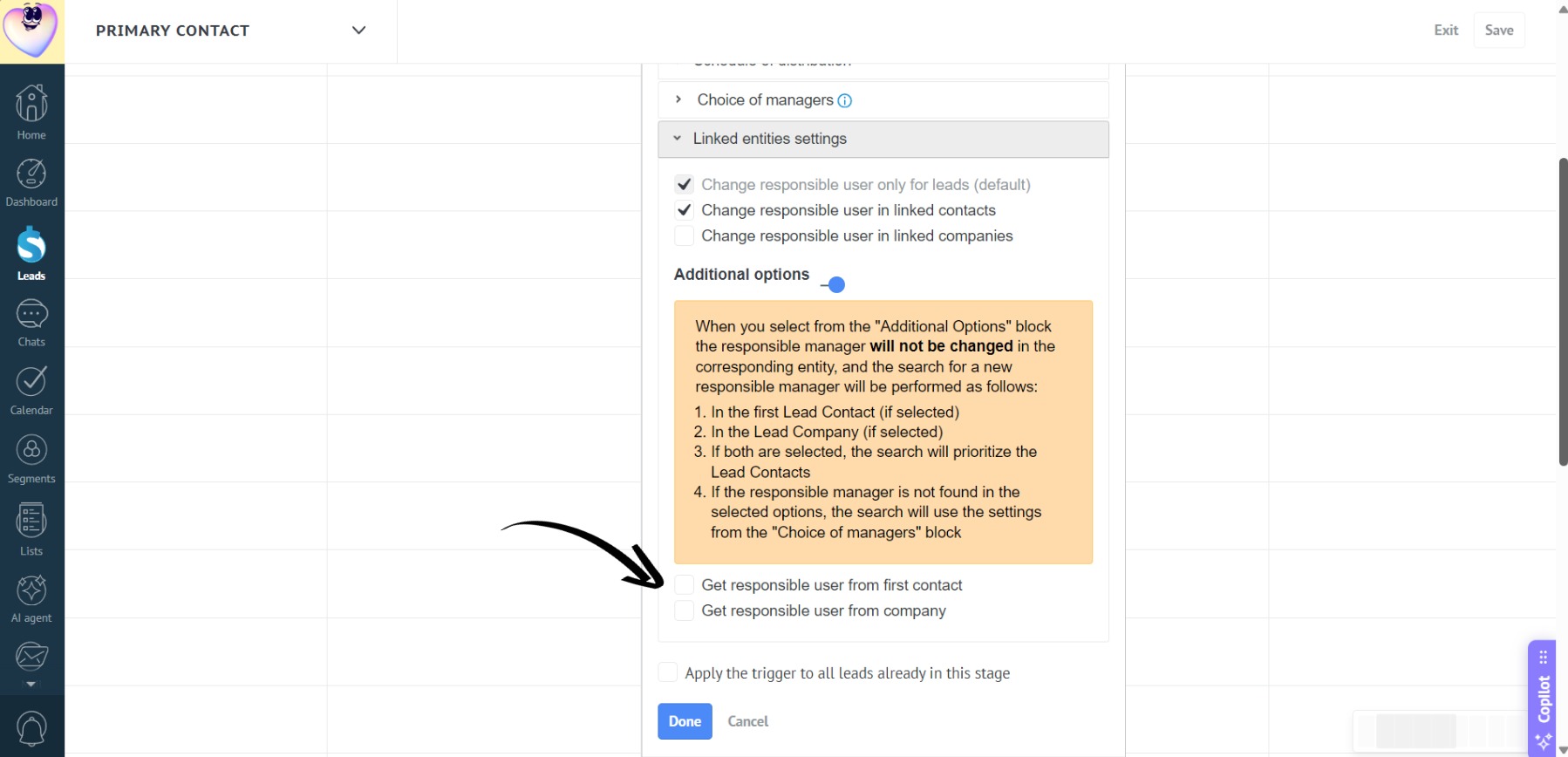
- If you want to assign the manager based on the associated contact or company, enable the “Additional options” setting. The search for the new responsible manager will performed as follows:
- In the first Lead Contact (if selected).
- In the Lead Company (if selected).
- If both are selected, the search will prioritize the Lead Contacts.
- If the responsible manager is not found in the selected options, the search will use the settings from the “Choice of managers” block.
- If necessary, check the “Apply the trigger to all leads already in this stage” box — the trigger will then fire for existing leads in this stage:
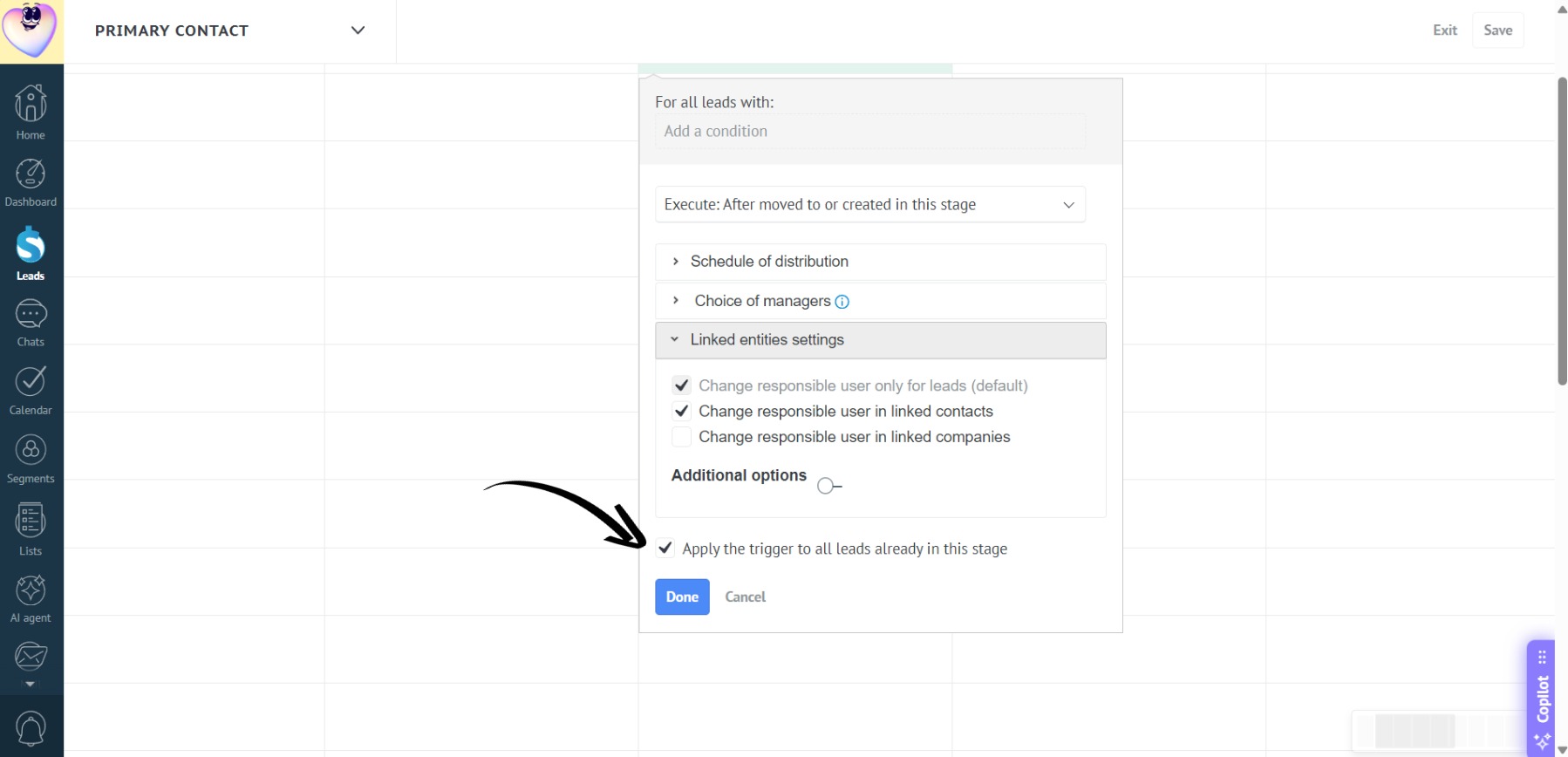
- Click “Done”:
- And “Save”: