Required Payment at Stage
Are managers closing leads too early or accidentally moving them to the wrong stage? This setting lets you restrict certain stages until all required payments are made.
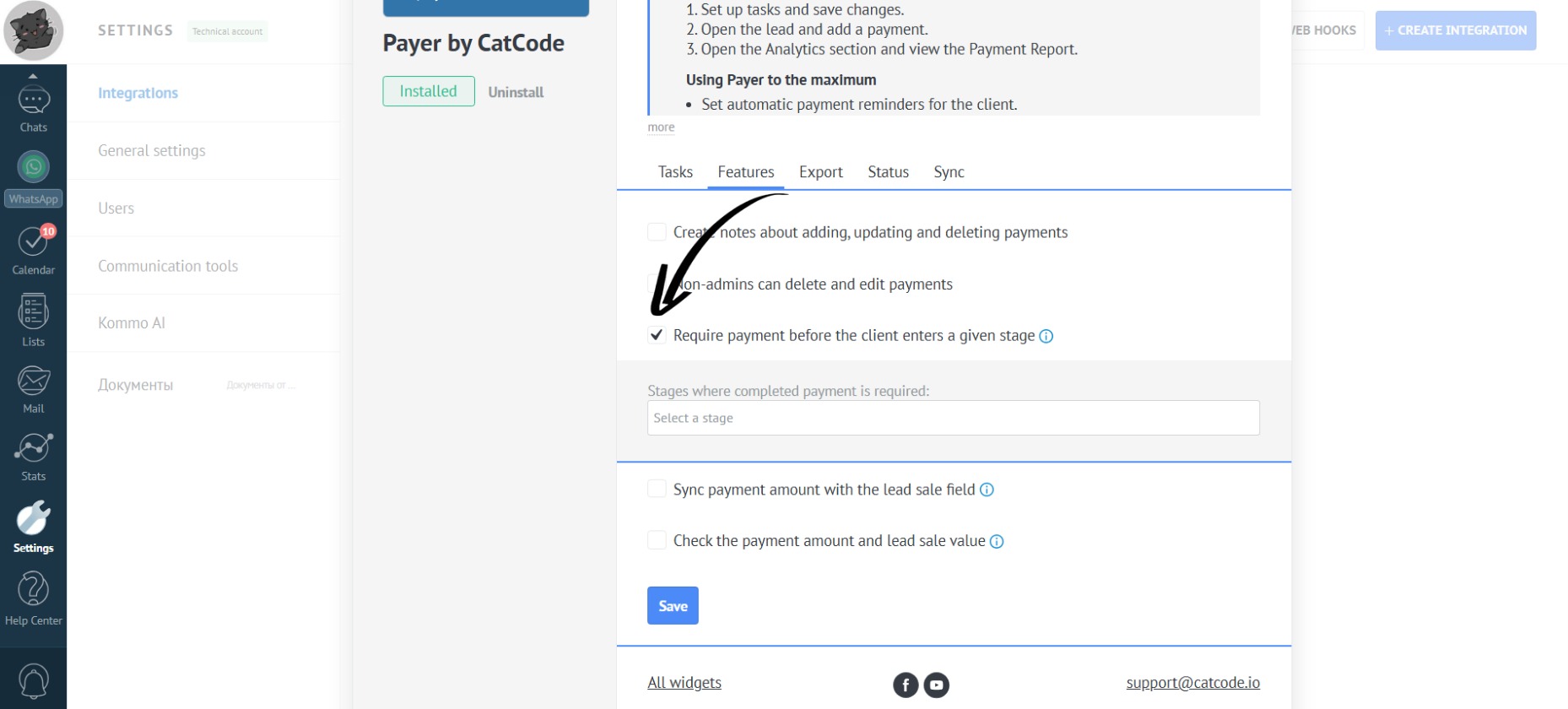
- In the app settings, go to the “Features” section. Check the box next to “Require payment before the client enters a given stage” to automatically verify that all payments are completed in the selected lead statuses:
- Check the boxes for the statuses where payment must be completed. For example, if you select the “Payment received” stage, it means the lead must have all payments completed by the “Payment received” stage in order to move to the next stage in the pipeline:
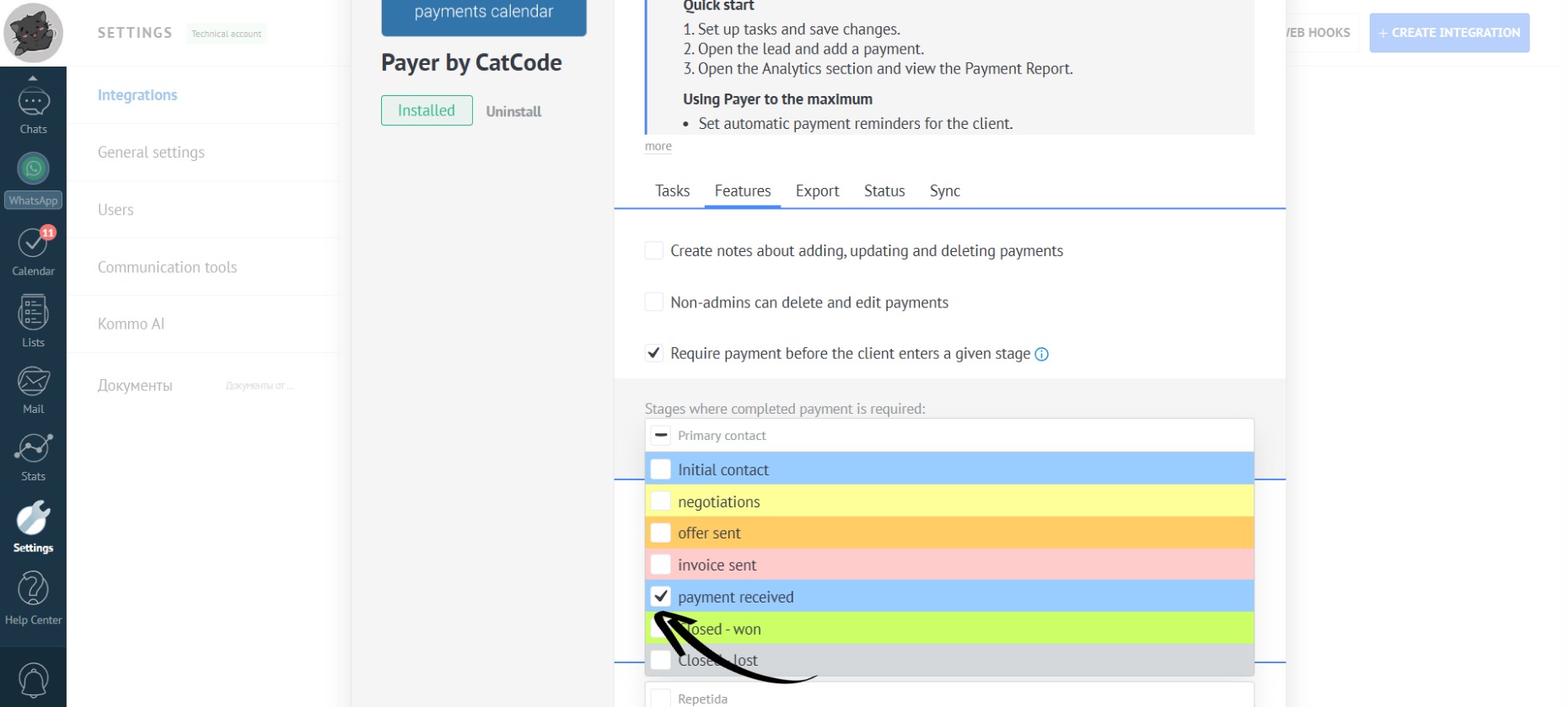
You can select multiple statuses at once.
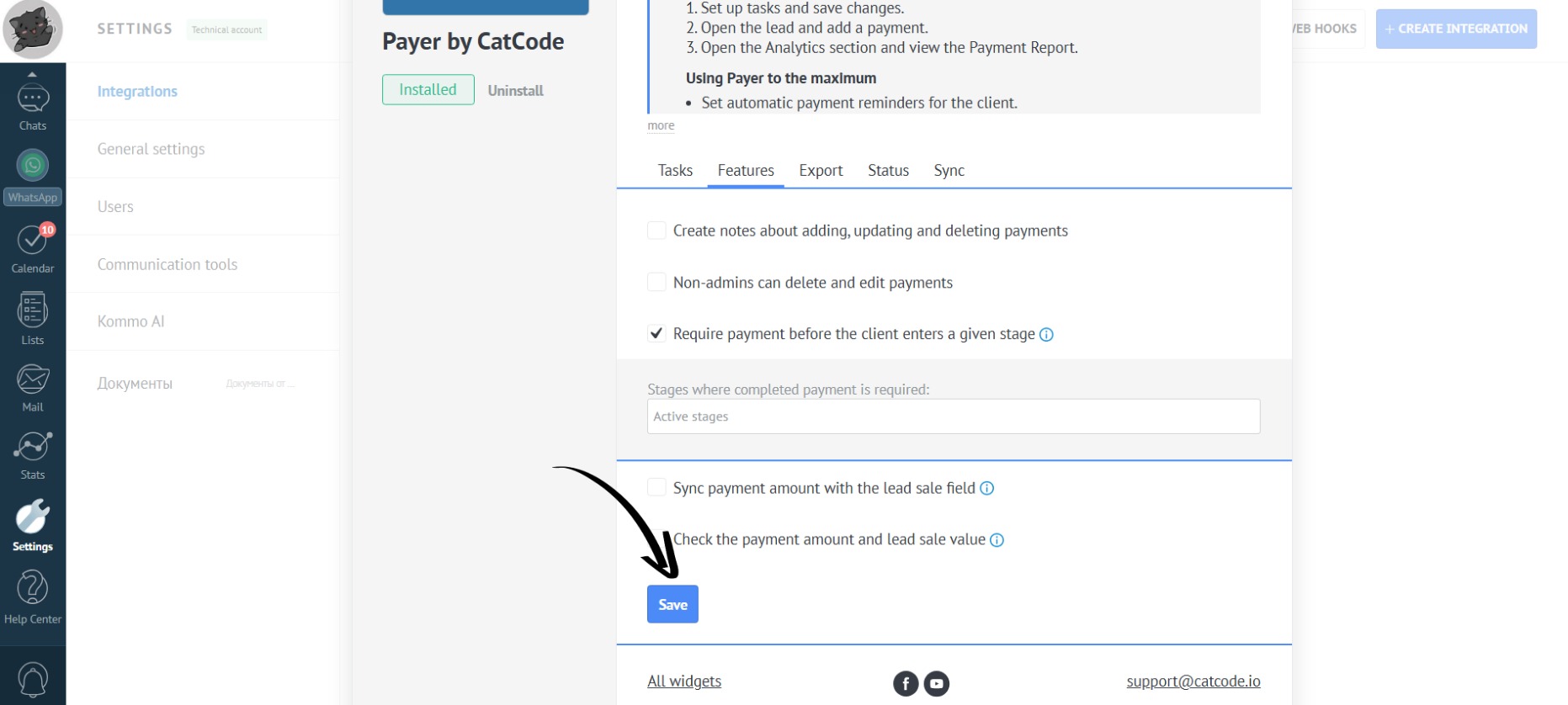
- After that, click the “Save” button:
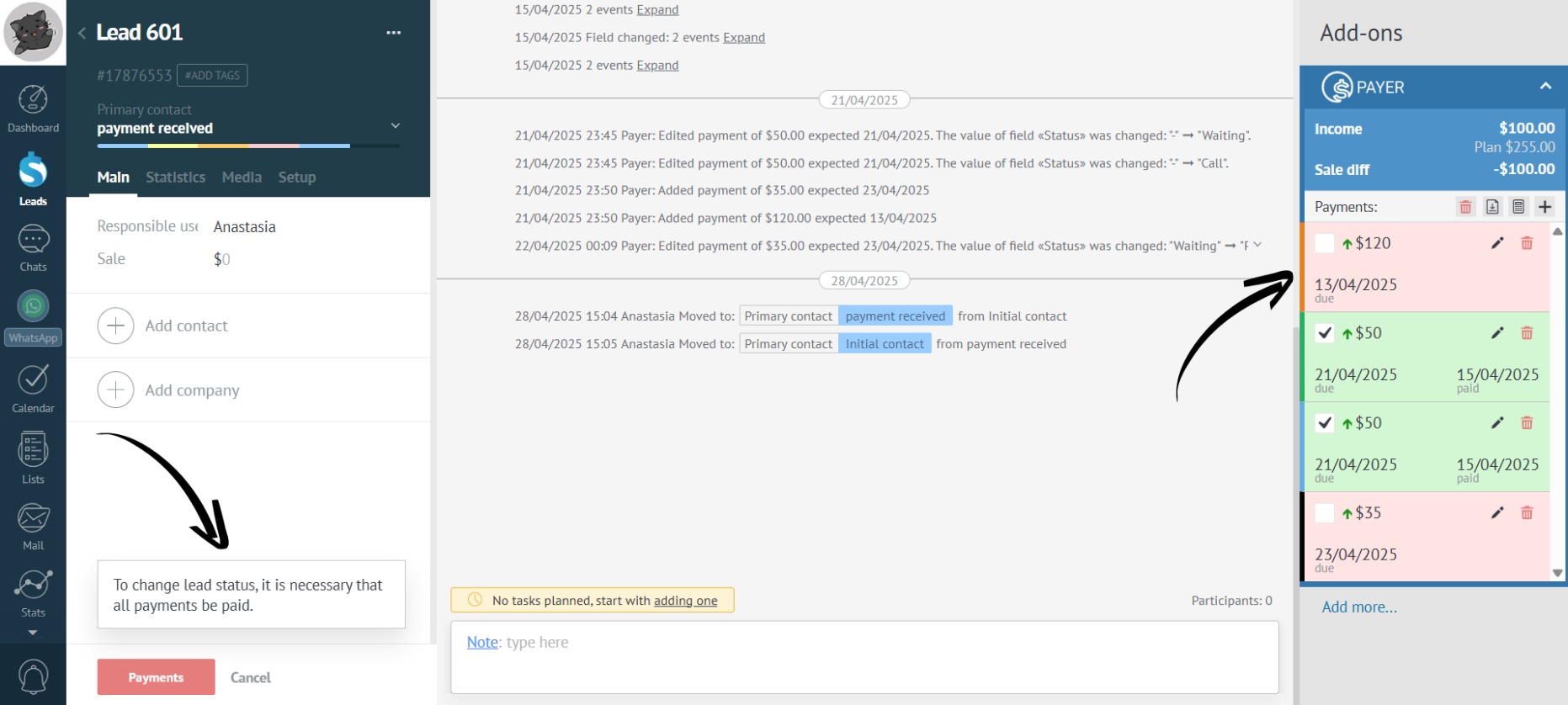
- For example, you go to a lead where payment hasn’t been received for all payments, and you want to move it to the next stage in the pipeline:
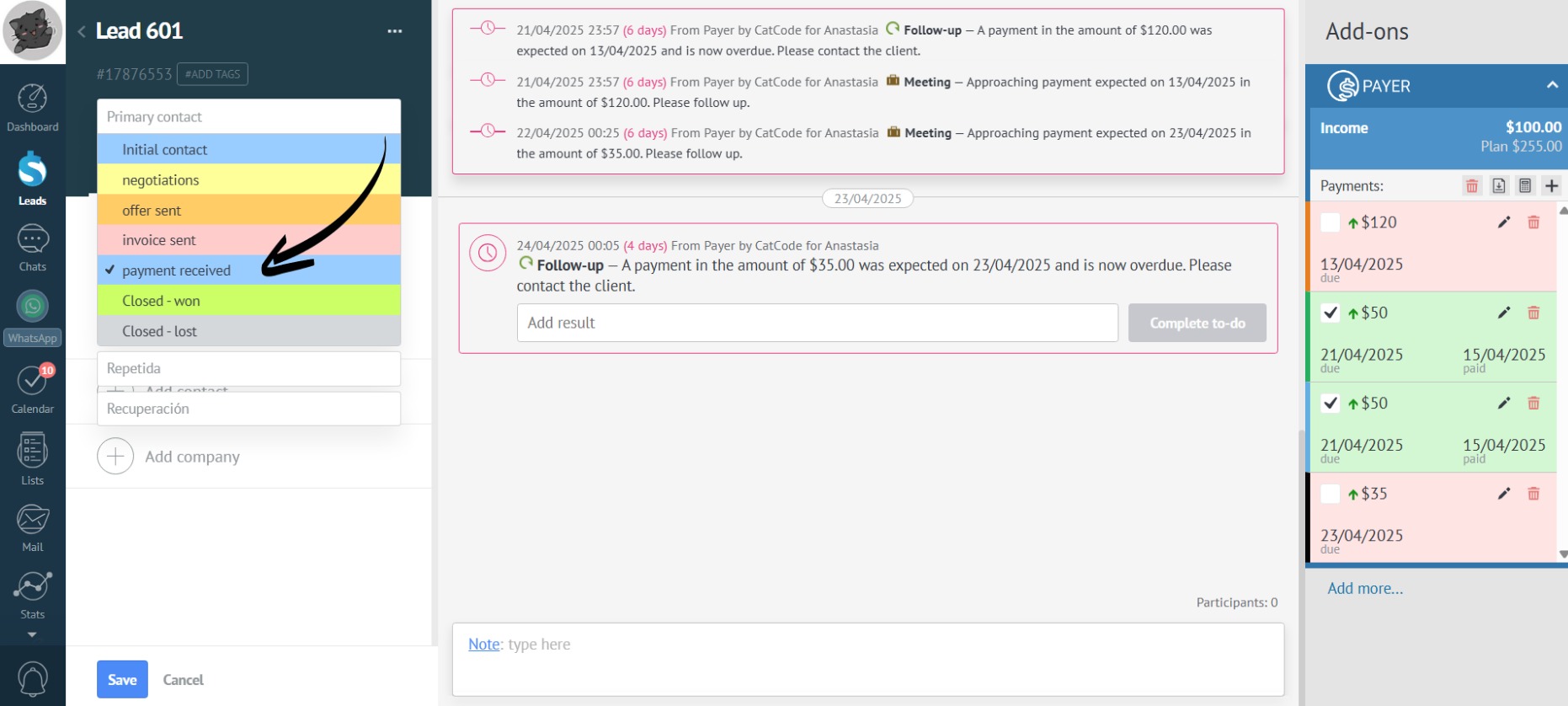
- You try to move the lead to the “Payment received” stage (if you previously selected this status). The app won’t allow you to do this, as payment hasn’t been received for all payments in this lead:
This check is important to prevent managers from closing leads too early or accidentally moving a lead to the wrong stage.