App Configuration
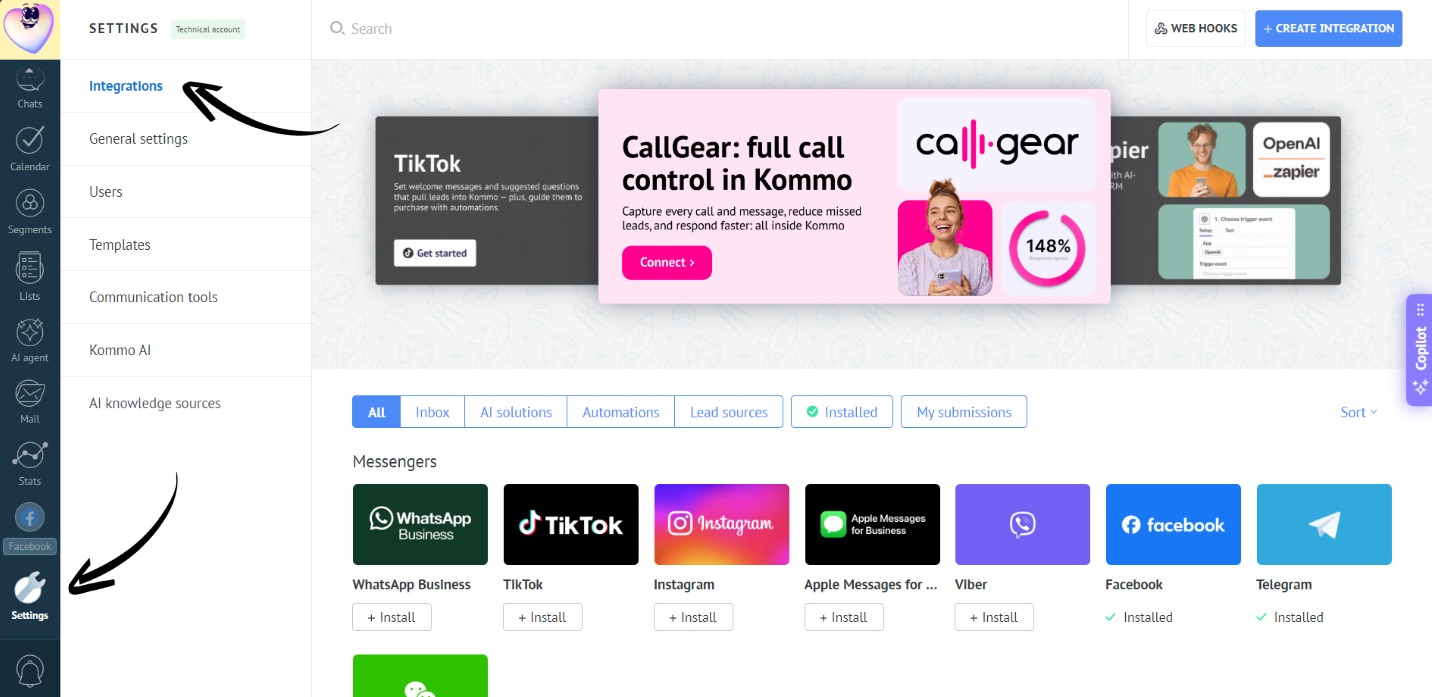
- Go to the “Settings” section. Open the “Integrations” tab:
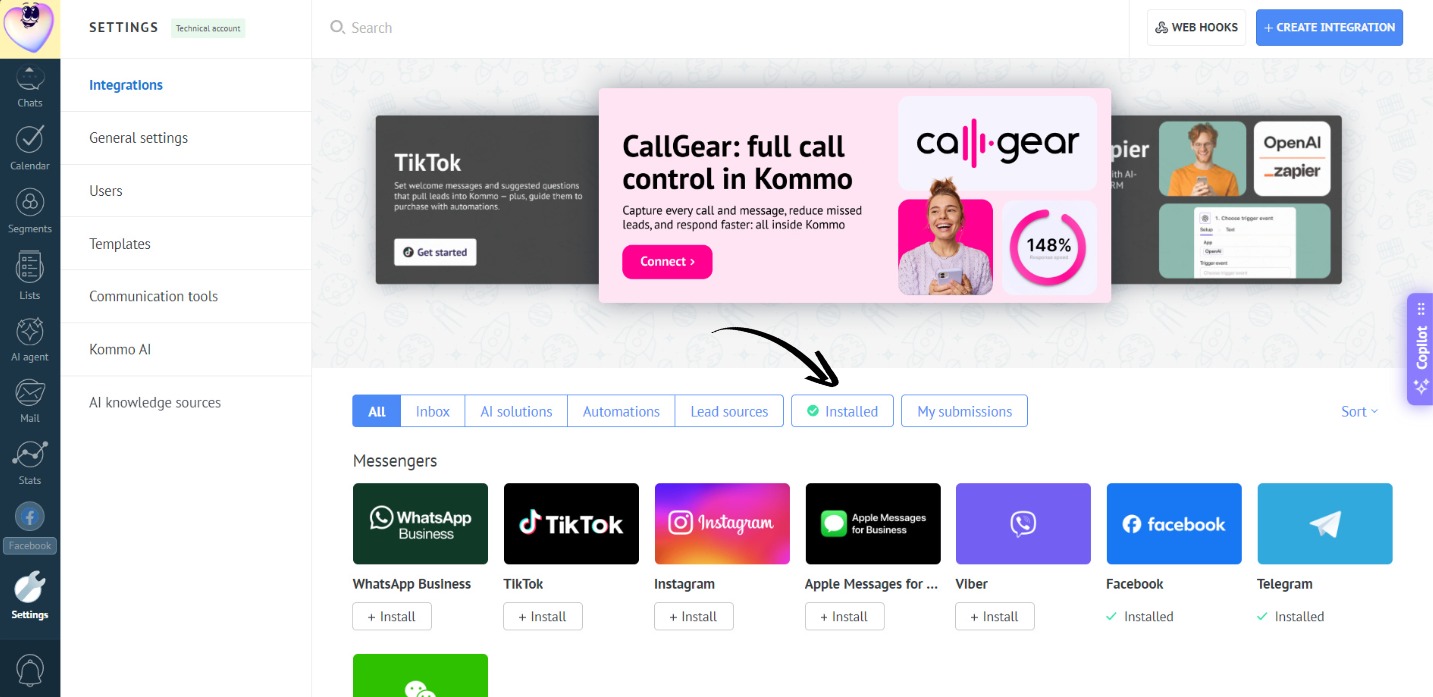
- Go to the “Installed” section:
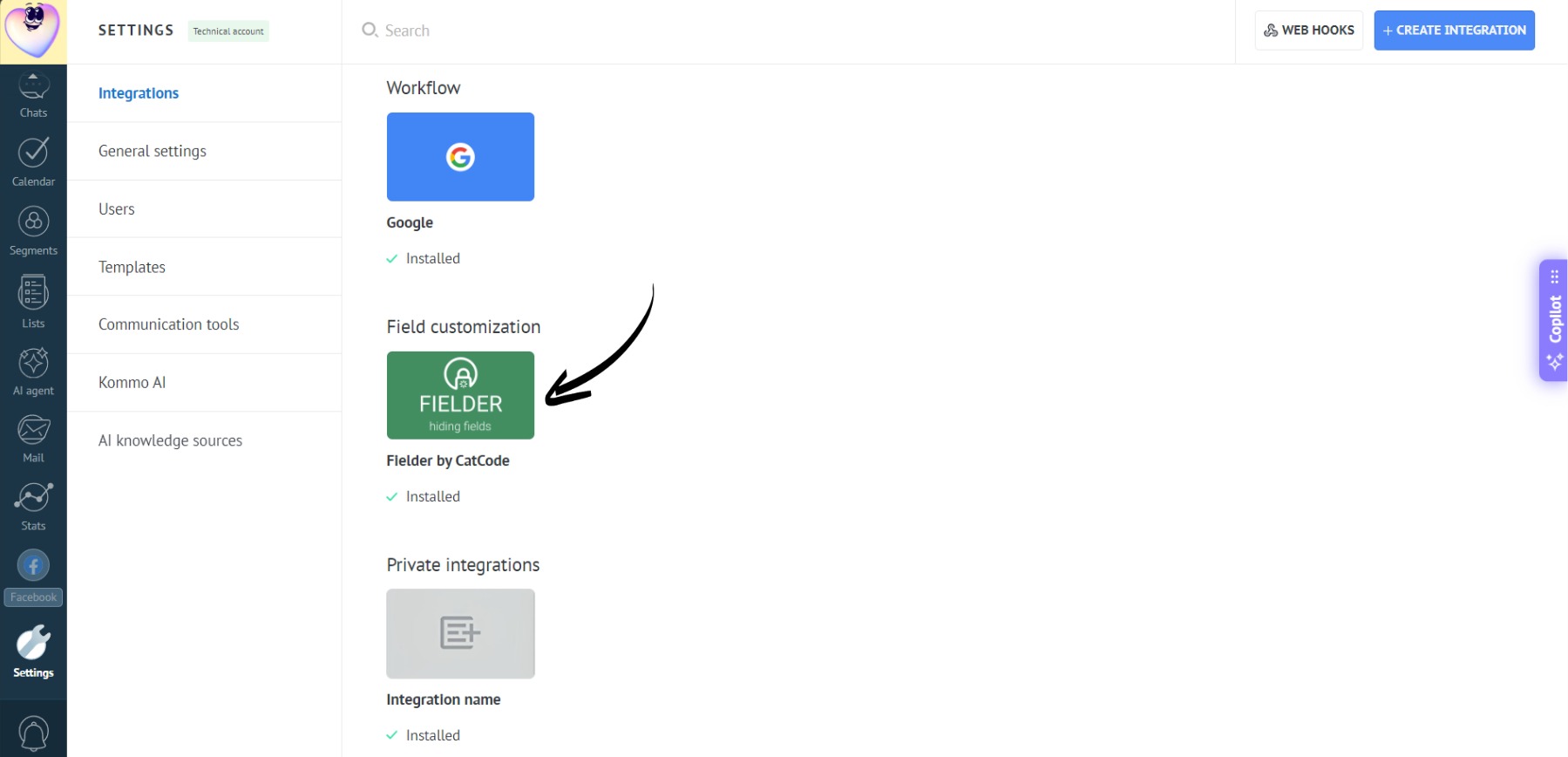
- Open the app:
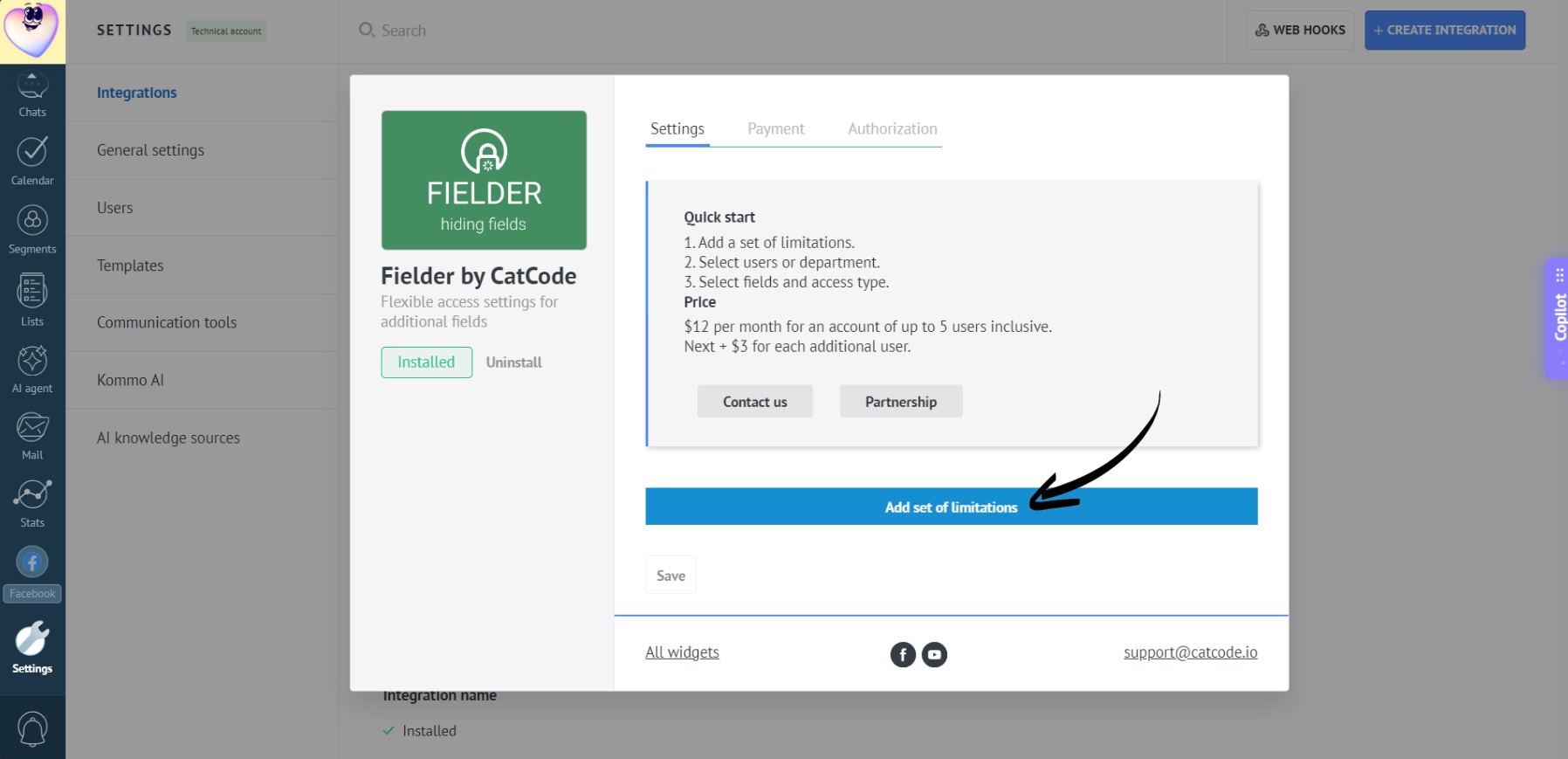
- Click “Add set of limitations”:
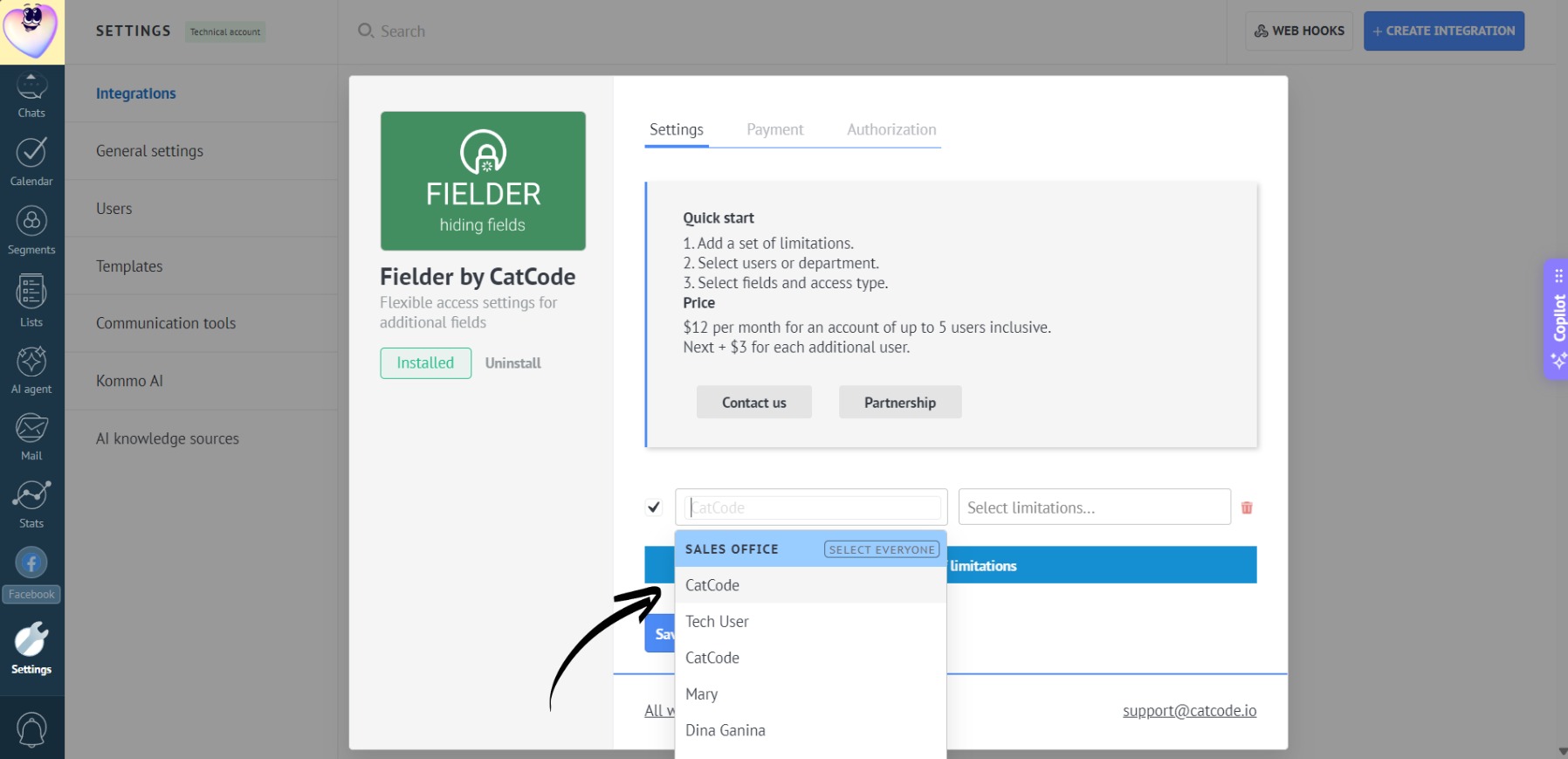
- Choose one or more employees (or an entire department) to apply restrictions to:
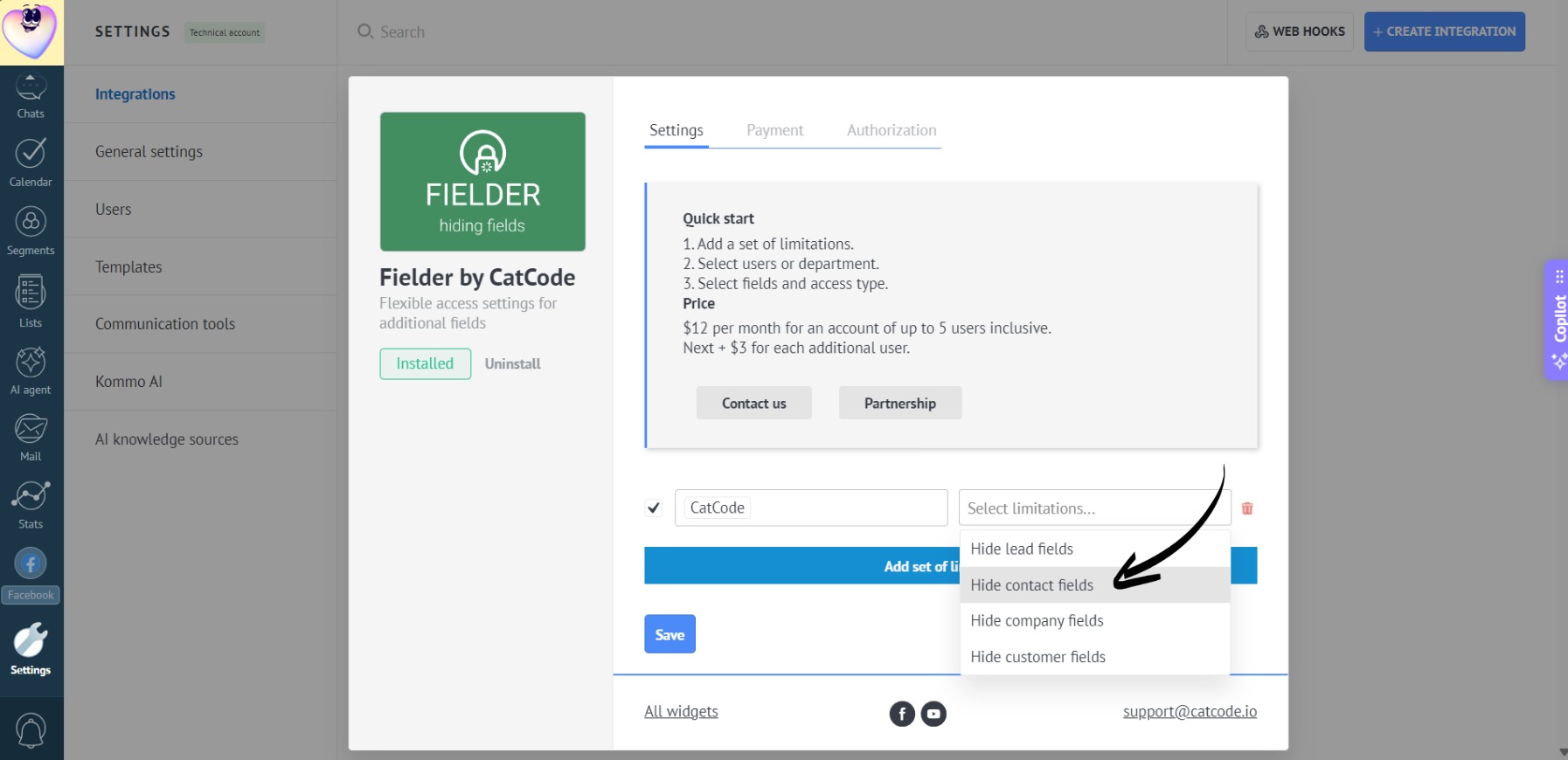
- Set restrictions for lead/contact/company/customer fields:
- For example, you can prevent an employee from editing the lead name:
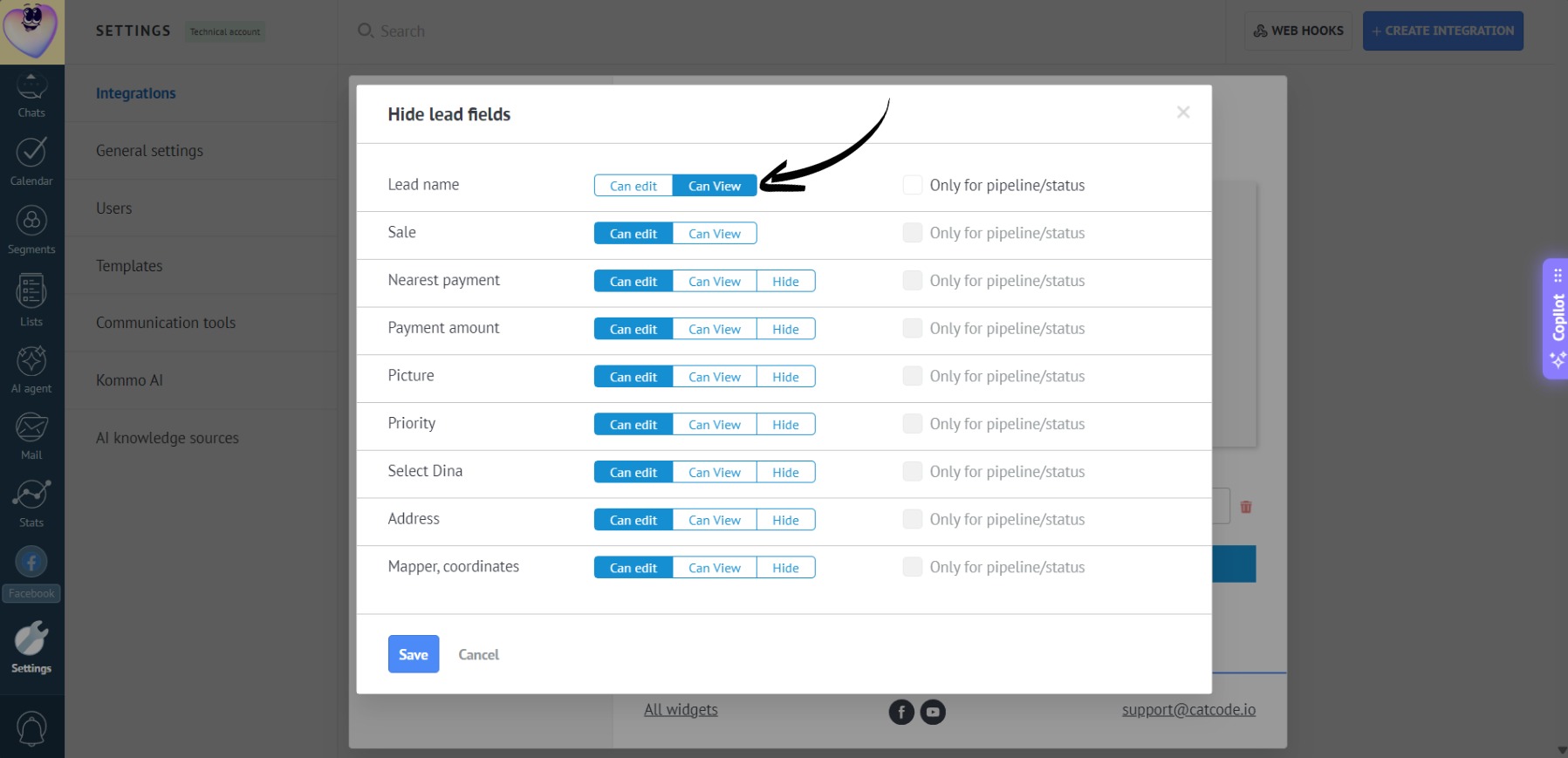
Access type differences:
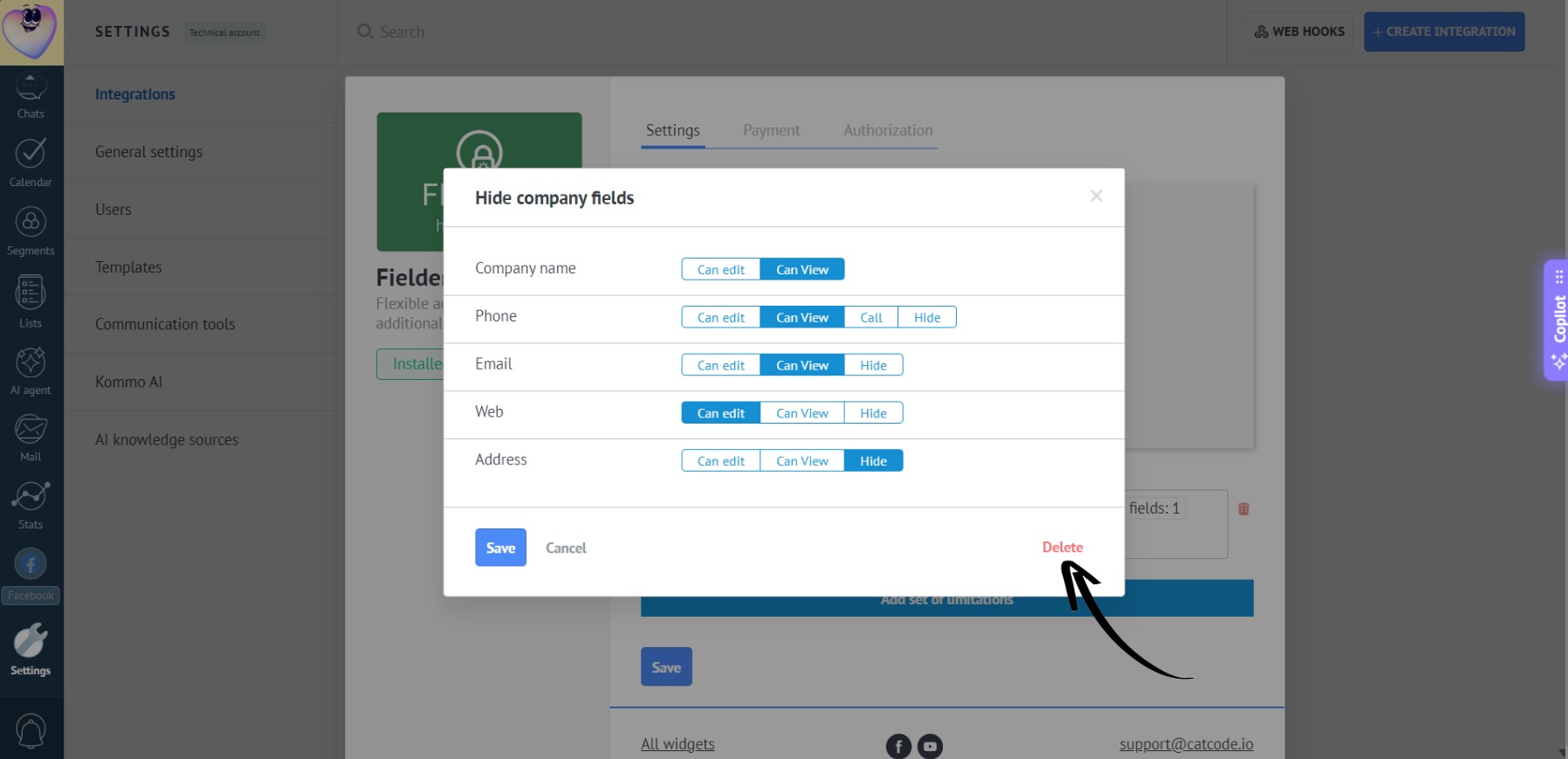
- Edit — the field is displayed in the card; the employee can view and modify its content.
- View — the employee can see the field data but cannot edit it.
- Hide — the field is not displayed in the lead card for the selected manager.
- Call — the field is displayed in the card, and the phone number is visible. By clicking on the number, the manager can call the client directly from the lead. Number editing is disabled.
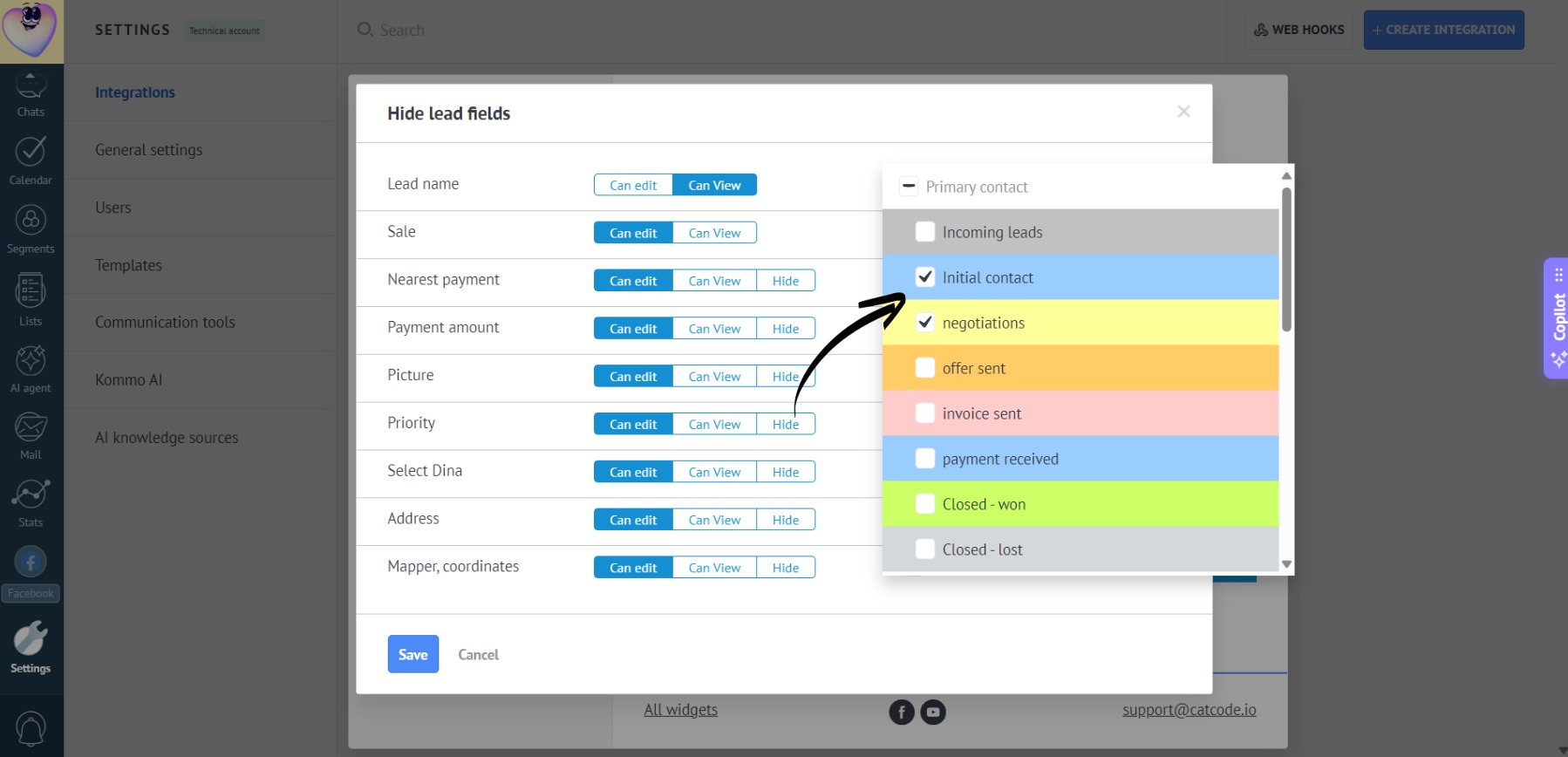
- Restrictions can also be applied only to specific pipeline stages (for lead fields):
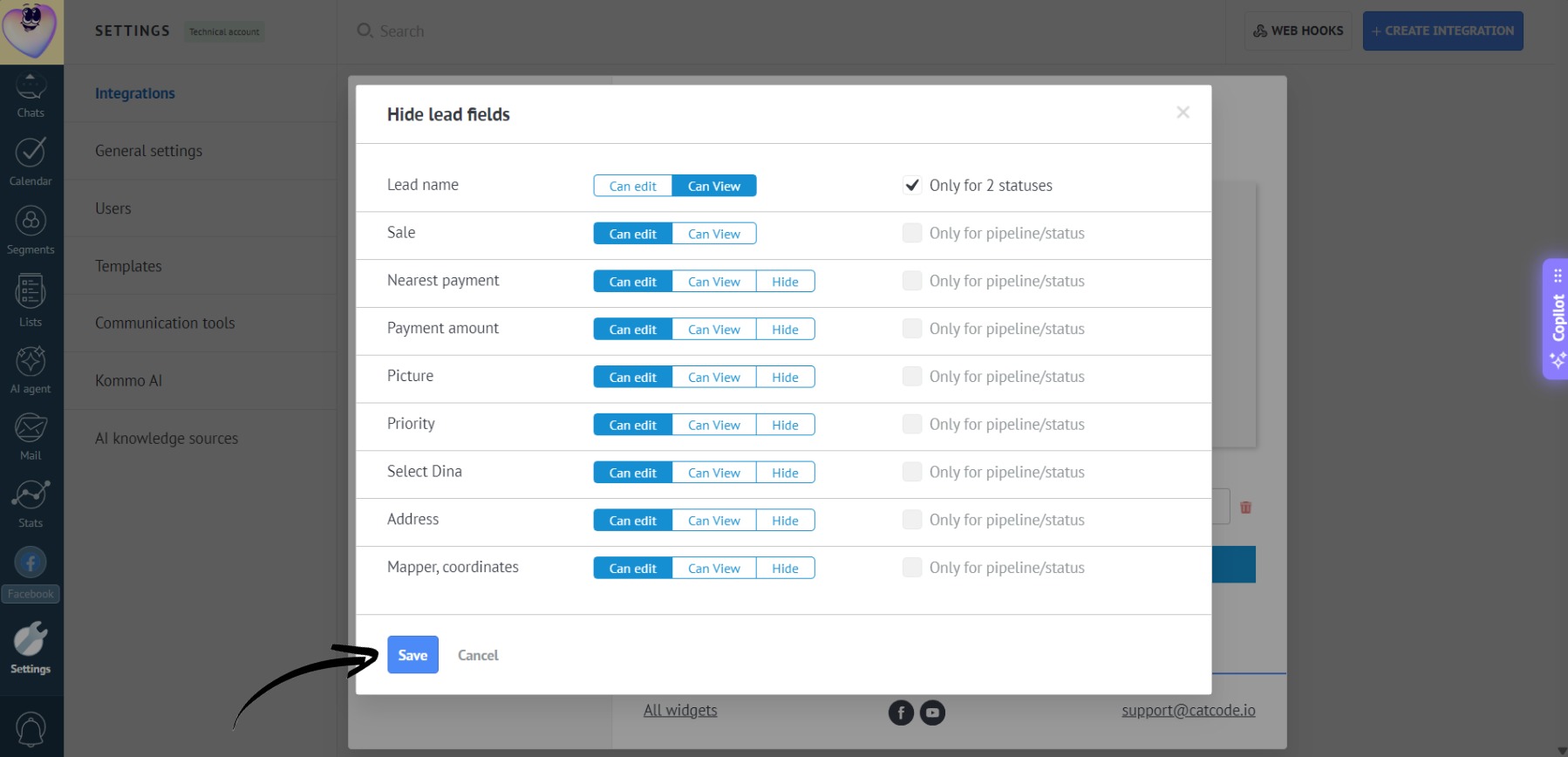
- Click “Save”:
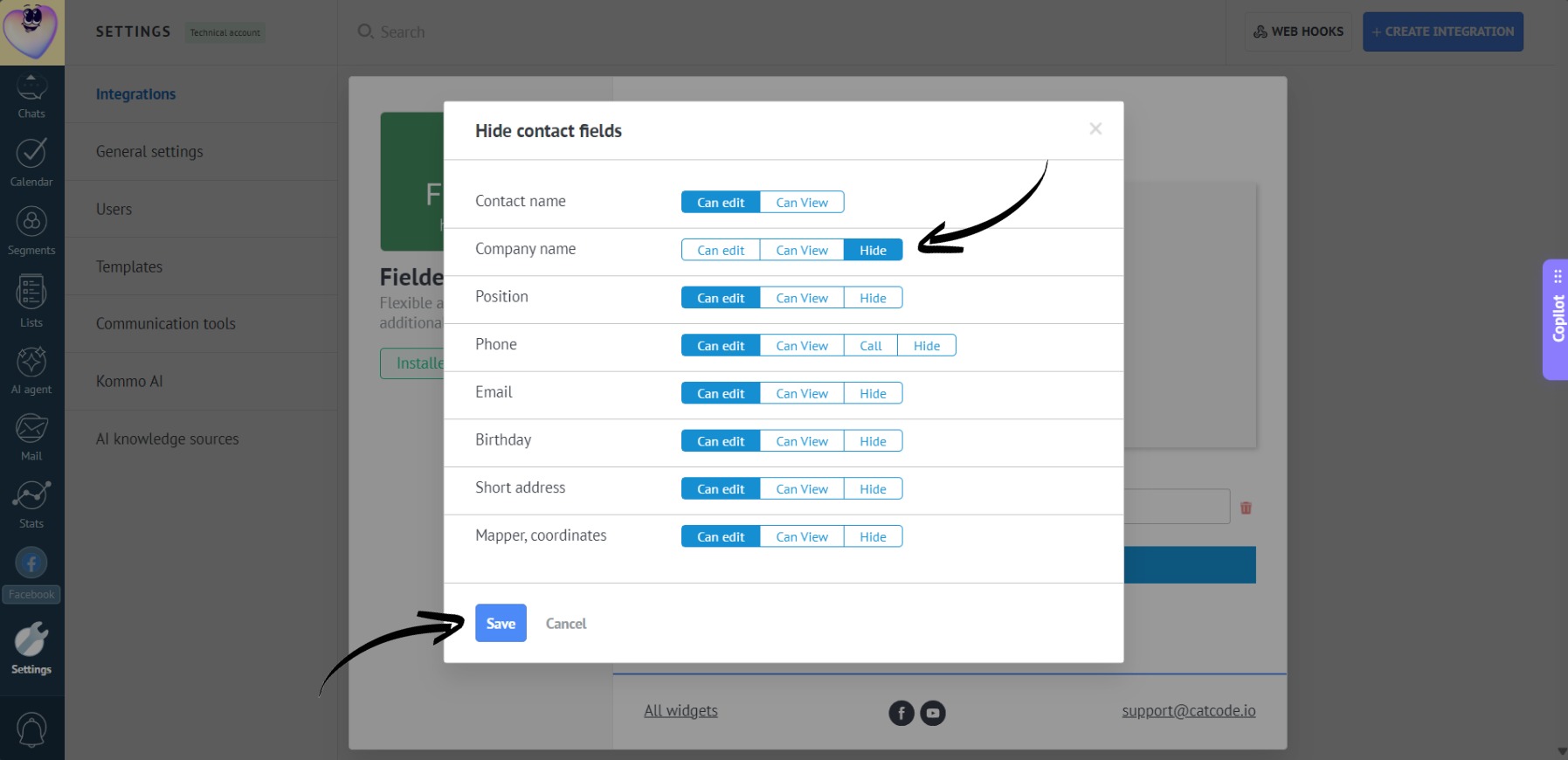
- Similarly, set up permissions for contact, company, or customer fields, and click “Save”:
- You can apply multiple field restrictions to a single employee:
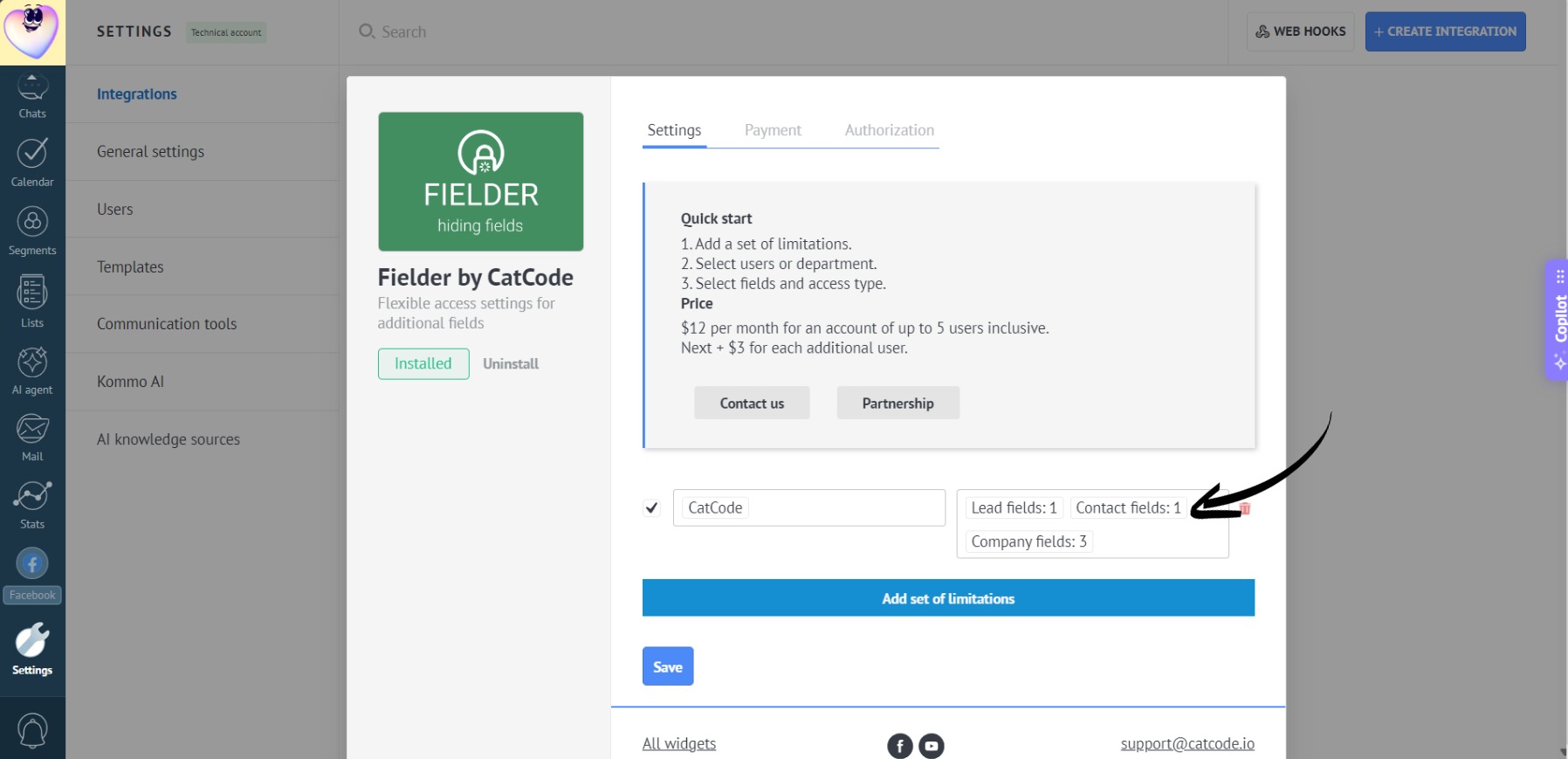
- To remove restrictions from any field type, simply click “Delete”:
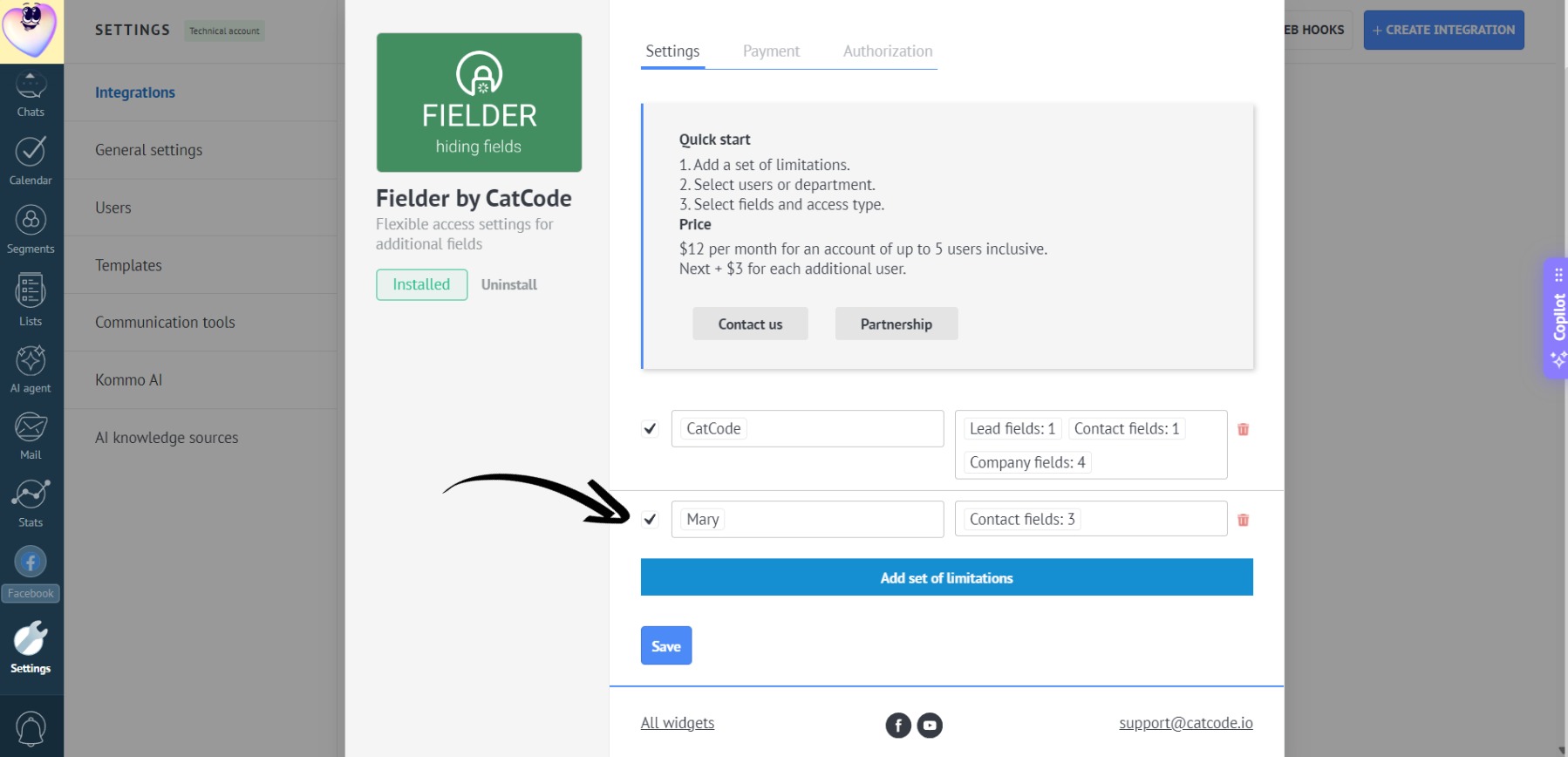
- To lift restrictions from an employee (or employees), click the trash icon in the app settings or simply uncheck the box next to the specific user, and click “Save”:
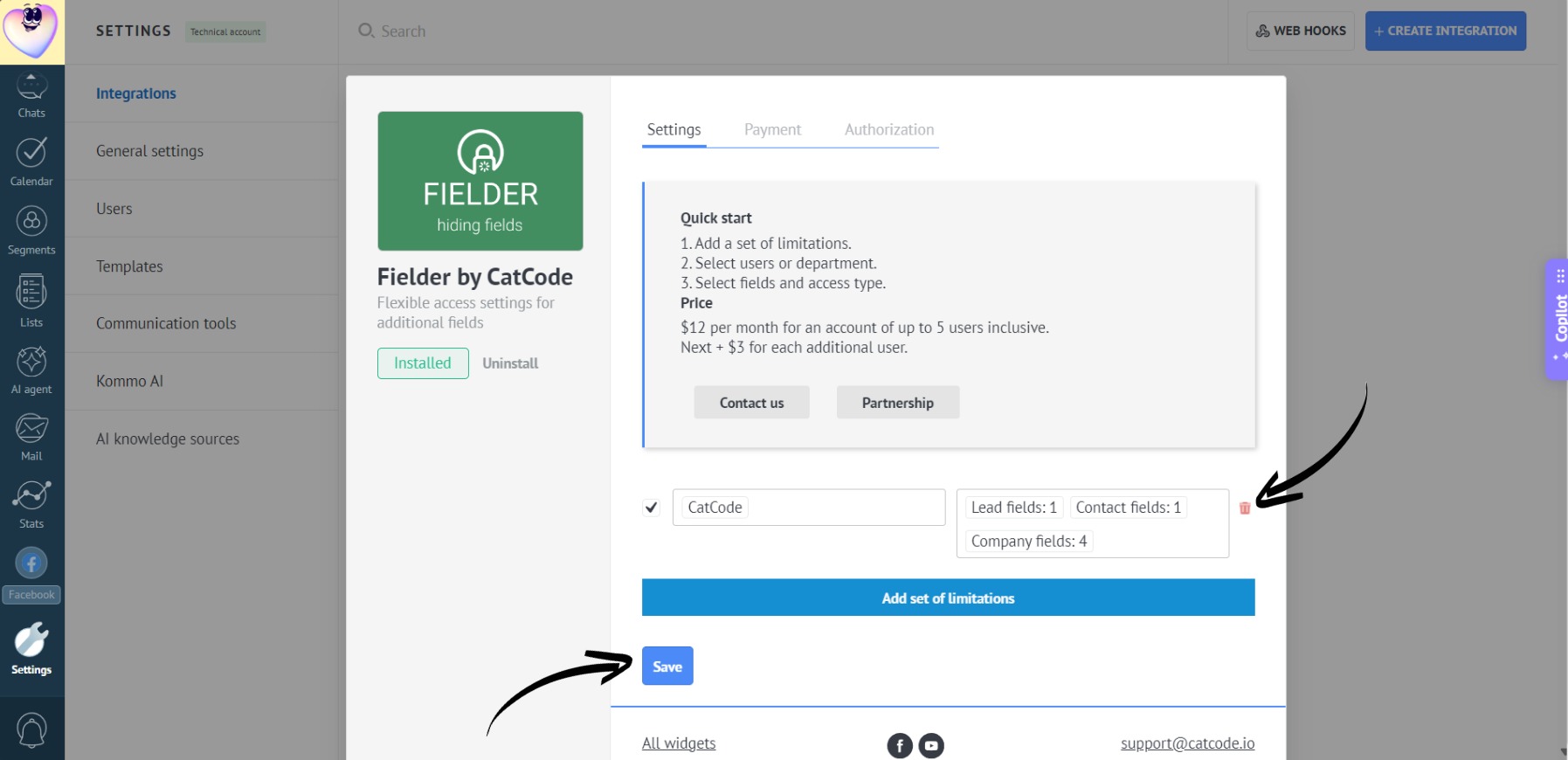
- You can create different sets of restrictions for different employees and departments: