Google Authorization
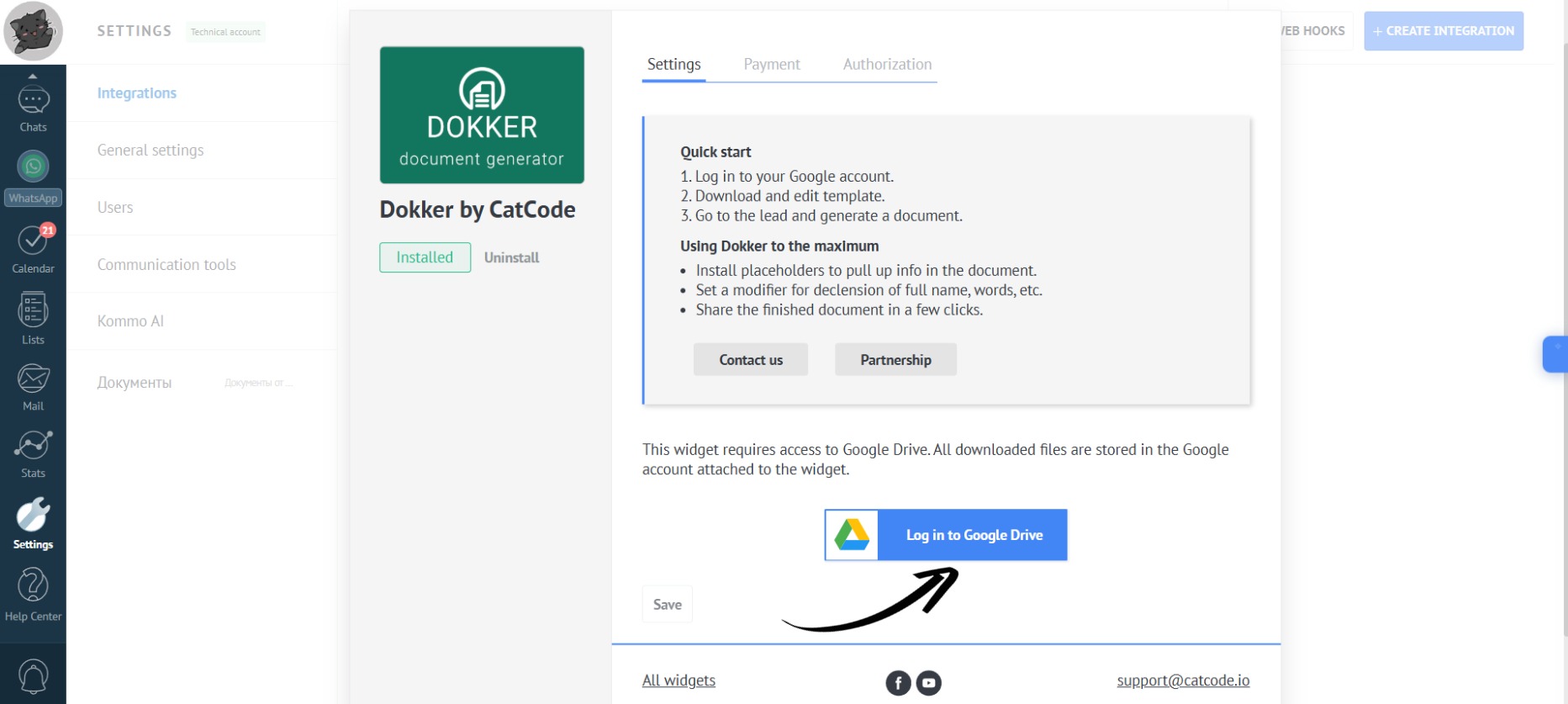
- In the app settings, click the “Log in to Google Drive” button:
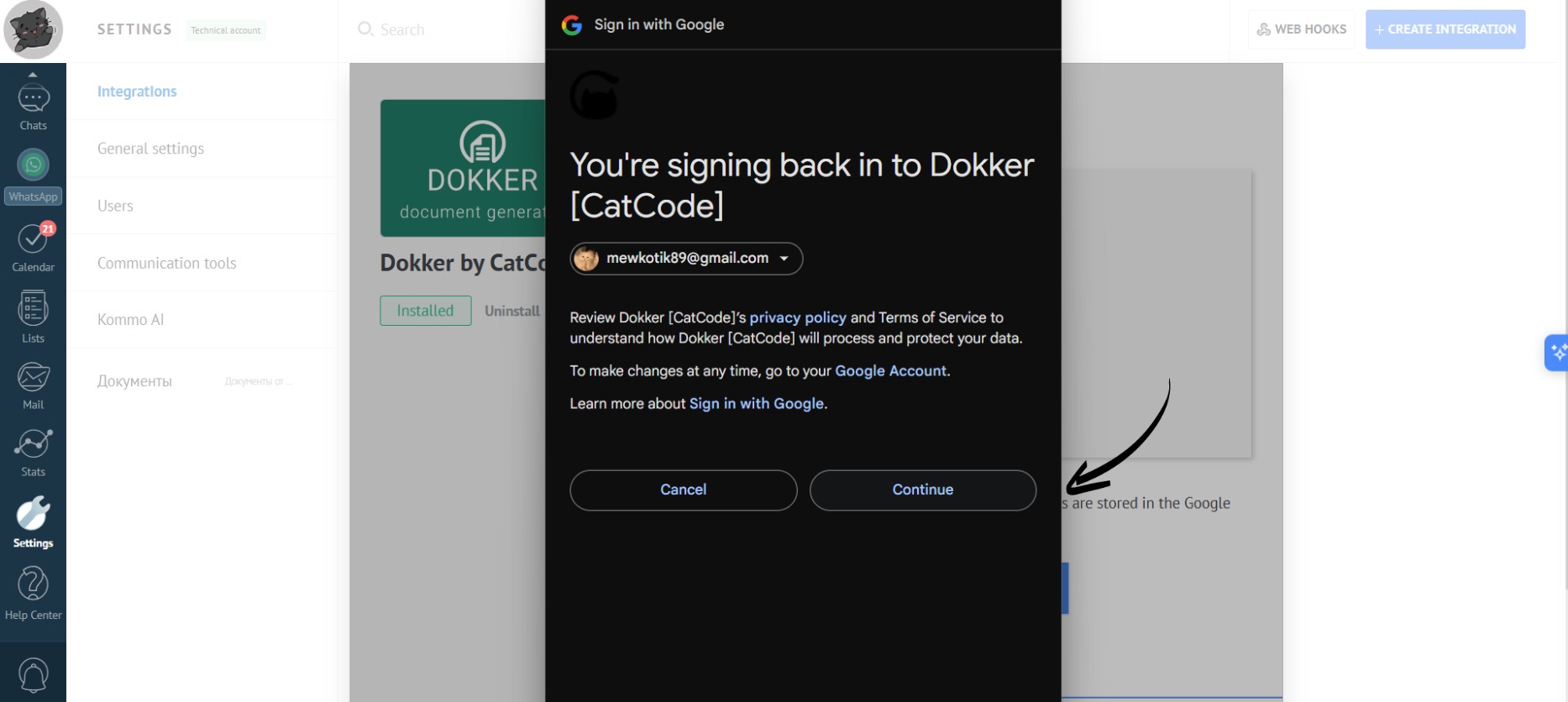
- Select the desired account and click the “Continue” button:
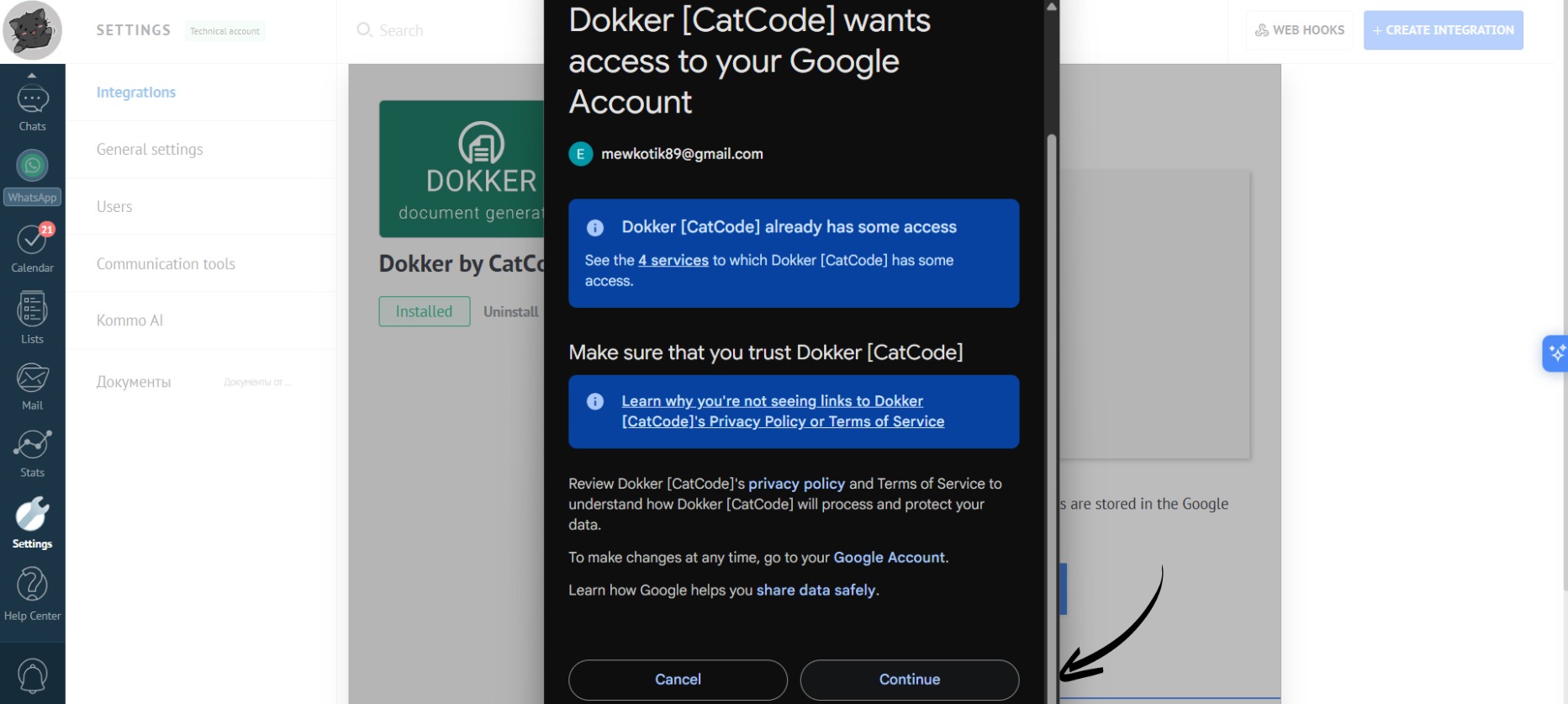
- Click the “Continue” button again:
- An installed and ready-to-use app with an attached Google Drive will look like this:
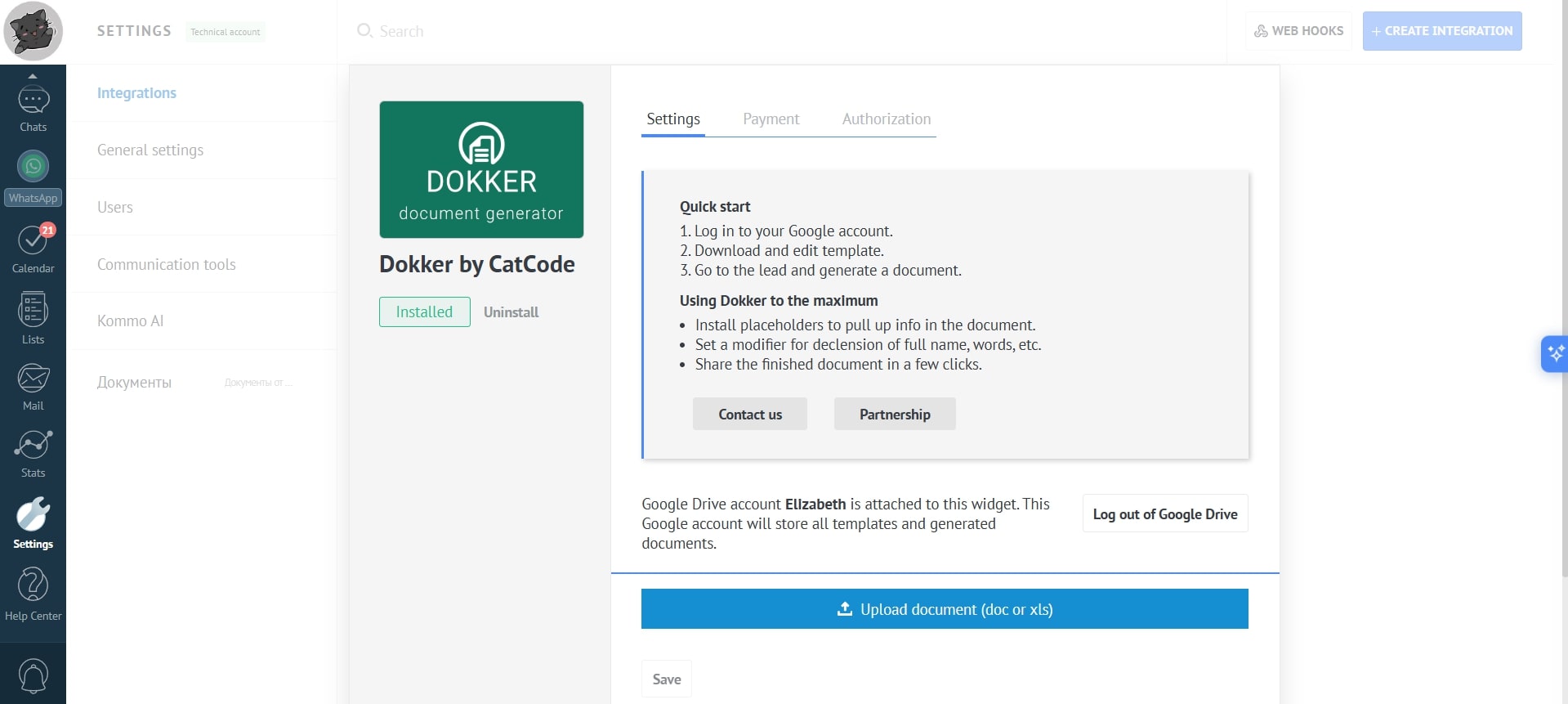
All documents and templates added to the app are stored on Google Drive.
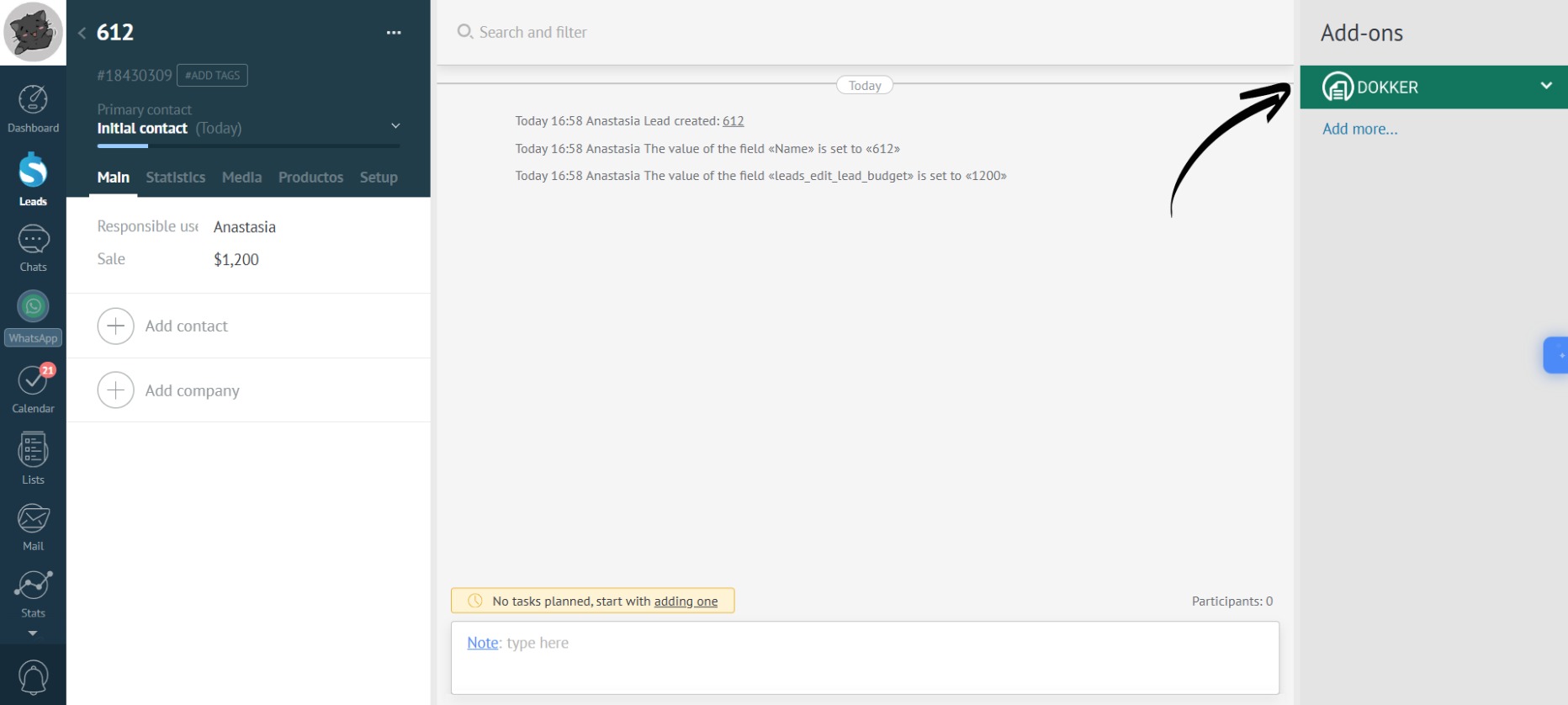
- After setting up the app, Dokker will appear in the right panel of the lead:
- You can detach one Google Drive account and attach another:
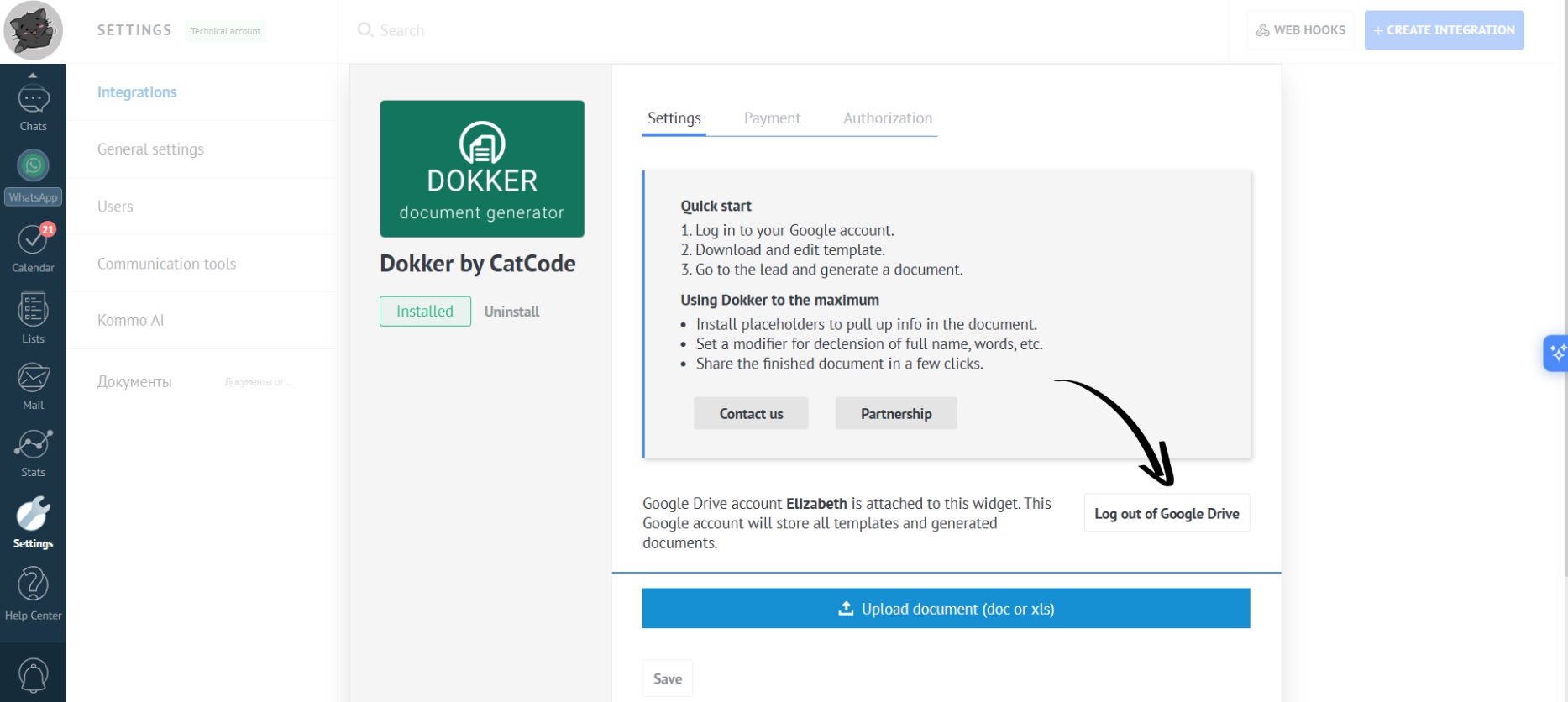
Templates added with one account won’t open while another account is attached. So, it’s best to work with a single account.