Placeholder Modifiers
Different lead fields, such as the date or contact name, can be displayed differently in a document, depending on the requirements. To configure name initials, number spelling, the desired date format, and more, see the instructions below.
- To add modifiers to placeholders, click the “Add Modifier” button with in the created placeholder:
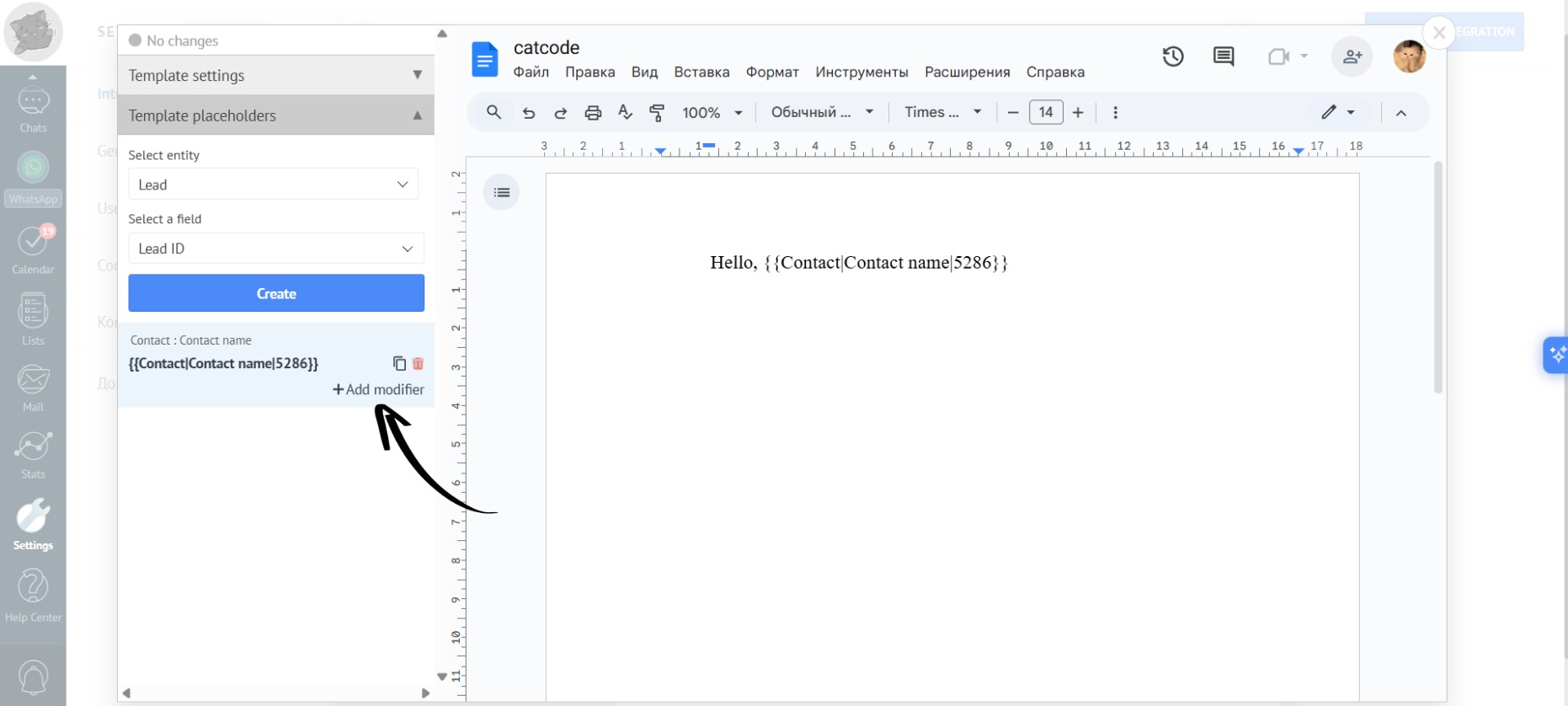
- For example, the default value of the full name field is displayed in the format “Last Name, First Name” — Smith John:
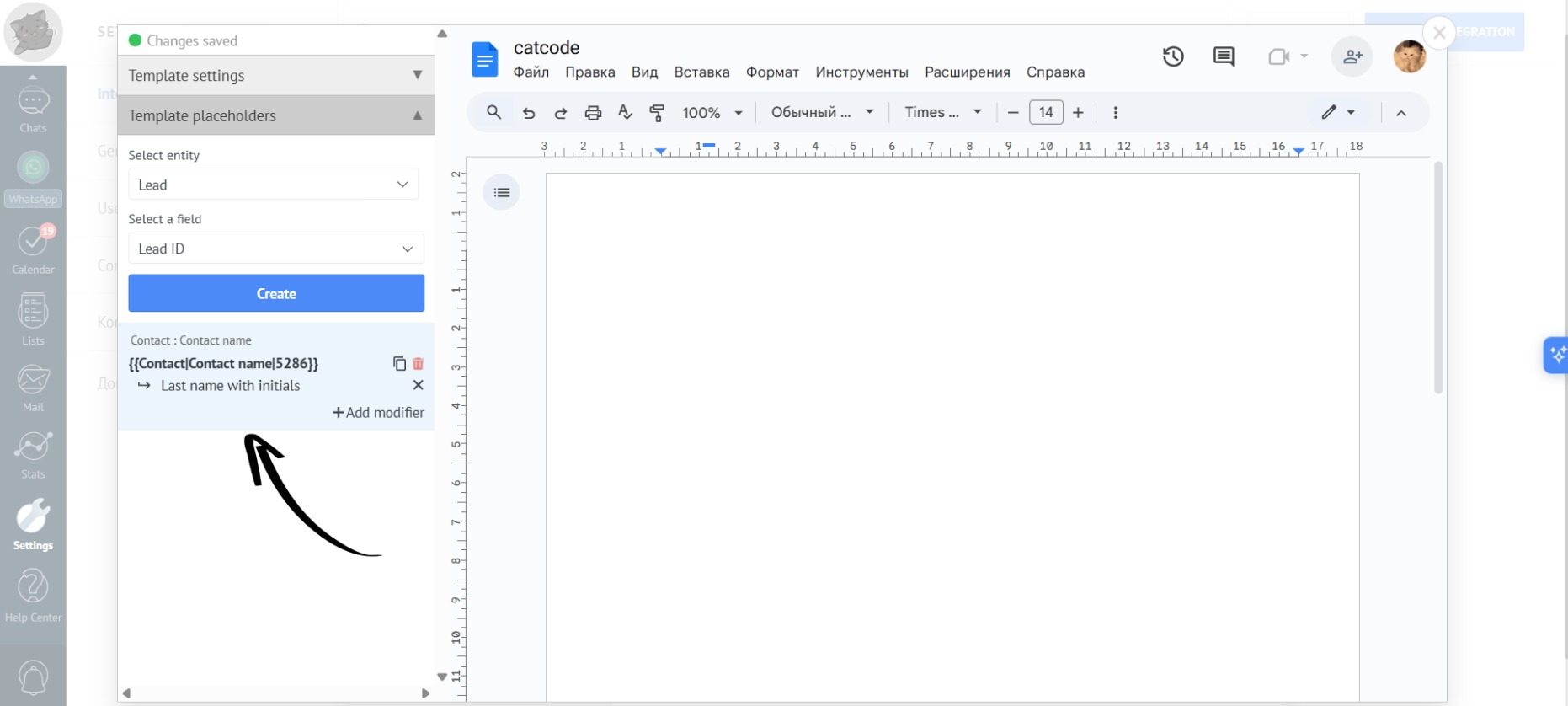
- To display the field in the “Last Name with Initials” format, you need to add the “Last Name with Initials” modifier to the placeholder:
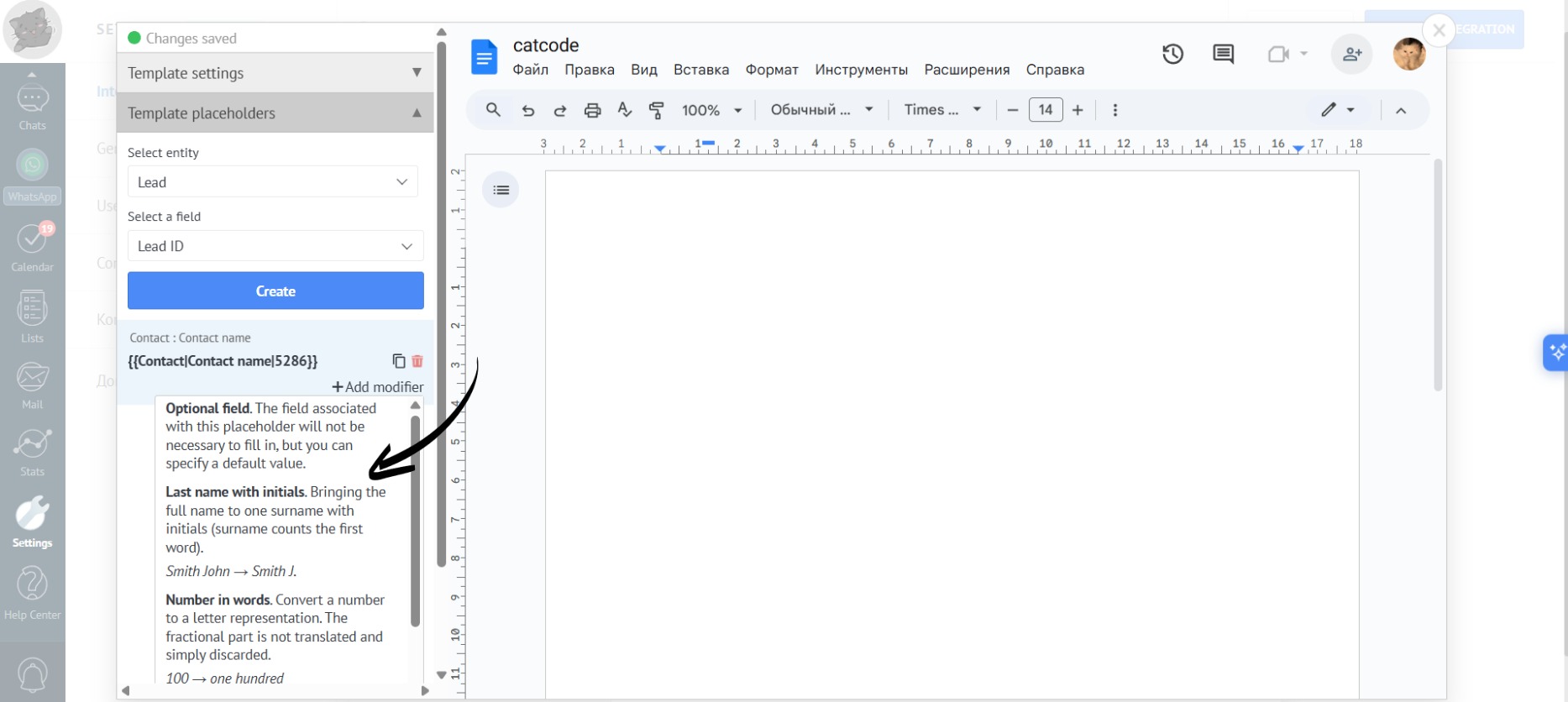
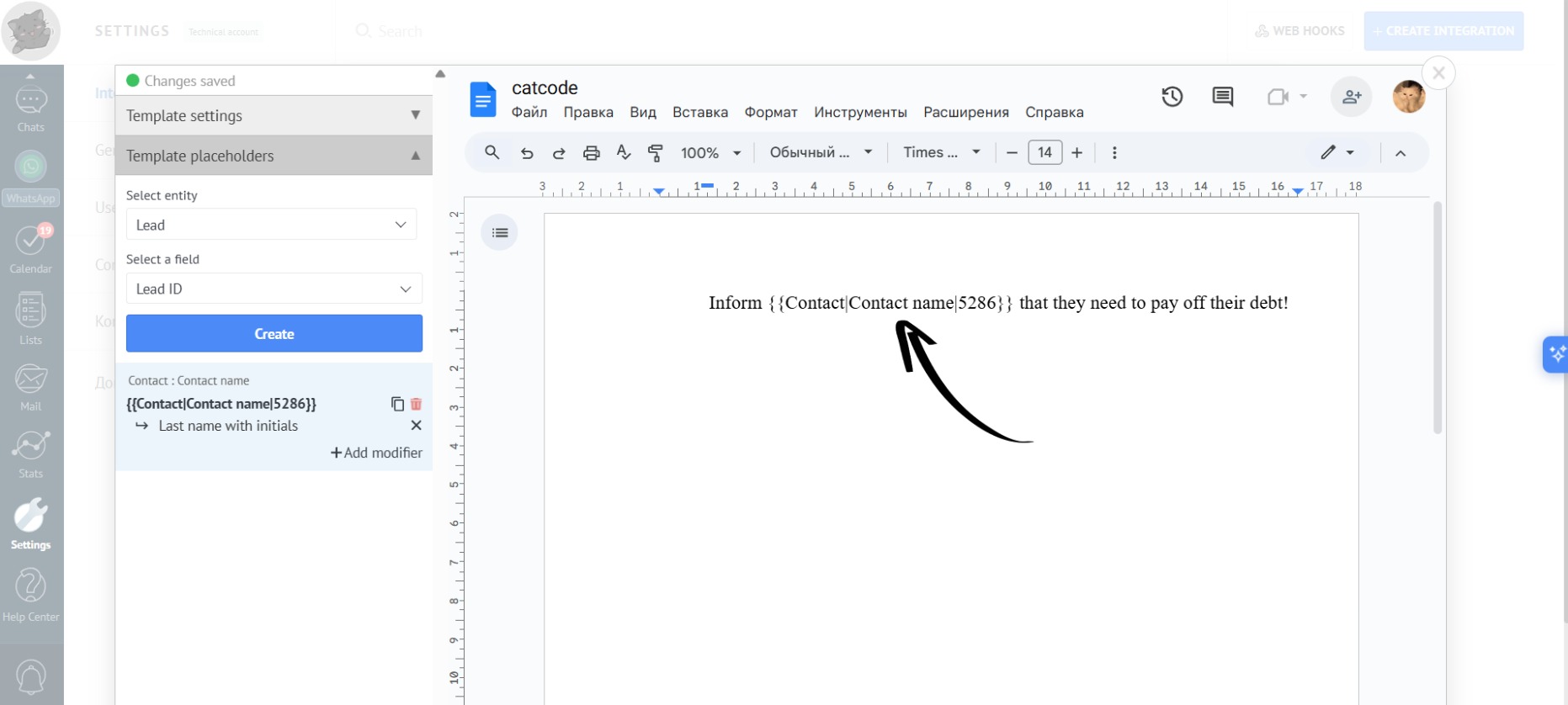
- Let’s create a template with the “Last Name with Initials” modifier:
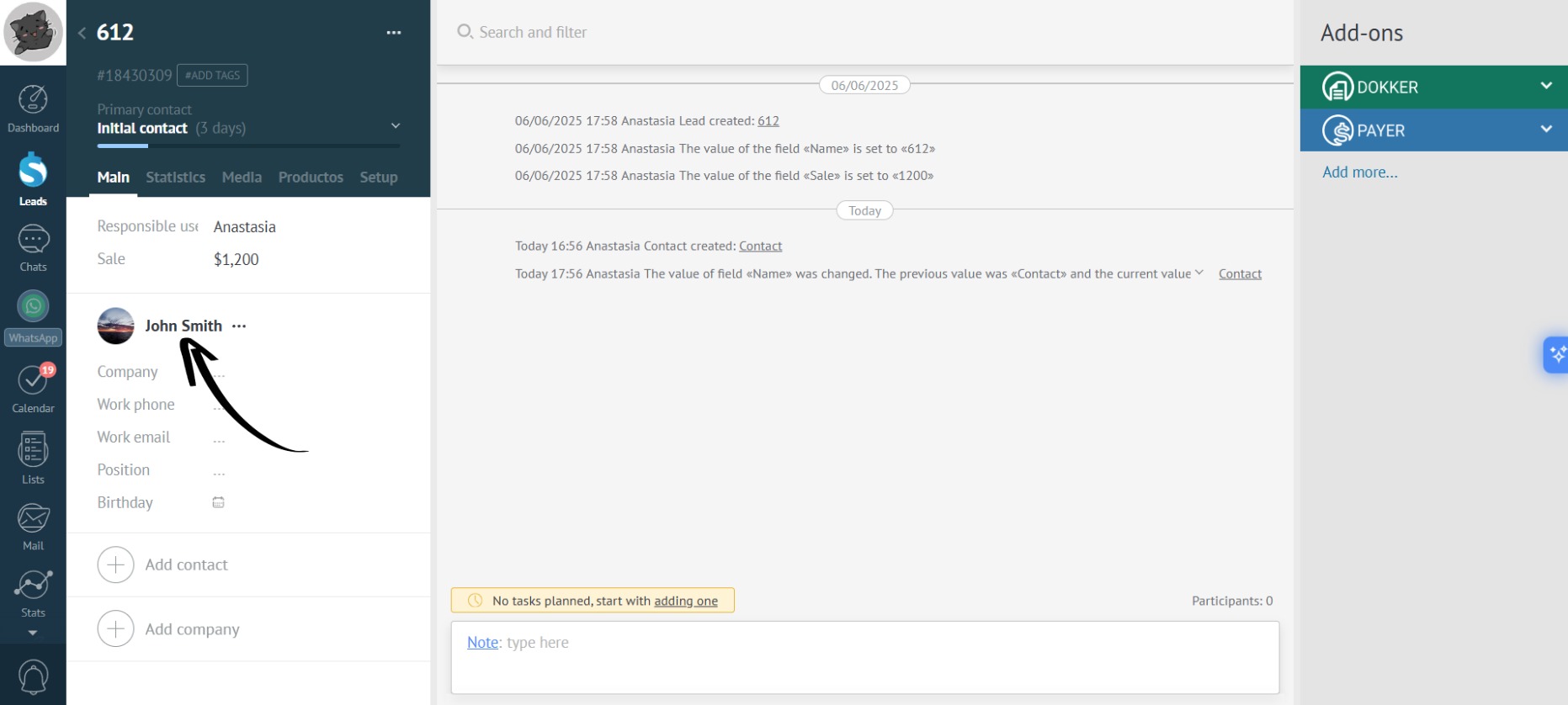
- Now, go to a lead that contains the contact name (full name):
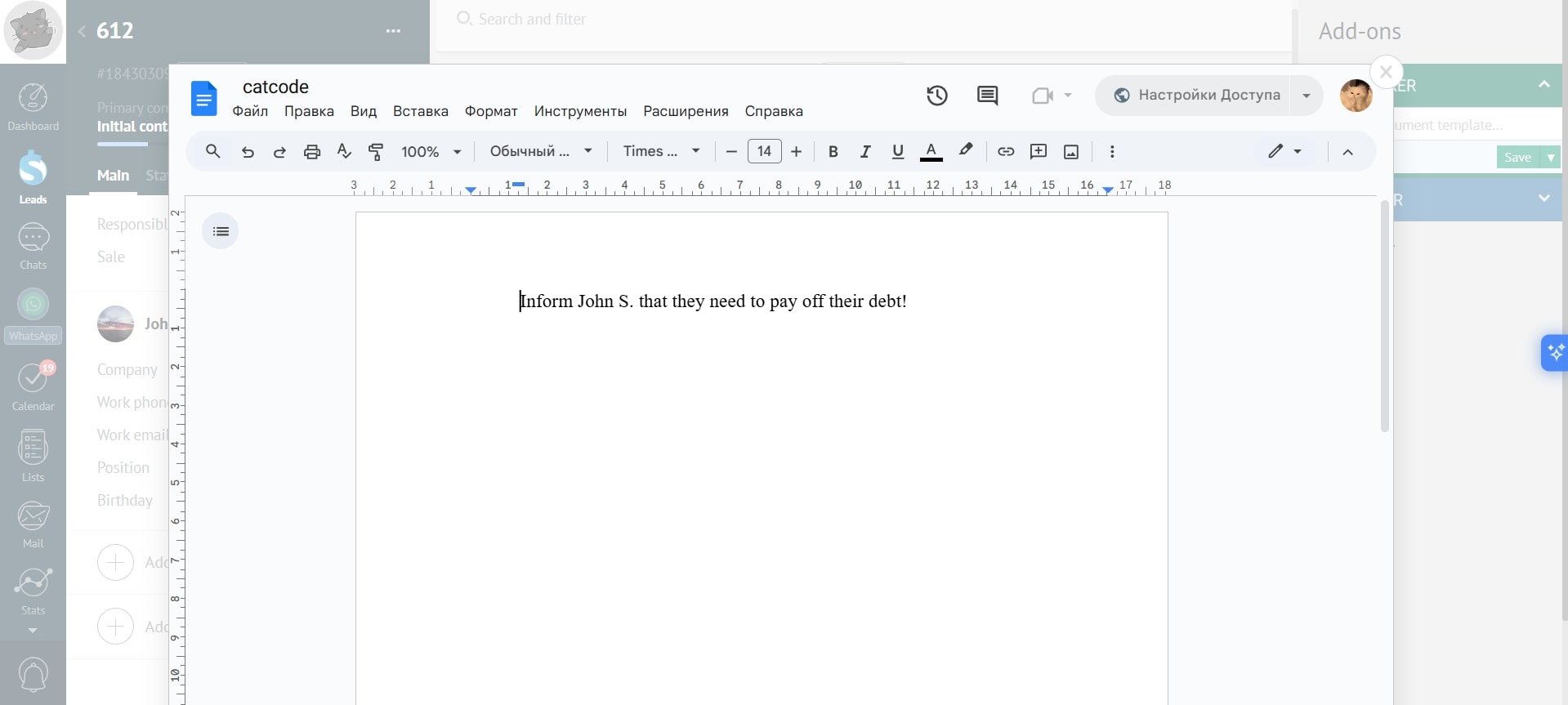
- Generate the document. According to our template, the contact’s full name will be automatically converted to the “Last Name with Initials” format:
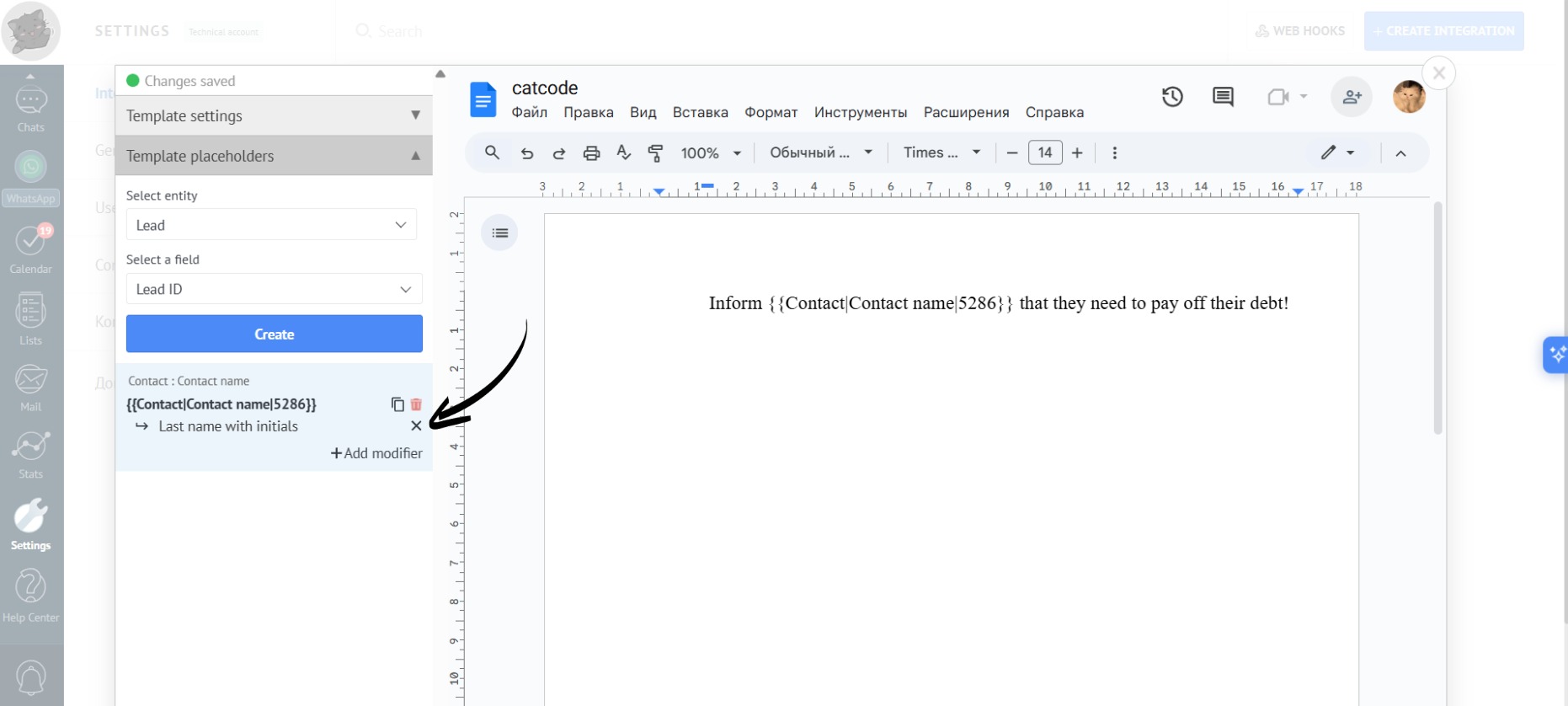
- To remove a modifier from the placeholder, click the cross icon:
- The same placeholder can be used with and without a modifier:
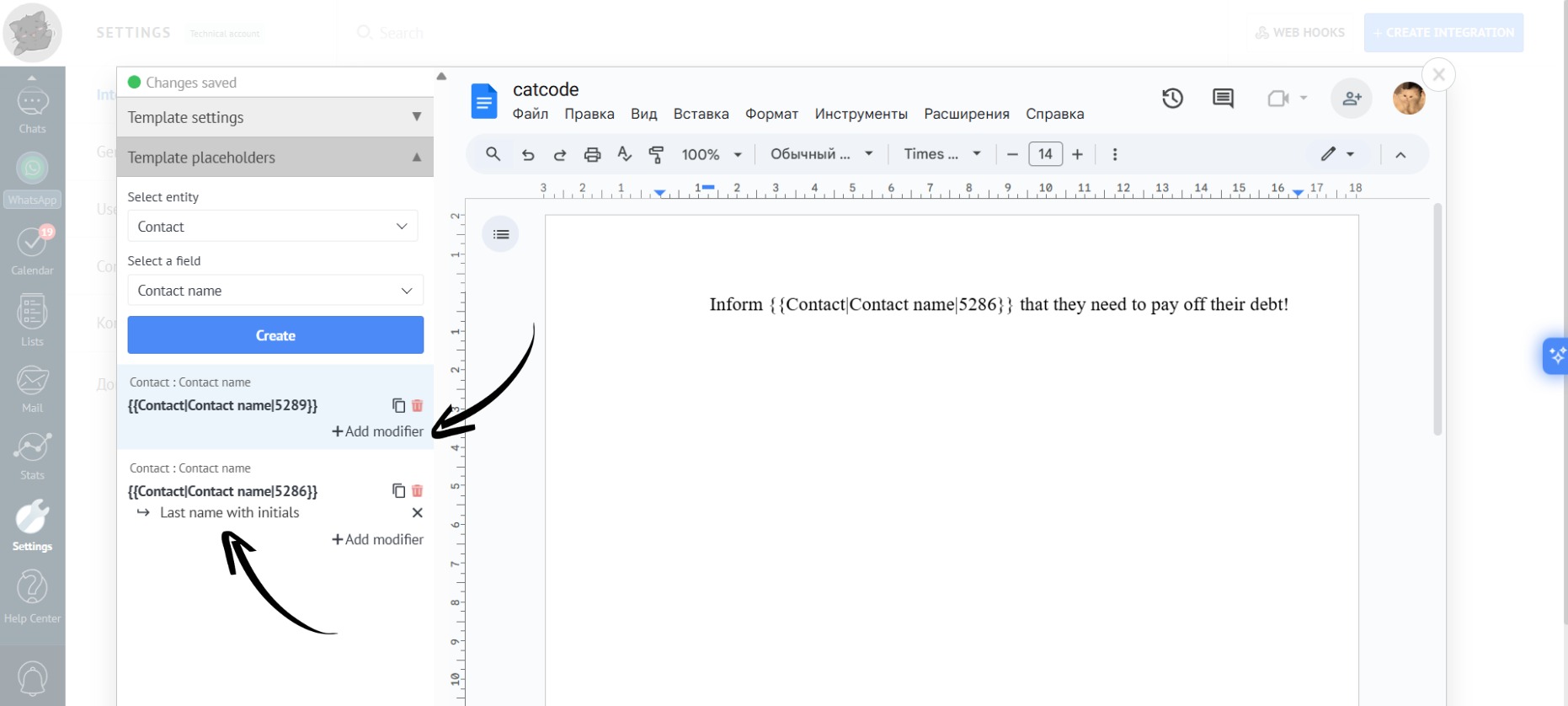
One placeholder can have multiple modifiers. Customize the text in the way you need.
Examples of modifiers:
- “Optional Field” modifier — if there is no data in the selected lead fields, the placeholder will remain unfilled. You can enter a default value in the field.
Example
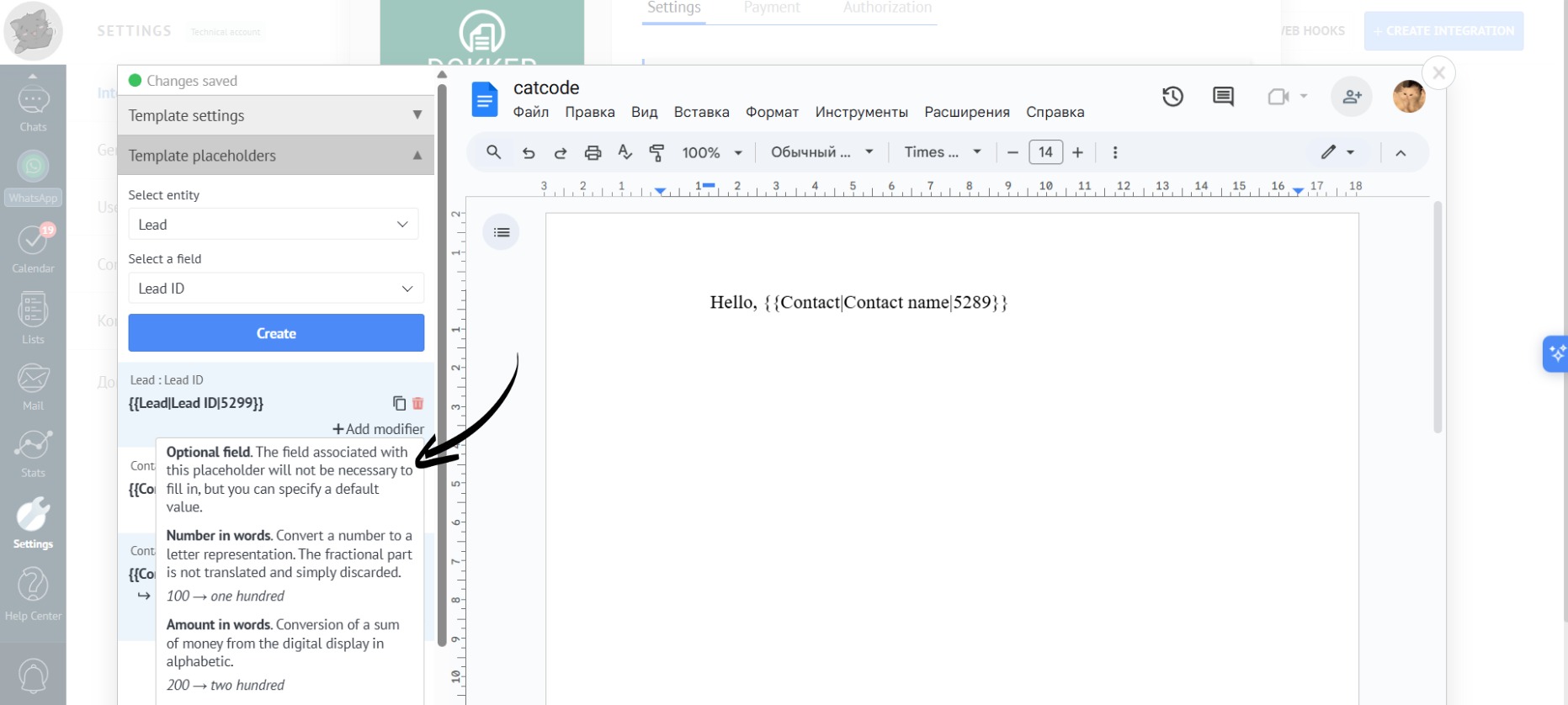
- Create a placeholder with any “Entity” and “Field”. In the dropdown list, select the “Optional Field” modifier:
- Now you can leave the field blank; then, if there is no data in the selected field, the placeholder will remain unfilled. Or, you can enter a default value, in which case the text written in “default” will be displayed if there is no data in the selected field. In this example, if the “Sale” value is missing, the word “none” will automatically appear in the template:
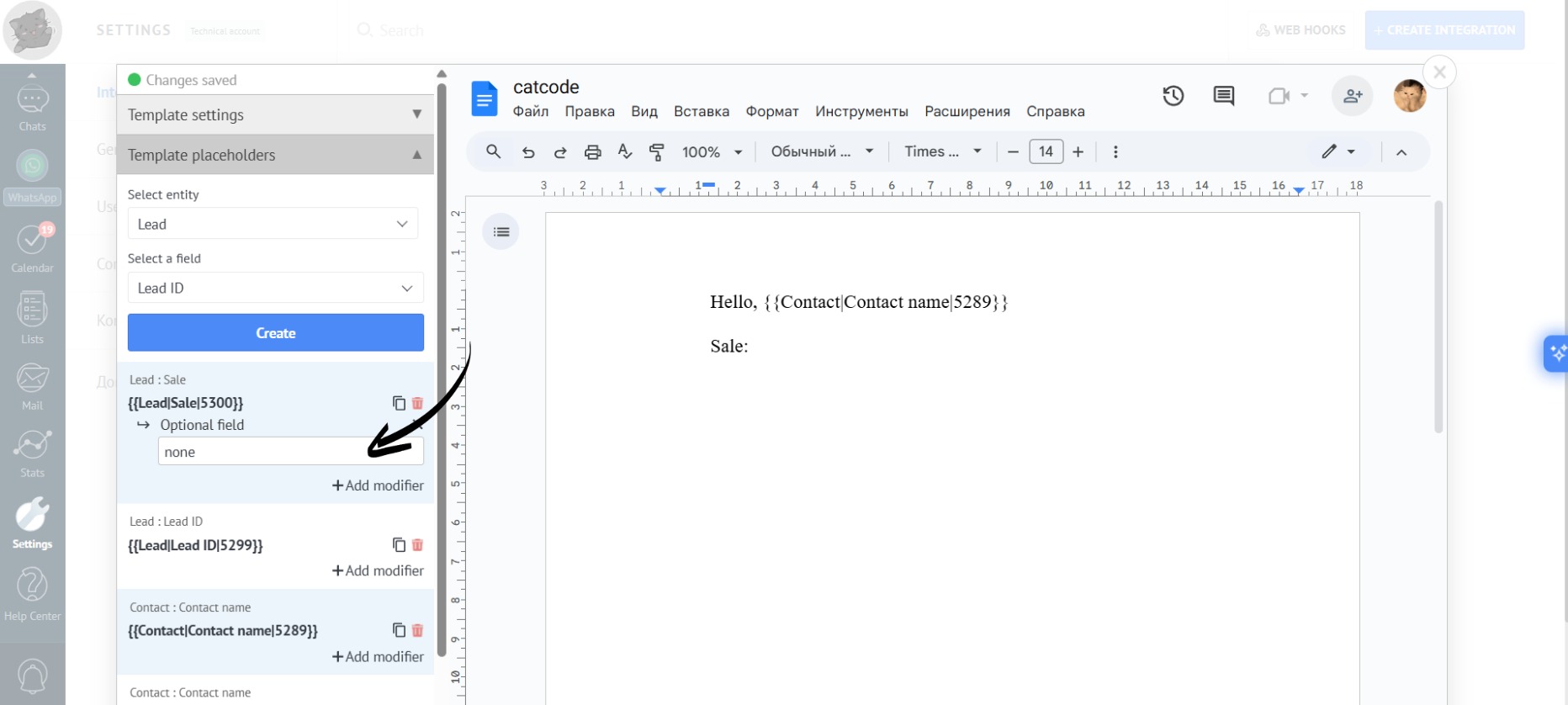
- Let’s insert the placeholder into the template, go to a lead without a sale, and generate the document:
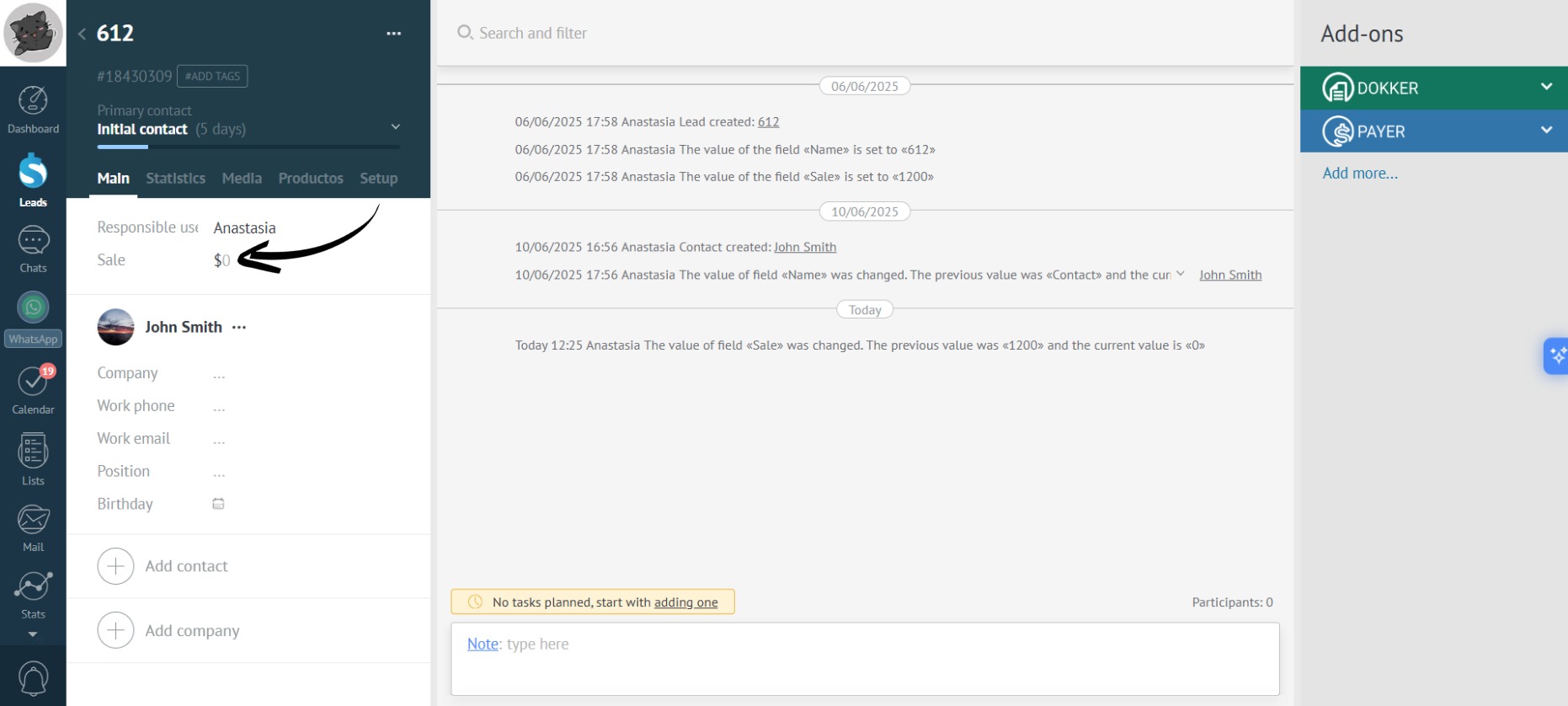
- Since the “Sale” field is empty, the word “none” will be displayed in the lead document:
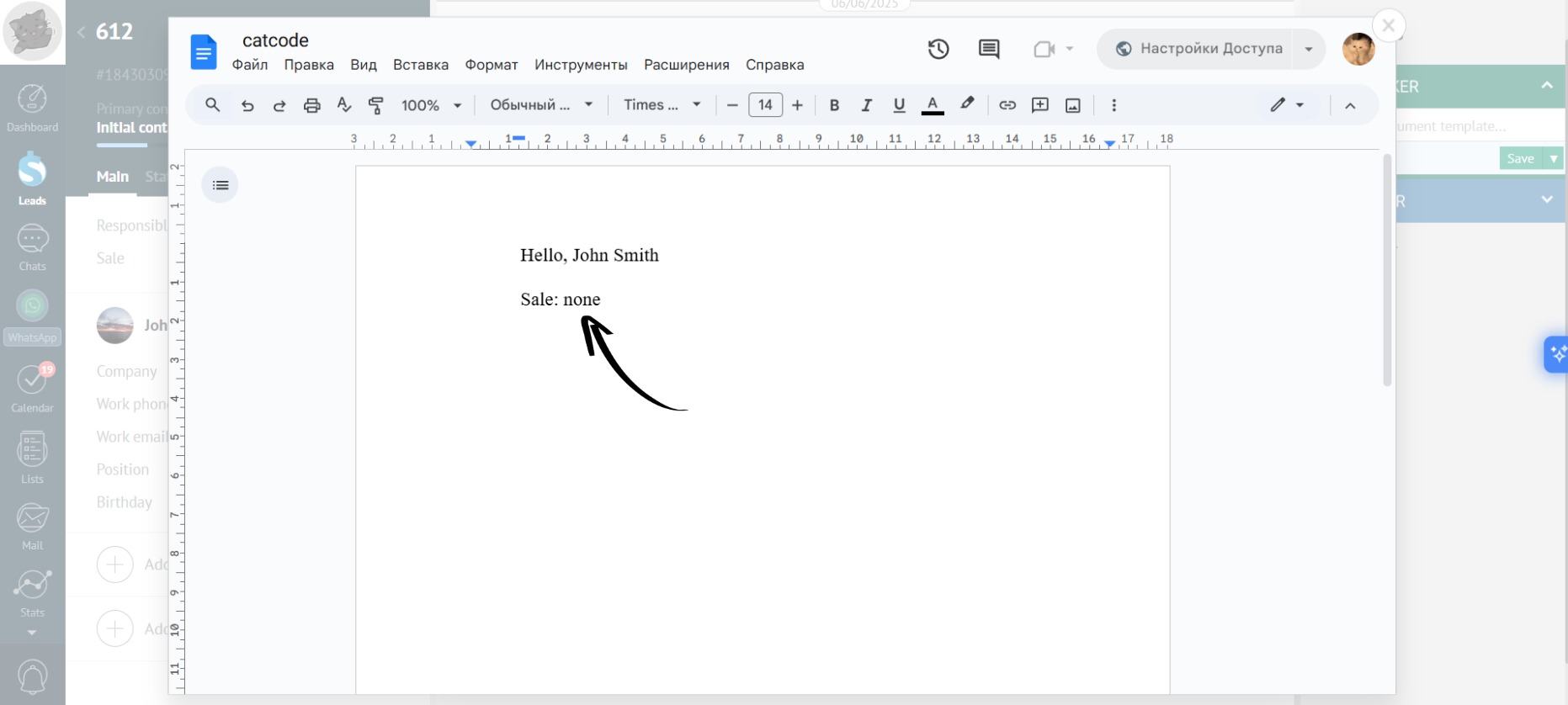
- If the “default” field had been left blank, the generated document would be empty instead of “none”.
If this modifier is not present, then the field is required, and the app will highlight in red, reminding you to fill in the fields in order to generate the document.
- «Number in Words» modifier — converts numerical field values into words.
Example
- Choose the “Number in Words” modifier for the “Entity” within a numerical expression. For example, if the “Entity” is “Lead” and the “Field” is “Sale”, then “Sale” will be displayed in words:
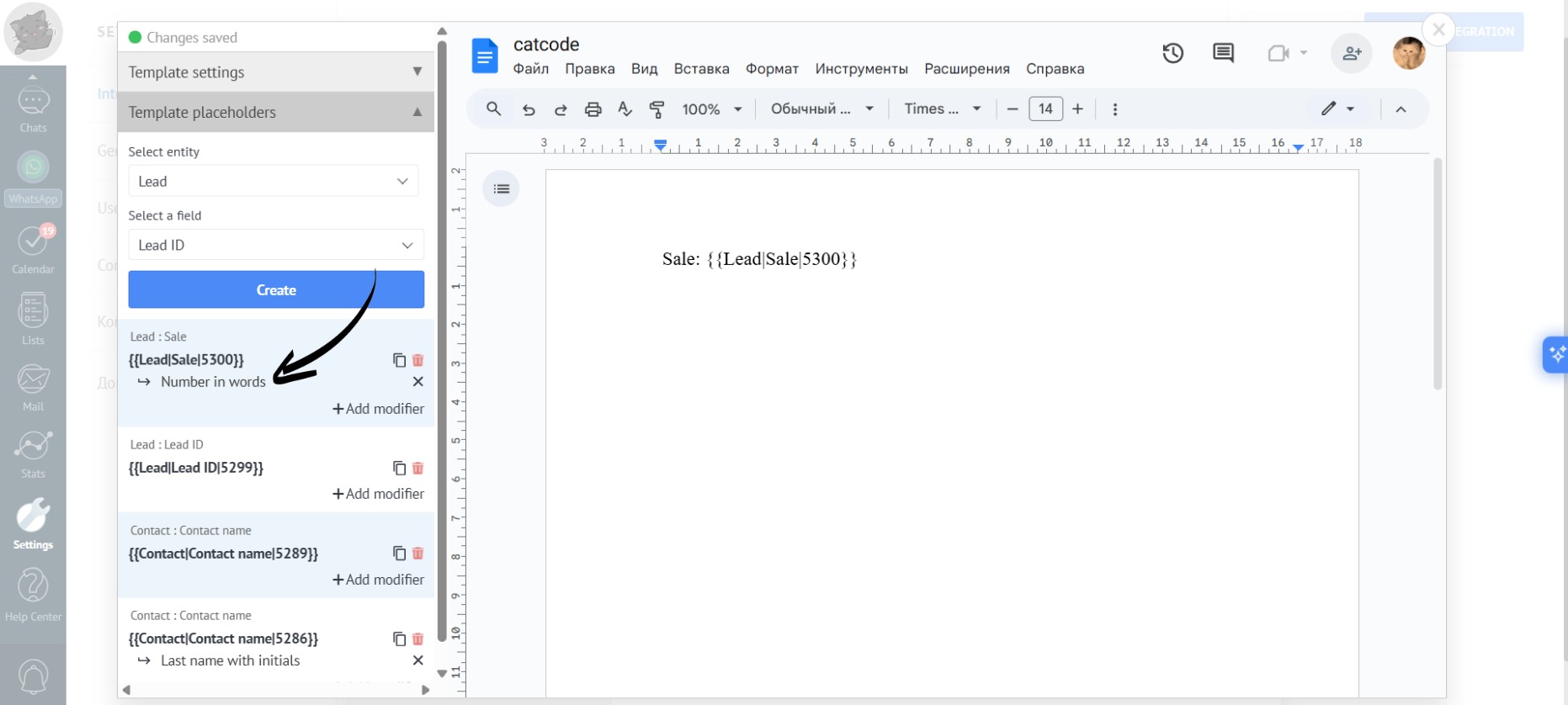
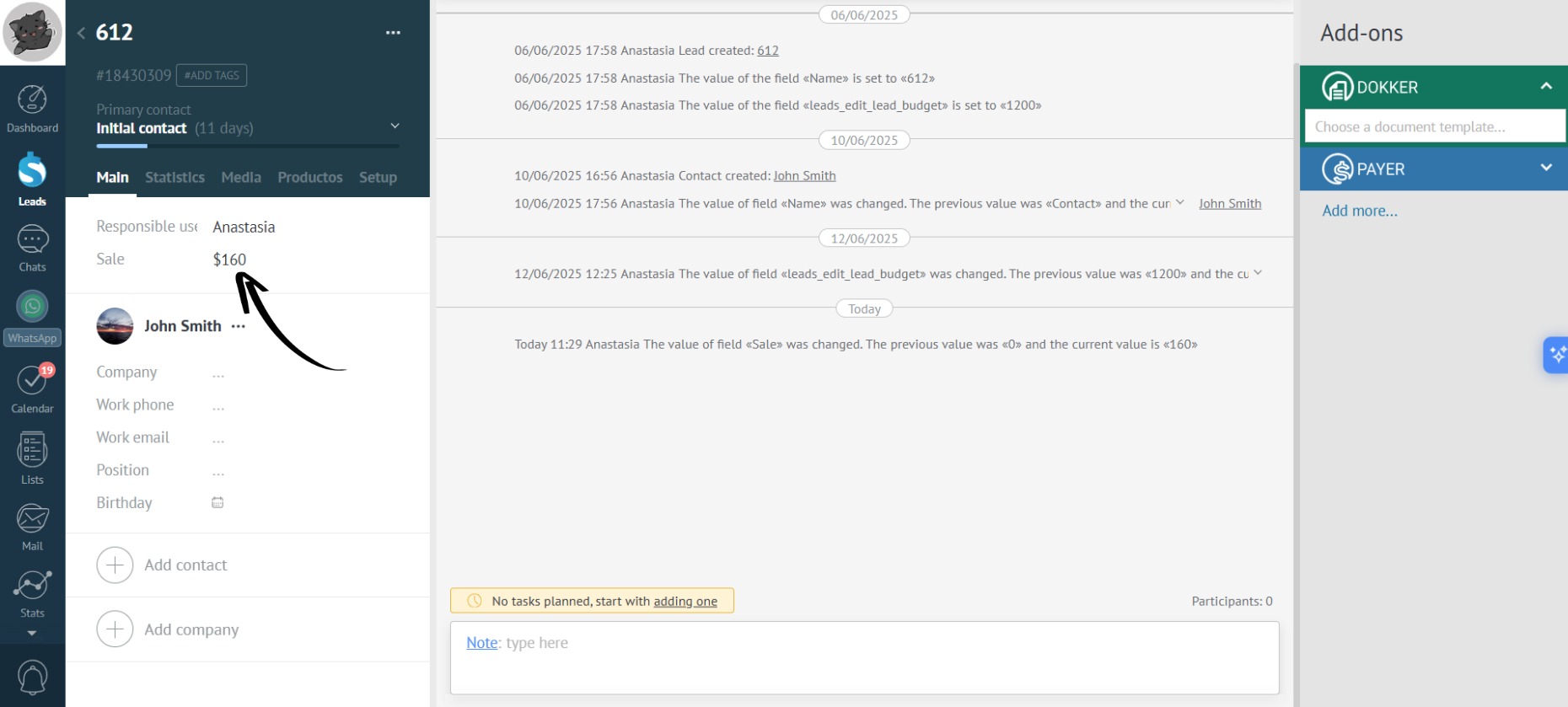
- In our example, the sale is 160:
- Using the template above, the generated document shows the sale written out as words:
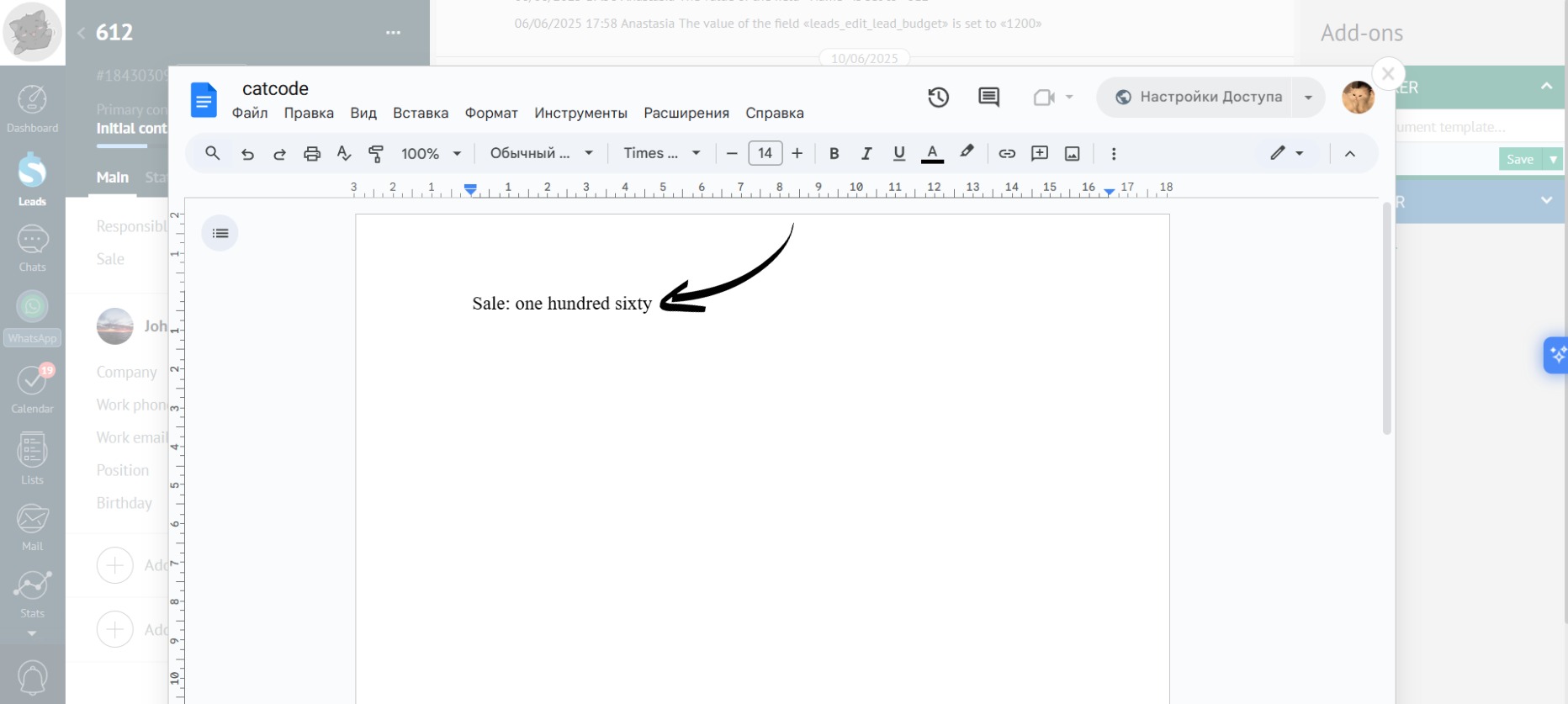
“Number in Words” modifier can be used for creating contracts when you need to write out amounts in words (e.g., the sale amount in parentheses). It’s particularly useful for preparing invoices, contracts, and other documents where amounts are often required to be spelled out.
- “Barcode” modifier — generates a barcode from the Lead ID based on specified settings.
Example
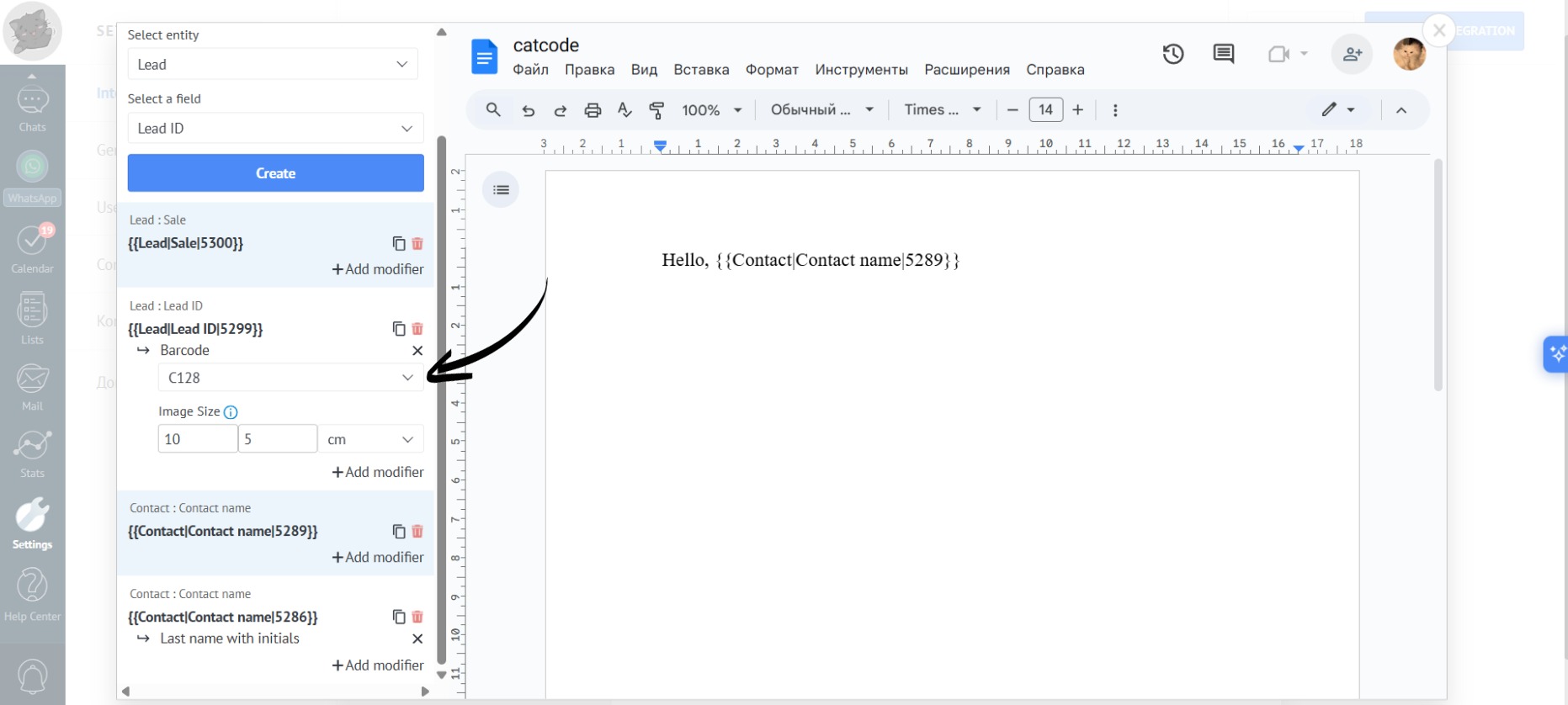
- Choose “Entity” — “Lead”, “Field” — “Lead ID”, and configure the size and encoding type for the barcode:
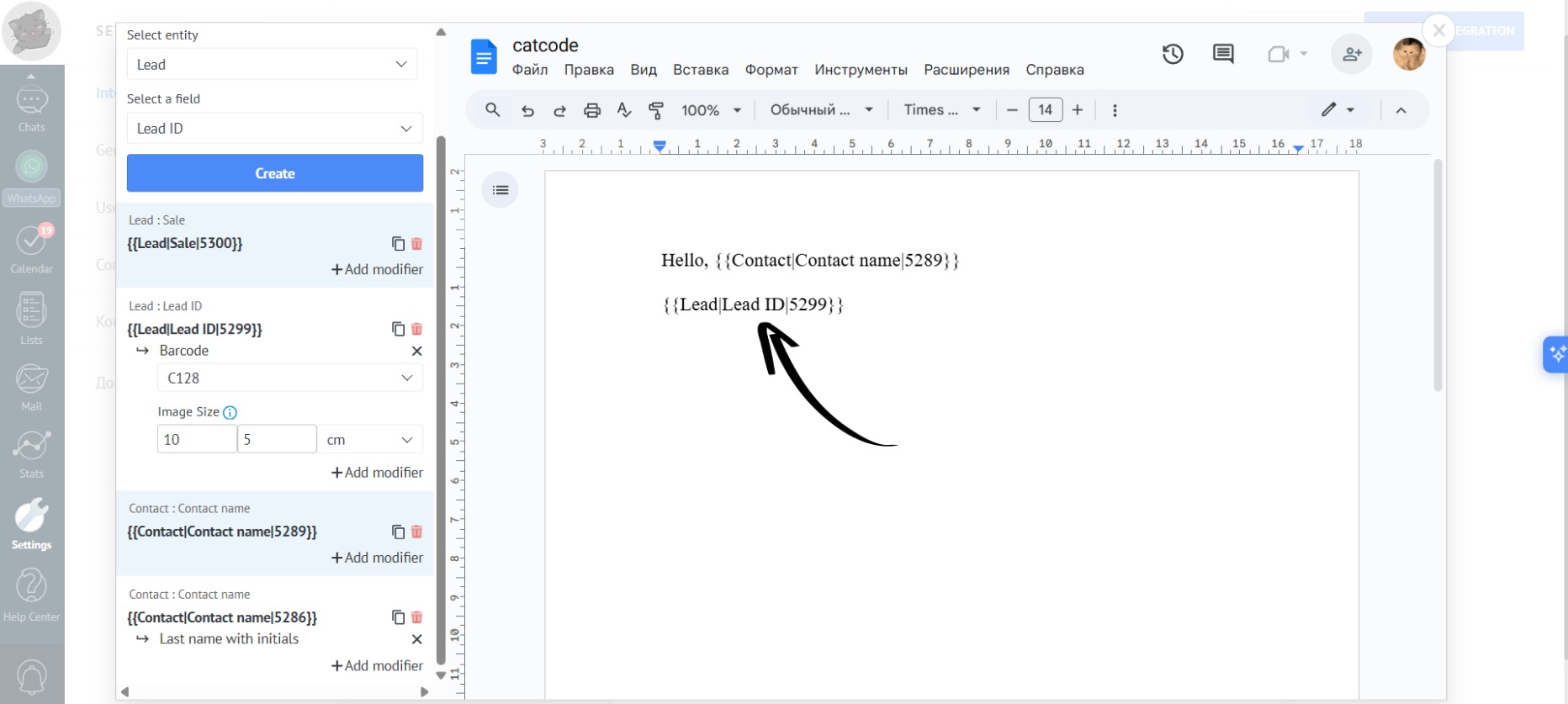
- Add the placeholder with the modifier into the template:
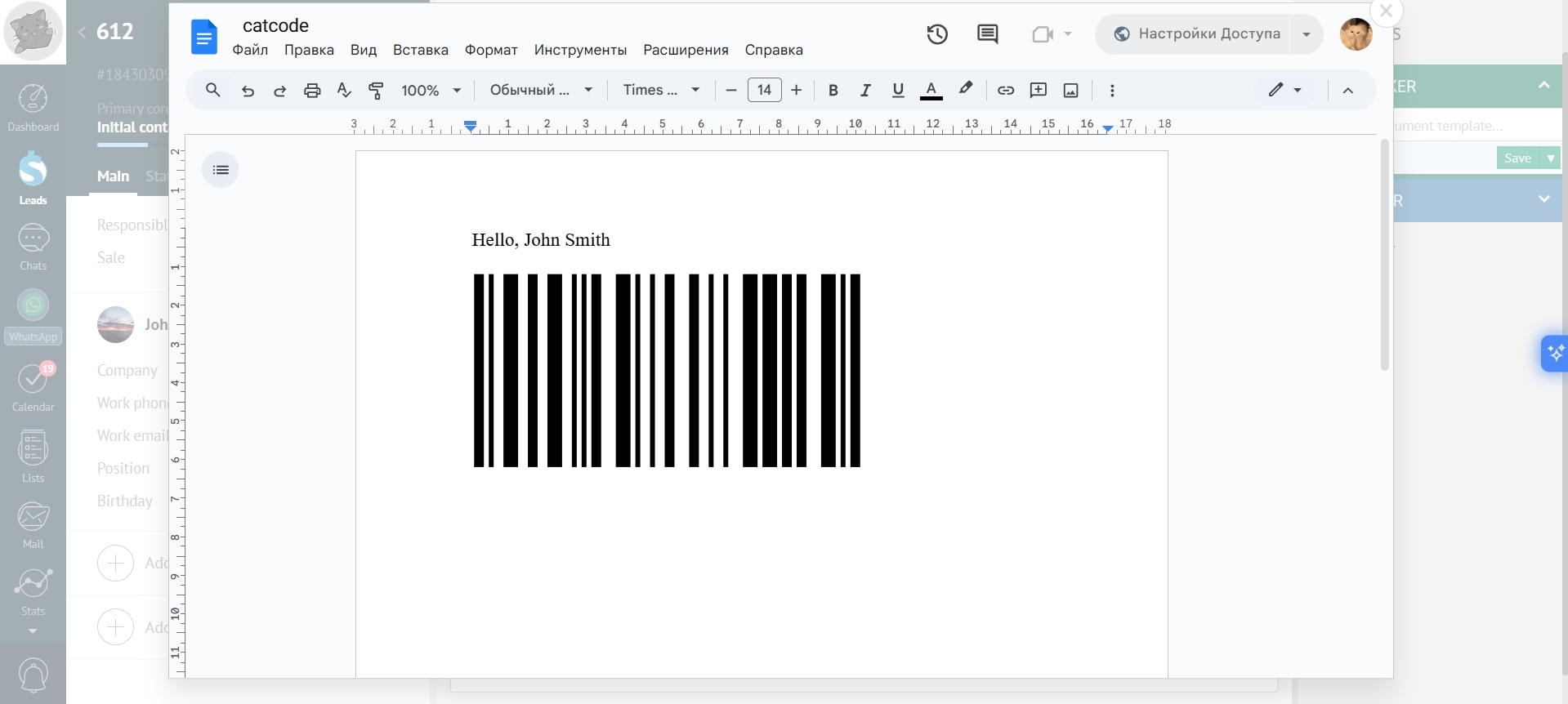
- Using the template above, Dokker generated a document with a barcode from the Lead:
Example
- For “Date” type fields, you can set a specific output format. You can specify the output format for fields of the “Date” type. To do this, select the “Date Format” modifier and choose the desired format from the dropdown list:
- “Amount in Words” modifier — converts monetary amounts into words including the currency.
Example
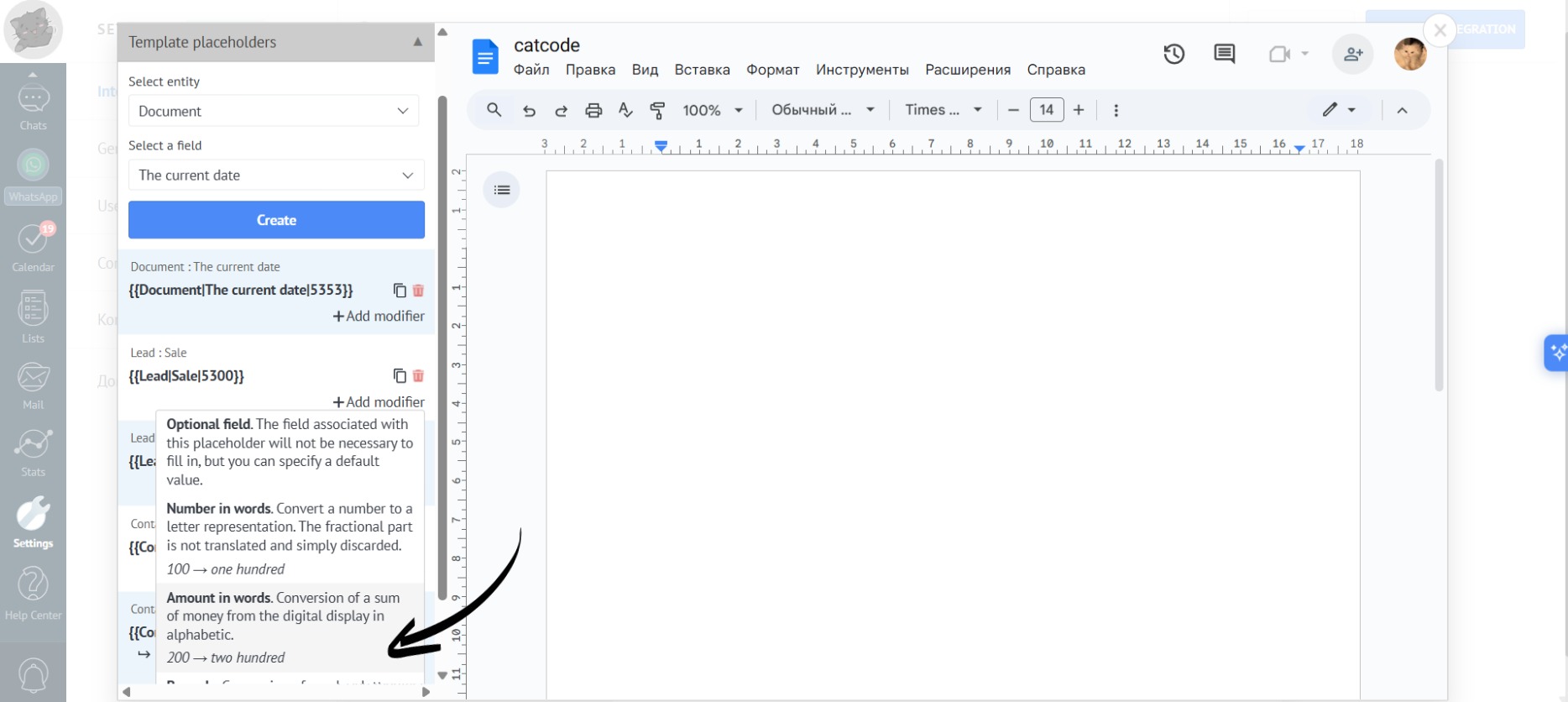
- Choose the “Amount in Words” modifier for the “Field” placeholder in a numerical expression. In this example, a placeholder has been created with “Entity” as “Lead” and “Field” as “Sale”. The “Sale” amount will be displayed in words:
- Select the currency:
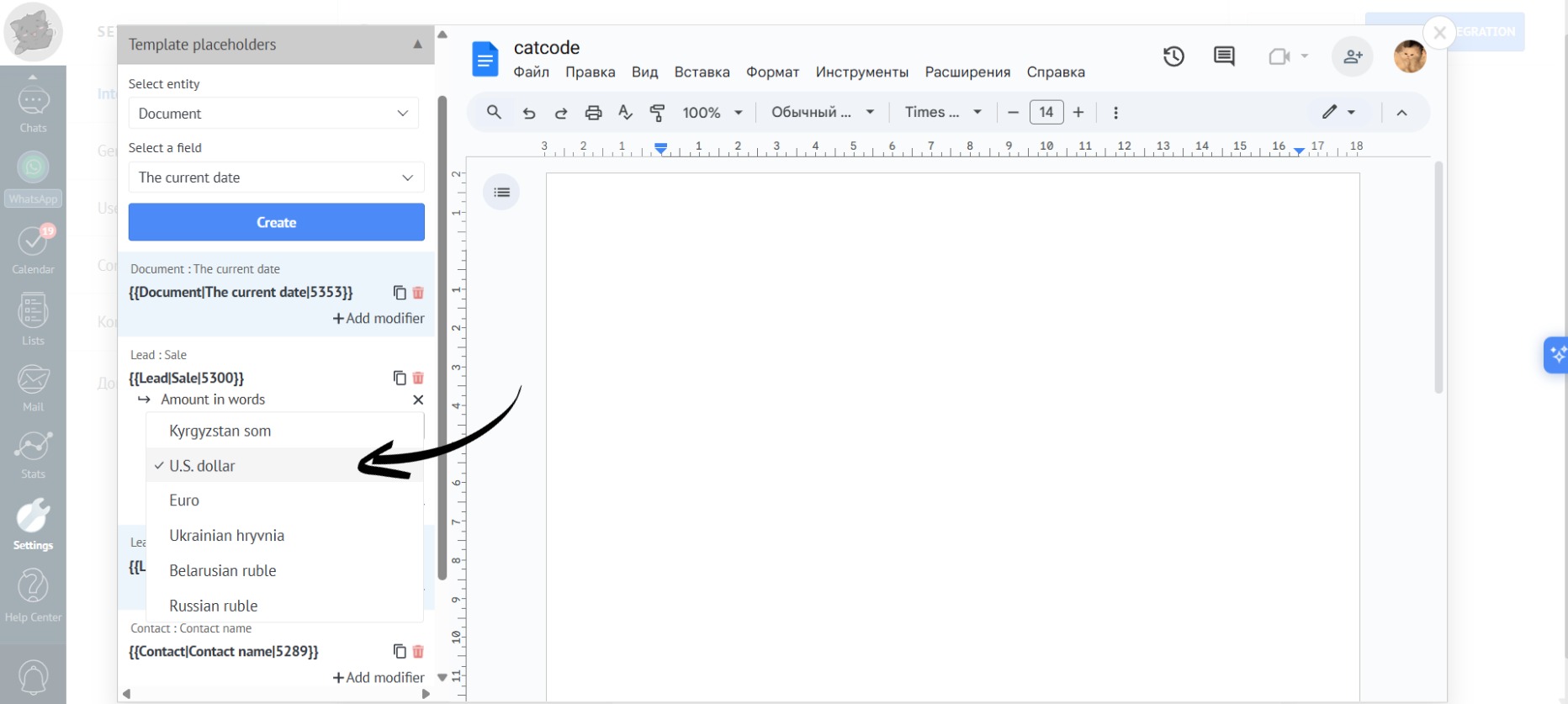
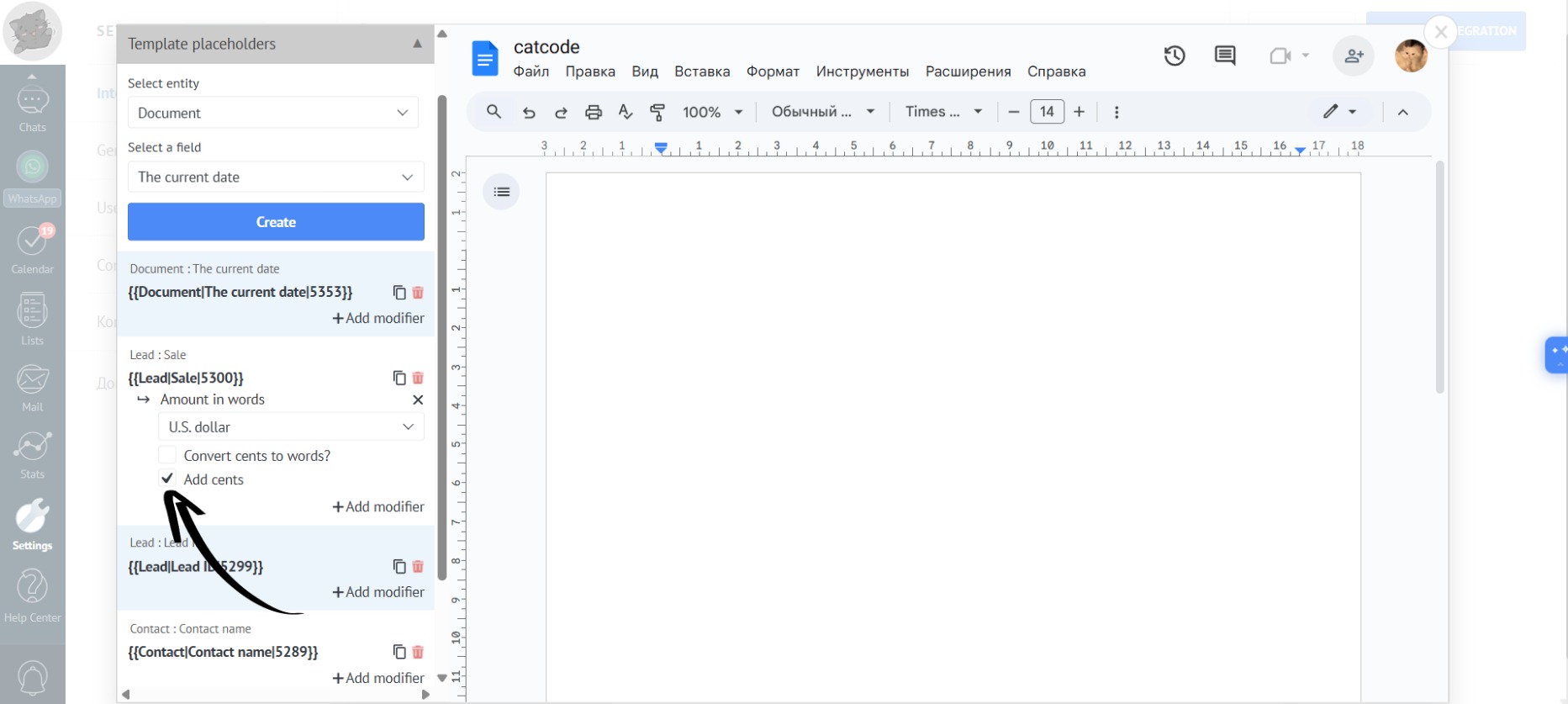
- And check the necessary boxes:
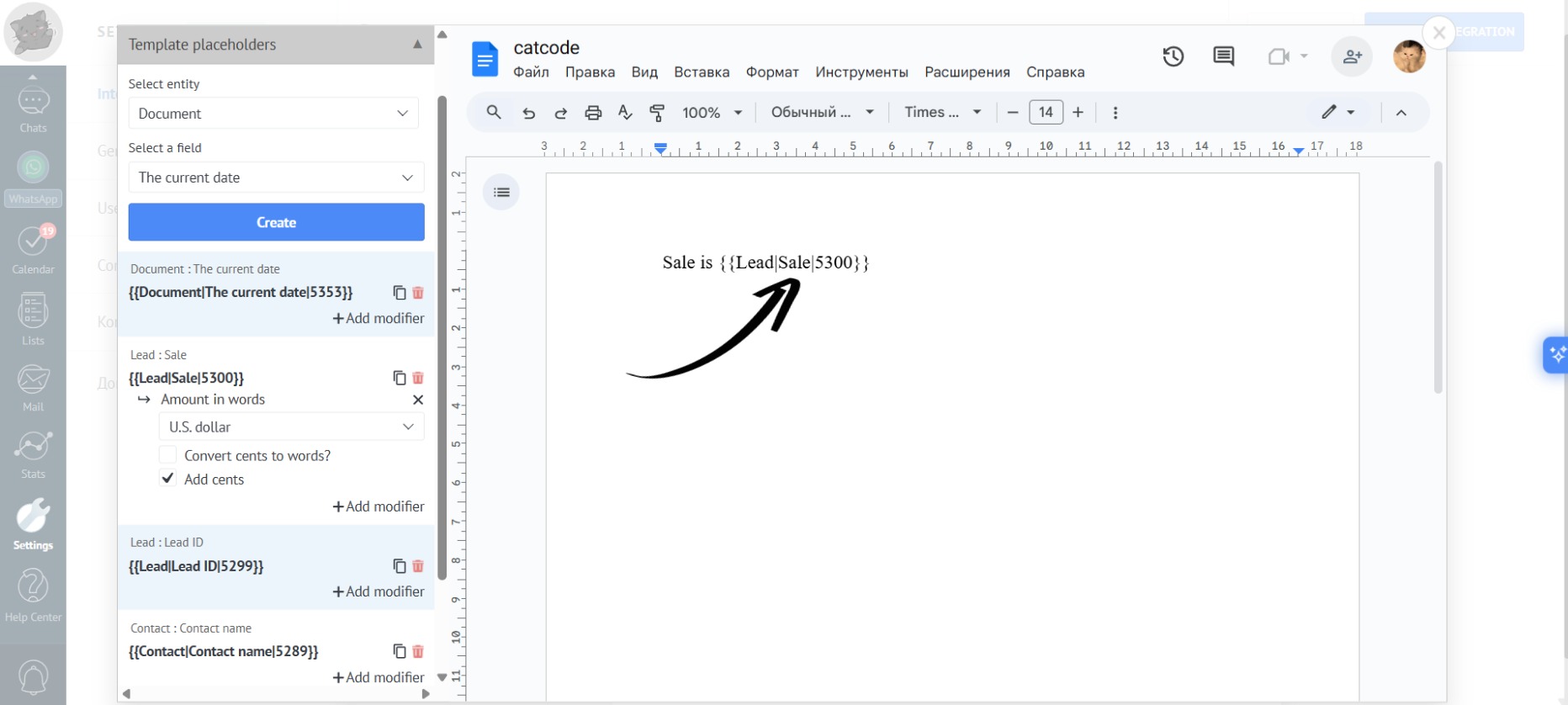
- Add the modifier into the document:
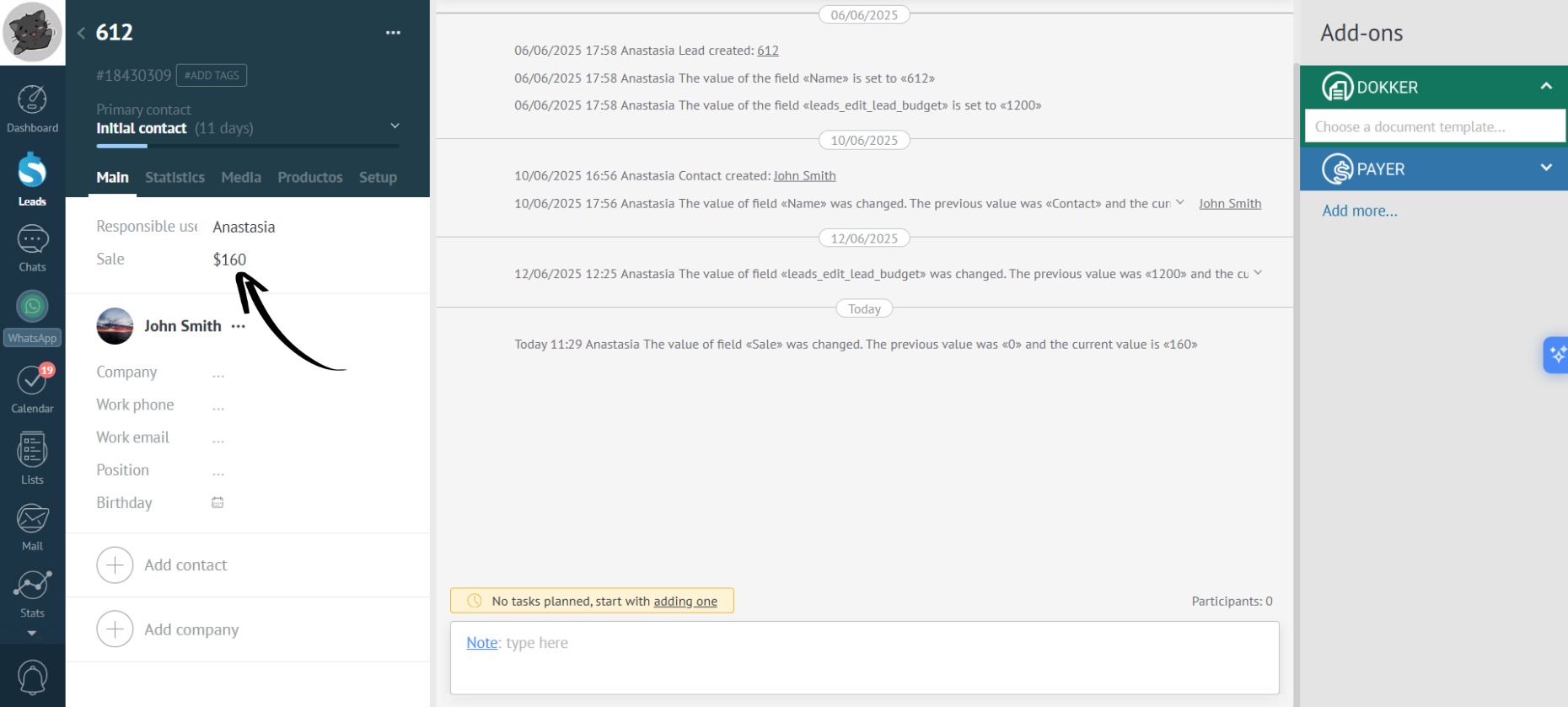
- Now, go to the lead. In this example, the budget is 160:
- In the generated document using the template above, the sale is outputted as words:
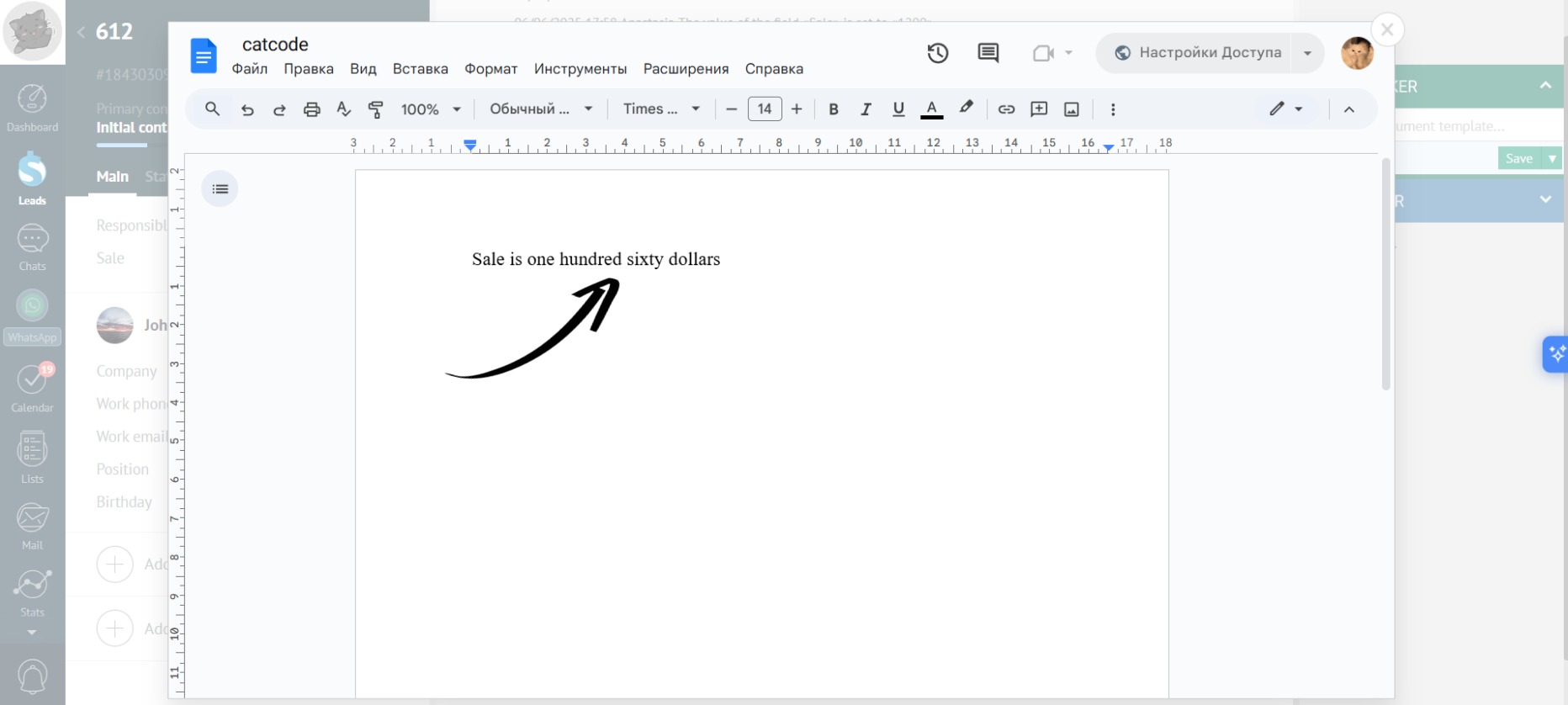
“Amount in Words” modifier can be used when creating contracts where it is necessary to include the sale in words (e.g., in parentheses) within invoices, contracts, and other documents.
- «Last Name with Initials» modifier — converts a full name to the last name followed by initials (the first word is considered the last name).
Example
- Create a placeholder: “Entity” — “Contact”/”User”, “Field” — “Contact/User Name”. Select the “Last Name with Initials” modifier.
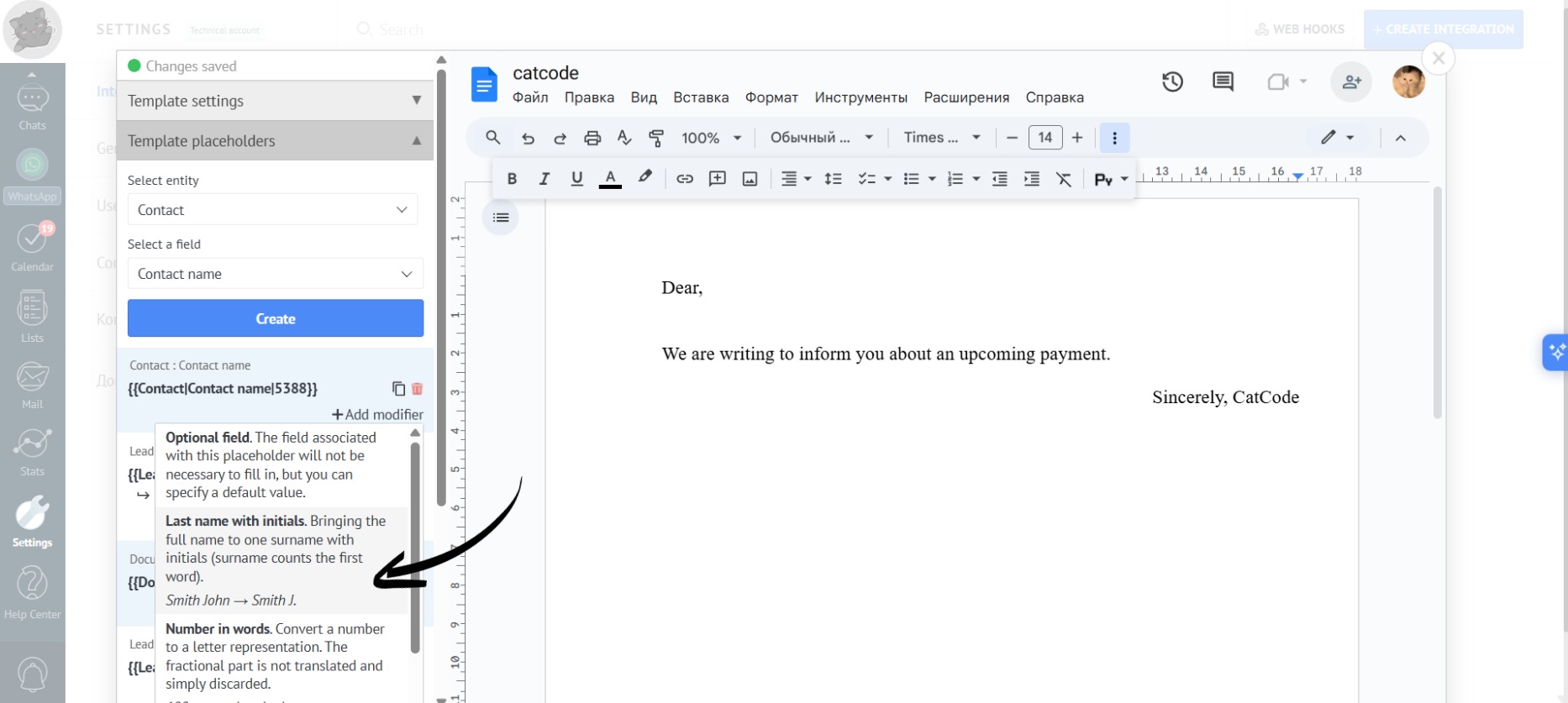
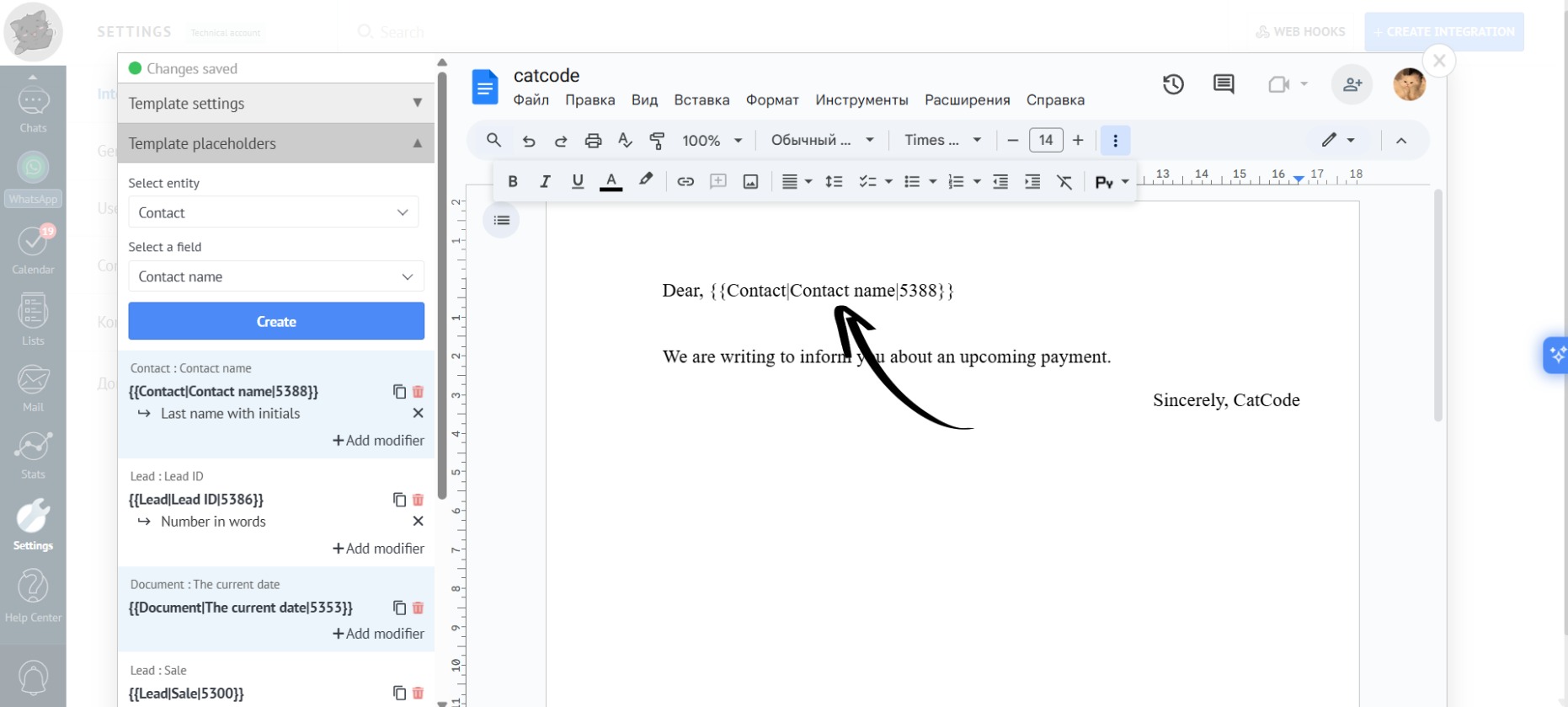
- Add the placeholder with the modifier into the template:
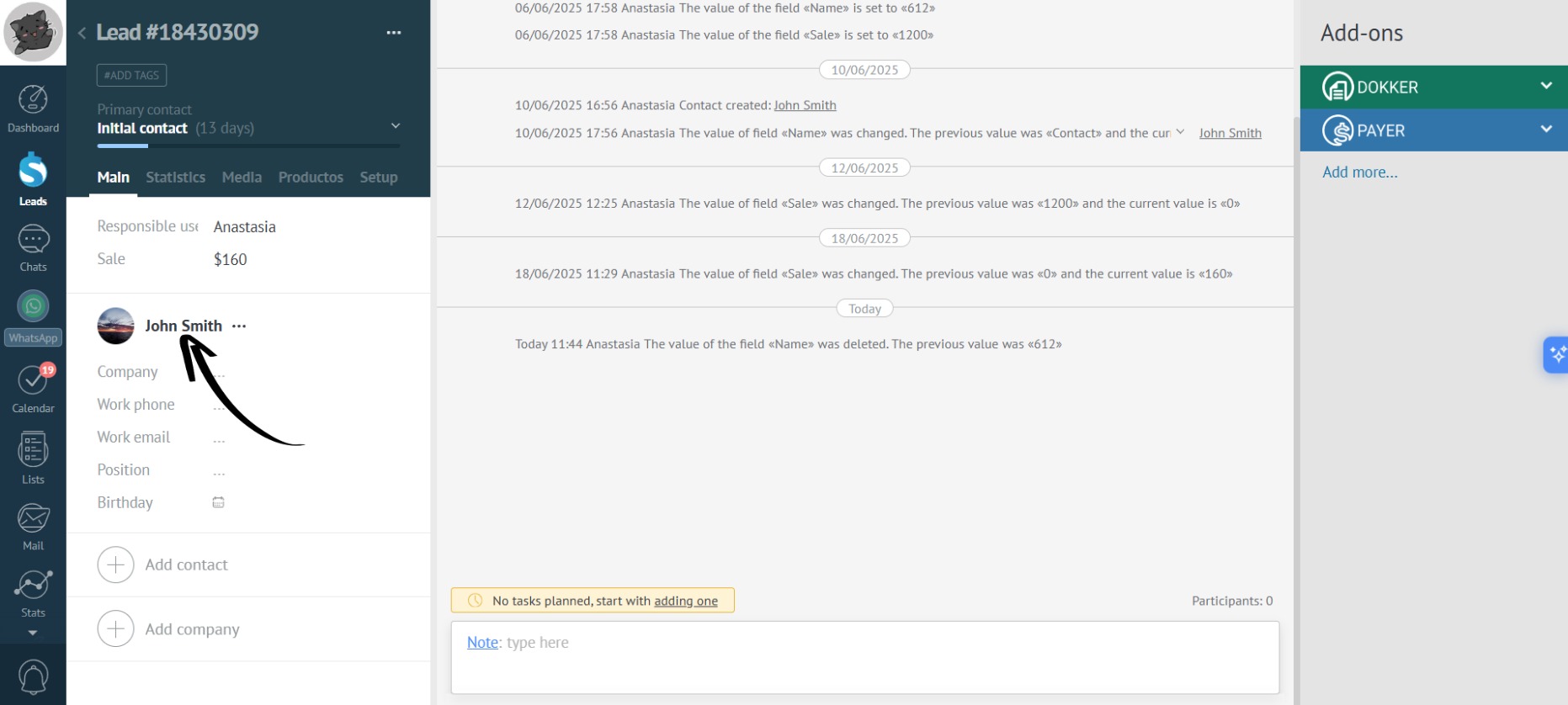
- Now go to the lead. In this example, the contact’s full name is John Smith:
- The generated document based on the template above will look like this:
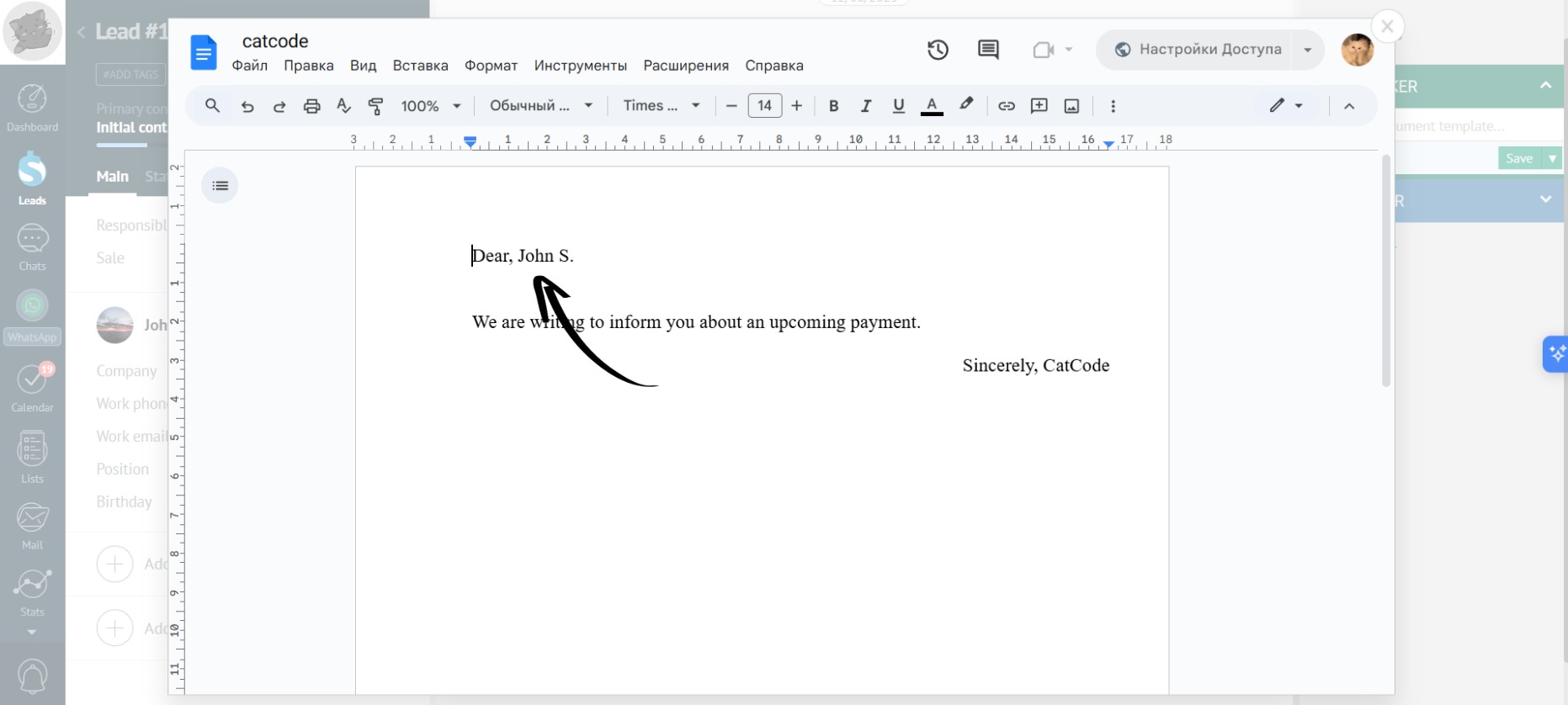
- “Translit” modifier — translates Cyrillic based text to Latin alphabet.
Example
- Create a placeholder with any text “Field” and select the “Translit” modifier:
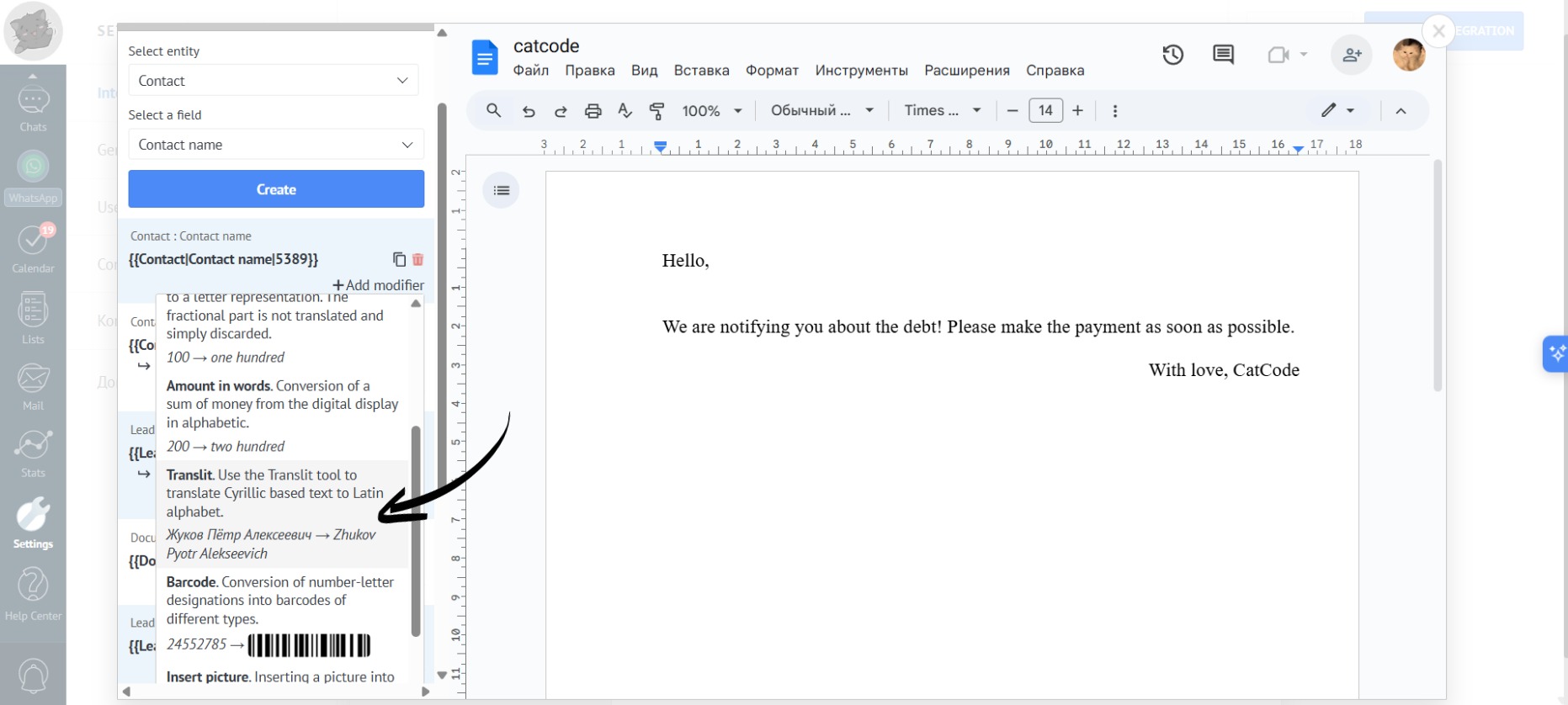
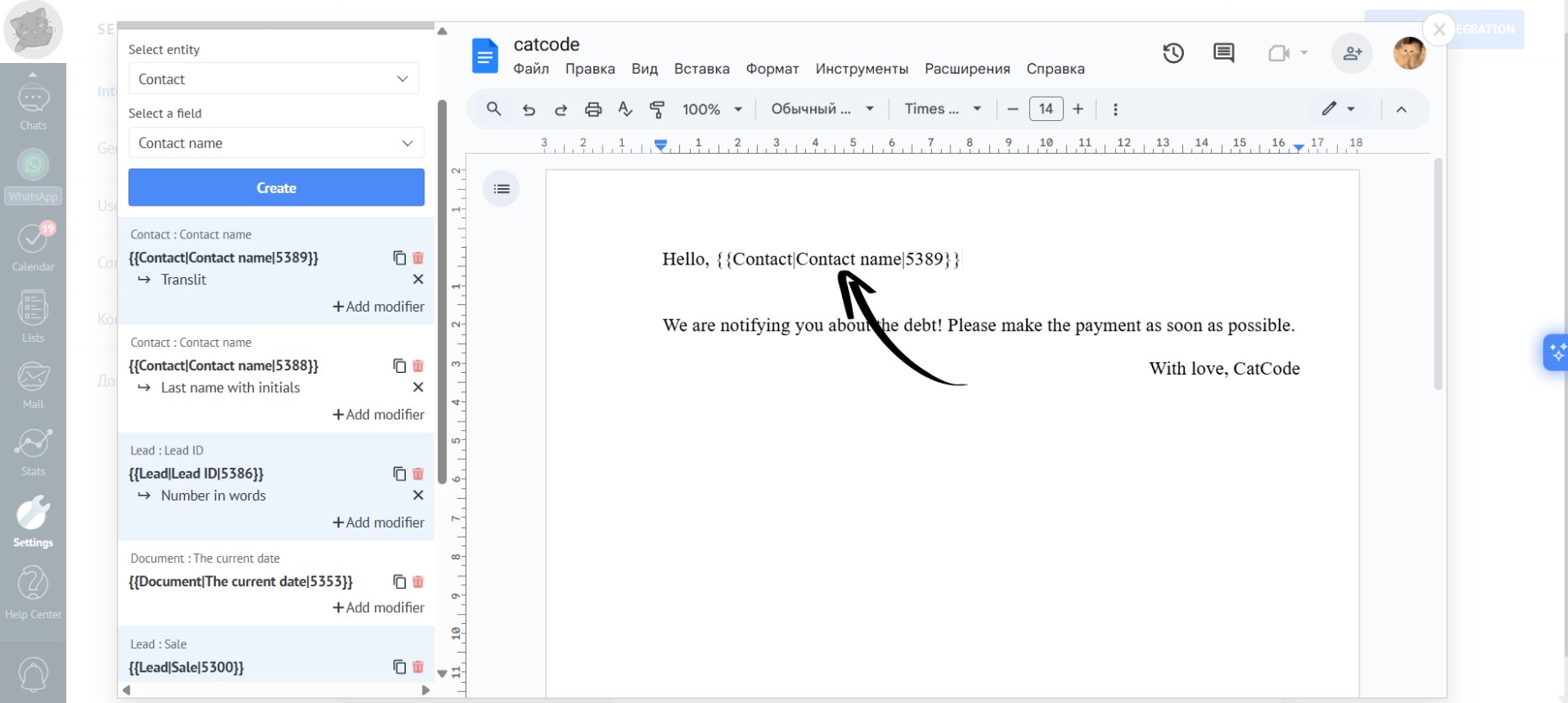
- In this example, the contact’s full name will be converted into transliterated text. Add the placeholder into the template:
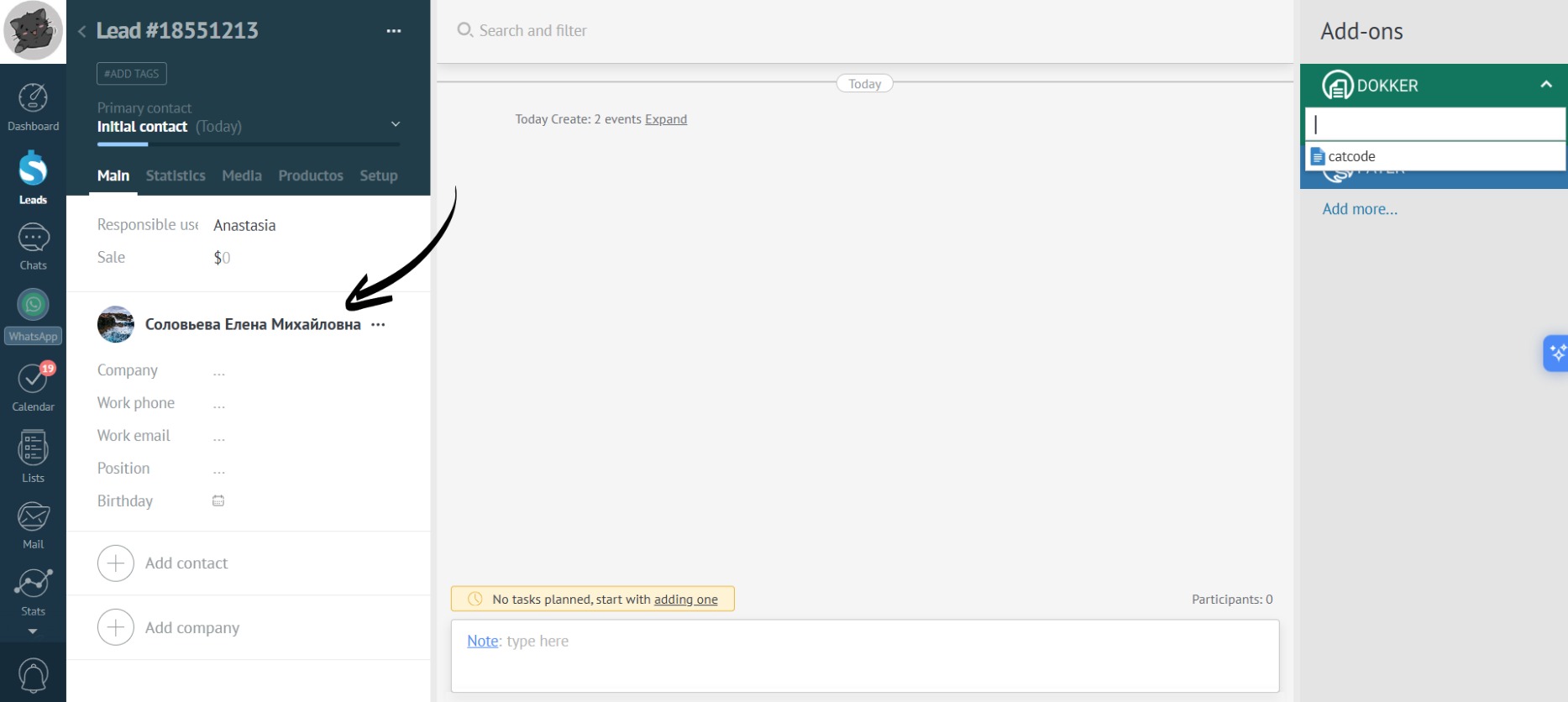
- Now, go to the lead. In this example, the contact’s full name is Соловьева Елена Михайловна:
- Next, generate the document. The app has converted the full name to transliterated text: