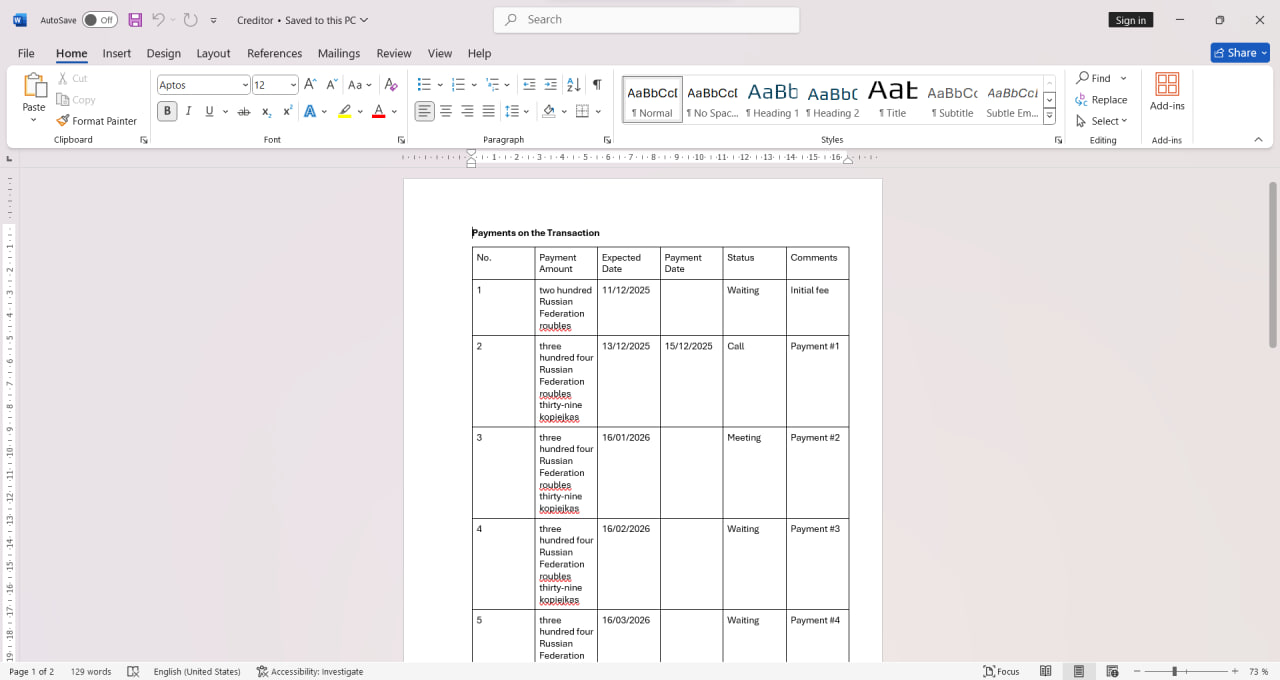
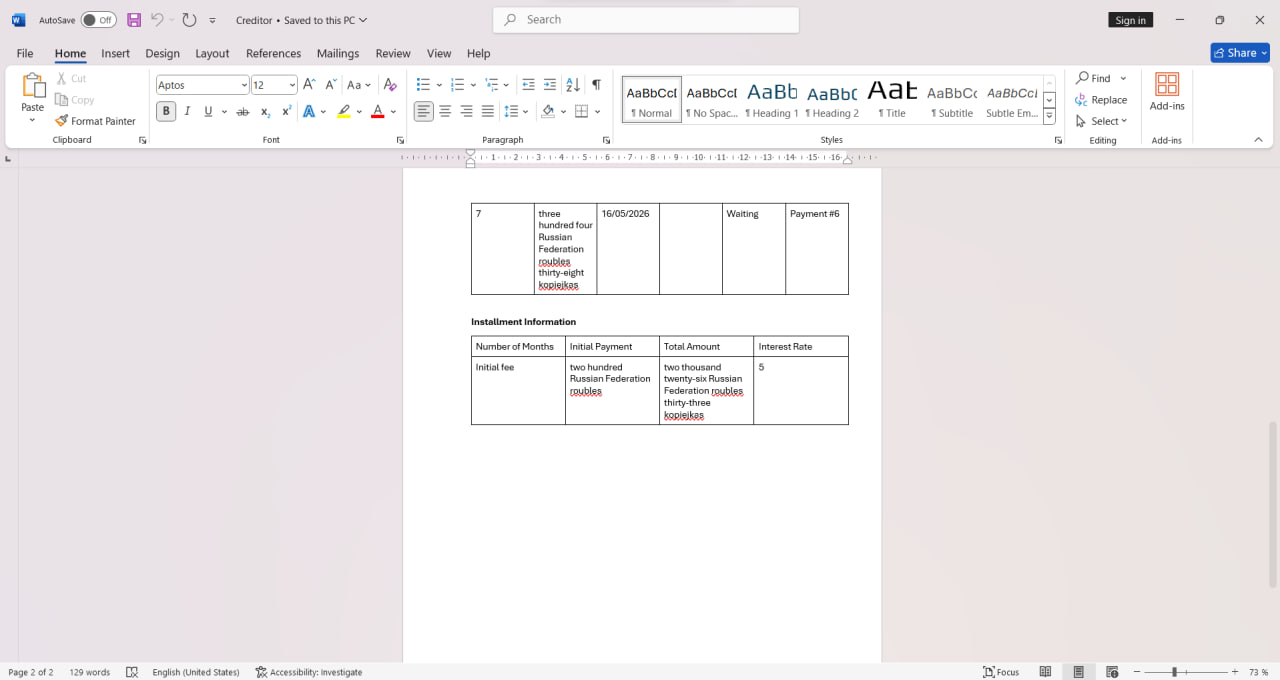
Downloading a Payment Schedule Document
Maximize your efficiency with Dokker and Creditor. In just a minute, transform lead figures into a payment schedule document, ready to send to your client or accounting department.
- To create a document with a payment schedule from a transaction, you will need a widget Creditor. If the Creditor app is installed, it will appear under “Entity”:
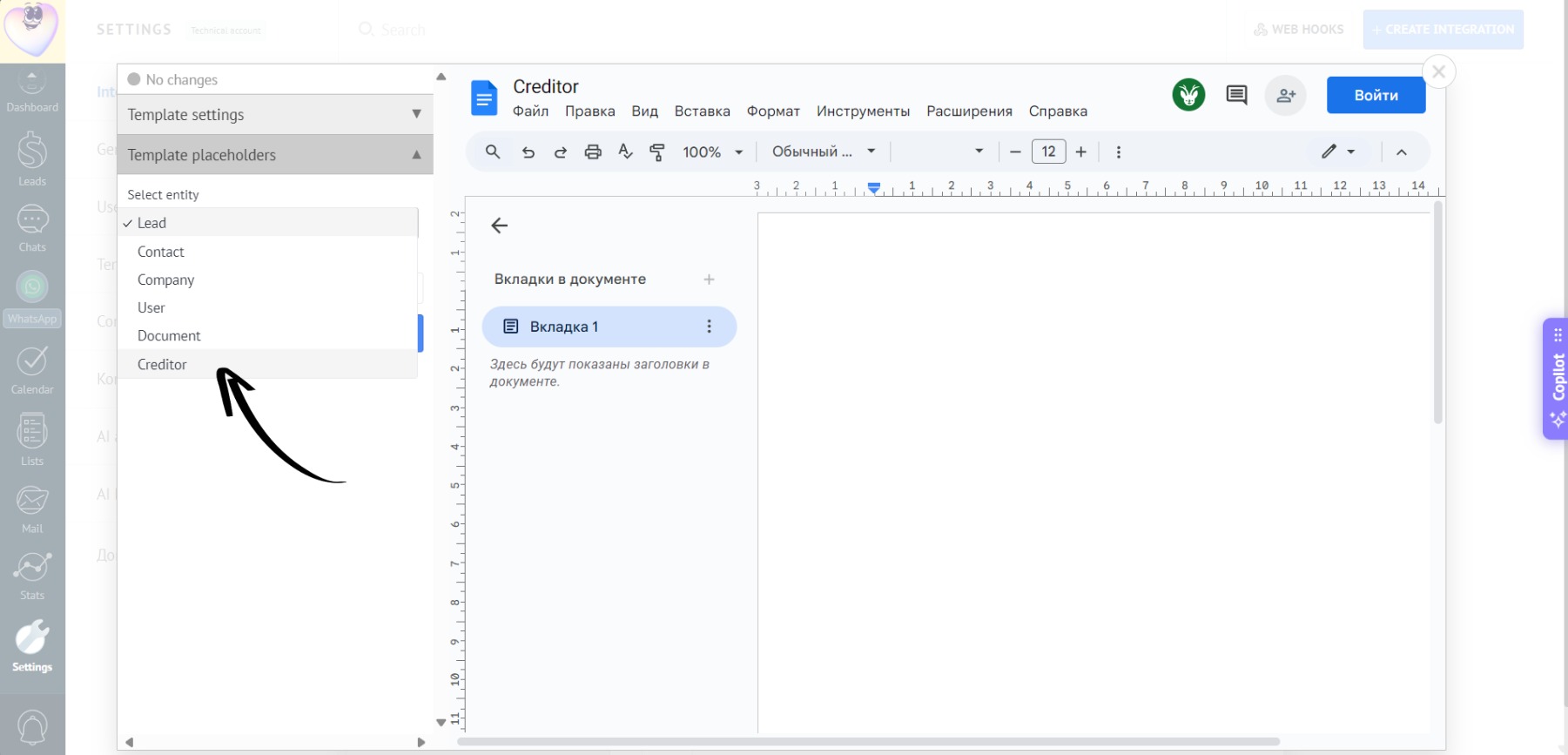
- Select it, and you will gain access to the corresponding fields - payment and installment data from Creditor:
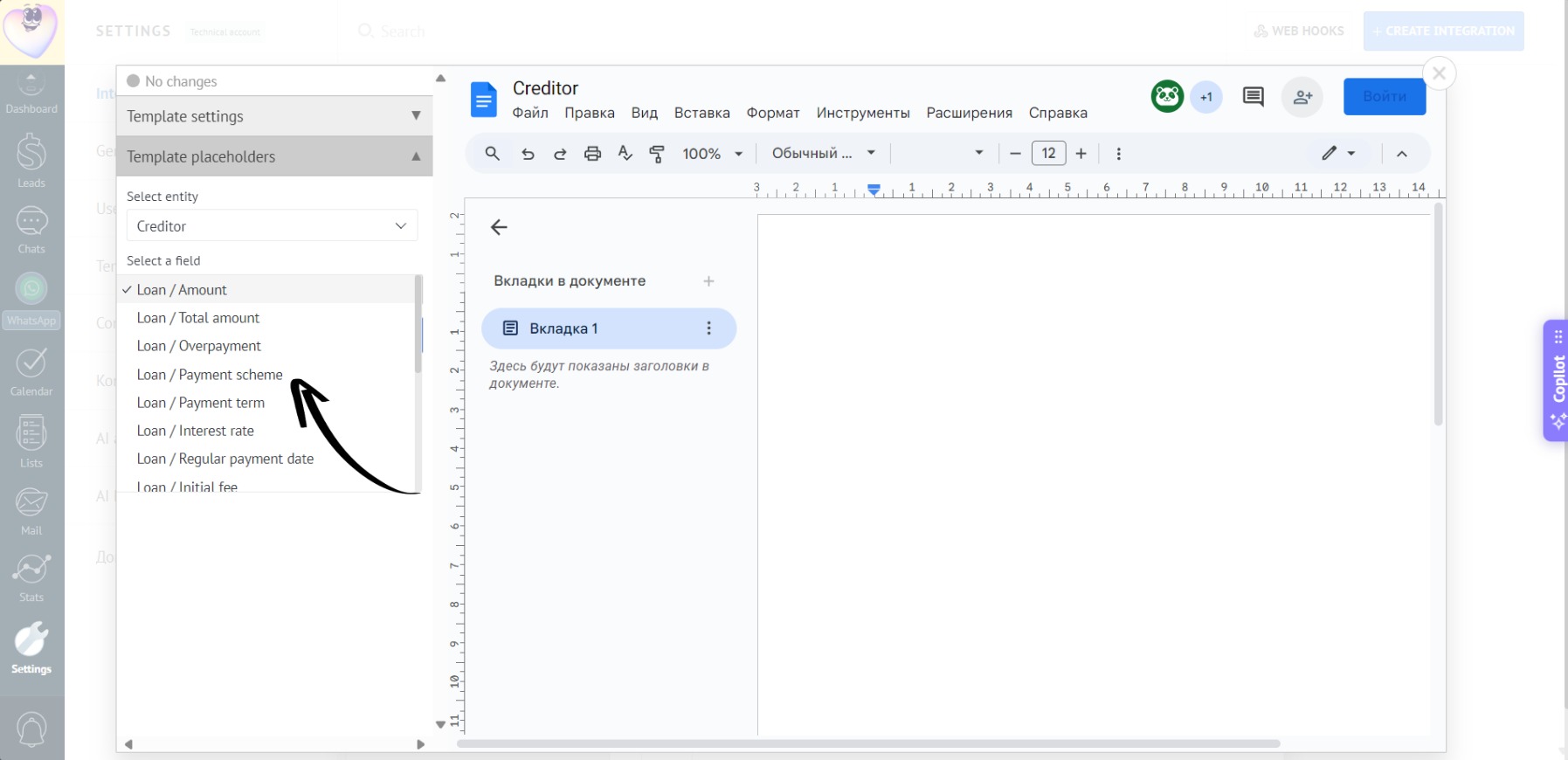
- Create a table in the template if you want to display all payments row by row:
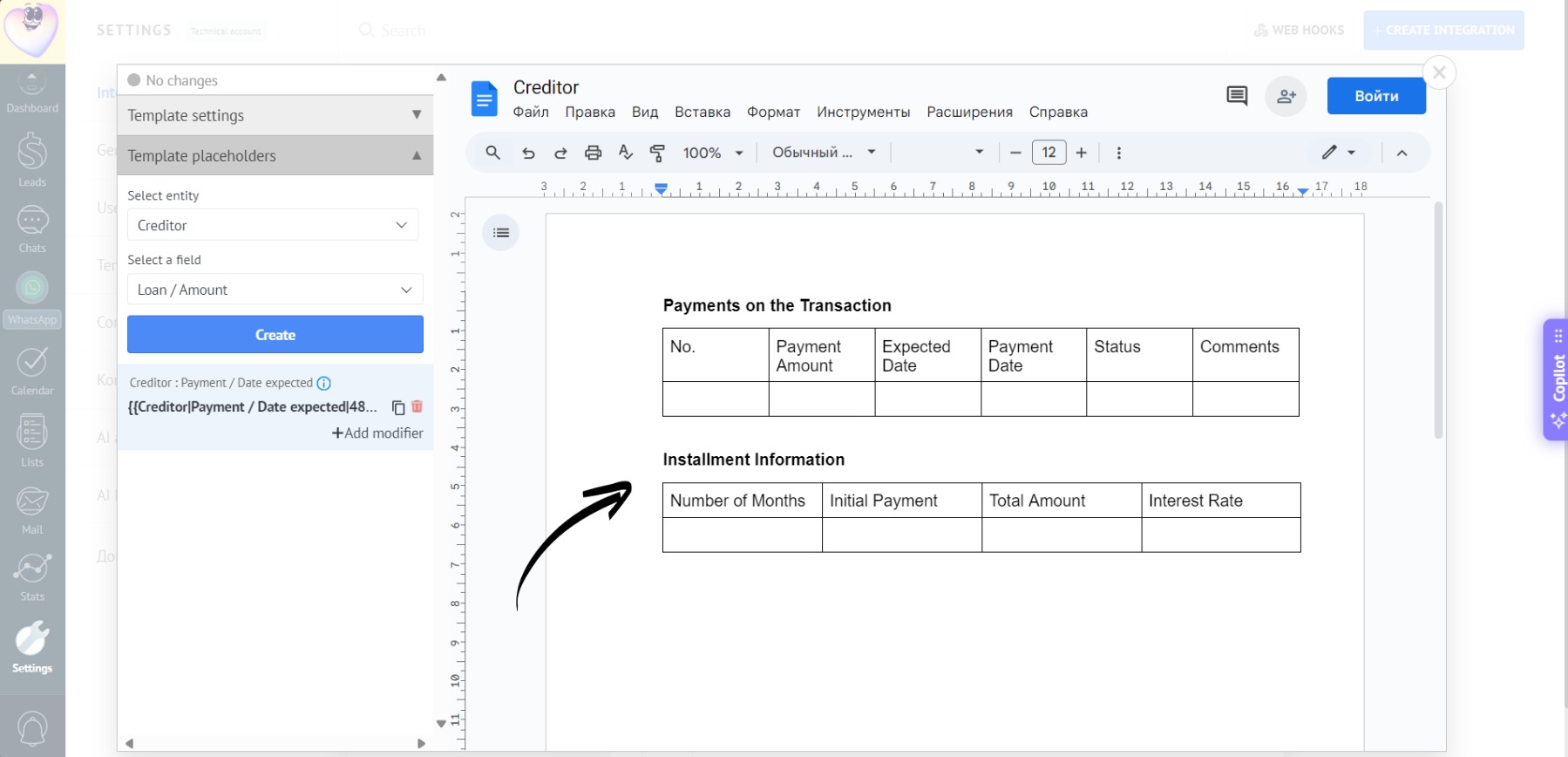
Since Creditor offers two data types – payments and installment data – you can create two tables. In one, show all payments, and in the other, output the fixed installment details.
- Add Creditor placeholders to the table row – when generating the document, the table will display as many rows as there are payments in the lead:
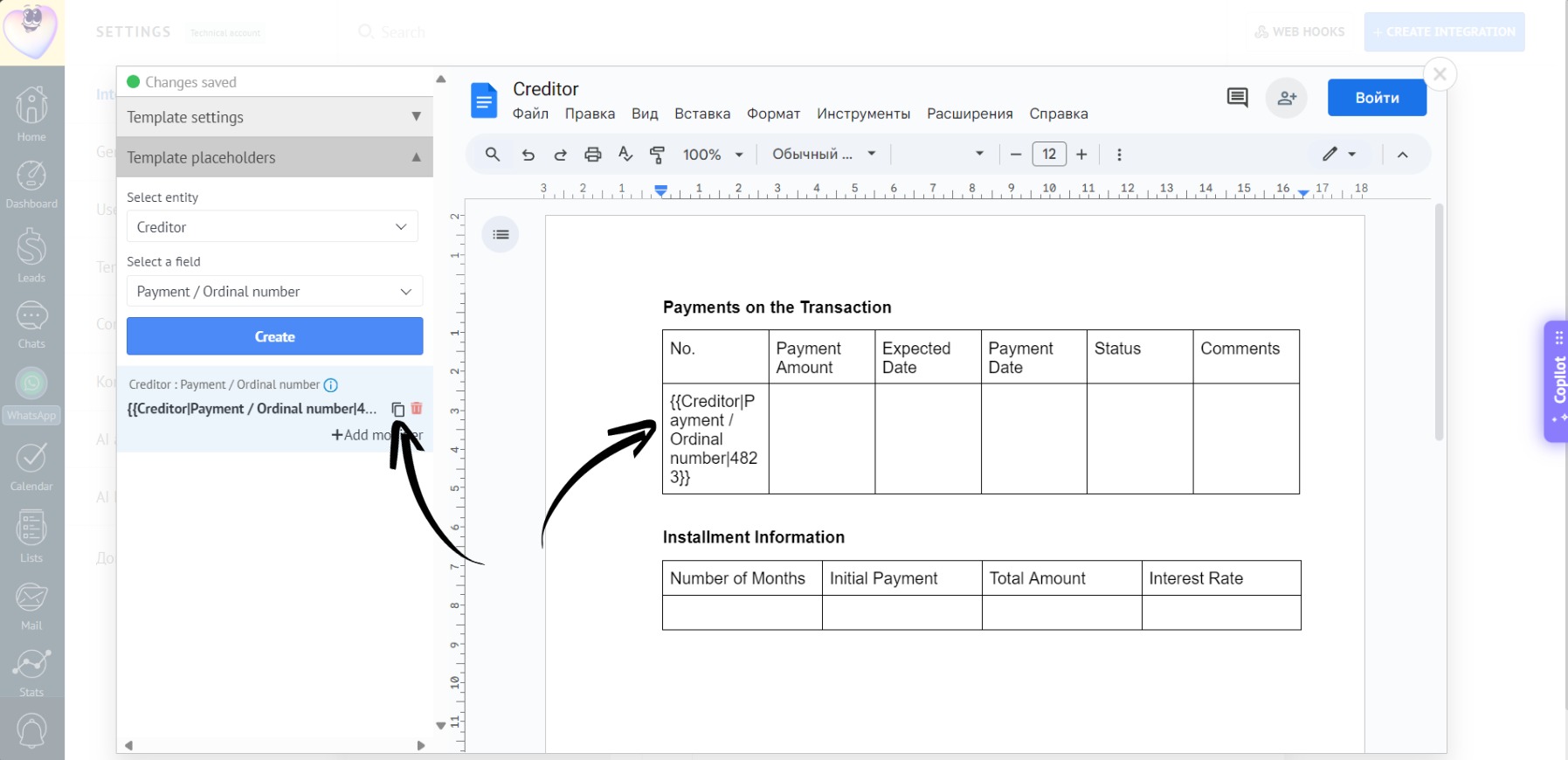
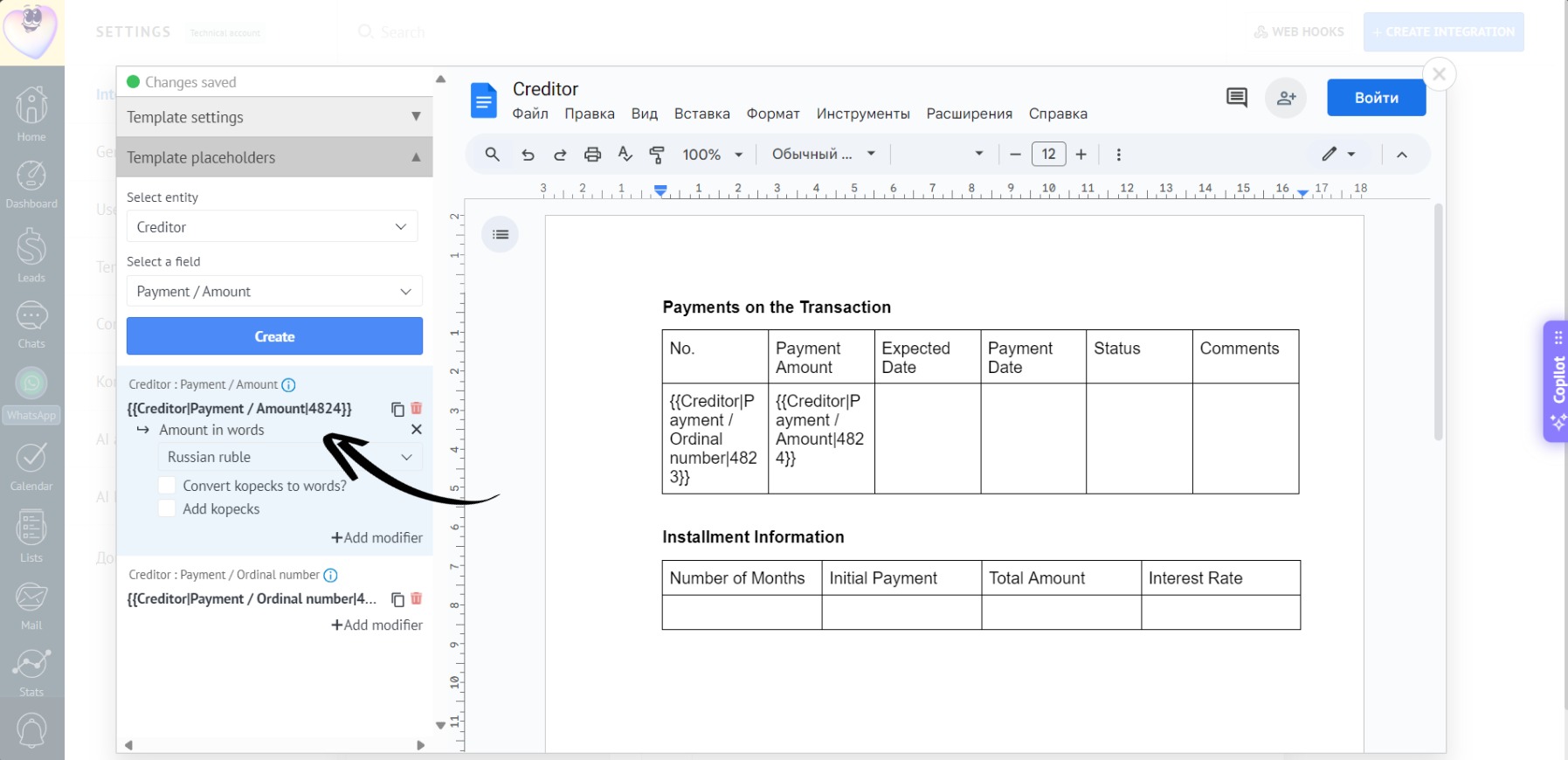
- You can add necessary modifiers to the placeholders, for example, “Amount in Words” for “Payment Amount”:
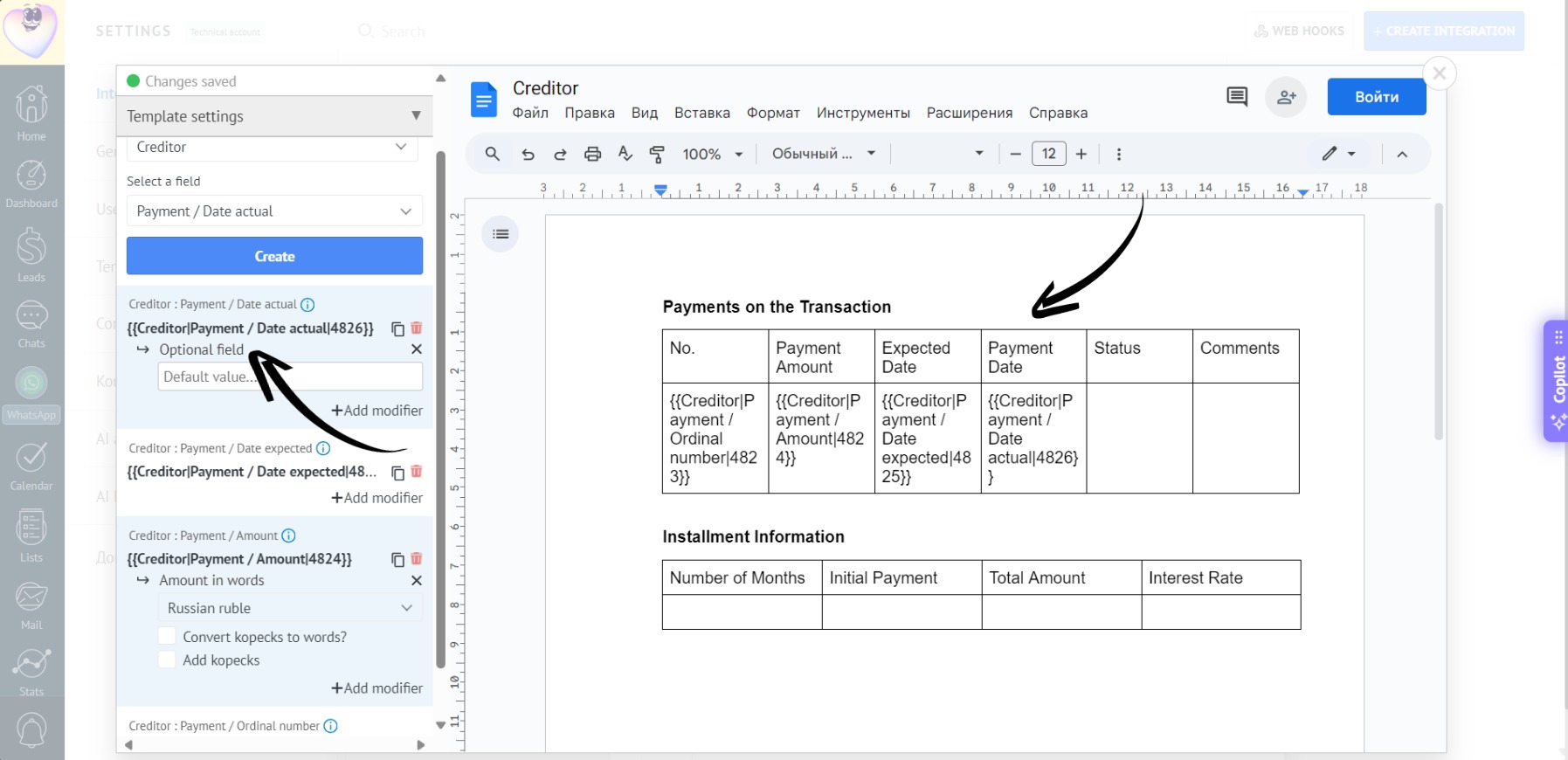
- The “Optional Field” modifier helps if not all data is filled in. For example, if the “Actual Date” is not specified, this modifier ensures the document will still generate without errors:
- Follow the same principle to fill in the installment plan table:
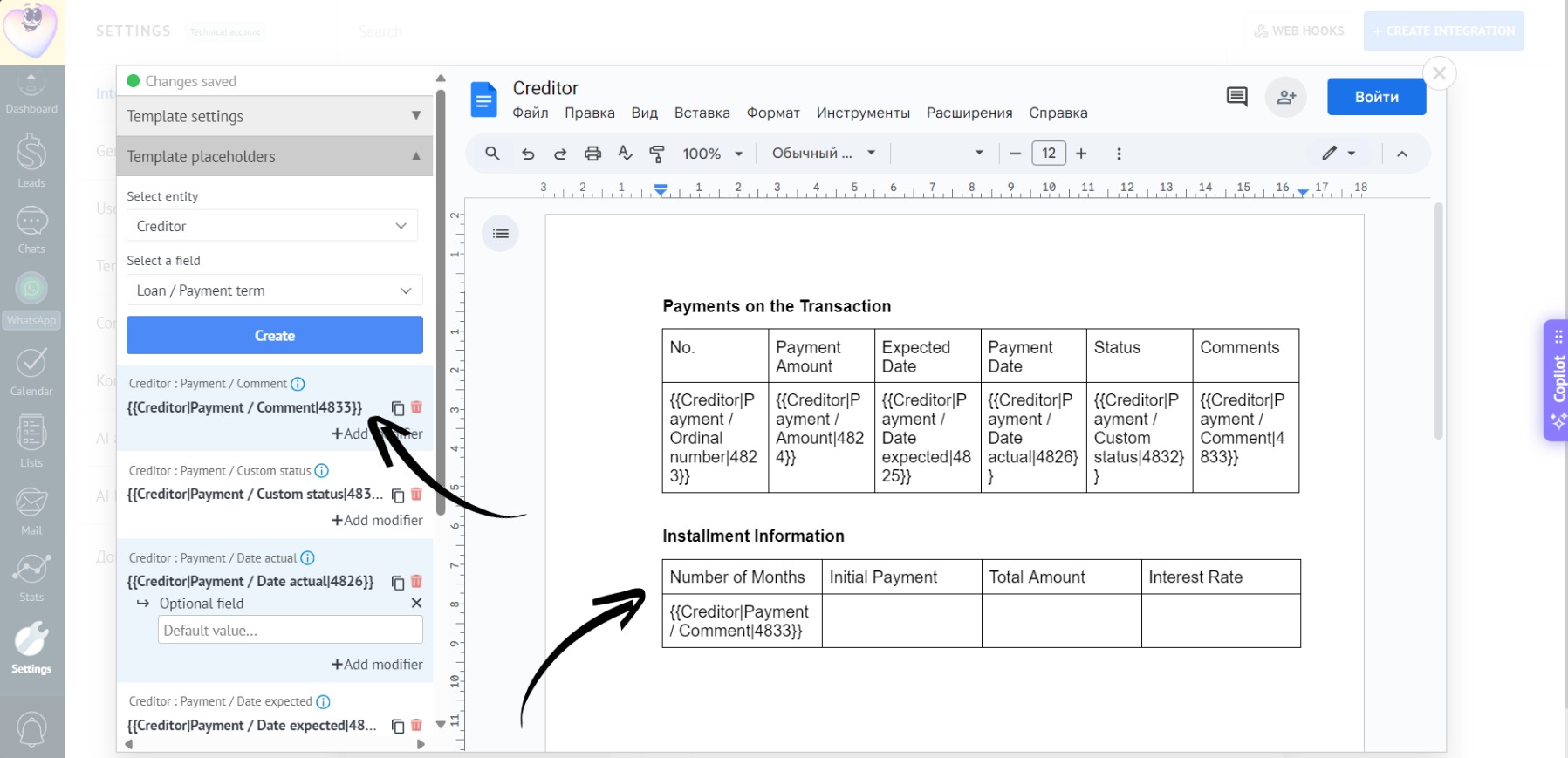
- Done! All data has been entered into the tables:
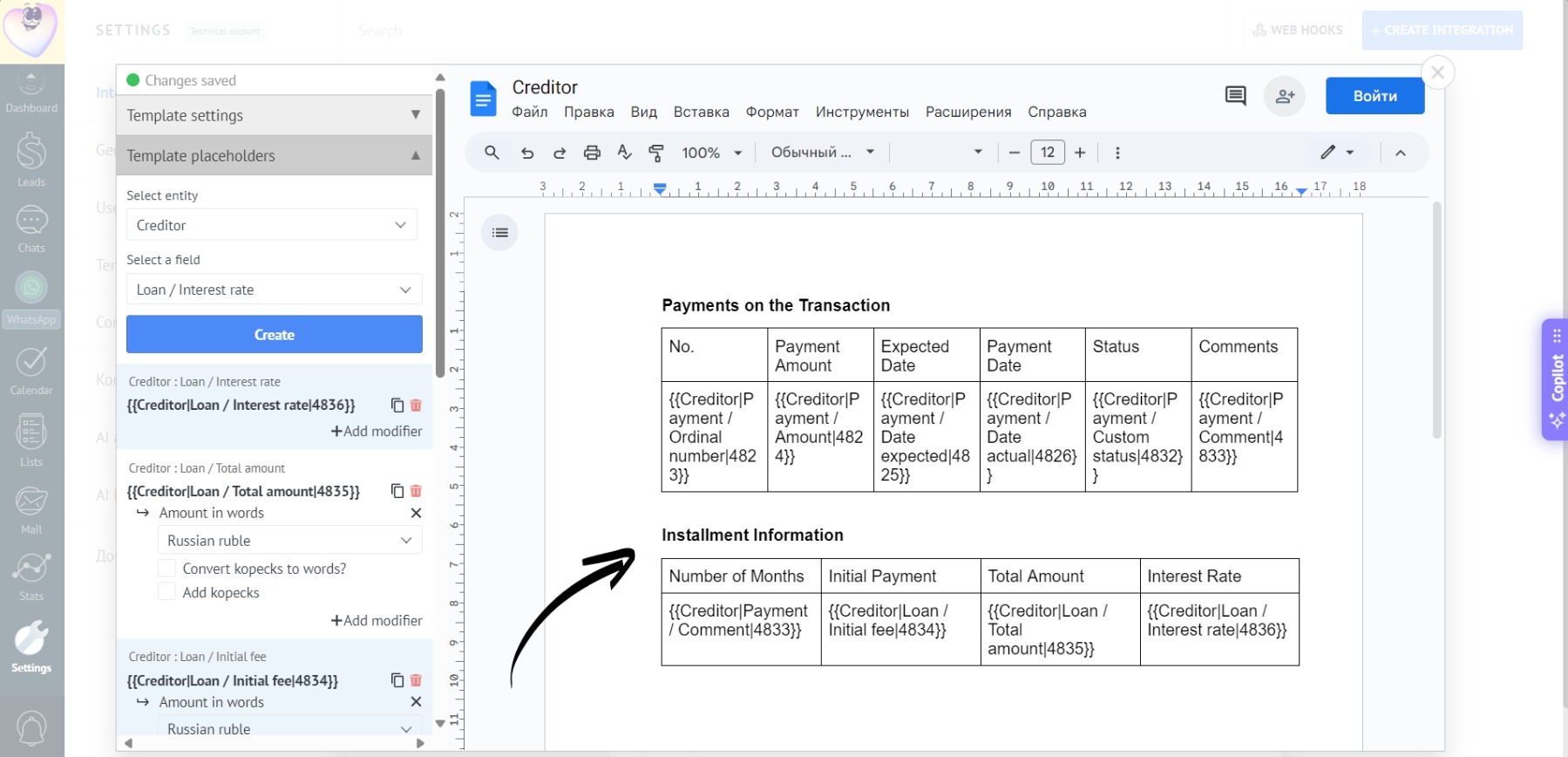
You can also use placeholders outside of a table. If you add a placeholder (e.g., payment amount) outside a table, only the first value from the list (i.e., the initial payment) will be displayed in the document.
- Go to the desired lead, and two apps will immediately appear:
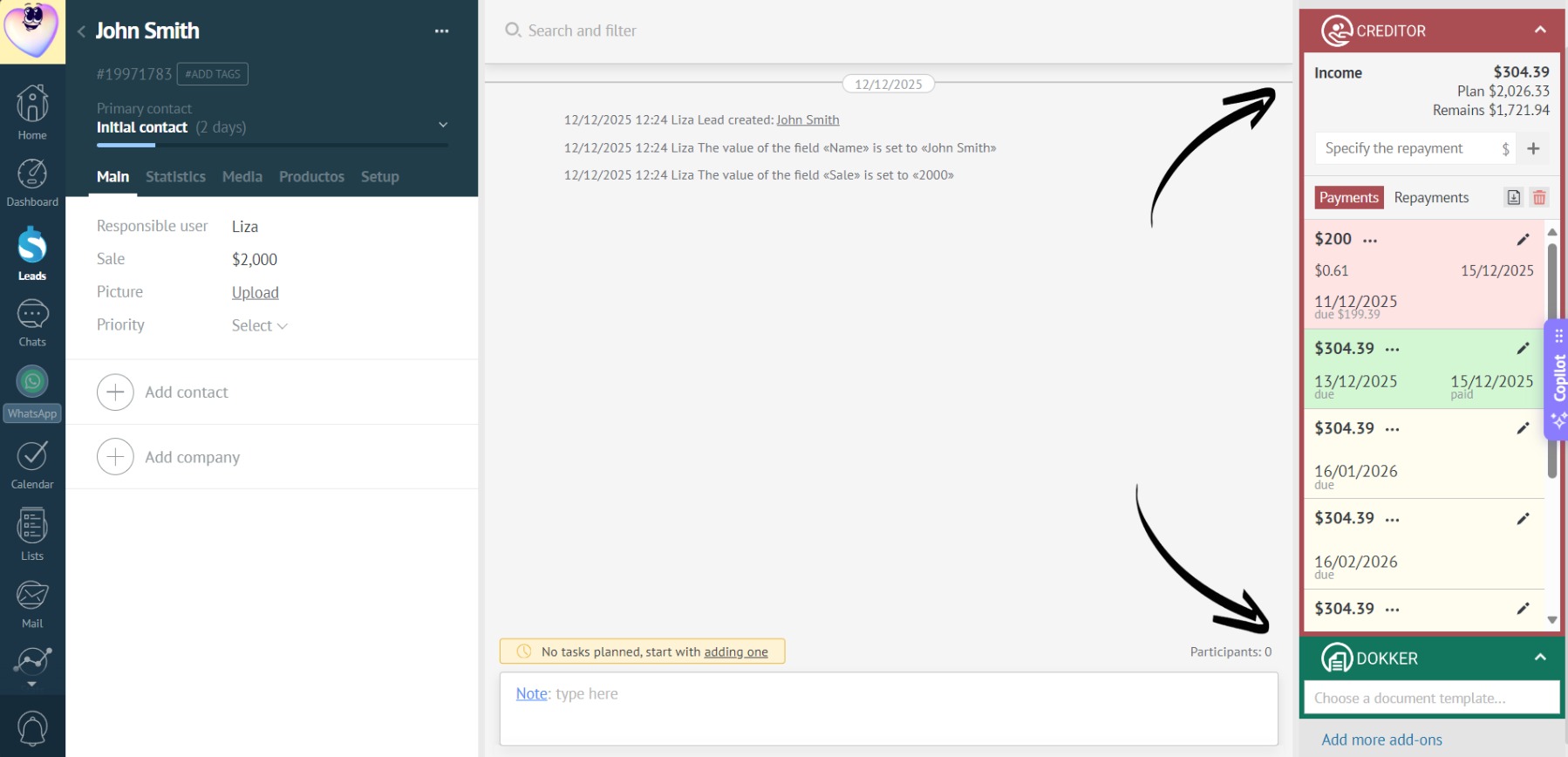
- Select the desired template to generate the document using the Dokker app:
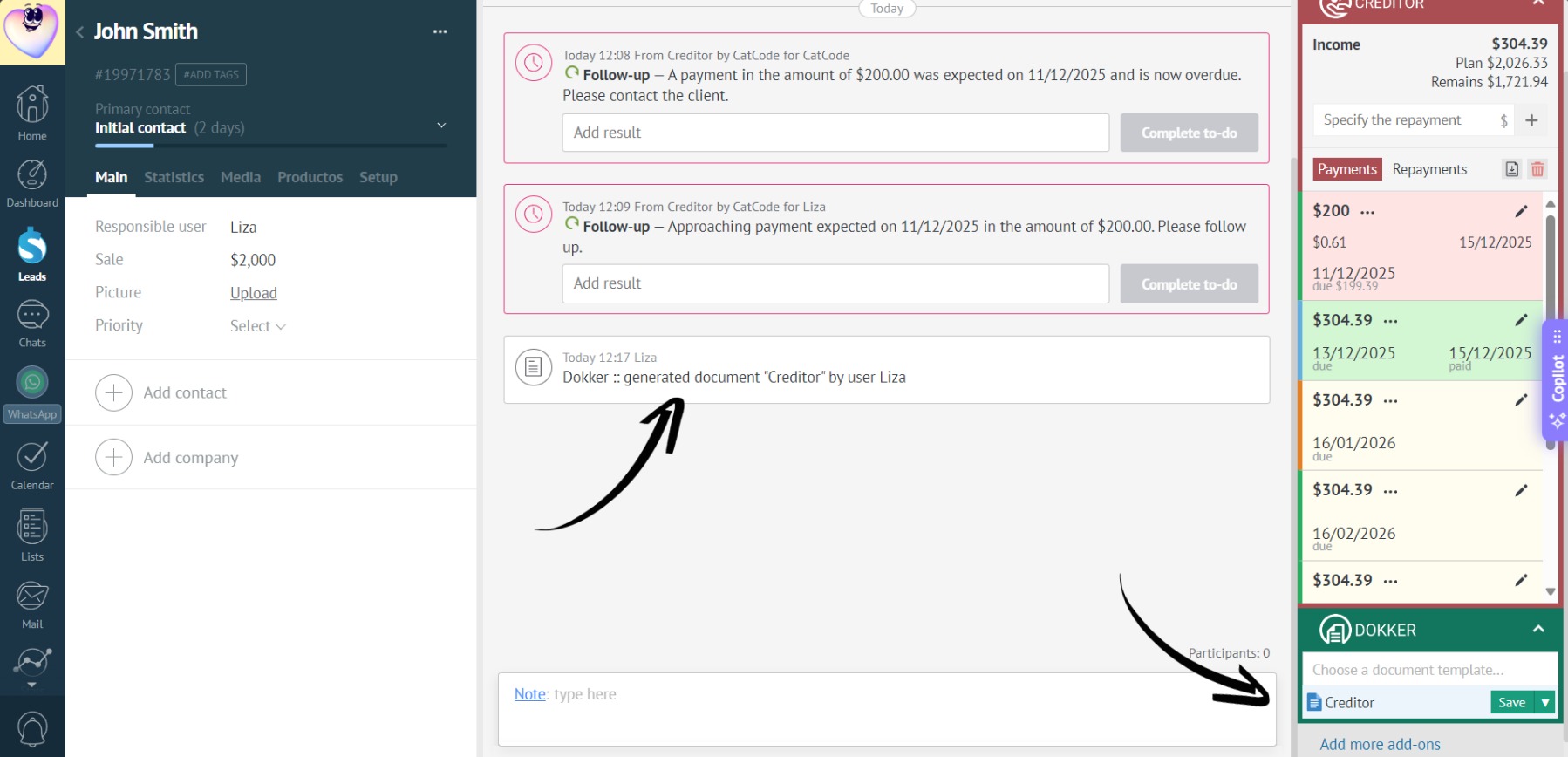
- Done! The document will be filled with Creditor data per the template: