Template Configuration Example
In this example, we’ll create a document template for overdue payment reminders. Starting with a sample document, we’ll use placeholders and modifiers to personalize it for each client. Document templates are essential for avoiding manual document filling for each client.
- Here is a sample document that can be transformed into a template using placeholders:
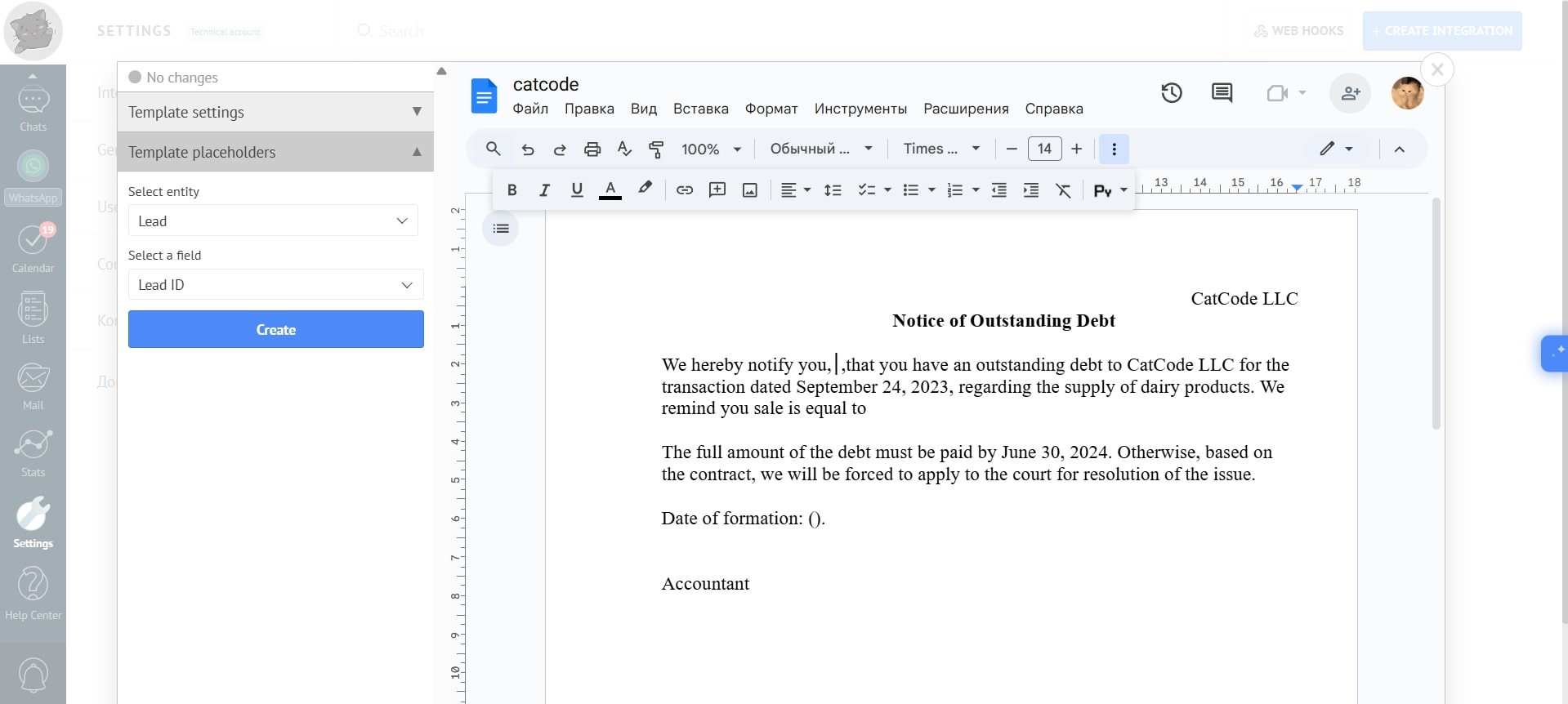
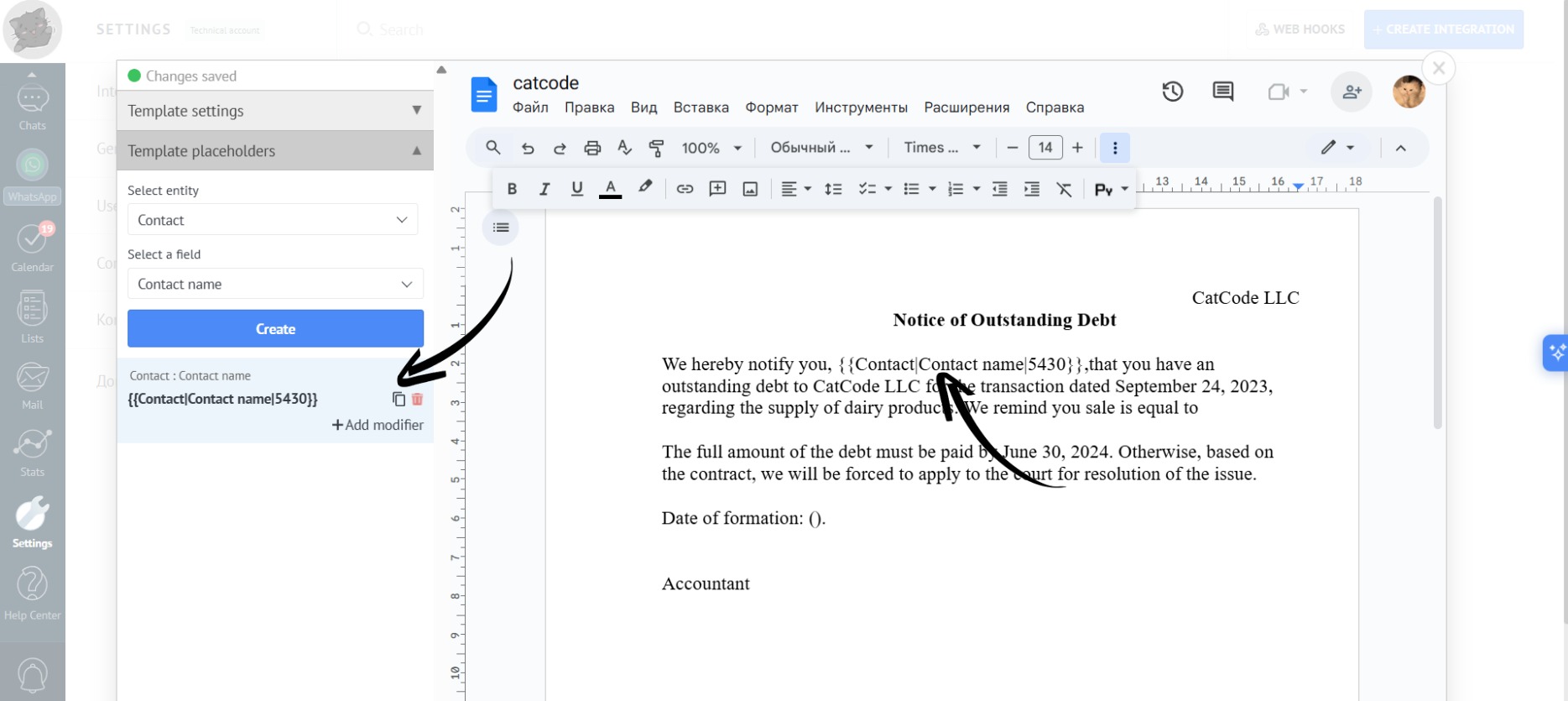
- To remind the client about the debt, you can include the contact’s full name (using the placeholder “Entity” — “Contact”, “Field” — “Contact Name”) and insert it into the template:
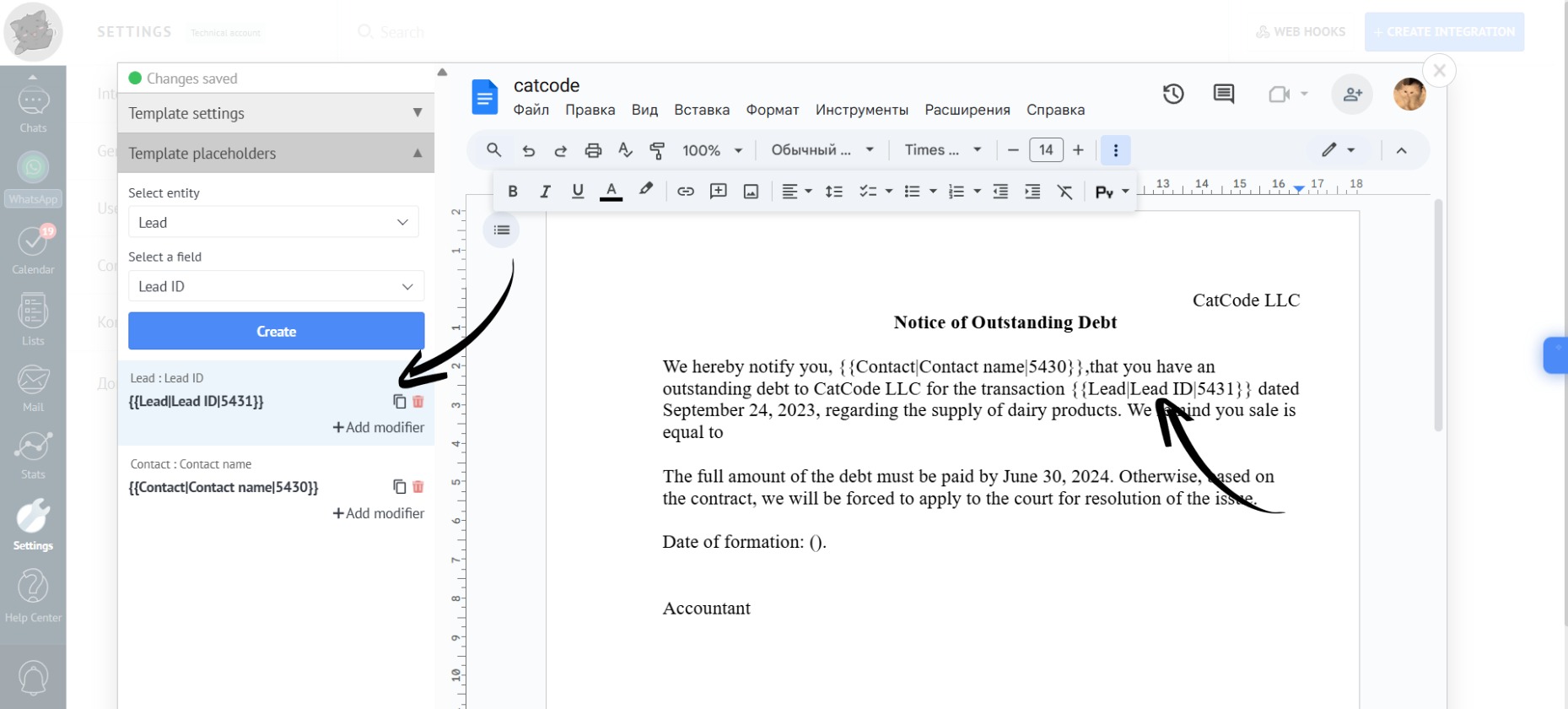
- You can also include automatic generation of the lead number in the document (using the placeholder “Entity” — “Lead”, “Field” — “Lead ID”):
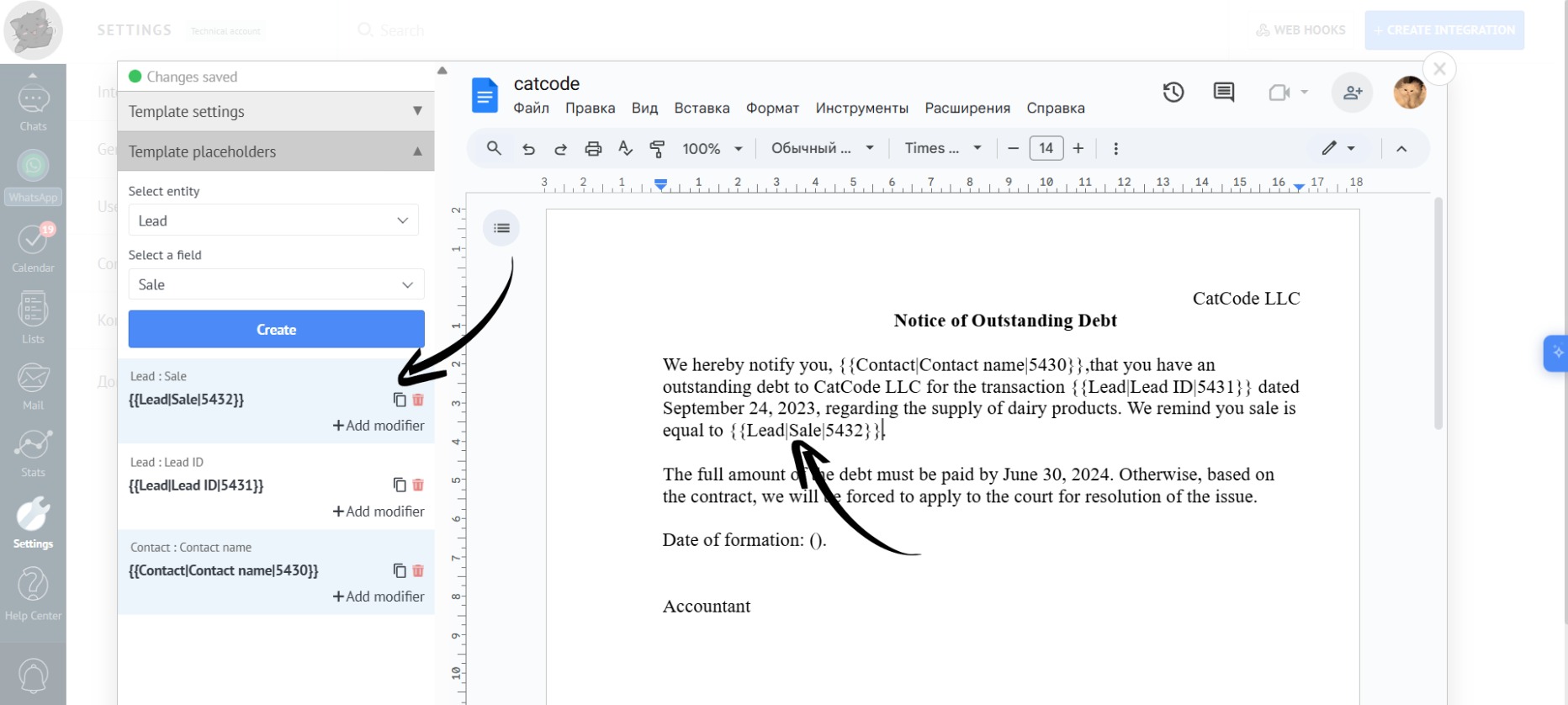
- You can also remind them of the sale (using the placeholder “Entity” — “Lead”, “Field” — “Sale”):
- For the sale, you can include the amount in words in parentheses (using the placeholder “Entity” — “Lead”, “Field” — “Sale” with the modifier “Amount in Words”):
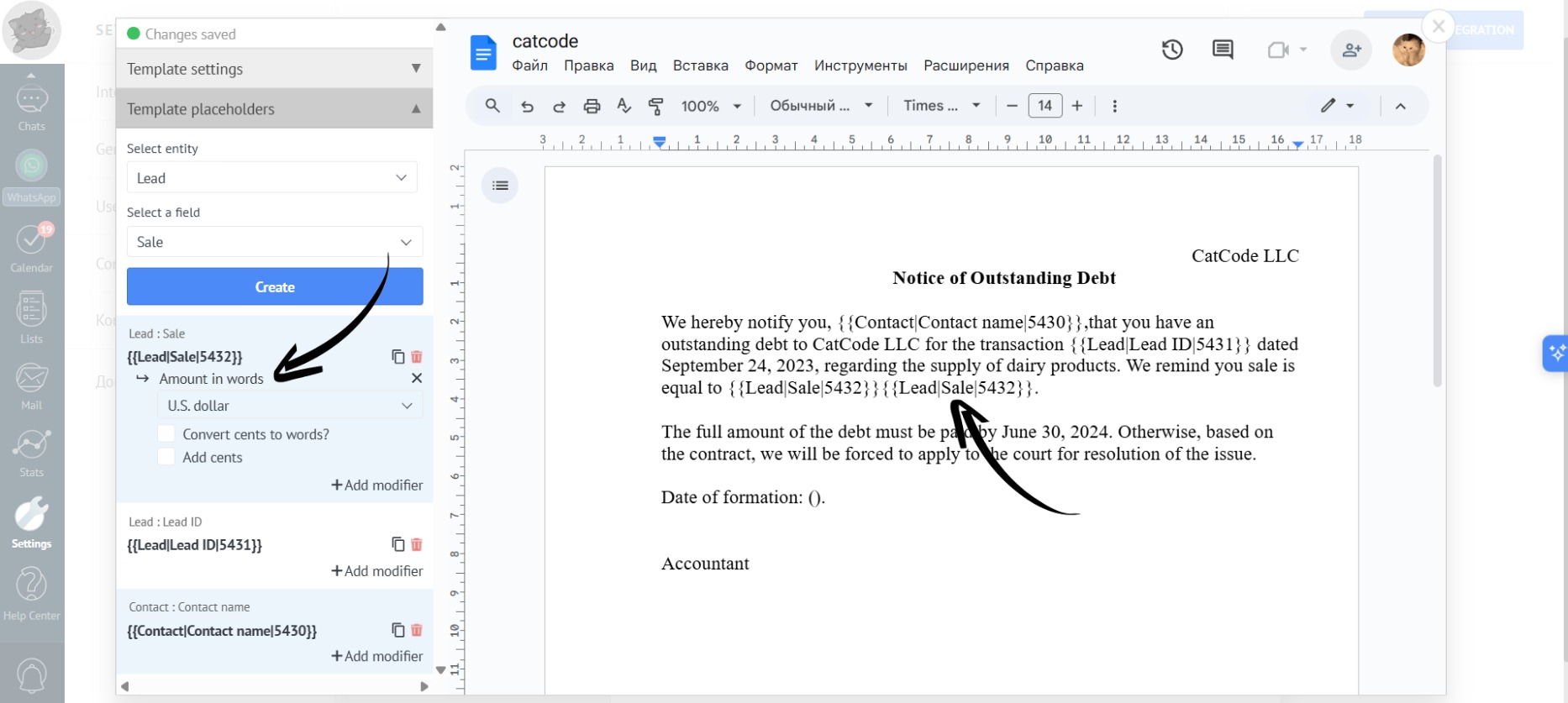
- To include the date in the document, use the placeholder “Entity” — “Lead”, “Field” — “Current Date”:
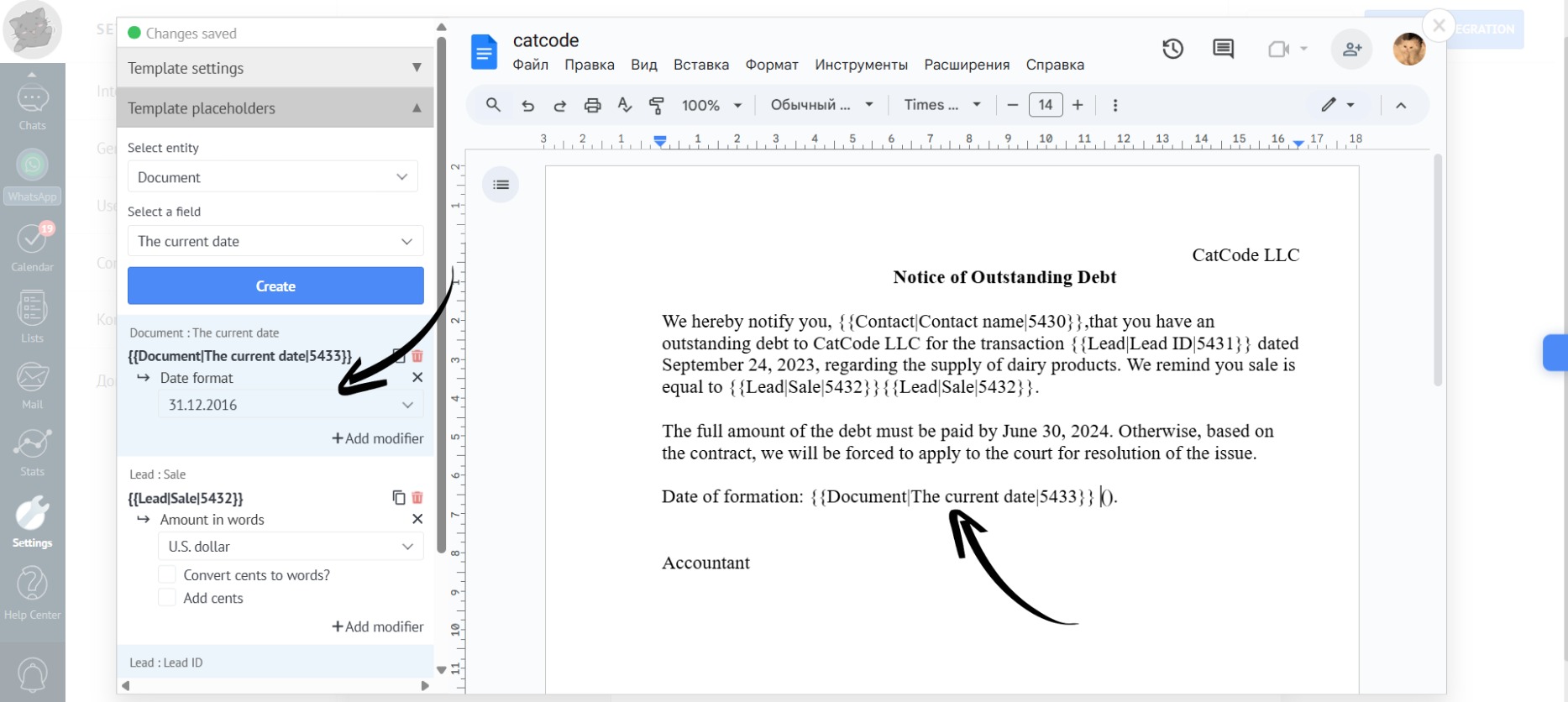
- To specify the sender of the letter, you can indicate the person responsible for the transaction and select the placeholder “Entity” — “User”, “Field” — “Name” with the modifier “Last Name with Initials”:
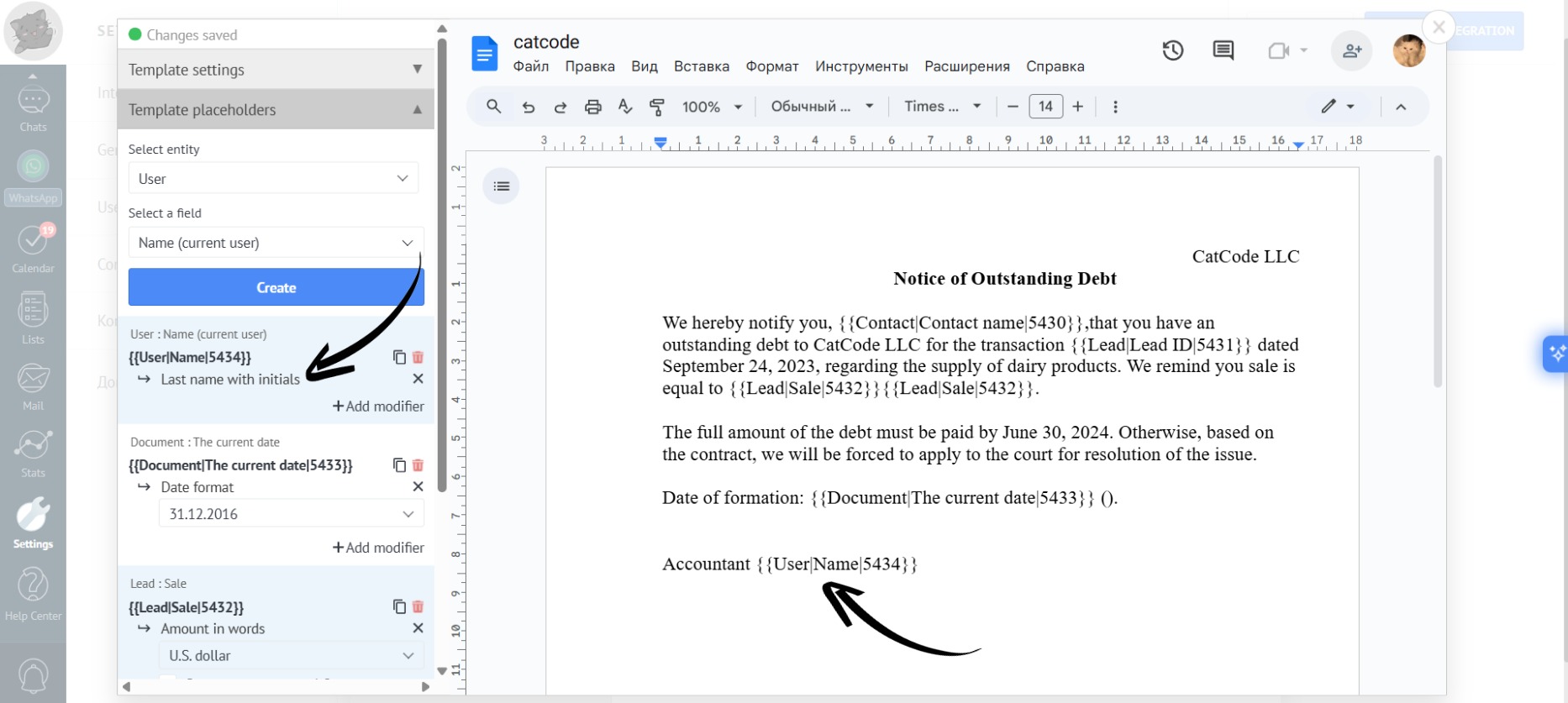
- You can give a name to the template by simply typing it in the corresponding field:
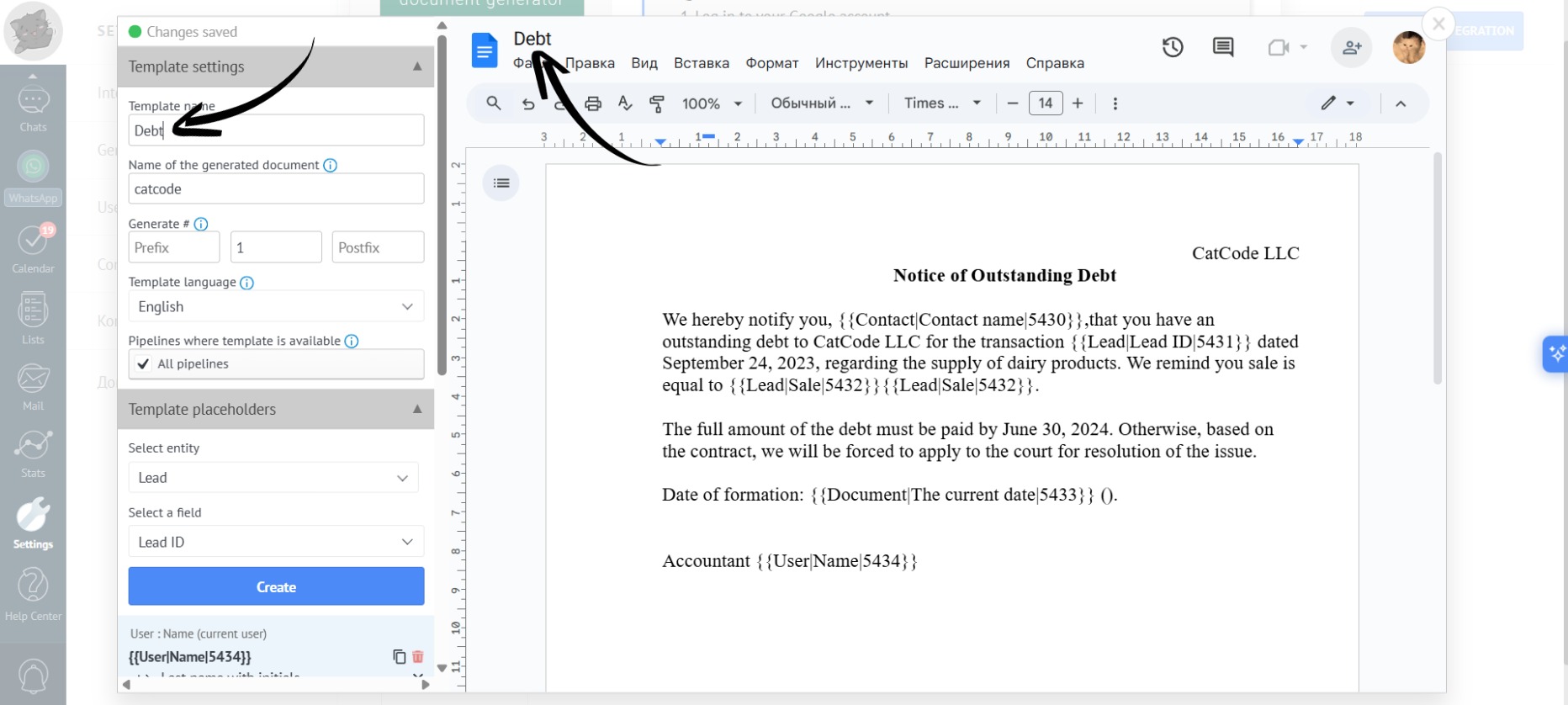
- And in the template name, you can add the placeholder “Entity” — “Document”, “Field” — “Current Date”, so that the document’s creation date appears in the document name:
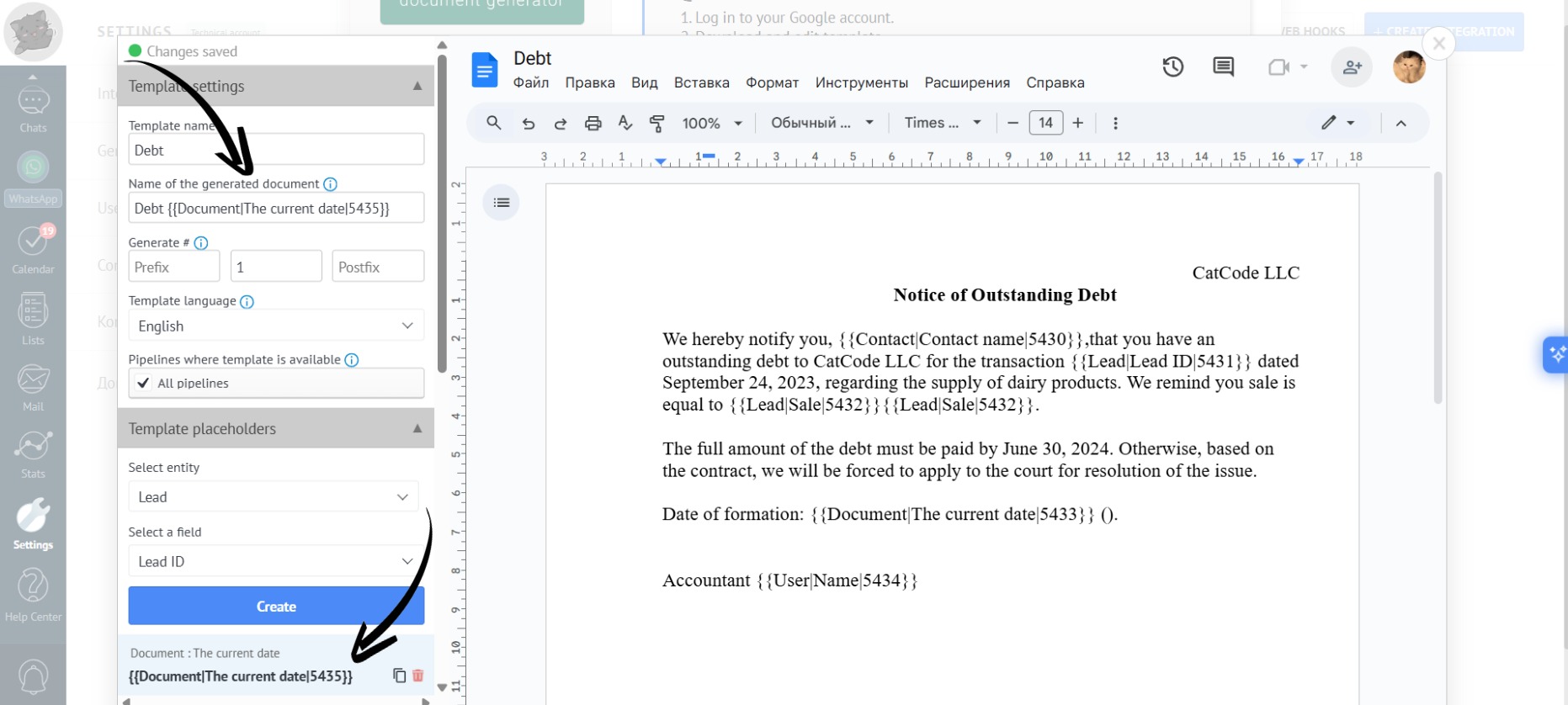
The template name and the generated document name can be different. The template name is displayed for managers, while the generated document name is displayed for clients.
- Ready! We have created a template. Now, let’s go to a lead to generate the document.