Payment Reminder for the Manager
Are managers missing payments? Automate task assignment with details: comments, deadlines, communication type, etc.
To set up these reminders, open the “Tasks” tab in the app settings:
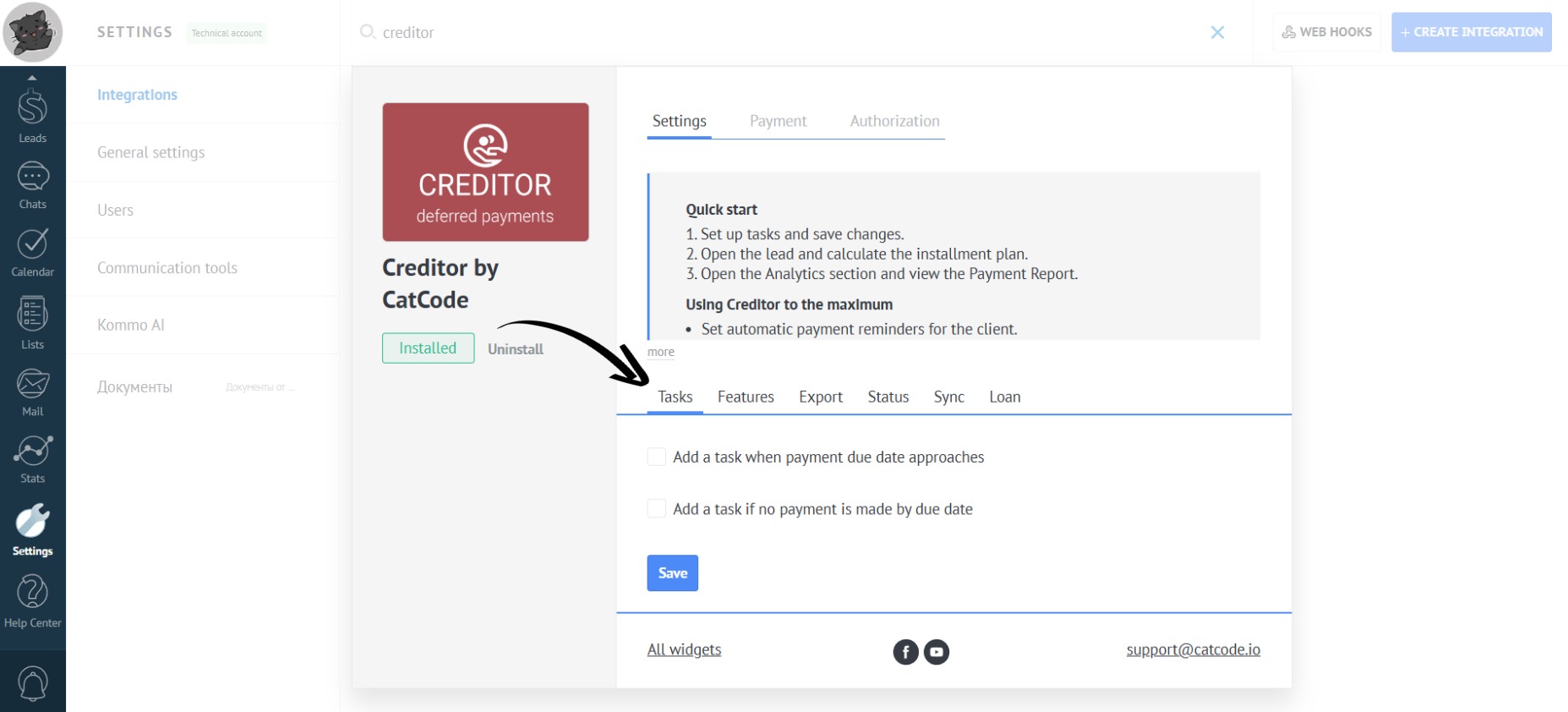
Task when payment due date approaches
- Set the number of days in advance to create a task for the manager:
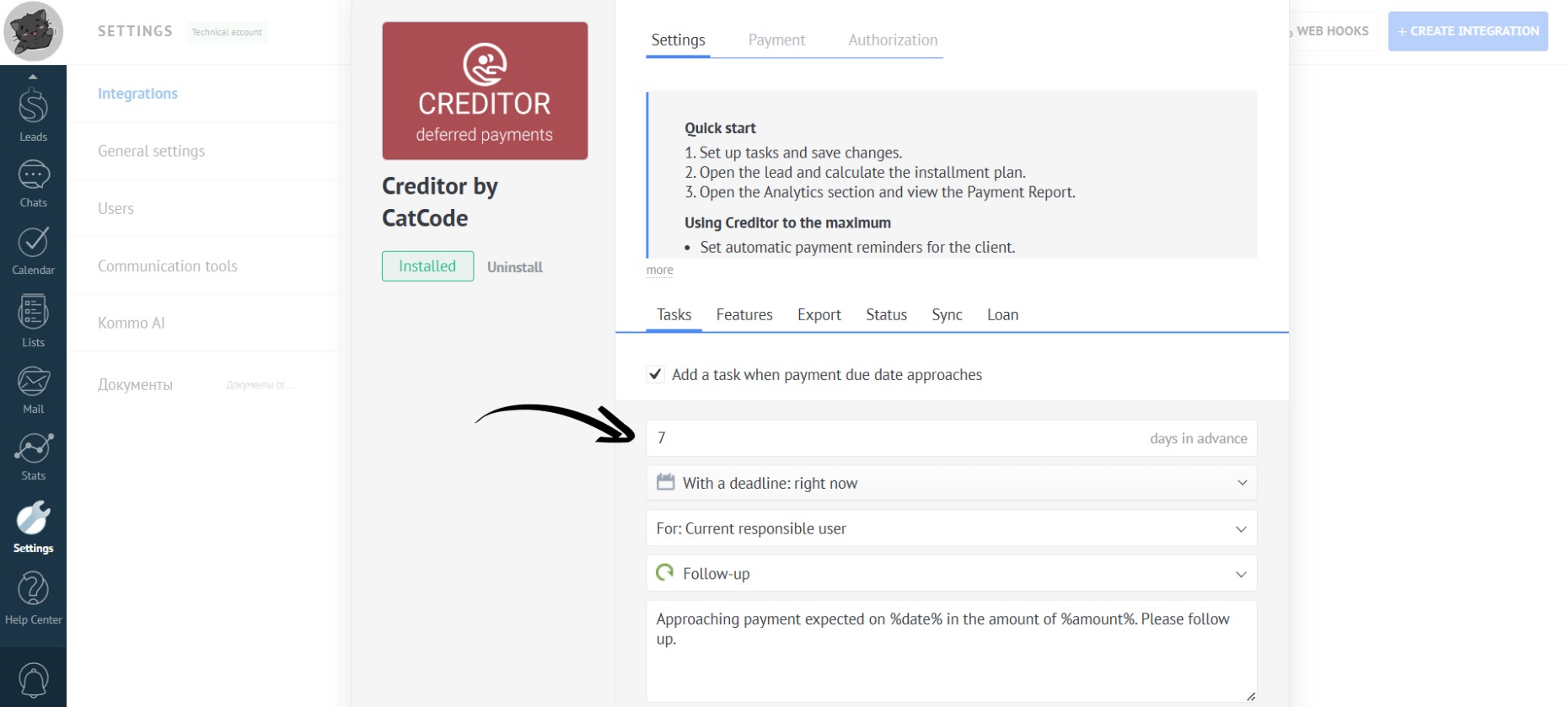
The default is 1 day (suitable for small purchases). For larger amounts, it’s better to set a reminder 1-2 weeks before the payment due date.
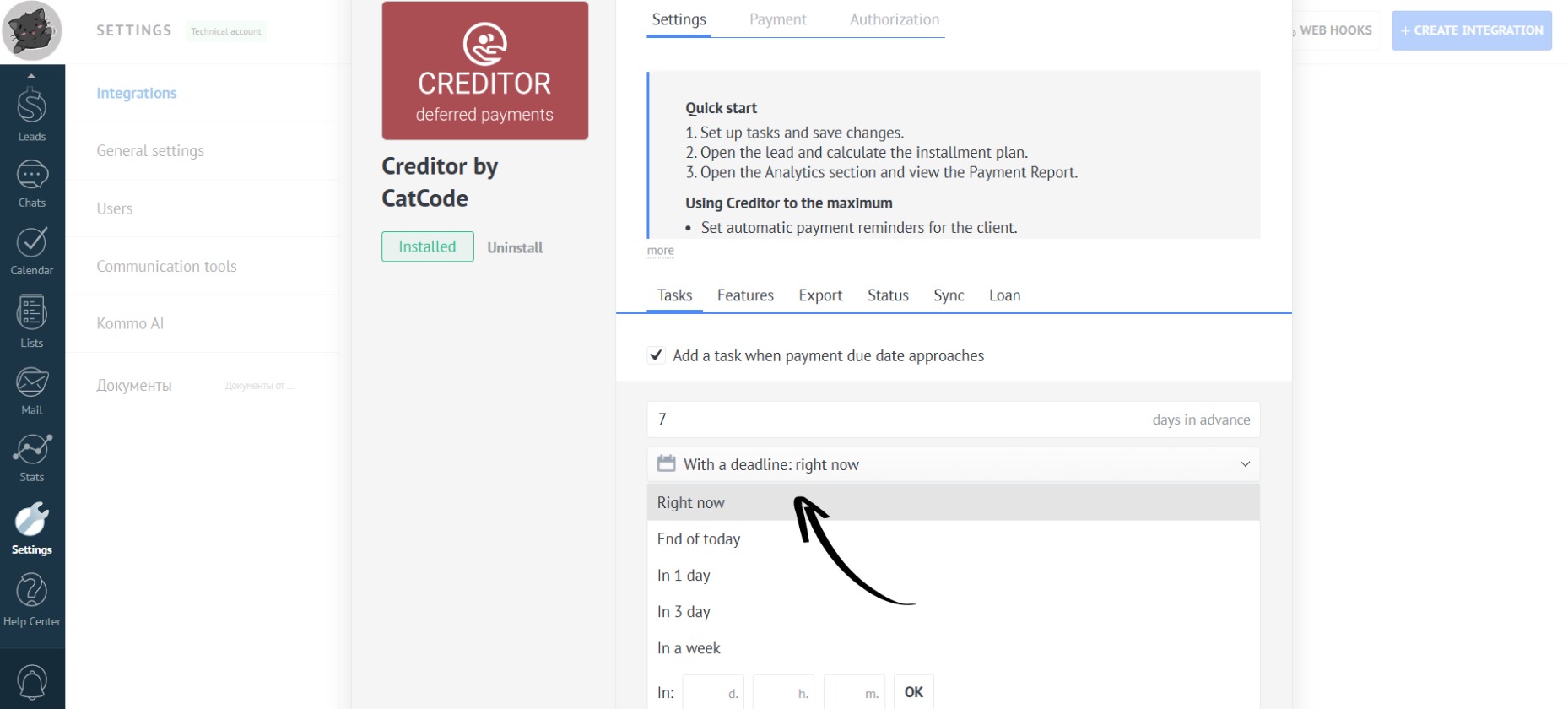
- Next, select the task completion deadline (how much time the manager has to complete the task):
- Now, specify the person responsible for the lead:
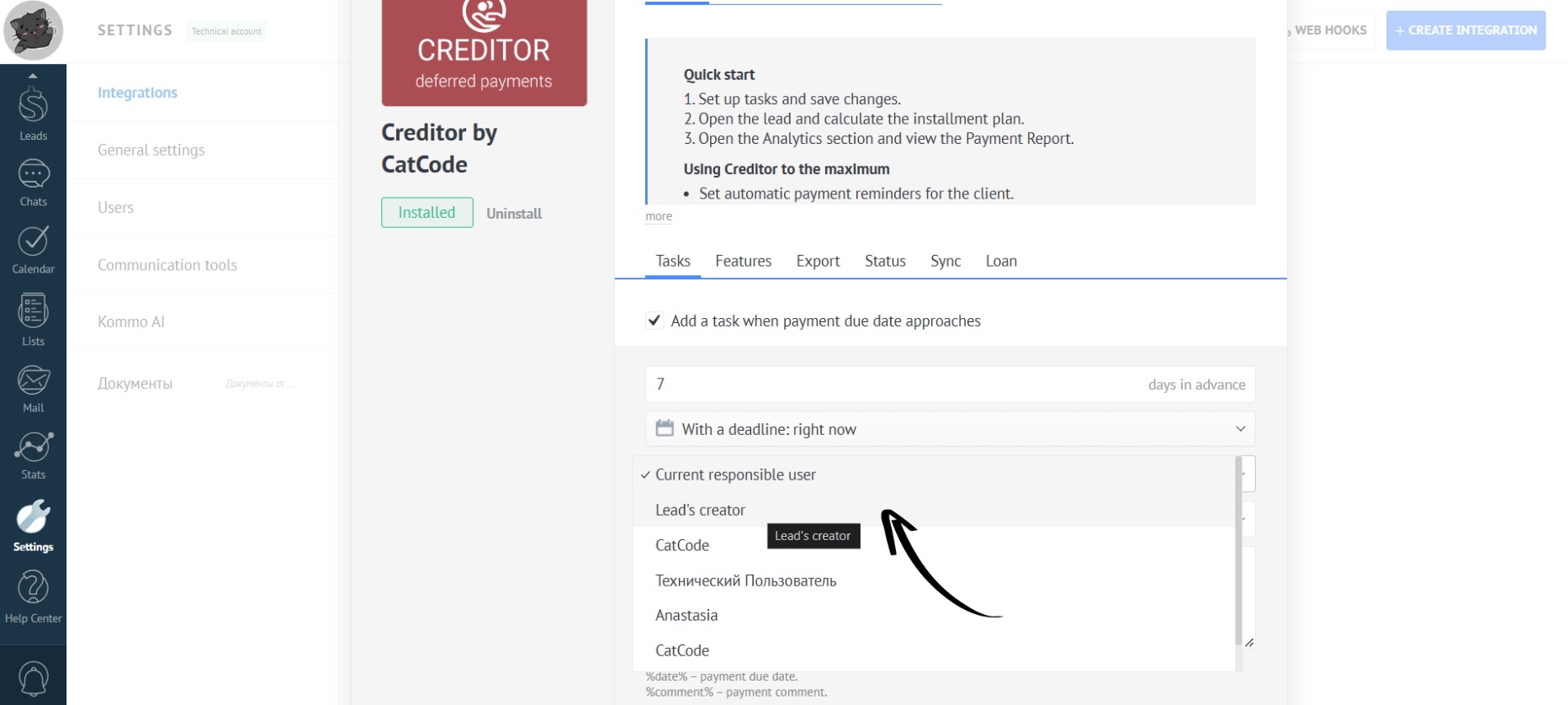
The default is “Current responsible user” (the person responsible for the lead).
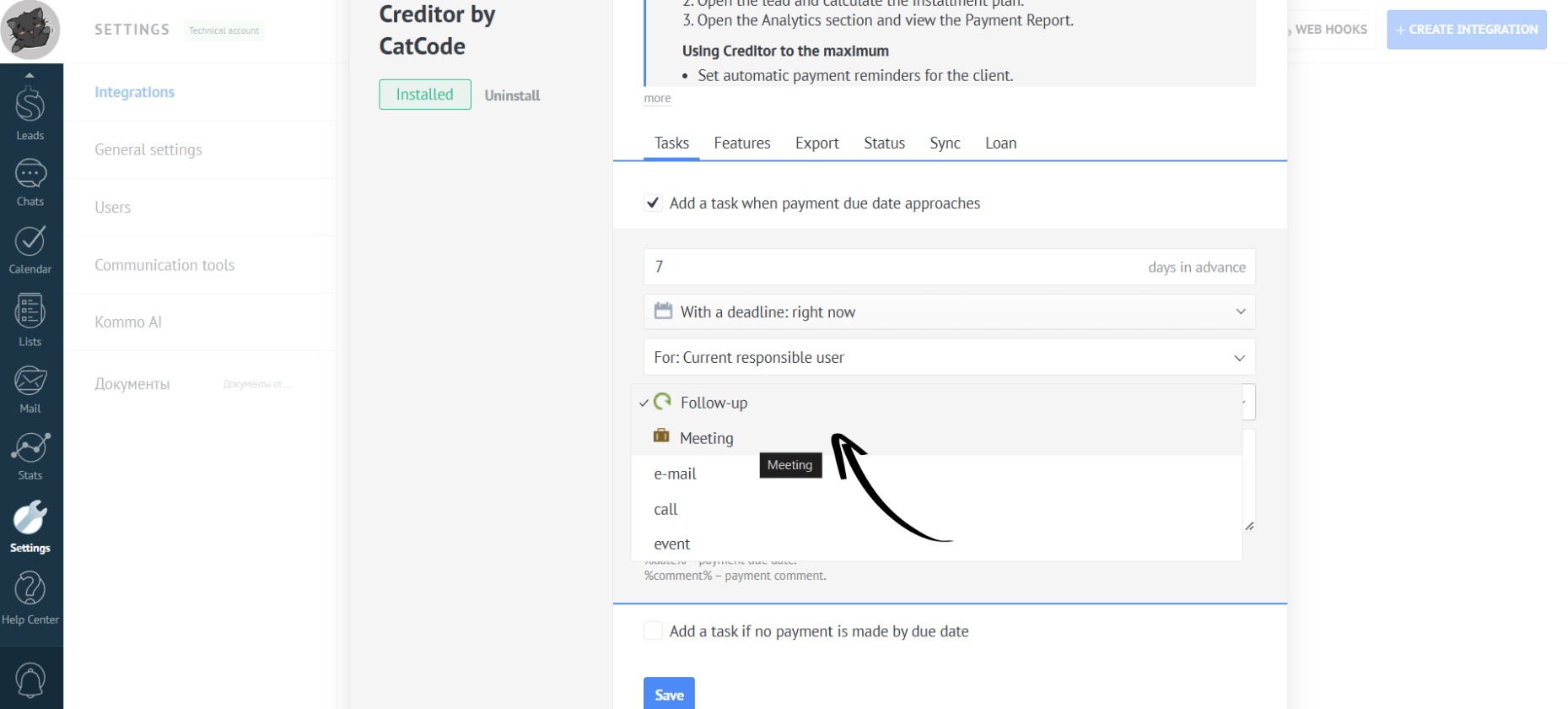
- Next, choose the method of communication with the client:
- The task description can be left unchanged, or customized with further details:
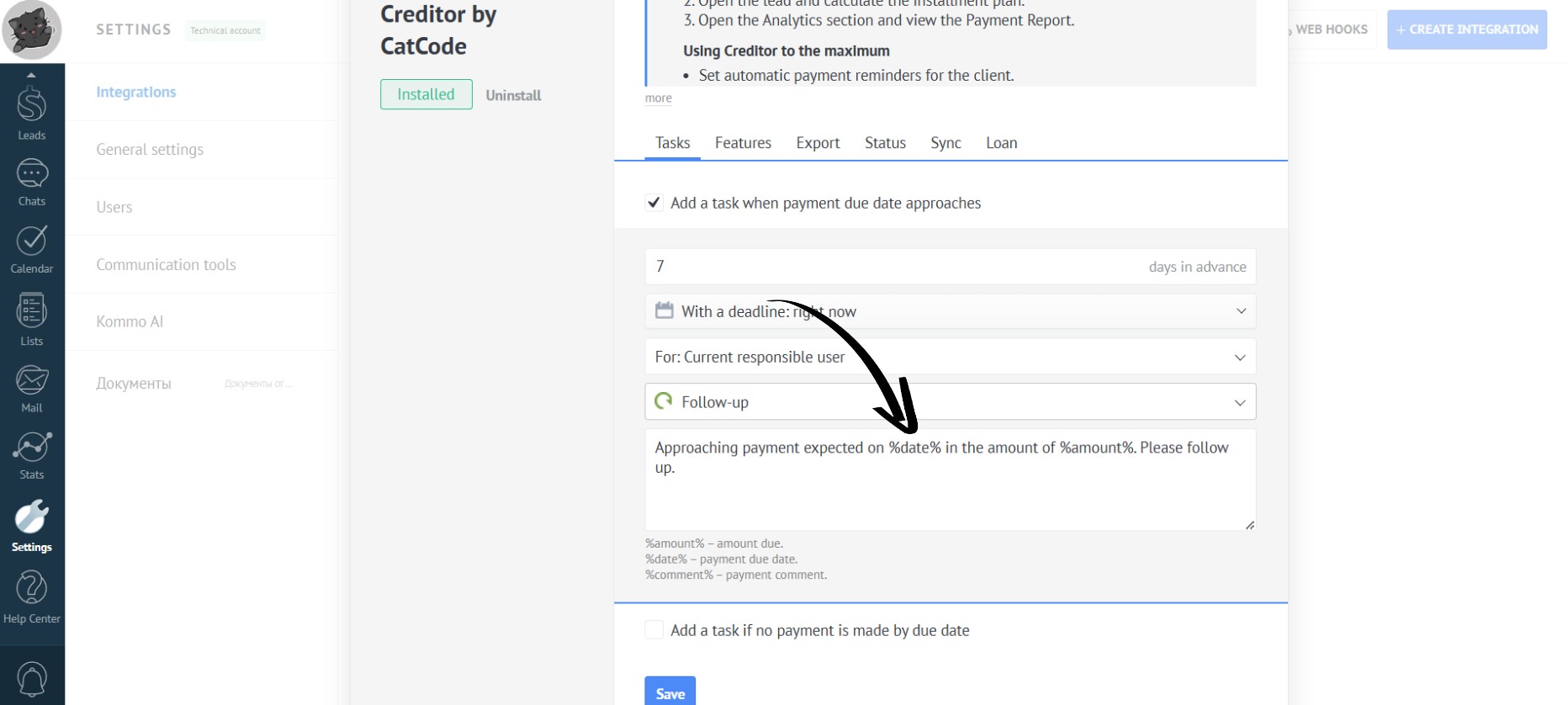
You can use placeholders in the text tasks - words surrounded by “%” signs. These will be replaced with the date (“%date%”), amount (“%amount%”), or comment (“%comment%”).
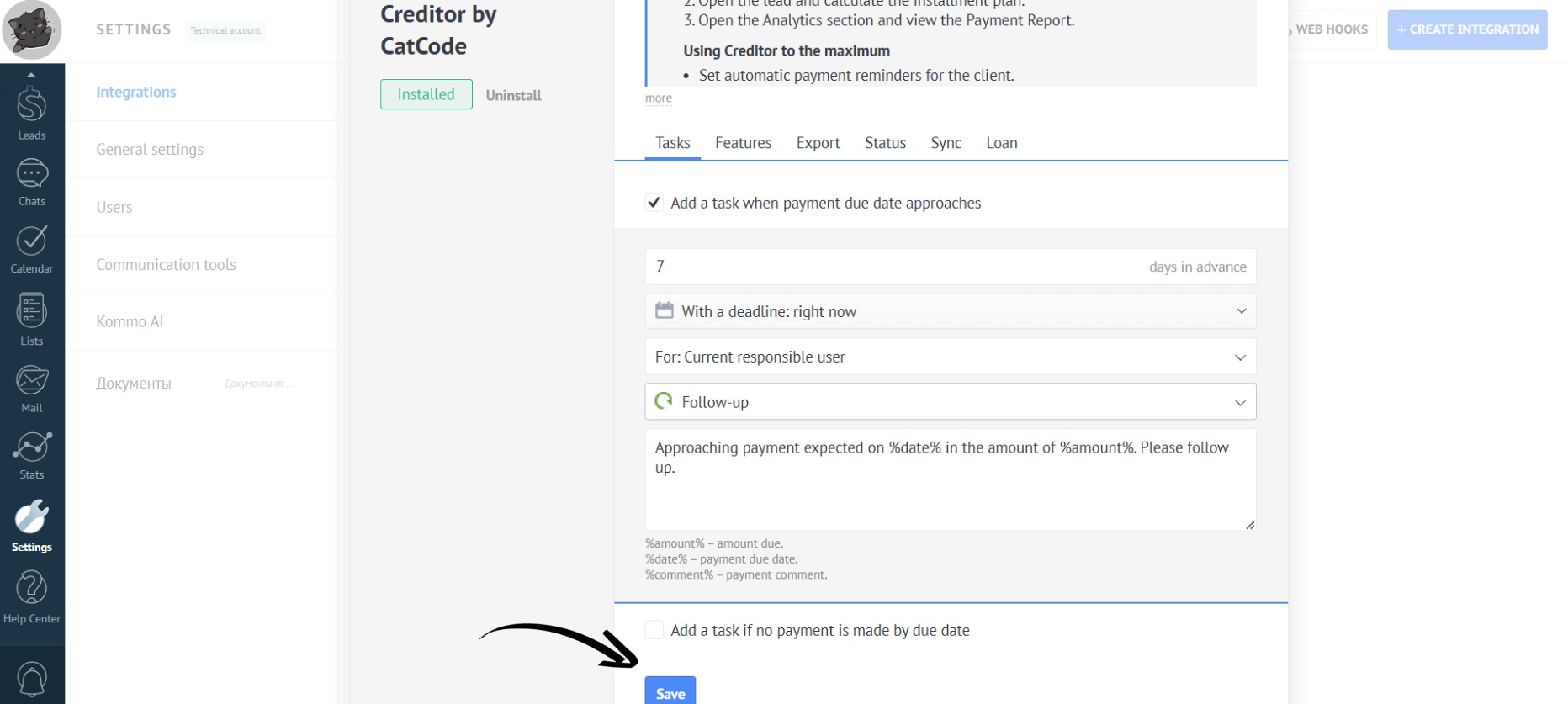
- When you are finished making changes, click the “Save” button:
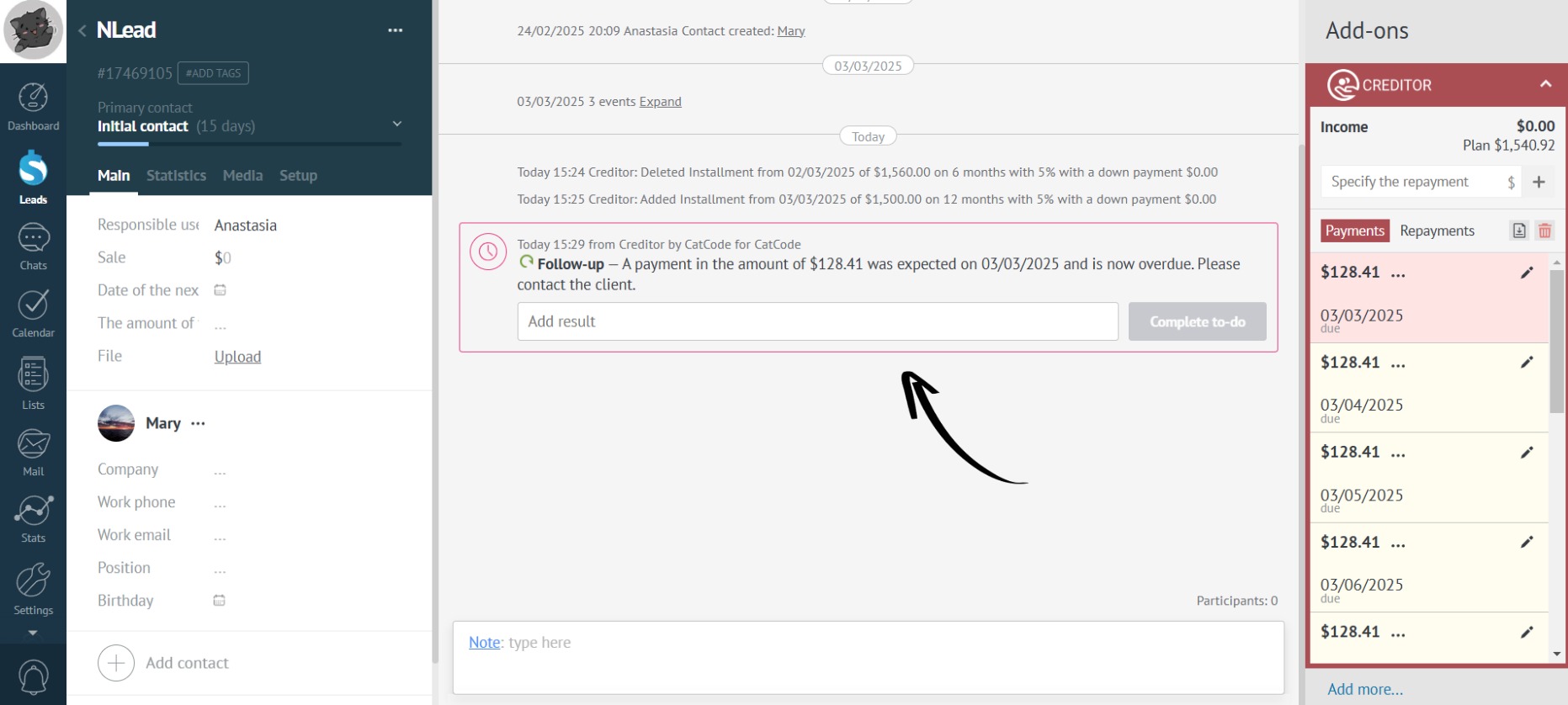
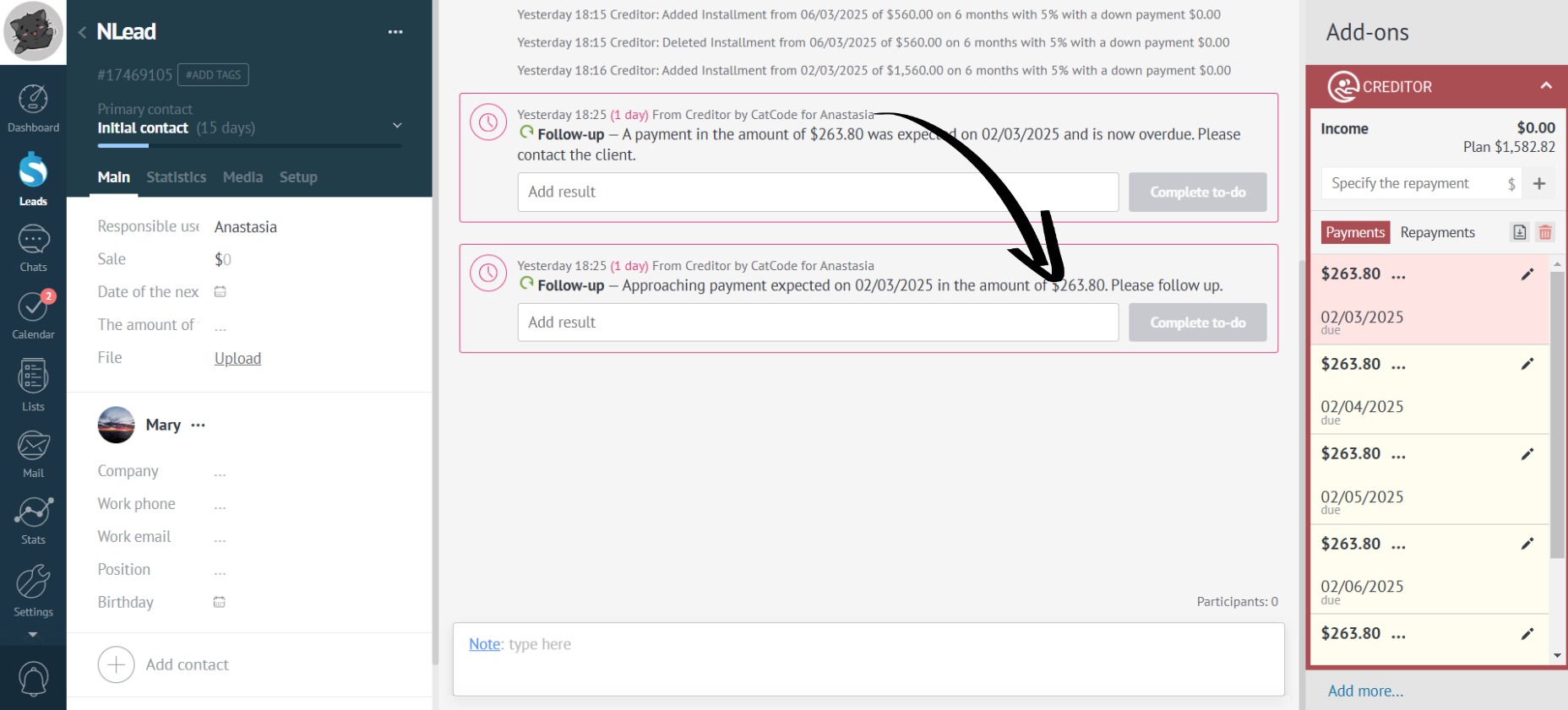
- Tasks will automatically be created for the responsible person in the lead to control the payment:
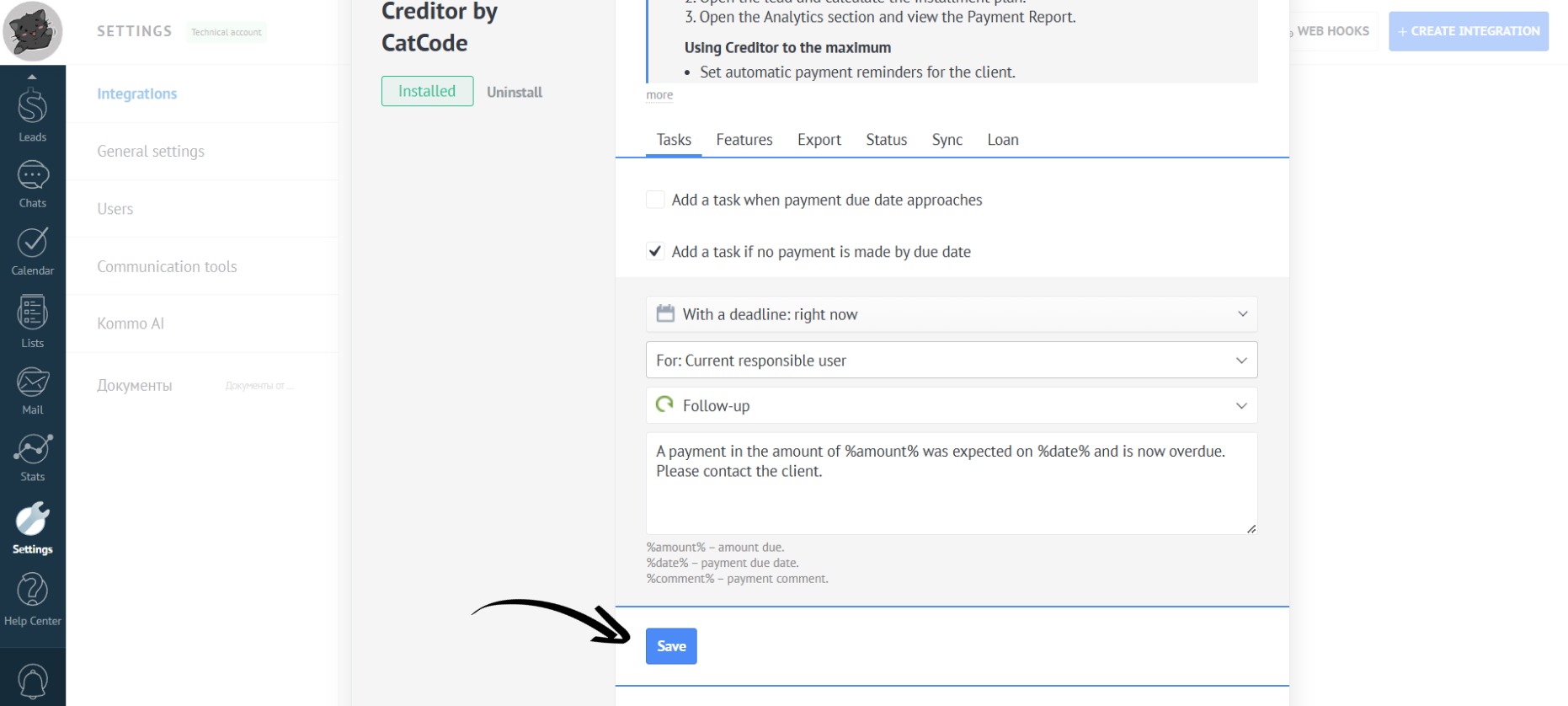
Task if no payment is made by due date
- Set a deadline (how much time the manager has to complete the task):
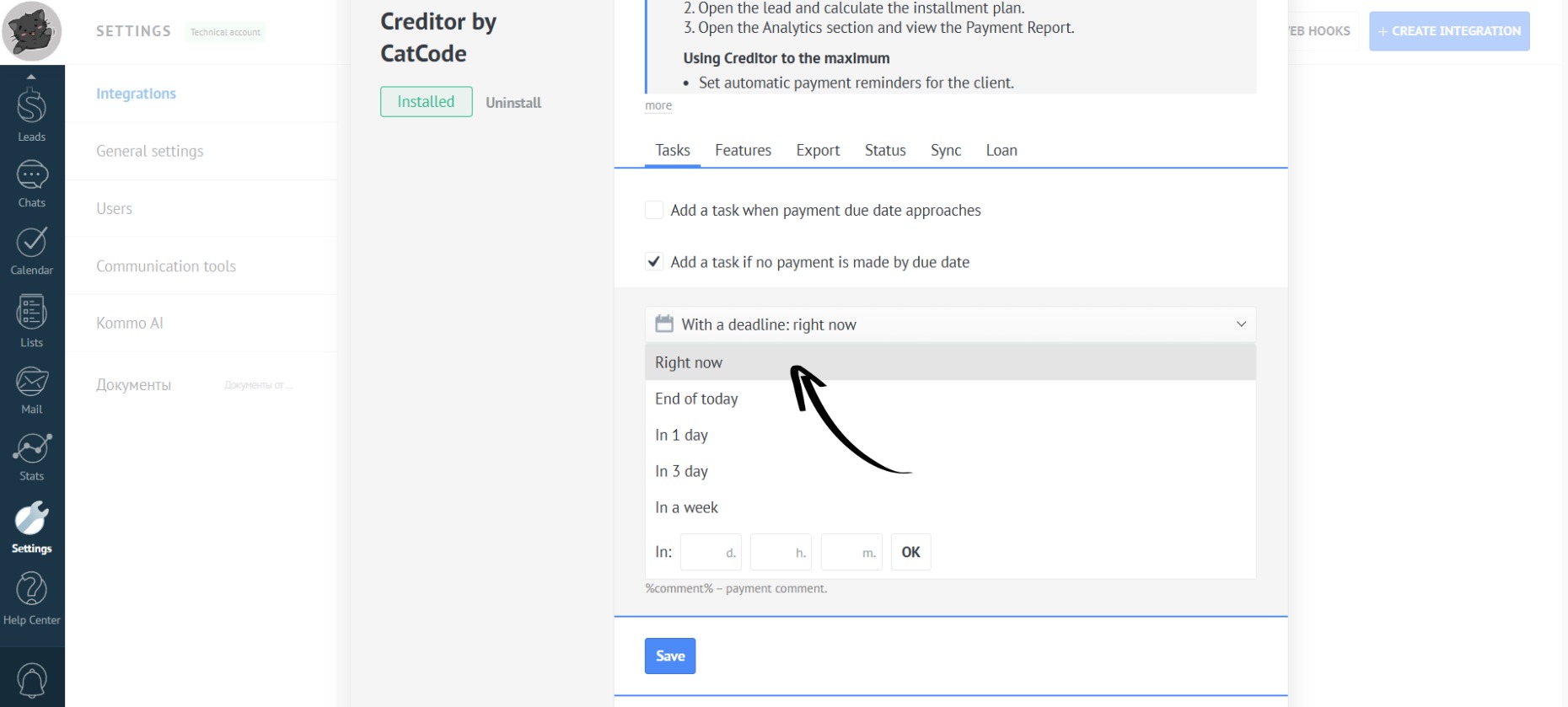
- Next, specify the person responsible for the lead:
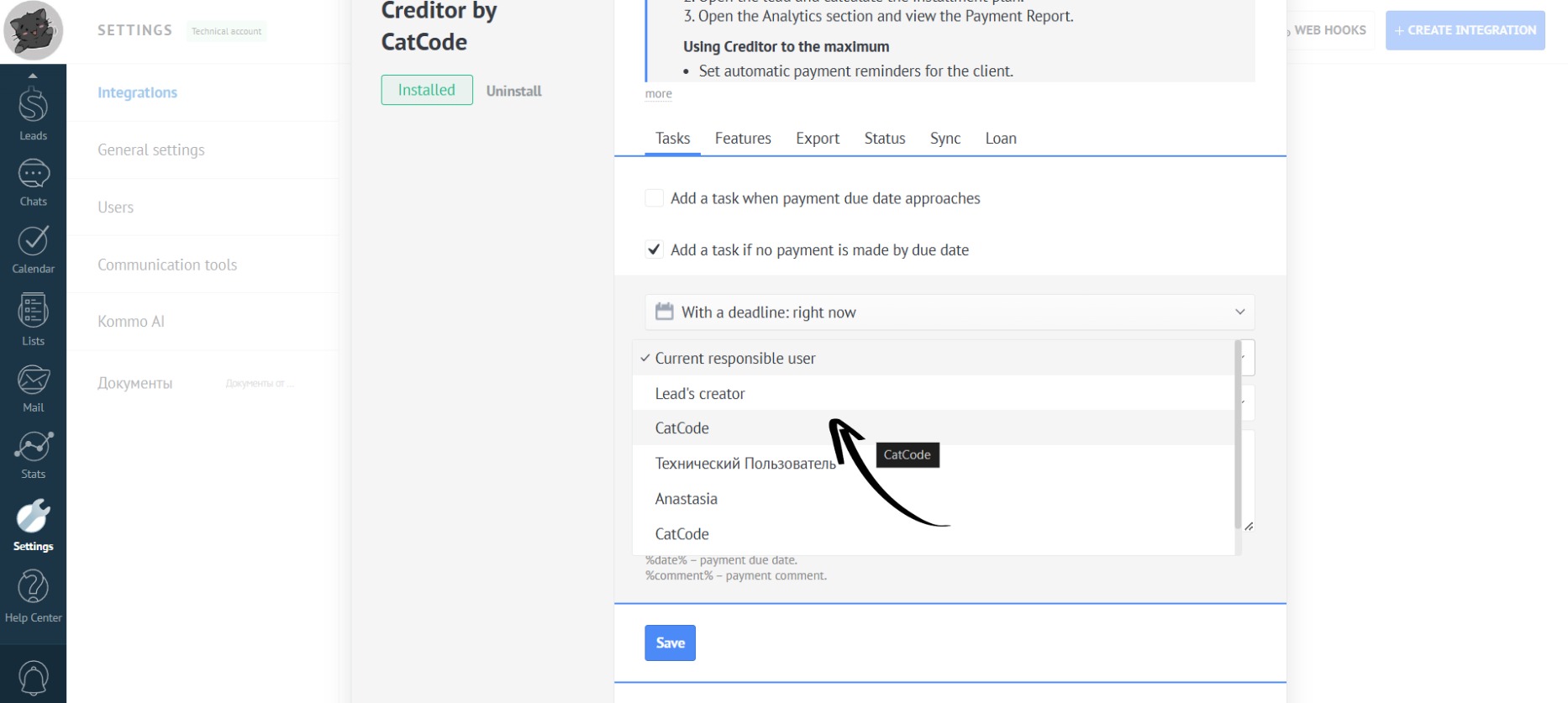
Instead of the current responsible user, you can choose the Head of Sales to control the overdue payment.
- You can also add information in the comment section:
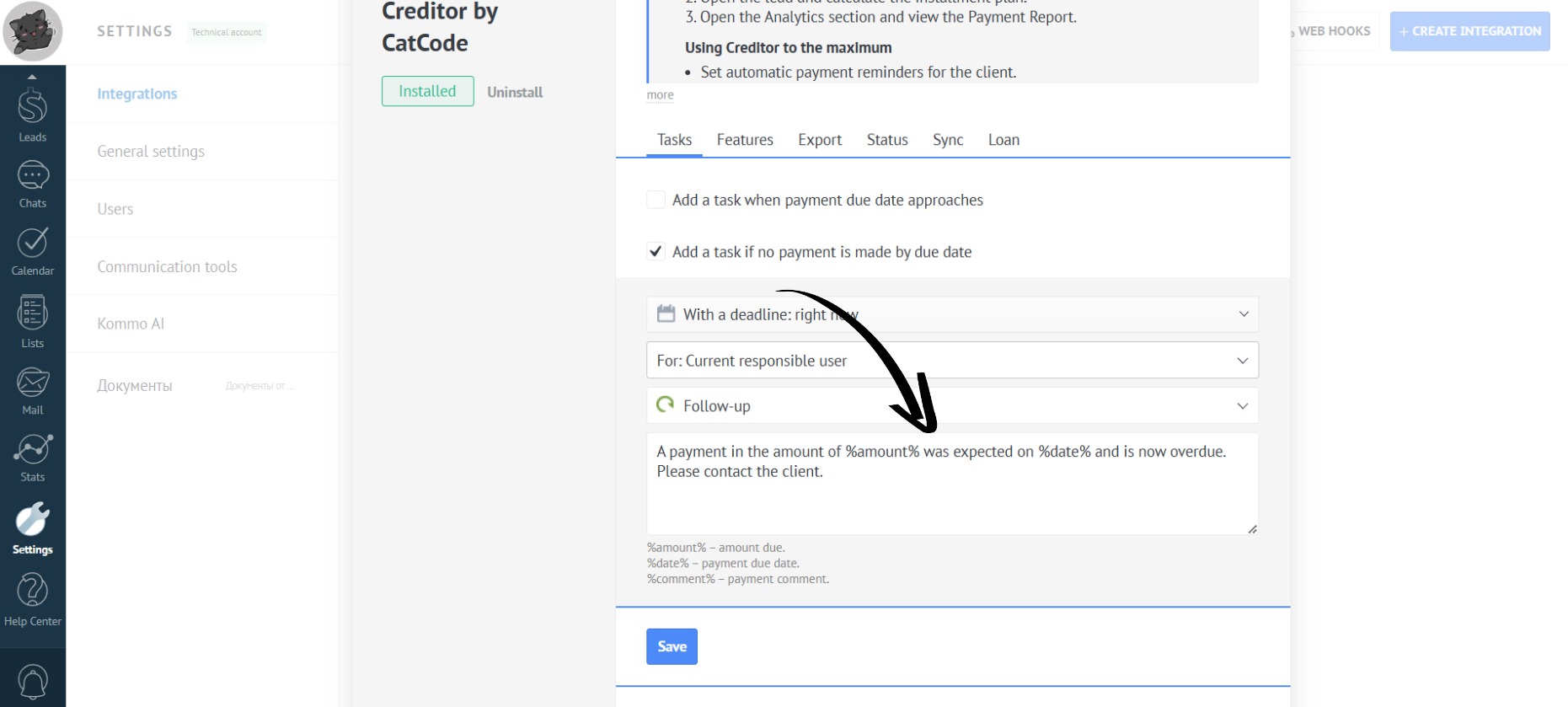
You can use placeholders in the text tasks - words surrounded by “%” signs. These will be replaced with the date (“%date%”), amount (“%amount%”), or comment (“%comment%”).
- When you are finished making changes, click the “Save” button:
- Tasks will automatically be created for the responsible person in the lead to control the payment: