Export Fields Configuration
Customize the export fields to suit your needs and see only the necessary payment data from the lead card or analytics in your table.
- Open the “Export” tab in the app settings:
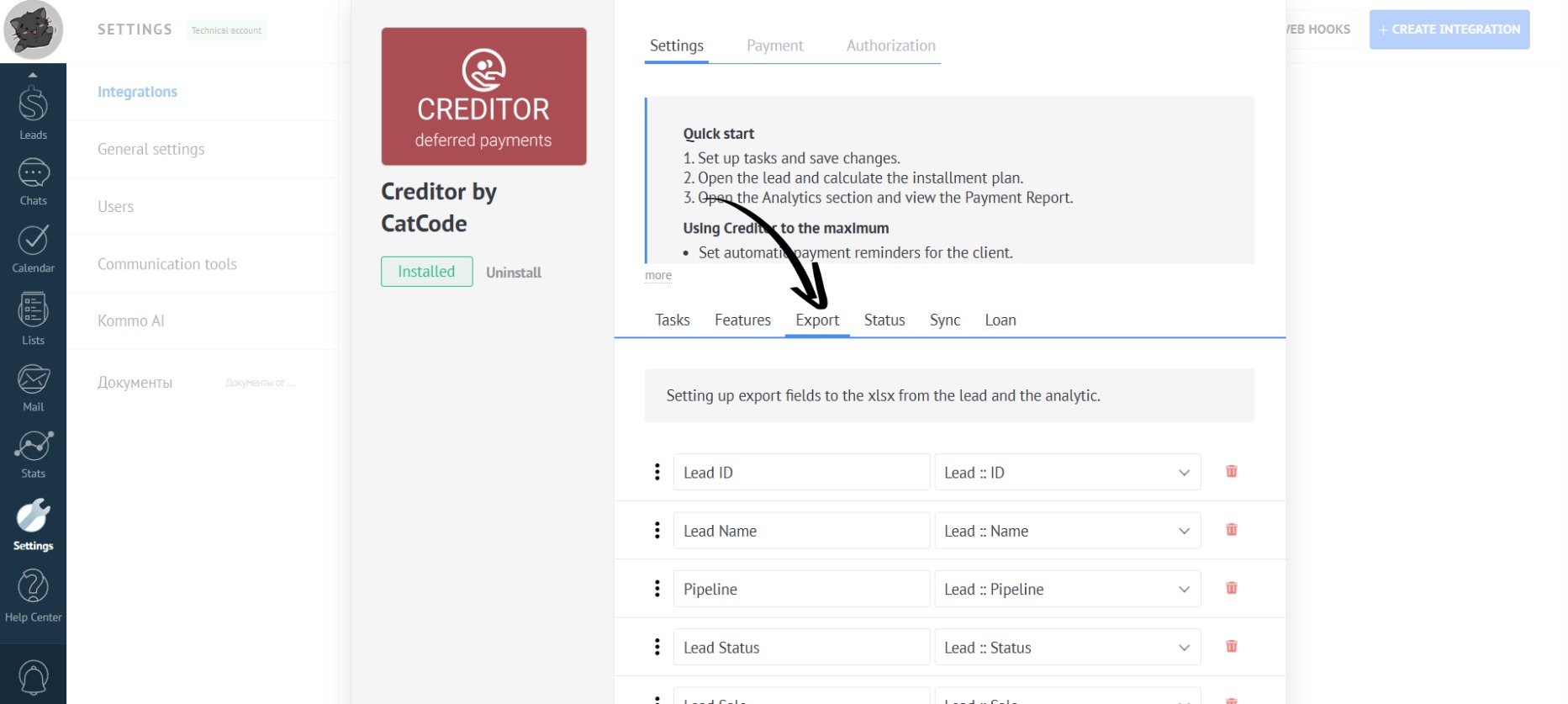
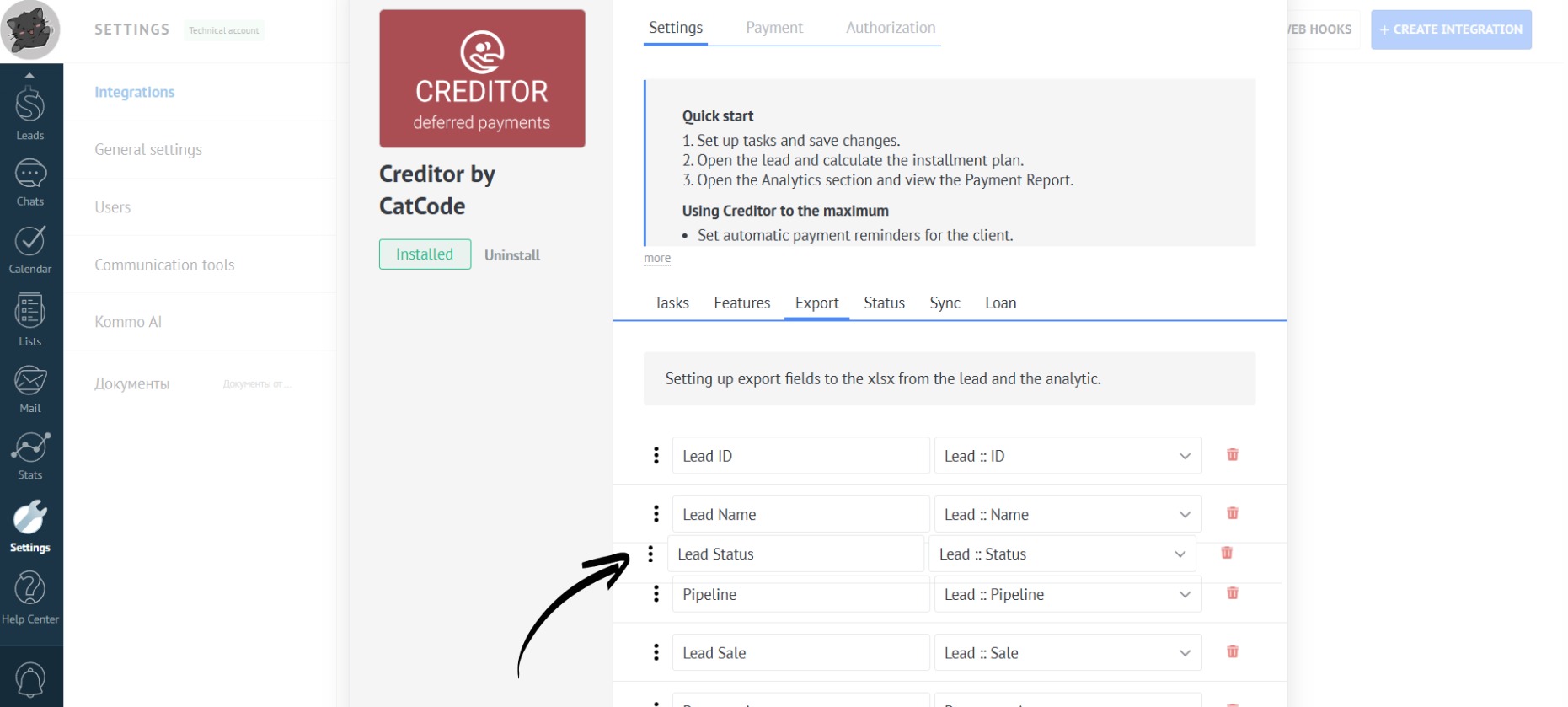
- Columns can be moved by pressing the three dots and dragging the field to the desired location:
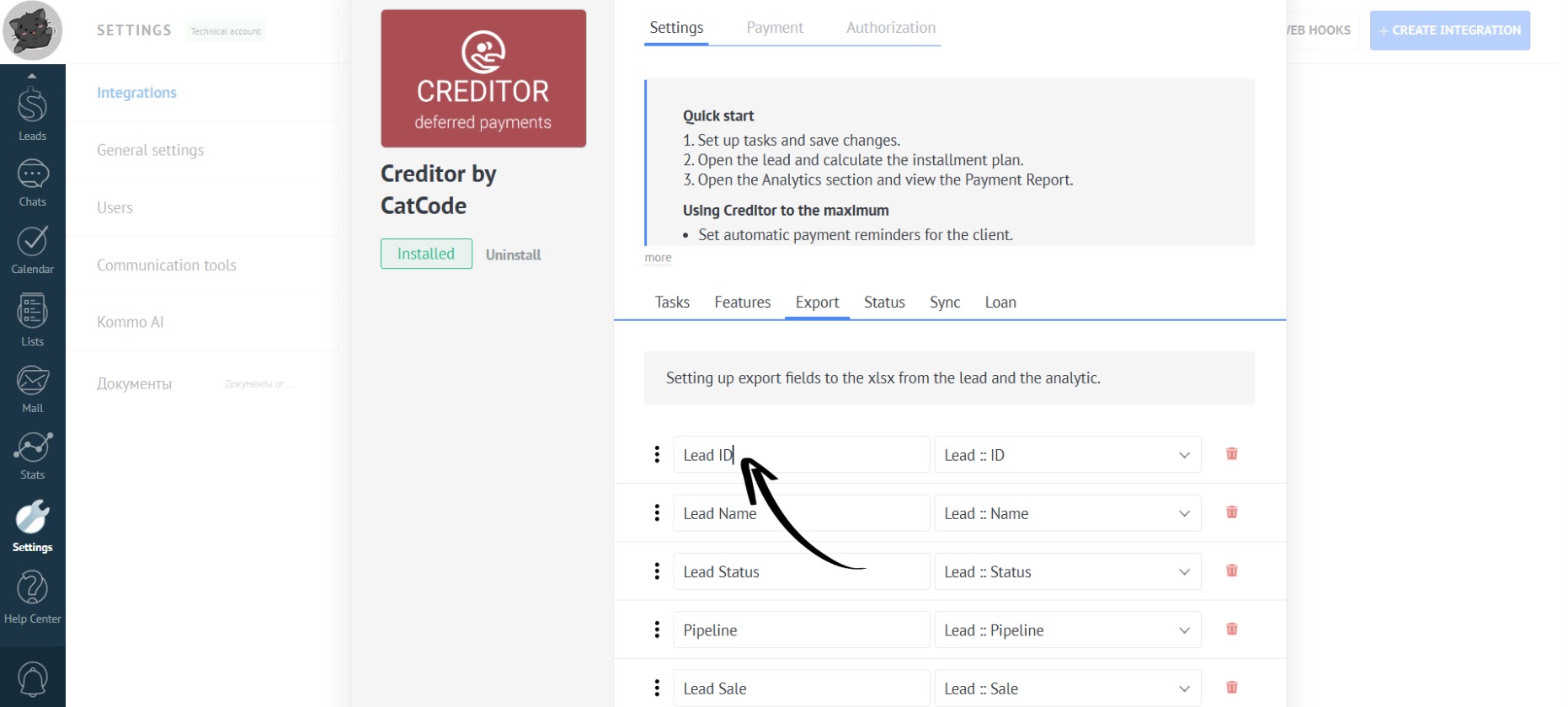
- You can rename the columns by clicking on the desired field with the mouse and entering a new name:
- In the pop-up menu for each column, you can select which fields from the lead should be displayed:
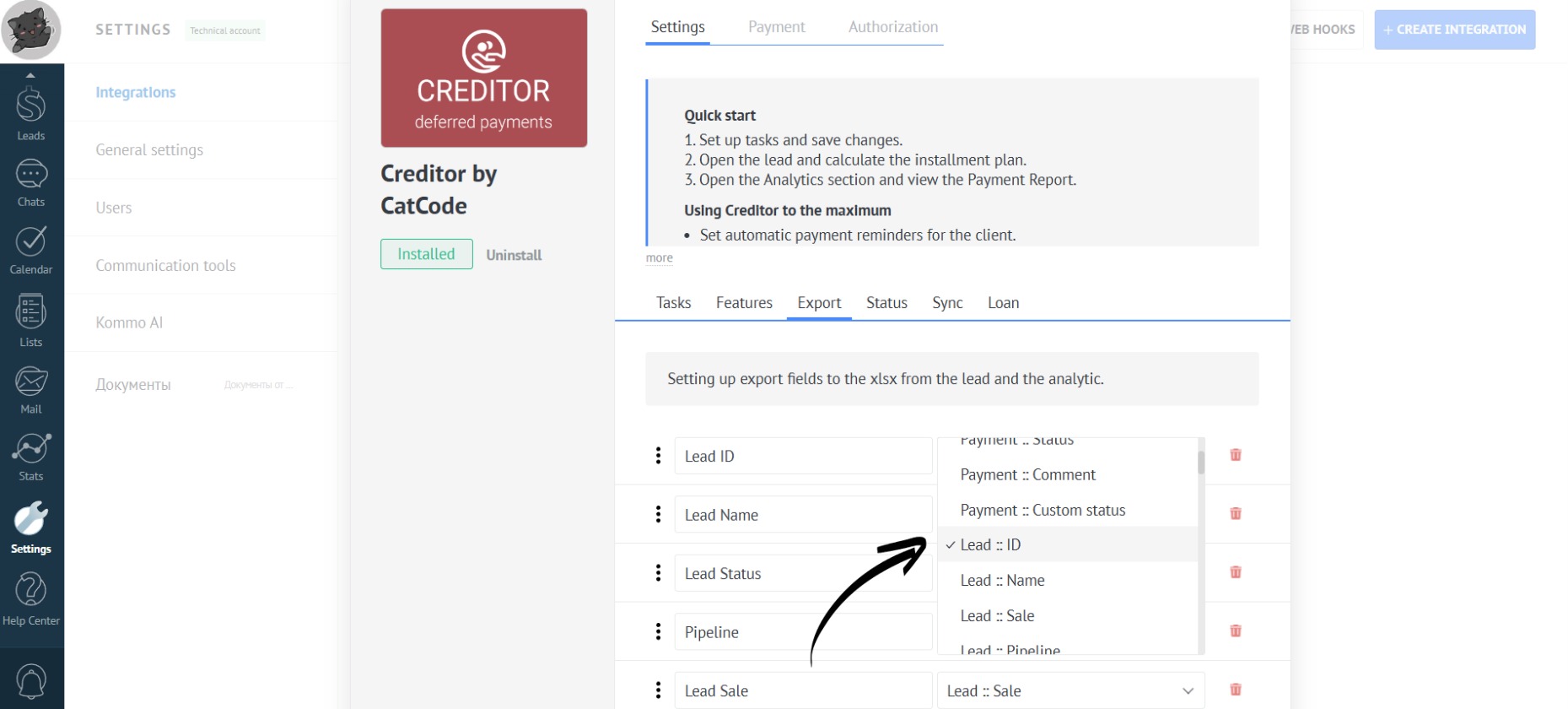
- To add another column, click on the “Add Column” button:
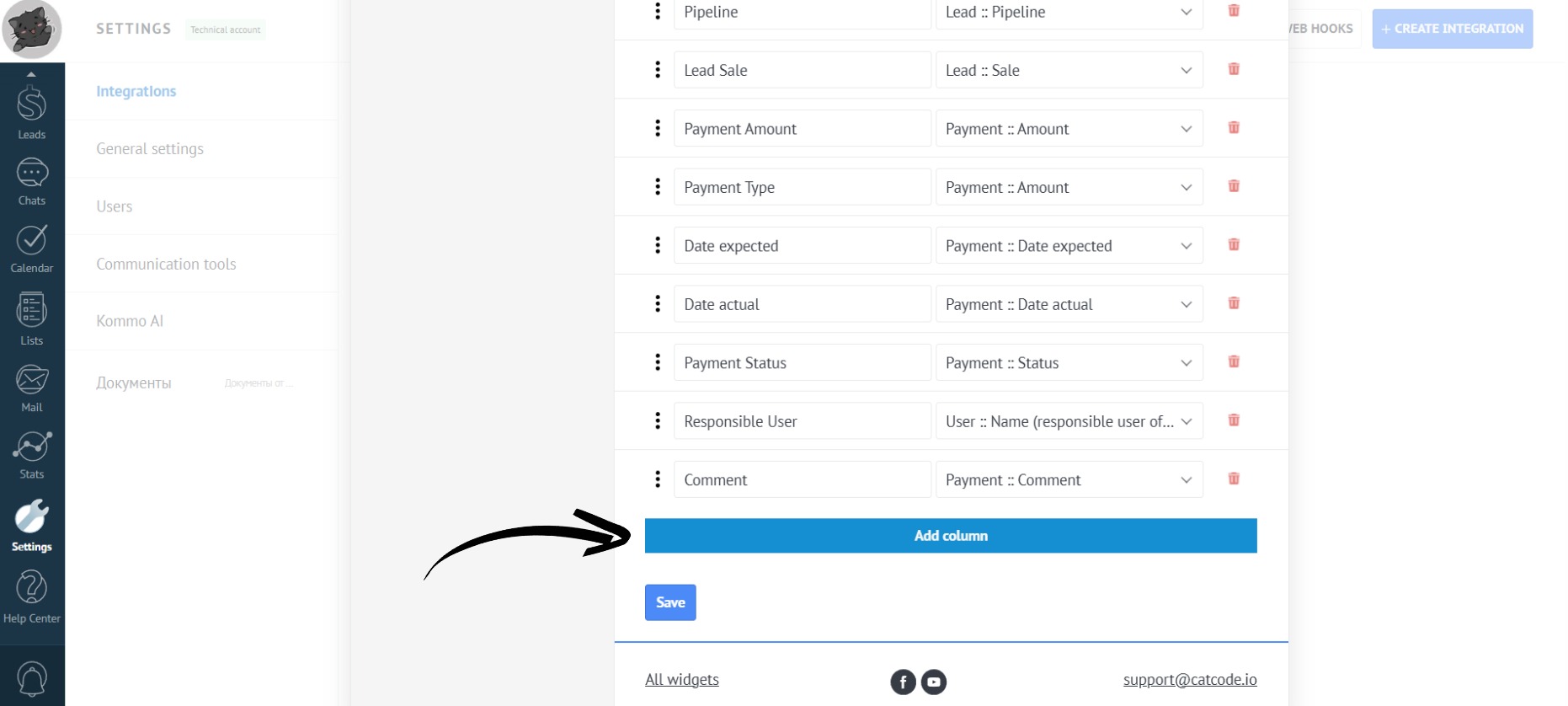
- To delete a column, simply click on the trash can icon:
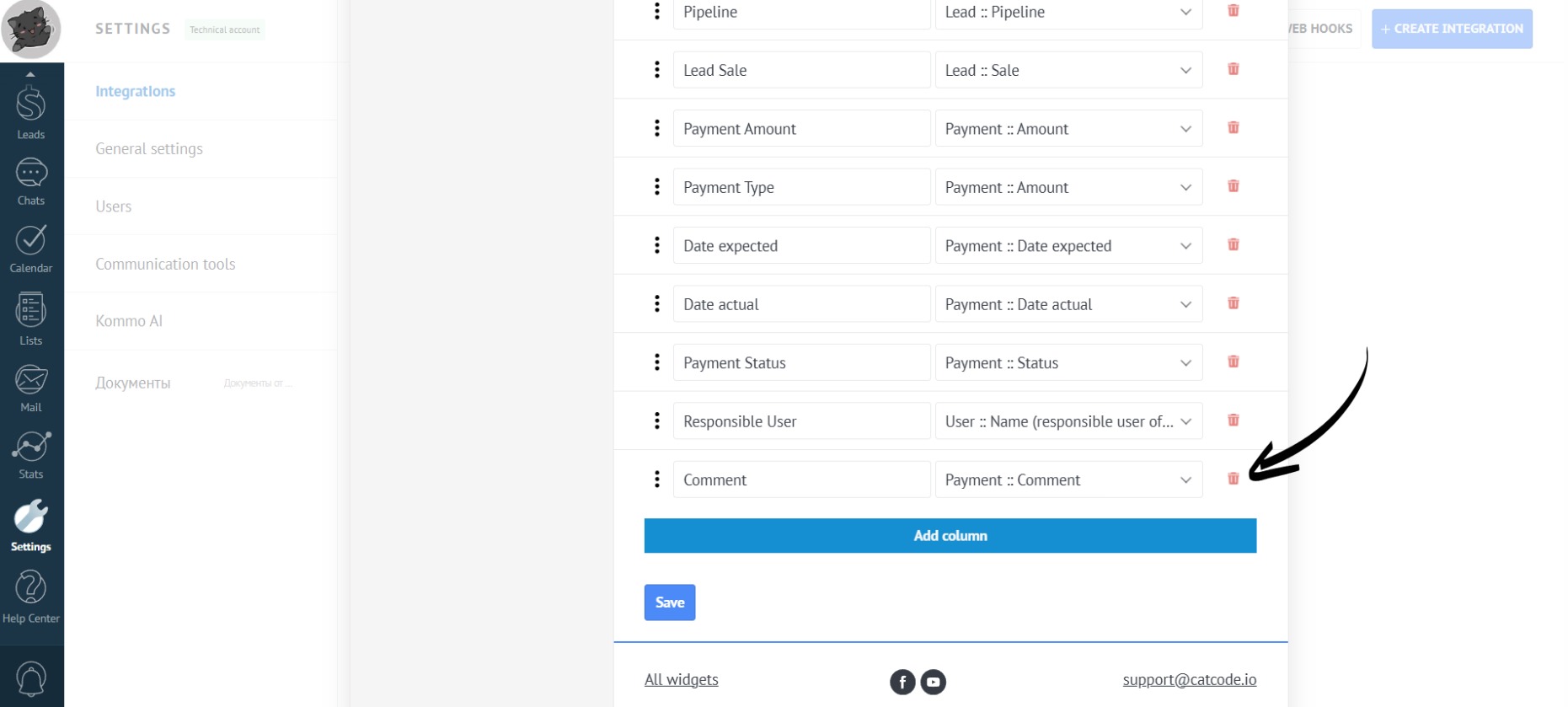
- After making all the necessary changes, click the “Save” button:
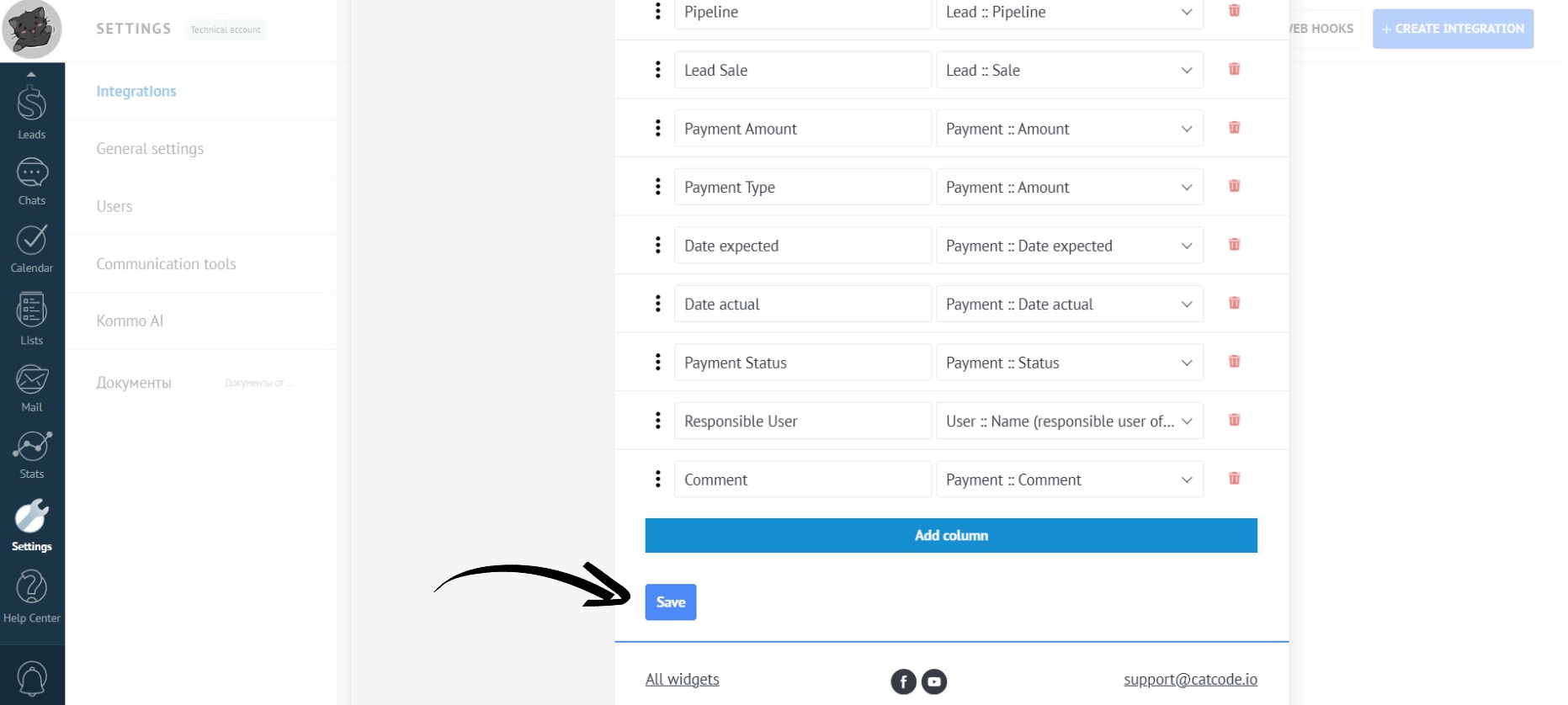
You have configured the fields for exporting to an XLSX table from the lead card and the analytics section.
Exporting payments with partial repayments
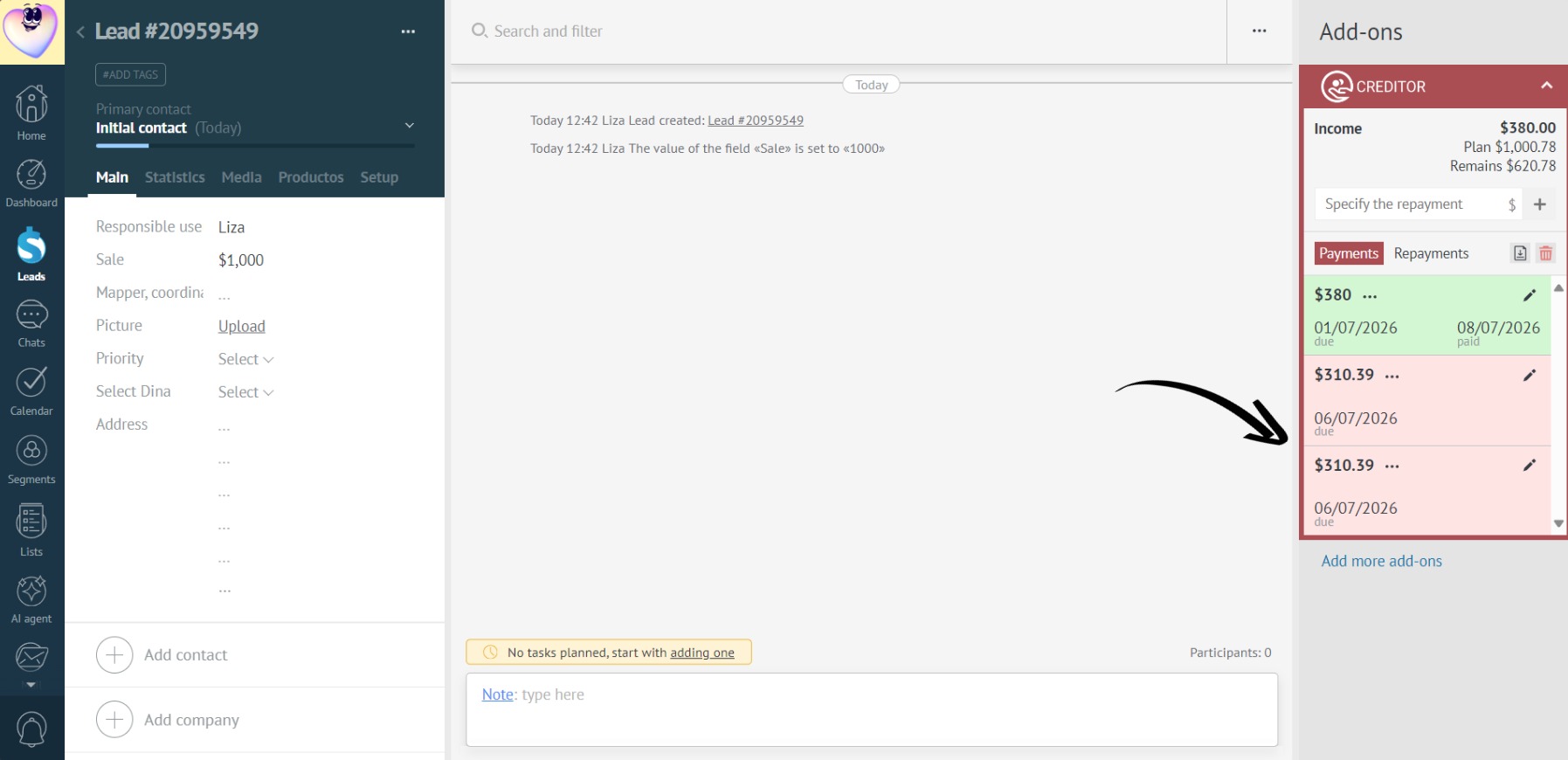
- For example, a lead has an installment plan with two payments of $310.39 each (the first payment has already been made):
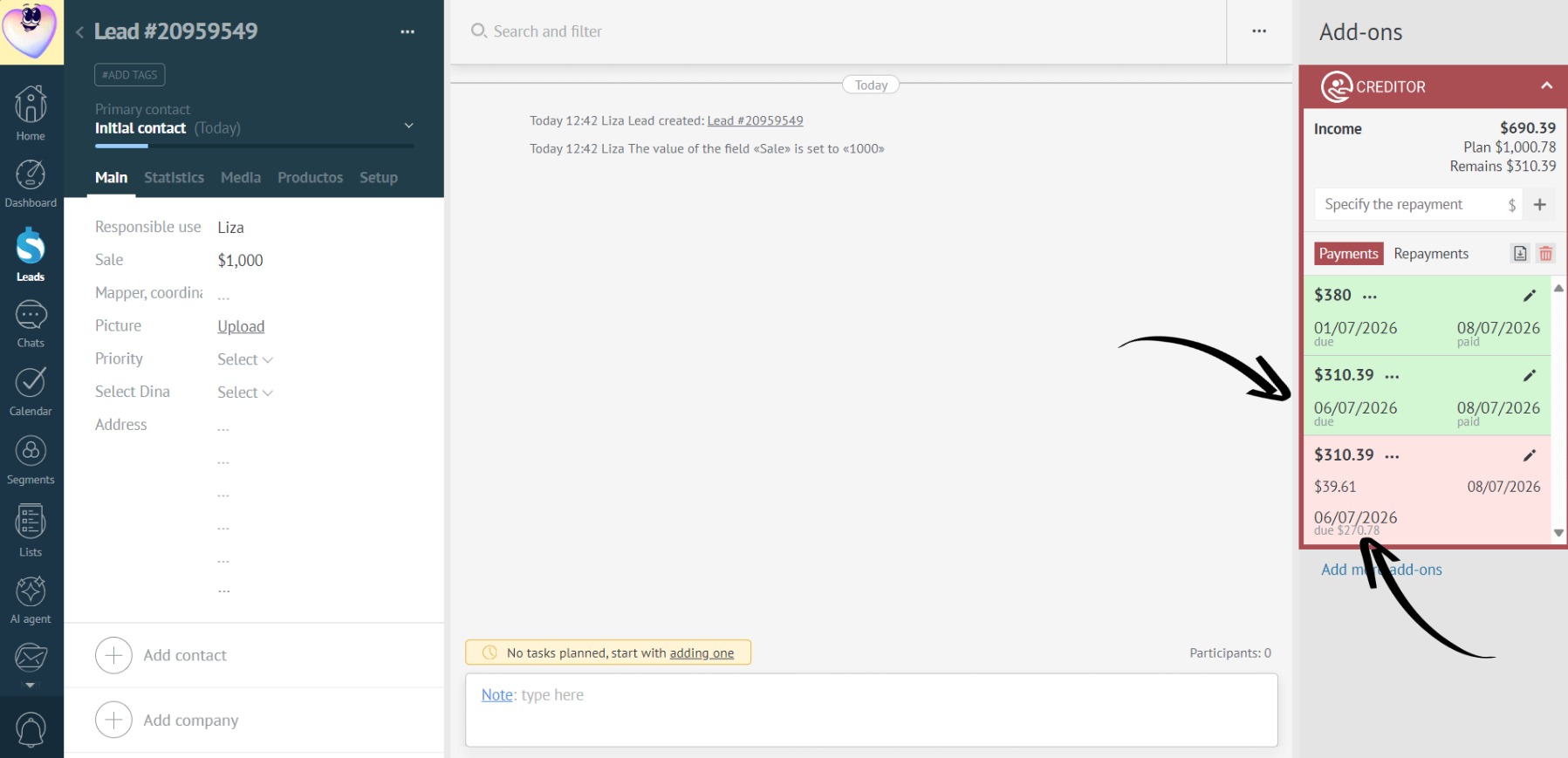
- The client makes a one repayment of $350, which fully covers the first payment and partially covers the second:
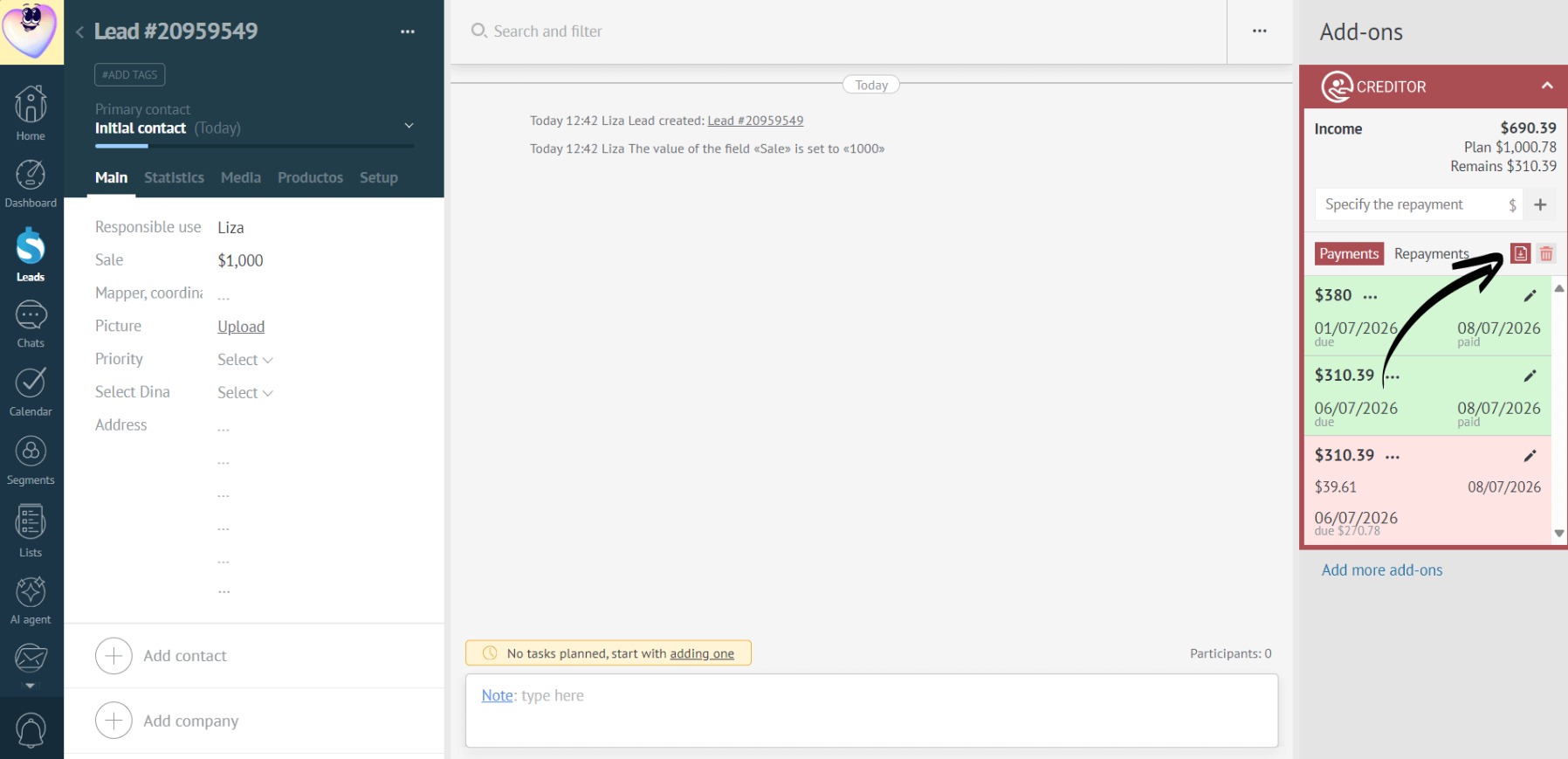
- After clicking the export icon:
- The Excel report should display the following:
- First Payment: Paid: $310.39. Remaining amount: $0.
- Second Payment: Paid: $39.61. Remaining amount: $270.78.
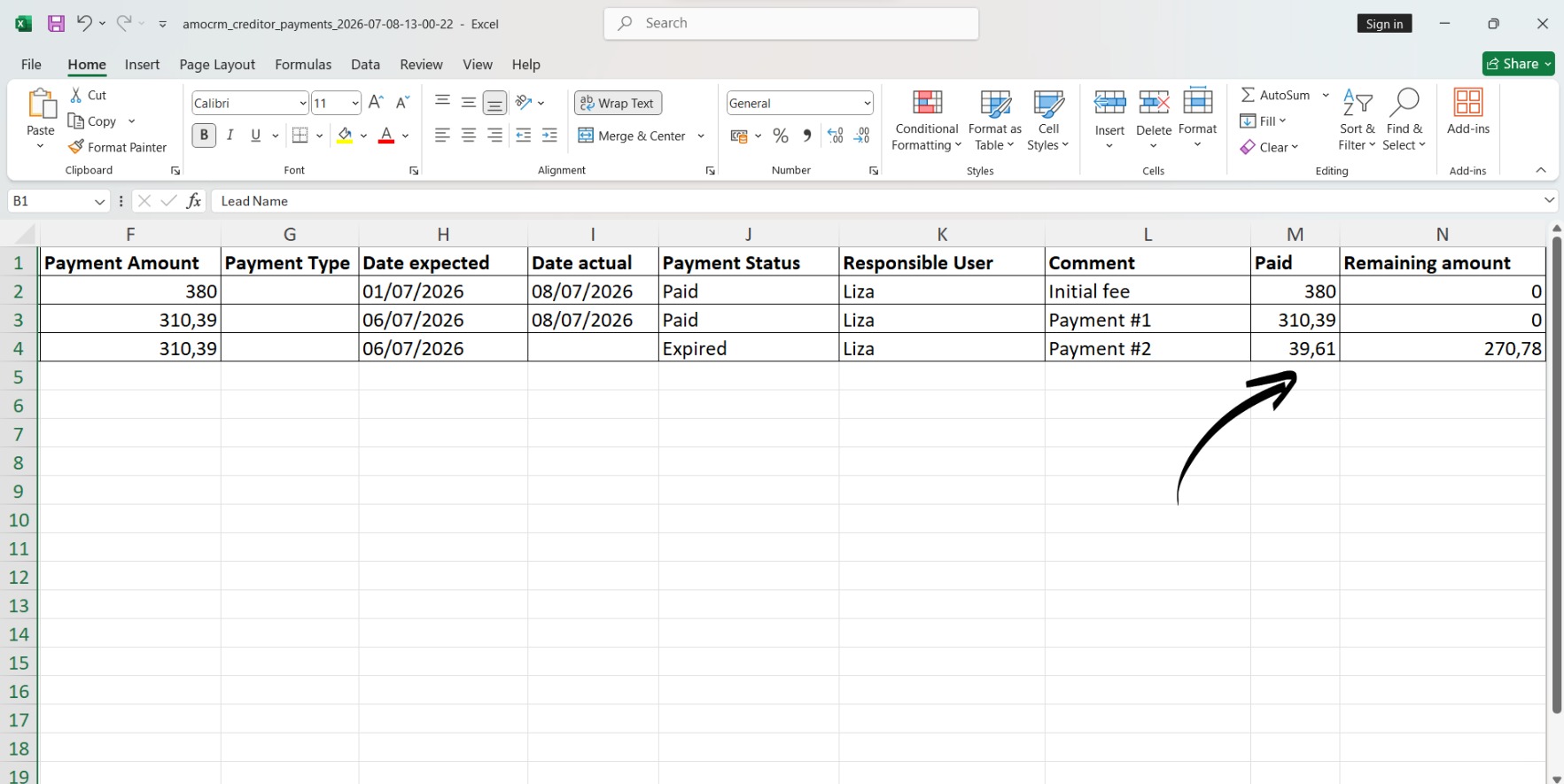
How to add “Paid” and “Remaining amount” columns / How to configure the “Payment :: Paid” and “Payment :: Remaining amount” export fields:
- In the app settings, go to the “Export” tab and add a new column. Give it a name, for example, “Paid”. From the dropdown list, select the lead field “Payment :: Paid”:
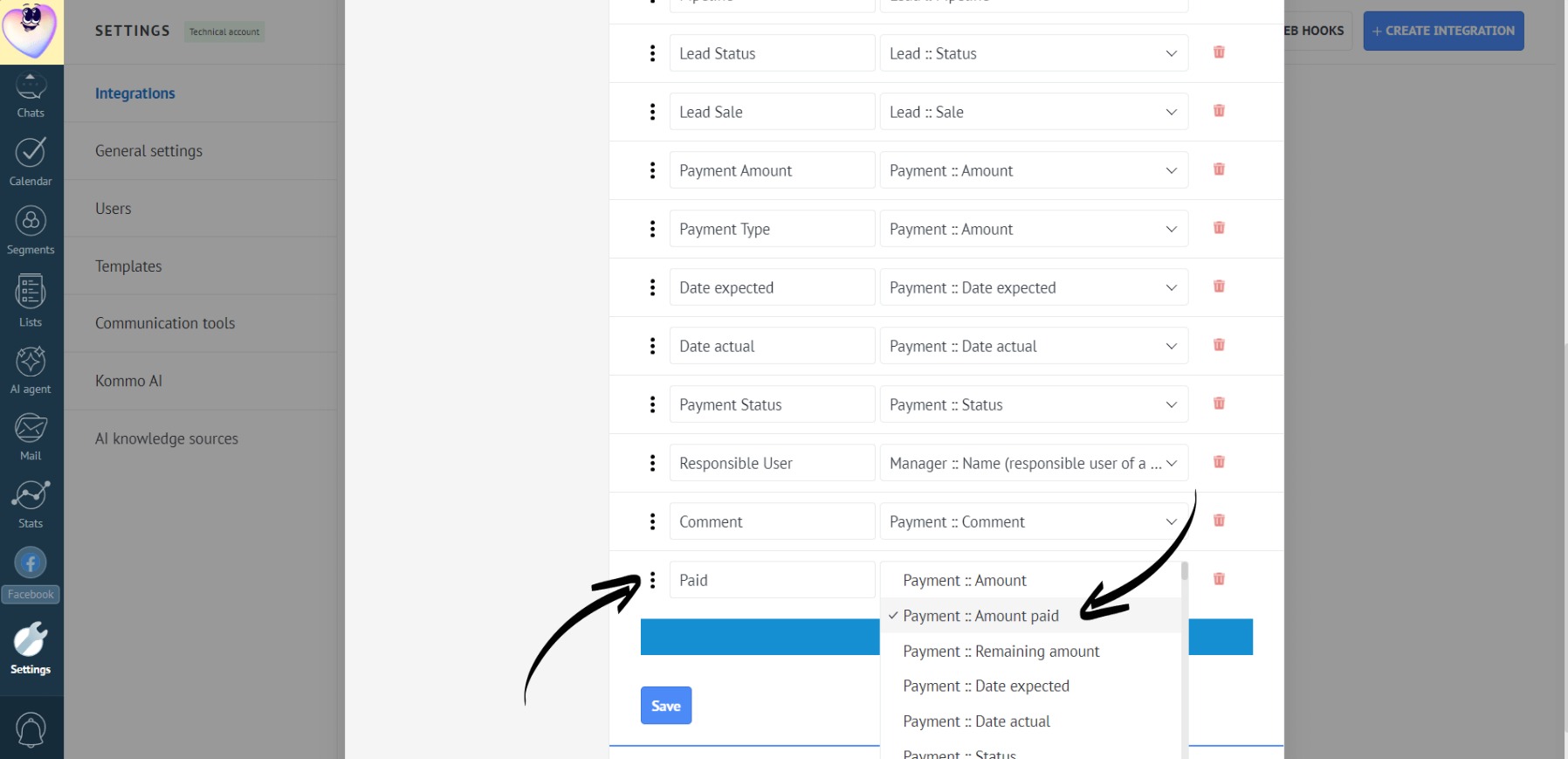
This column shows the actual amount credited to a specific payment.
- Follow the same steps for the “Payment :: Remaining amount” export field:
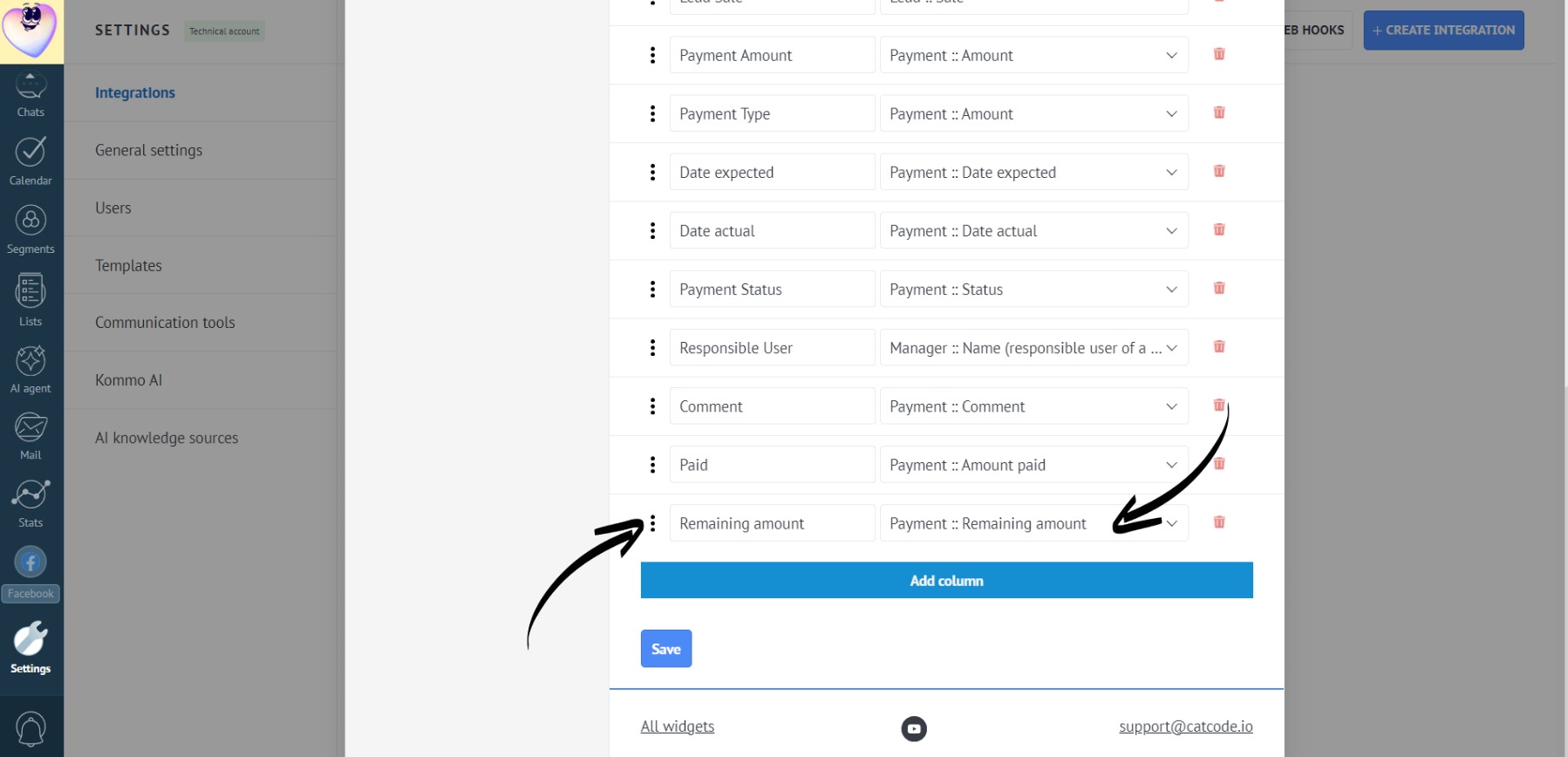
This column will show the amount remaining to be paid for a specific payment.
- Click Save to apply the settings.
Exporting data of the manager who added the payment
- Go to the Creditor app settings. Open the “Export” tab. Click “Add column” and set the column name, for example, “Manager”:
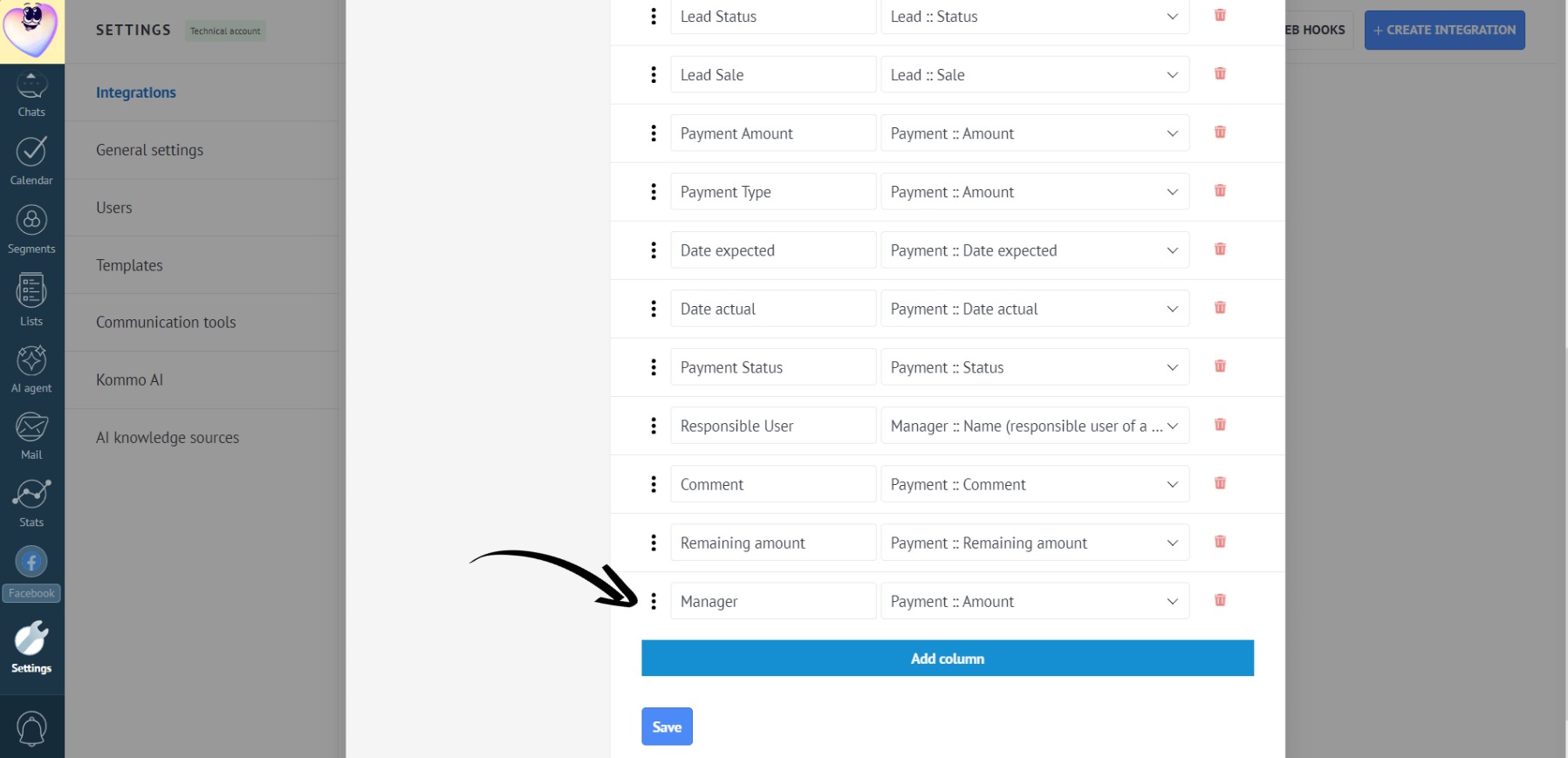
- From the dropdown list, select the lead card field corresponding to the manager who added the payment (created the loan):
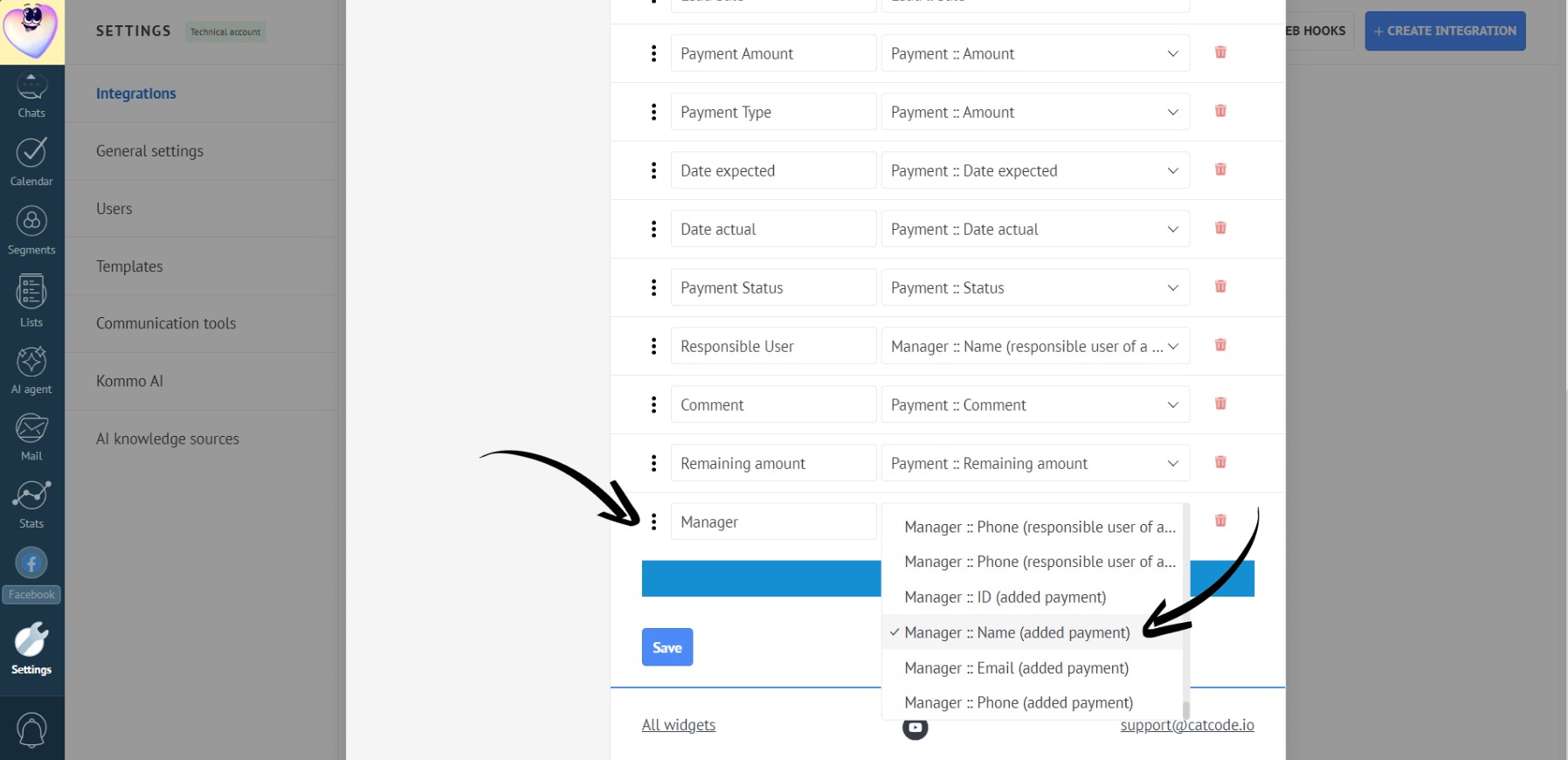
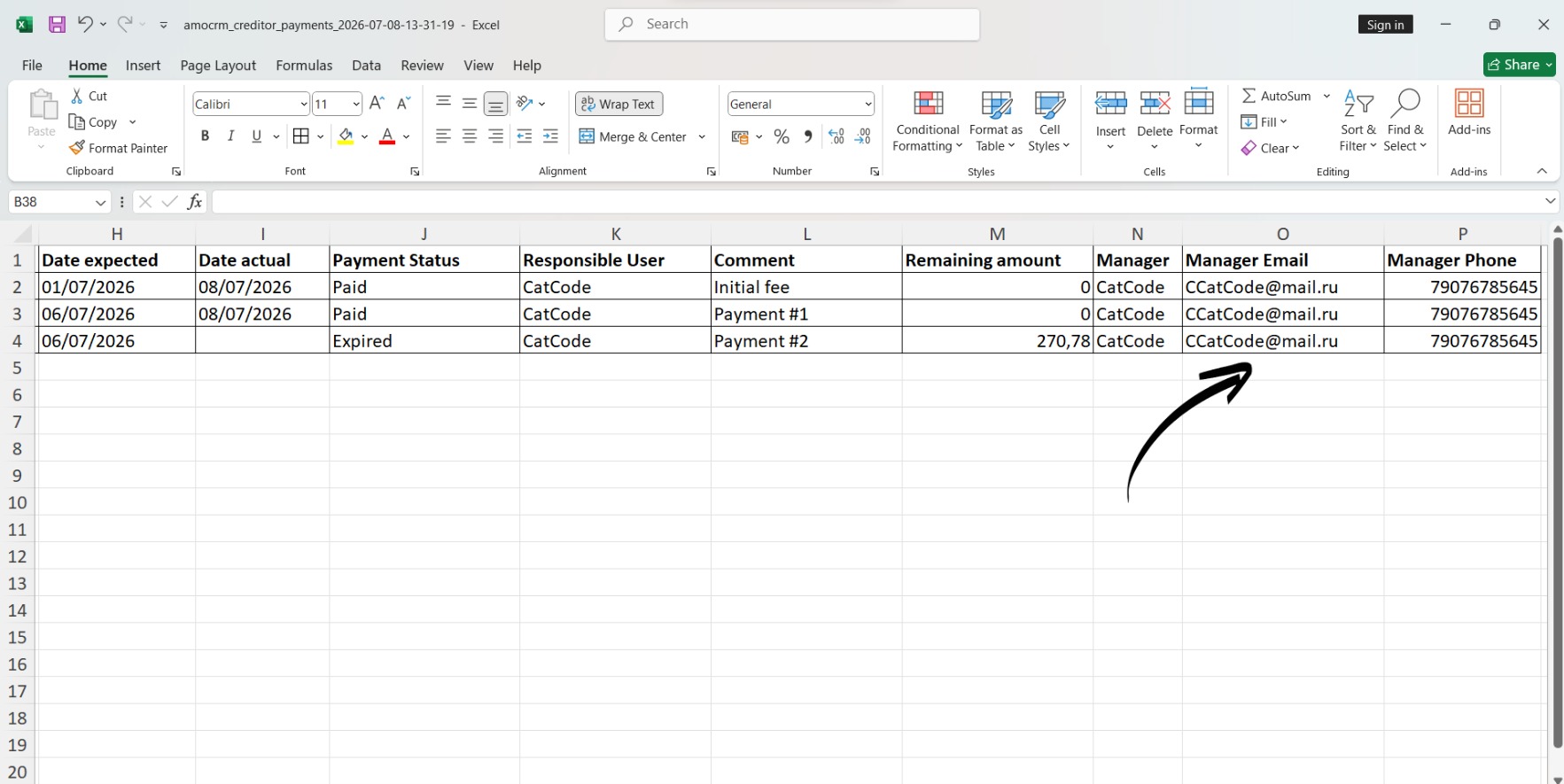
- Similarly, you can add extra columns for other manager details (email, phone, ID):
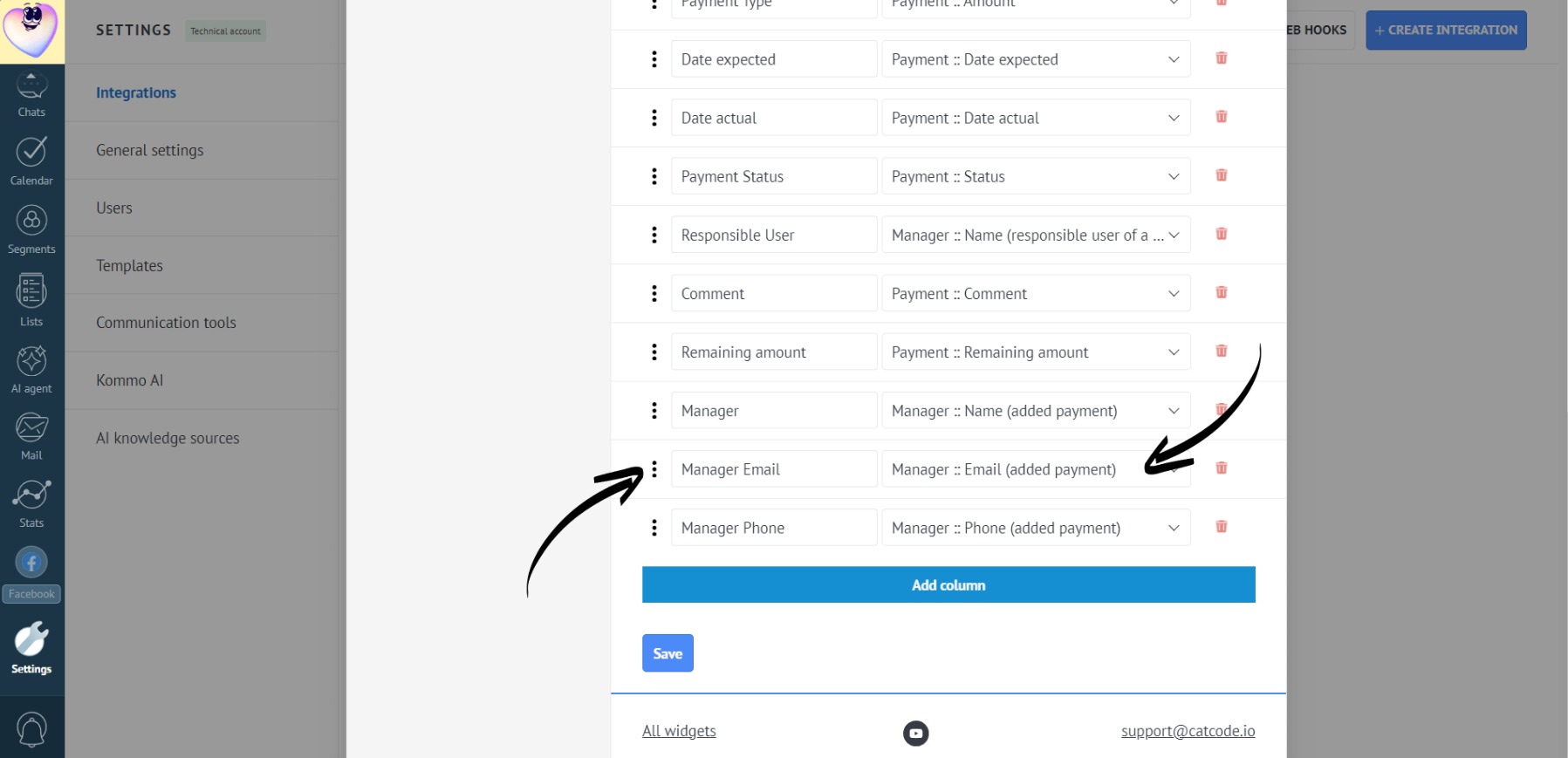
Click Save to apply the settings.
The report will include separate columns with the data of the manager who created the lead or added the payments: