Permissions
The Permissions tab allows you to flexibly manage what actions managers can perform with loans and payments in leads.
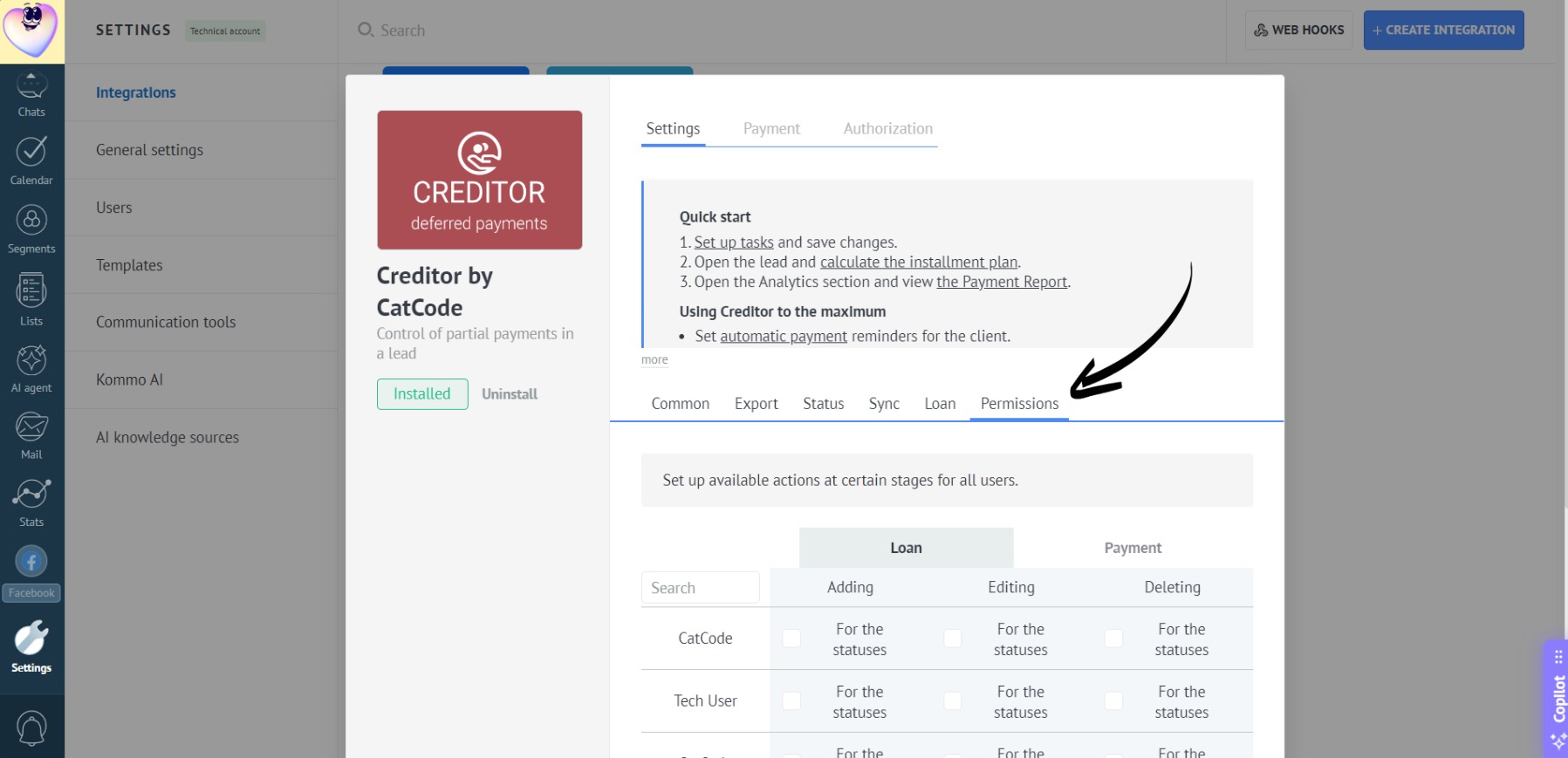
- Open the “Permissions” tab in the app settings:
- Select an entity by clicking the “Loan” or “Payment” tab:
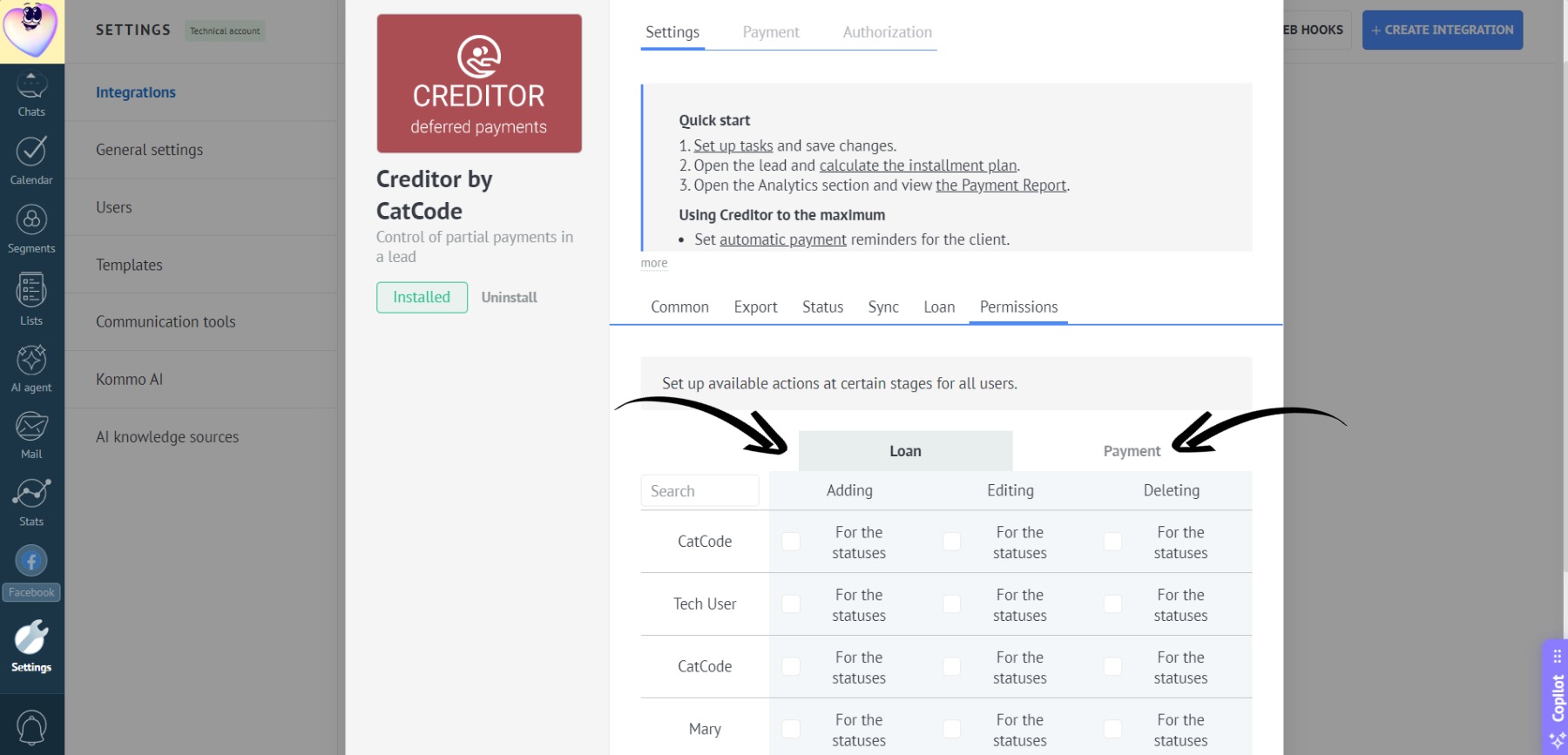
These tabs allow you to configure access separately for loan-related actions and payment-related actions.
- Find the desired employee in the list or use the search bar:
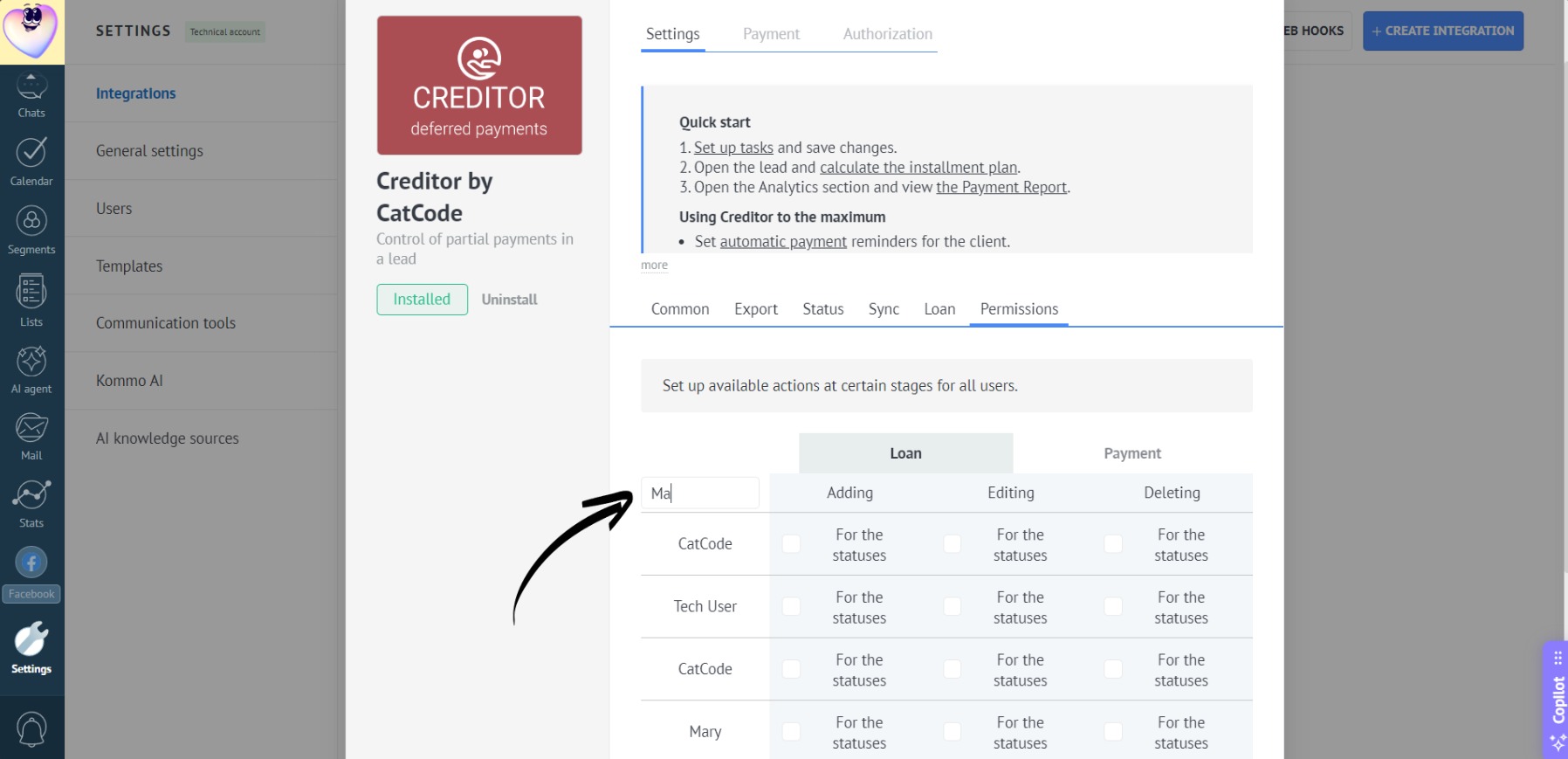
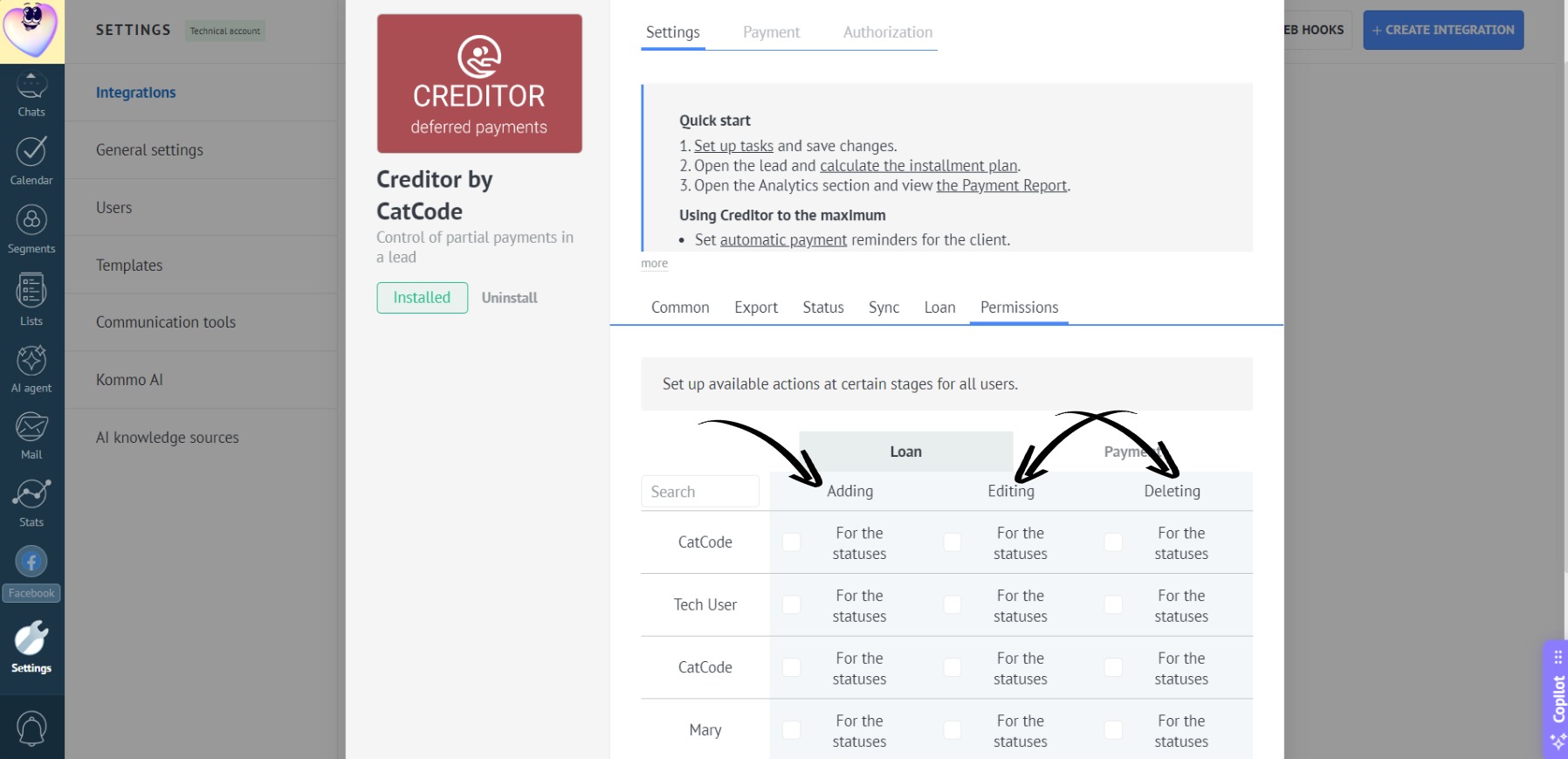
- Now, find the column corresponding to the required action (Adding, Editing, Deleting) for the selected manager:
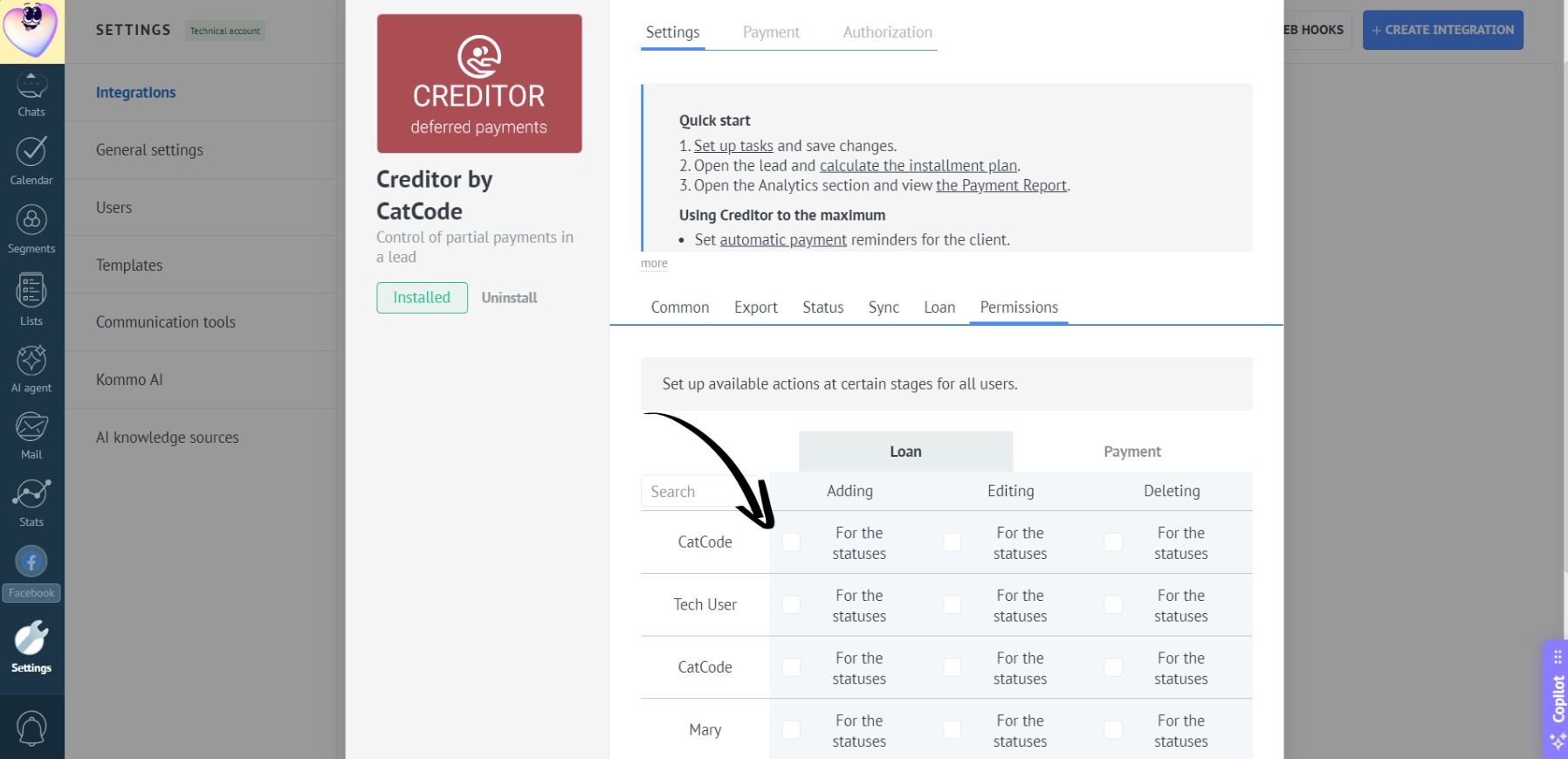
- Click the checkbox (it is located at the intersection of the manager and the action):
- A dropdown will open with a list of pipelines and statuses where this manager is ALLOWED to perform the action. Select the desired statuses and pipelines:
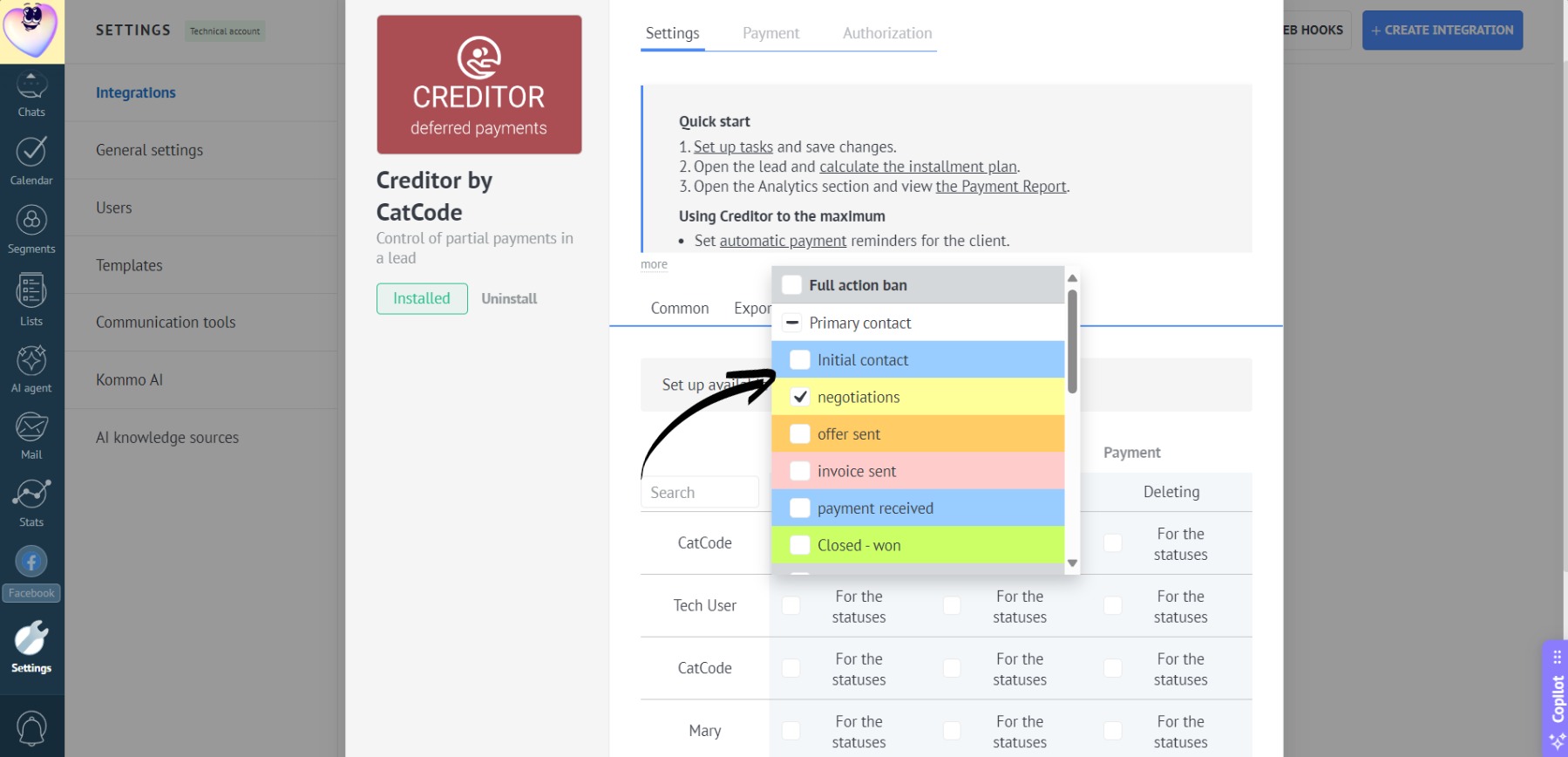
If at least one status in any pipeline is checked, the manager can only perform the action in that selected status and pipeline. In all other pipelines and statuses, the action will be completely locked. You can select multiple statuses.
- Clicking “Full action ban” will prevent the manager from adding, editing, or deleting loans or payments in any lead status:
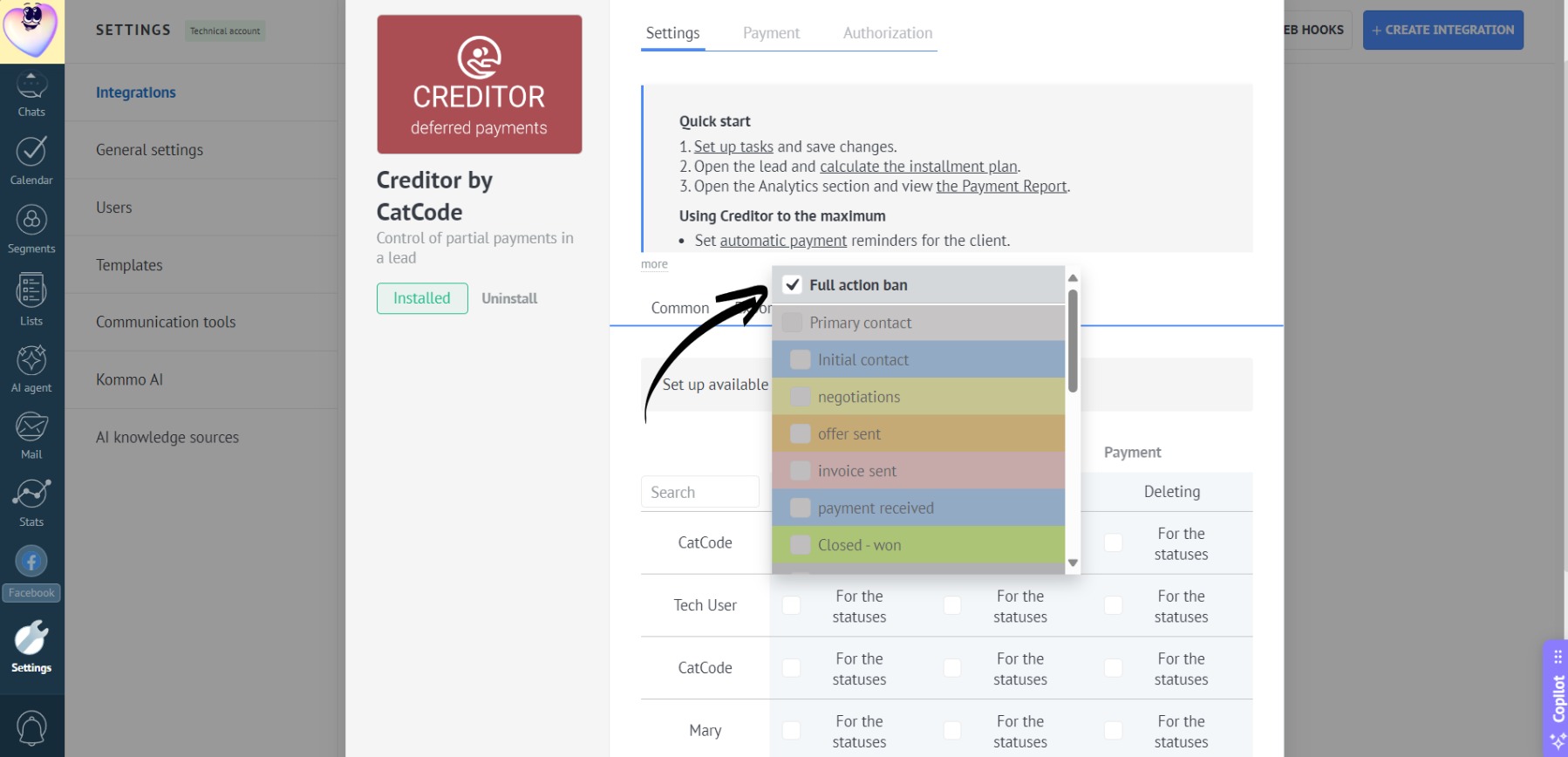
- If you don’t select any pipeline/status and leave the checkbox unchecked, all actions will be available to this manager across all pipeline stages. This is the “no restrictions” mode:
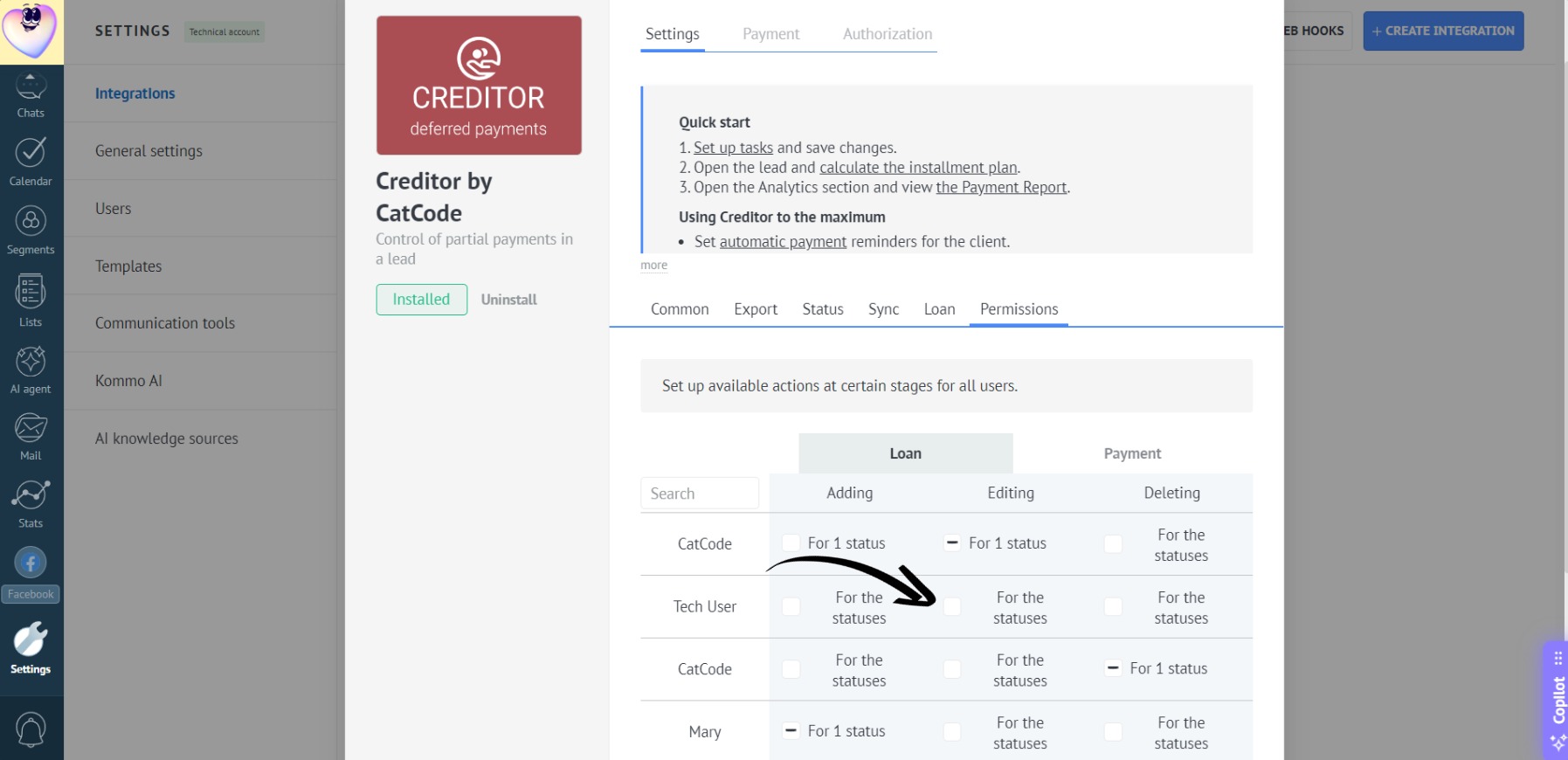
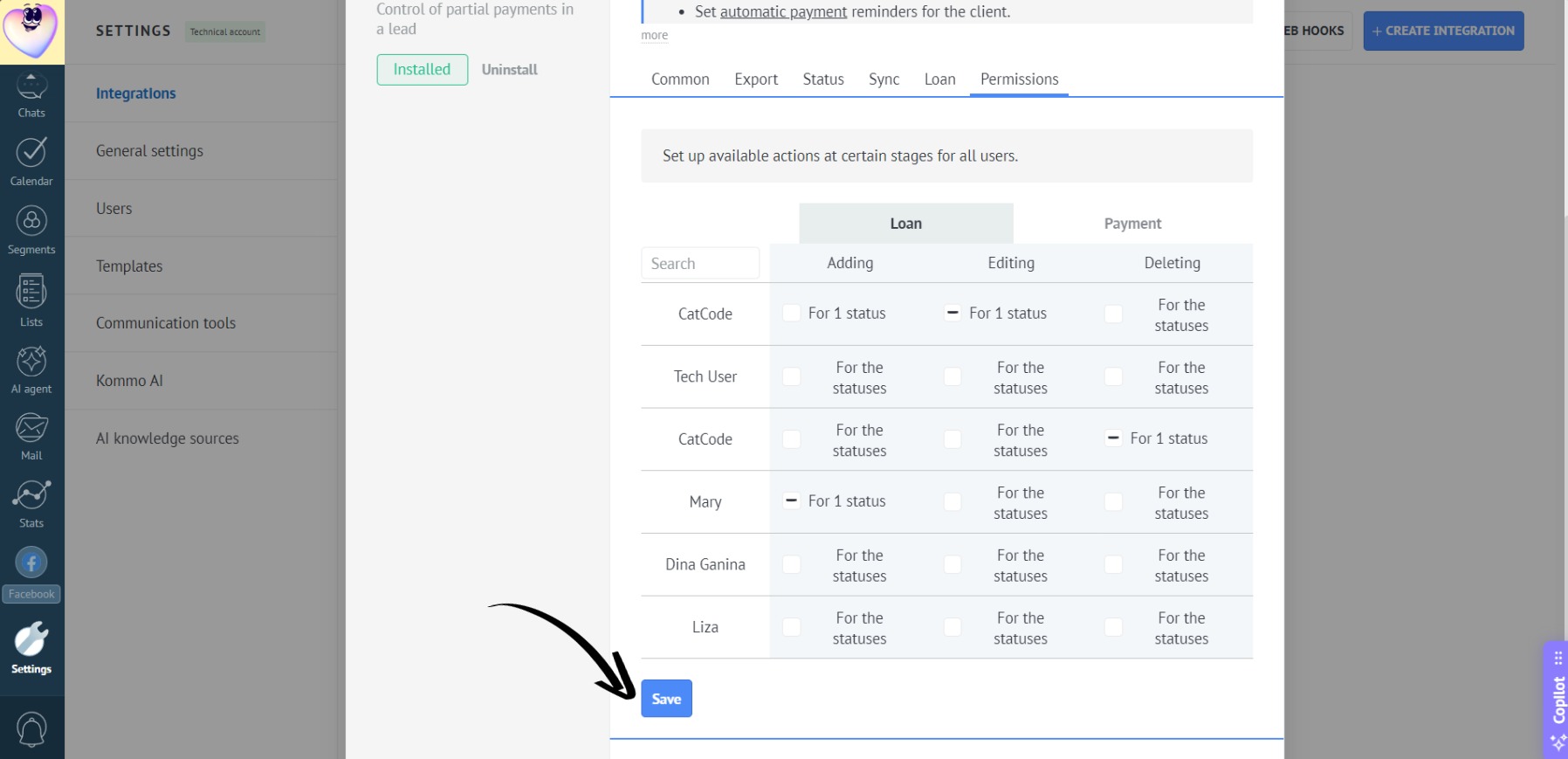
- Click “Save” to apply the settings:
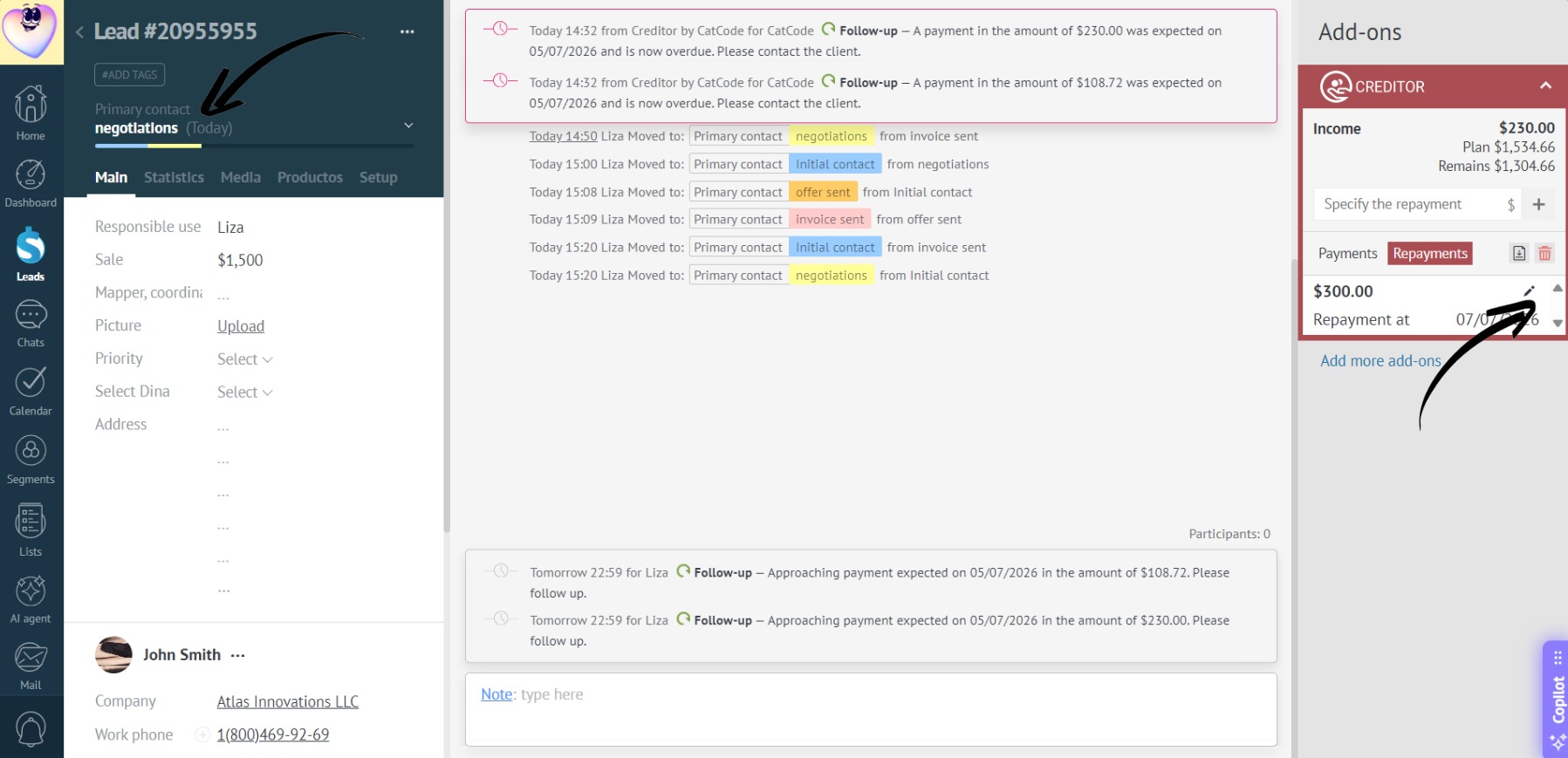
- Open a lead with the required status and make sure the action button or icon is active. For example, if a manager is only permitted to add loans in the “Negotiations” status, they will see an active “Add installment” button in any lead set to the “Negotiations” status:
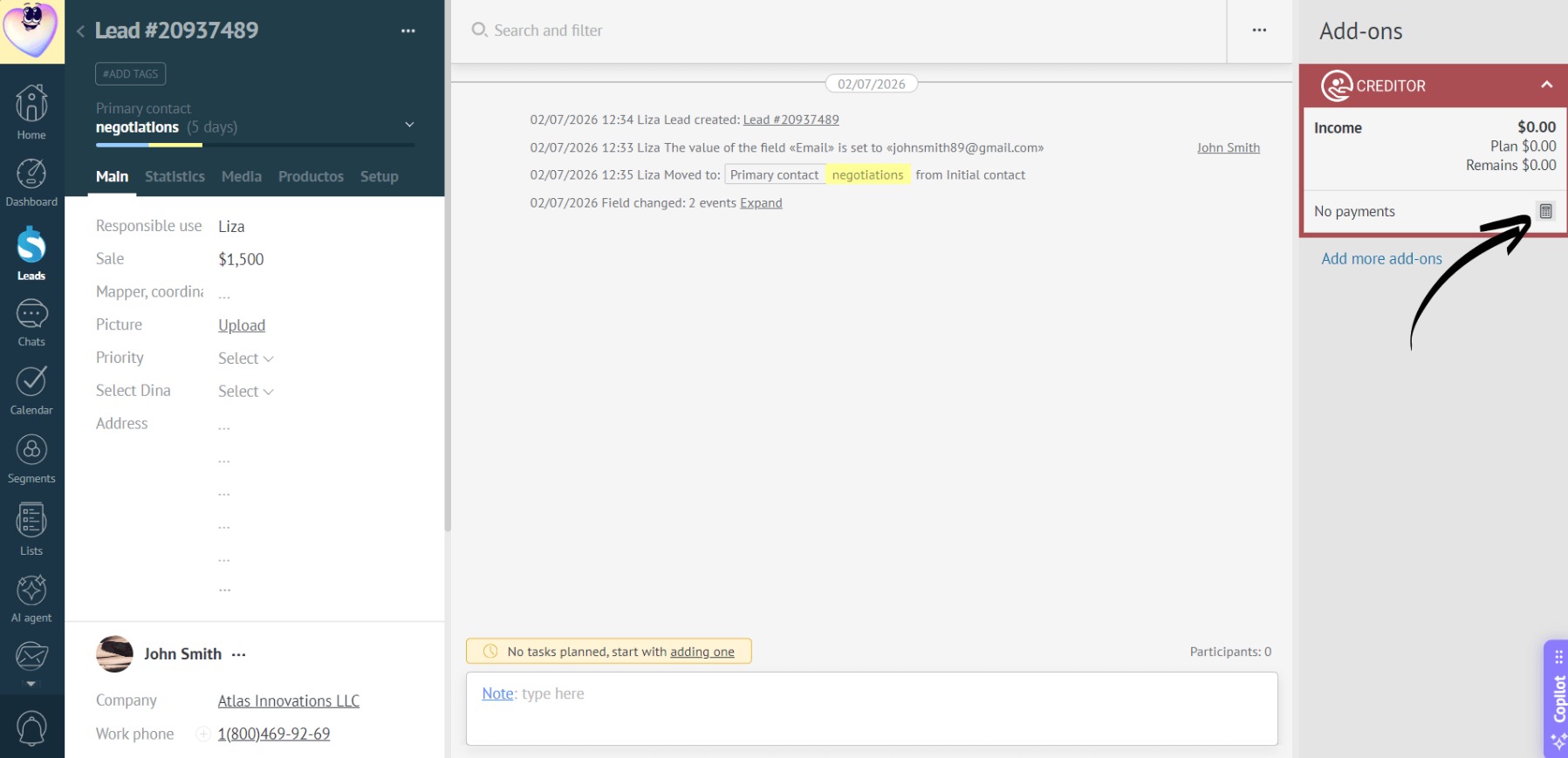
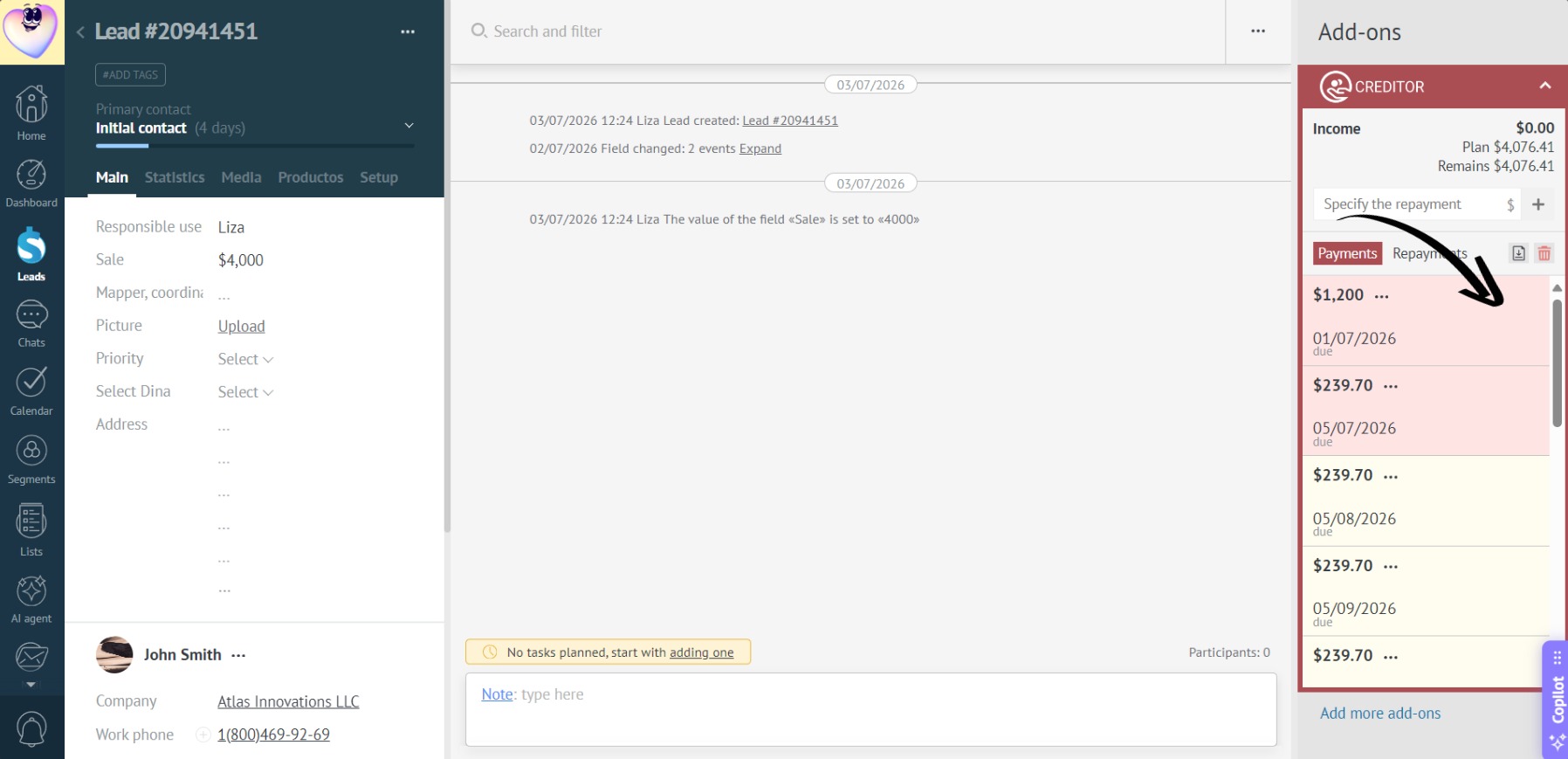
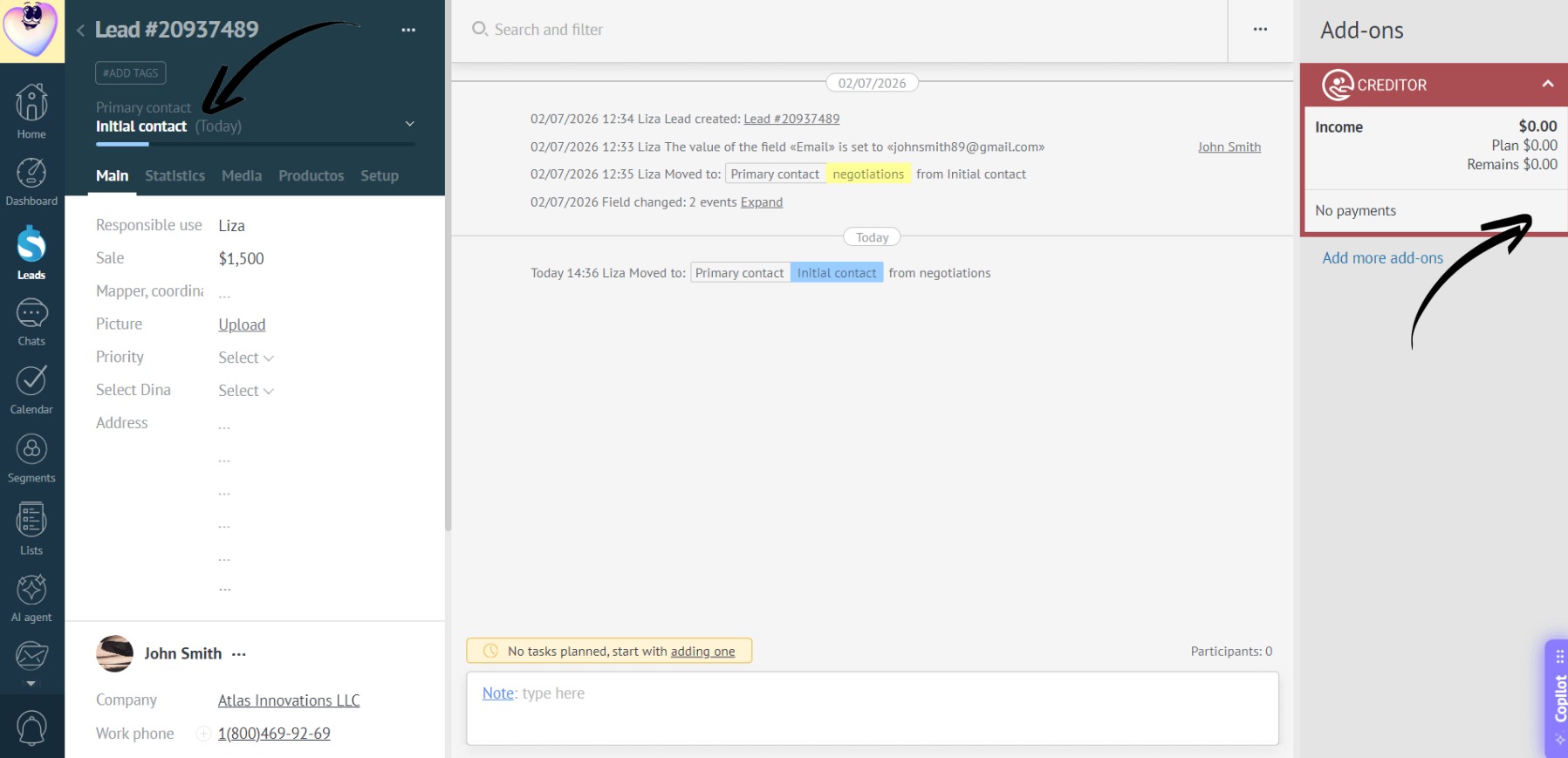
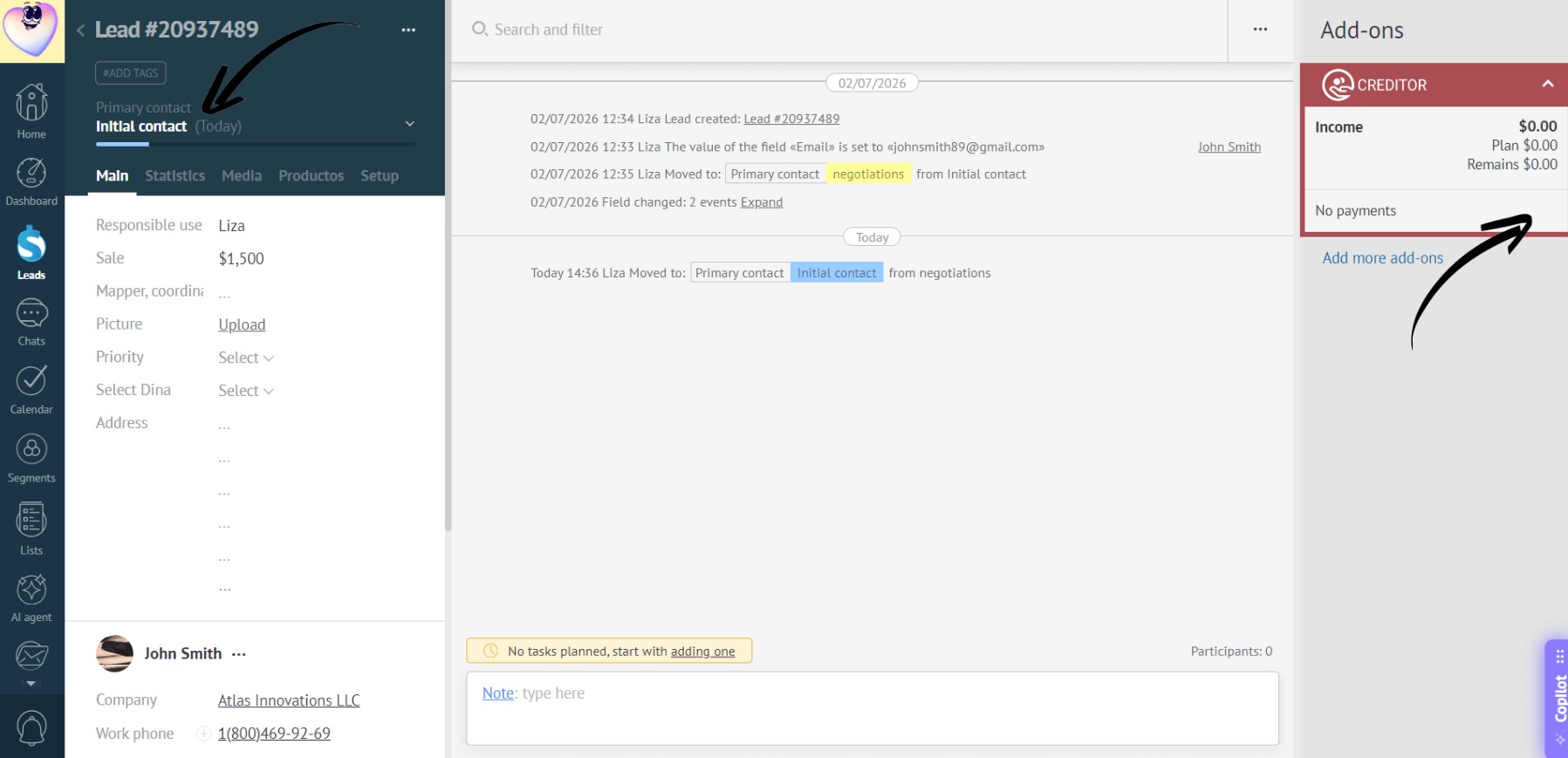
- If you move the lead to a different status, such as “Initial contact”, or open a lead with any status other than “Negotiations”, the action button will become unavailable to the selected manager — they won’t be able to add an installment:
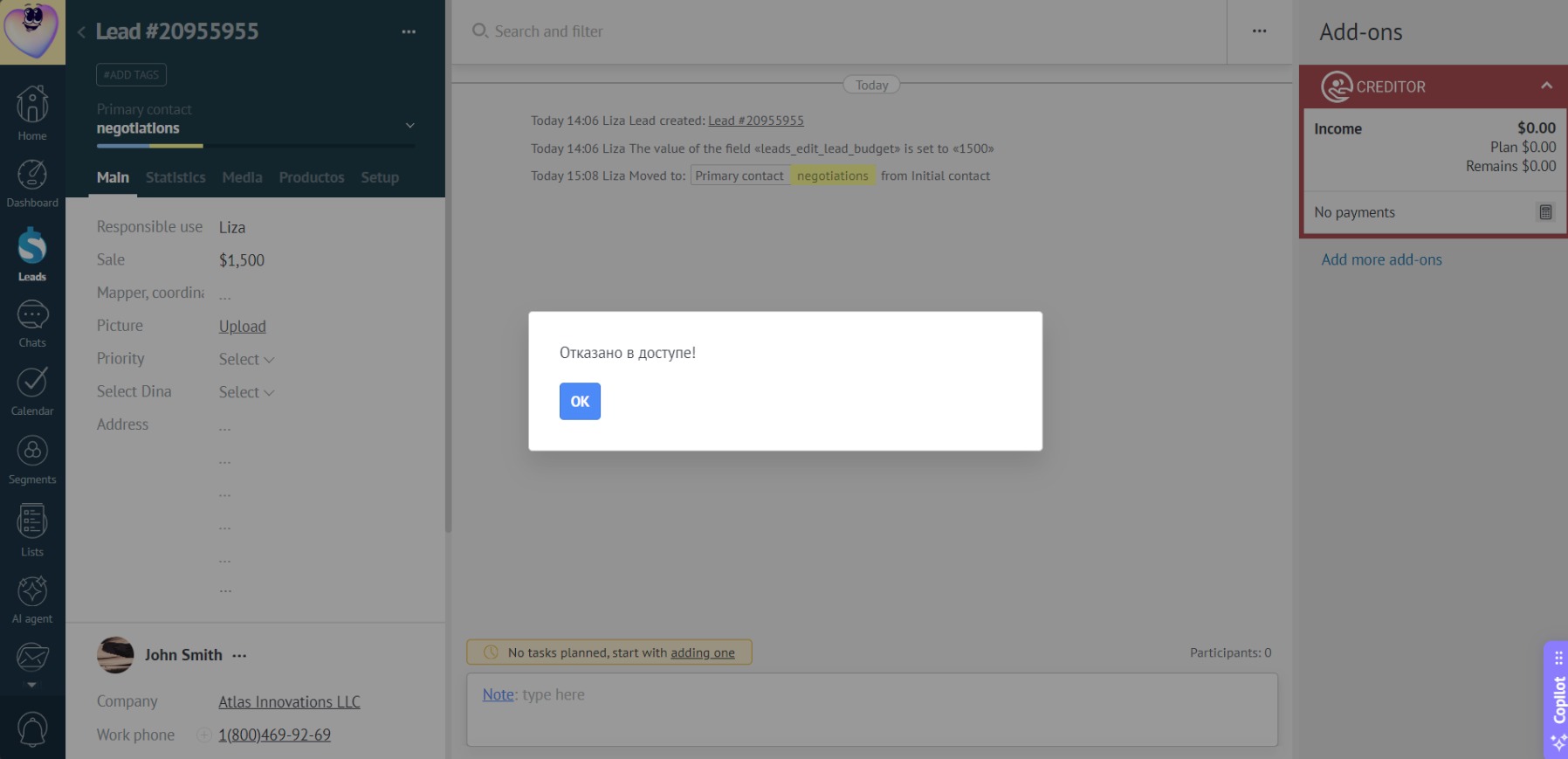
- If you move a lead to a restricted status without refreshing the page, the button will remain in the interface. Upon attempting to click it, a restriction popup will appear, the app will refresh, and the element will disappear:
Examples
Restricting the “Adding Loan” action for managers
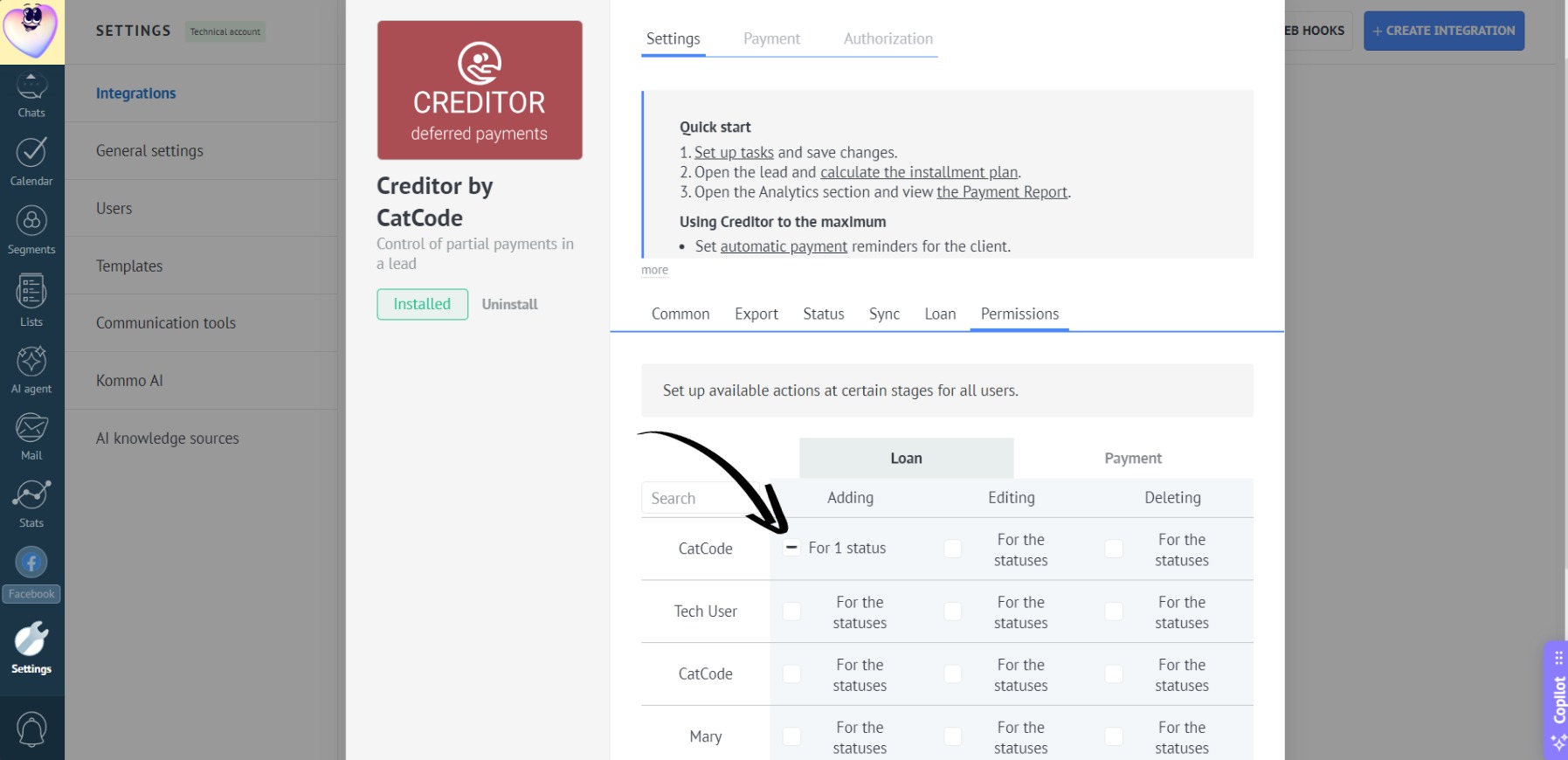
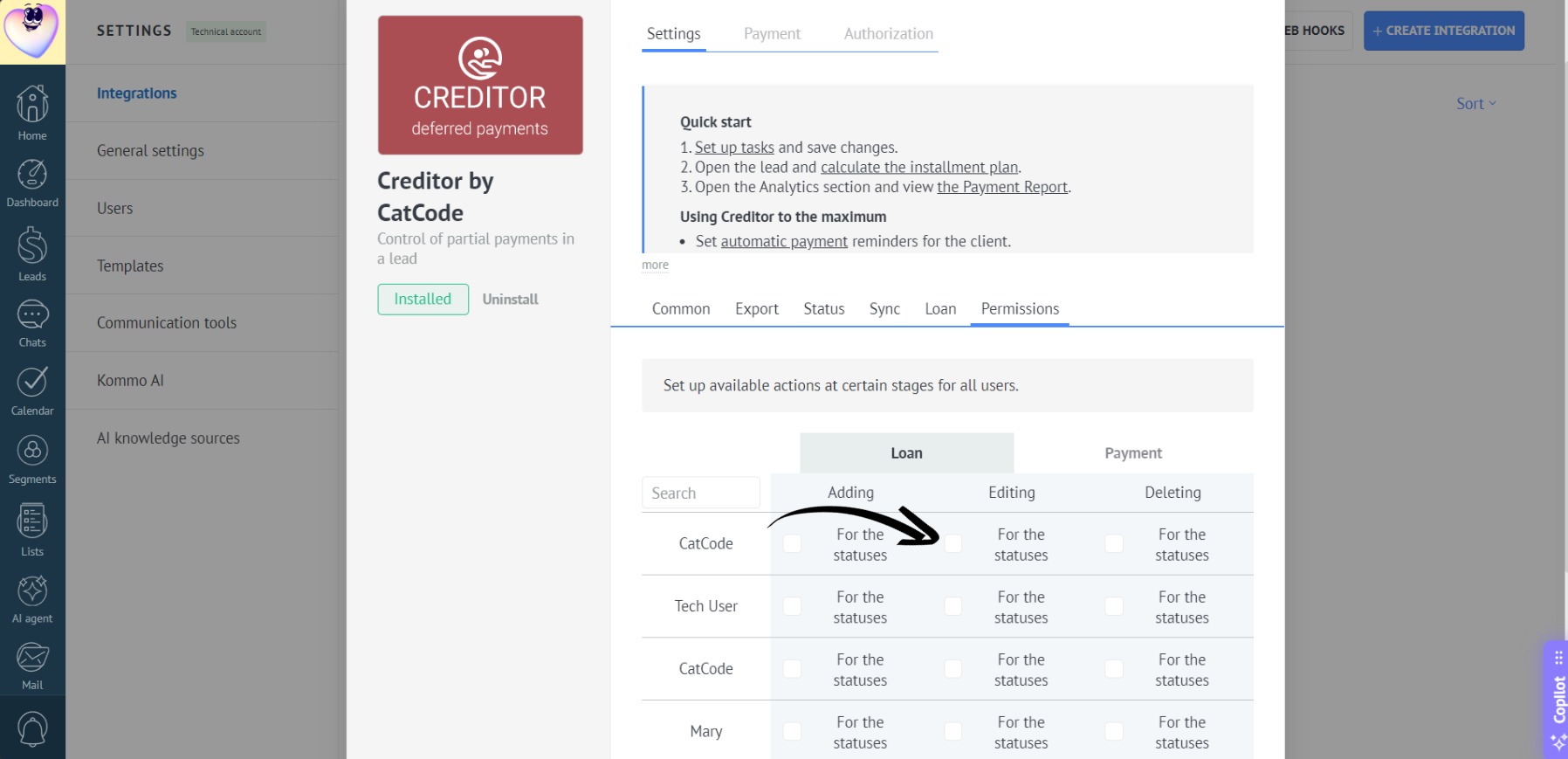
- In the app settings, go to the “Loan” tab, find the required manager, and click the checkbox in the “Adding” column:
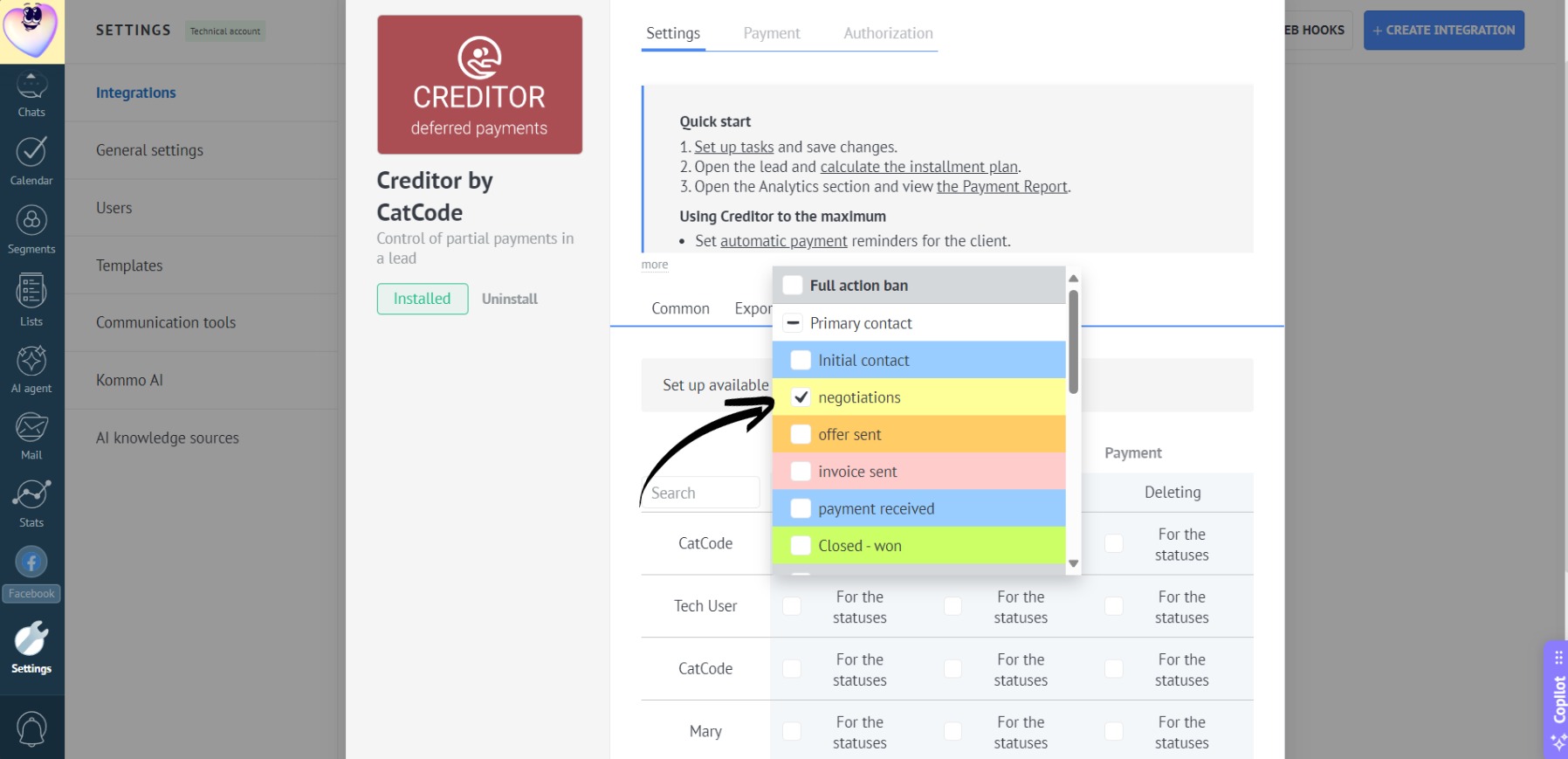
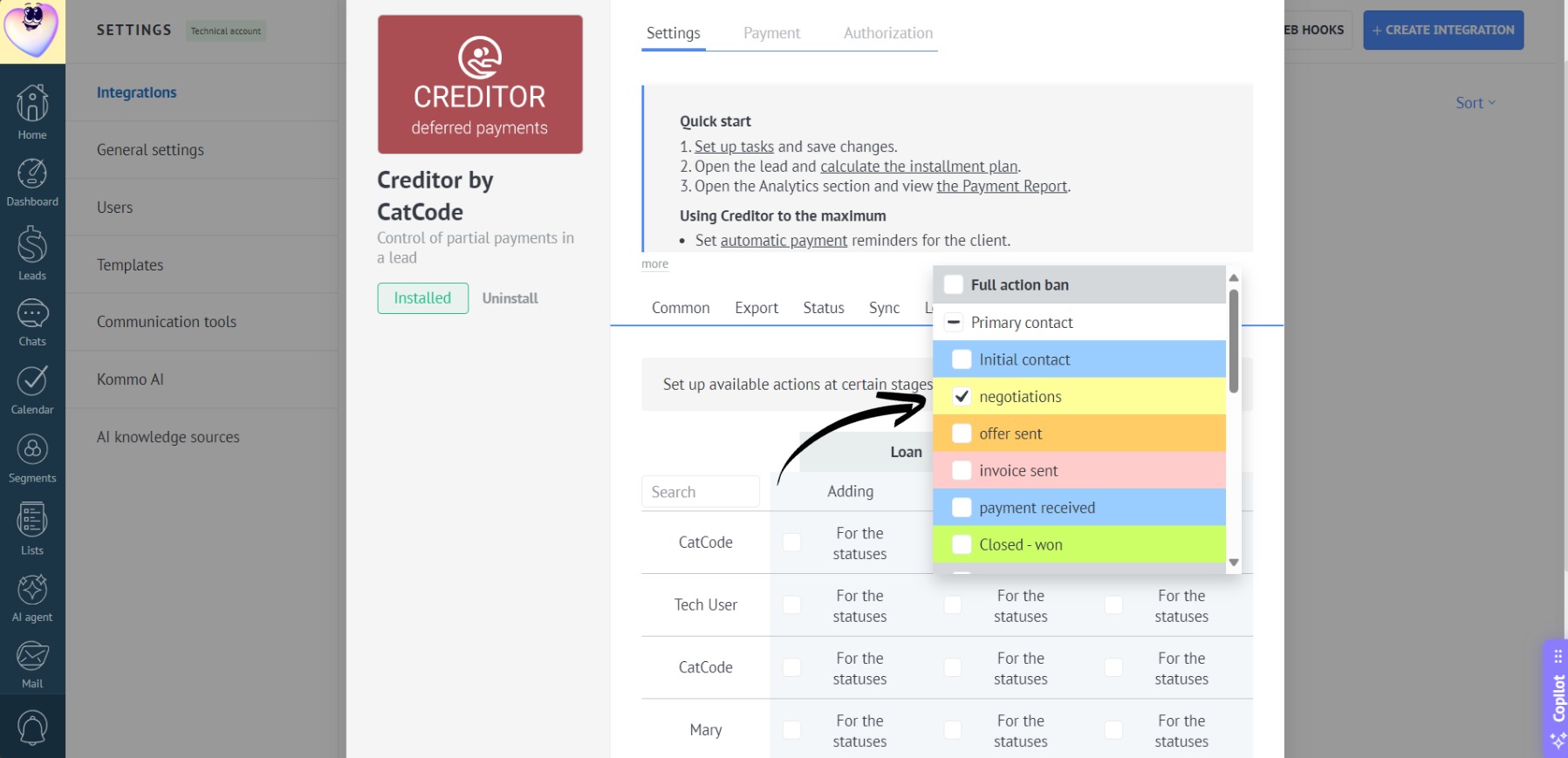
- In the list that appears, select the status, e.g., “Negotiations”. Don’t forget to click “Save”:
- Now, if the manager opens any lead in the “Negotiations” status, they will see the “Add Installment” button in the app — it will be active:
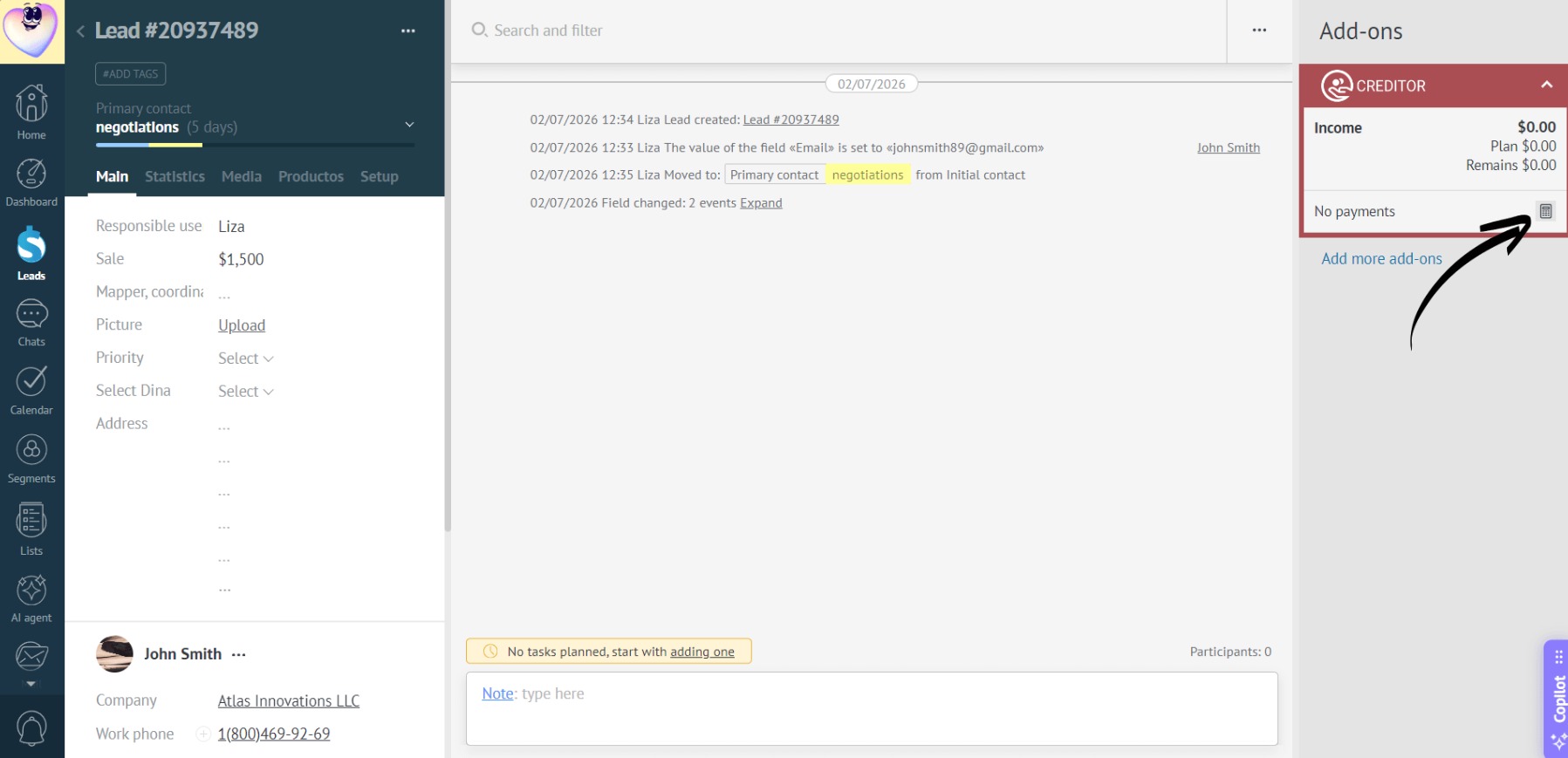
- If the lead is moved to a different status, such as “Initial contact”, the button will become unavailable, and adding an installment will be restricted:
Restricting the “Editing Loan” action for managers
- In the app settings, go to the “Loan” tab, find the required manager, and click the checkbox in the “Editing” column:
- In the list that appears, select the status, e.g., “Negotiations”. Don’t forget to click “Save”:
- Open a lead in the “Negotiations” status. The payment edit icon (pencil) will be available:
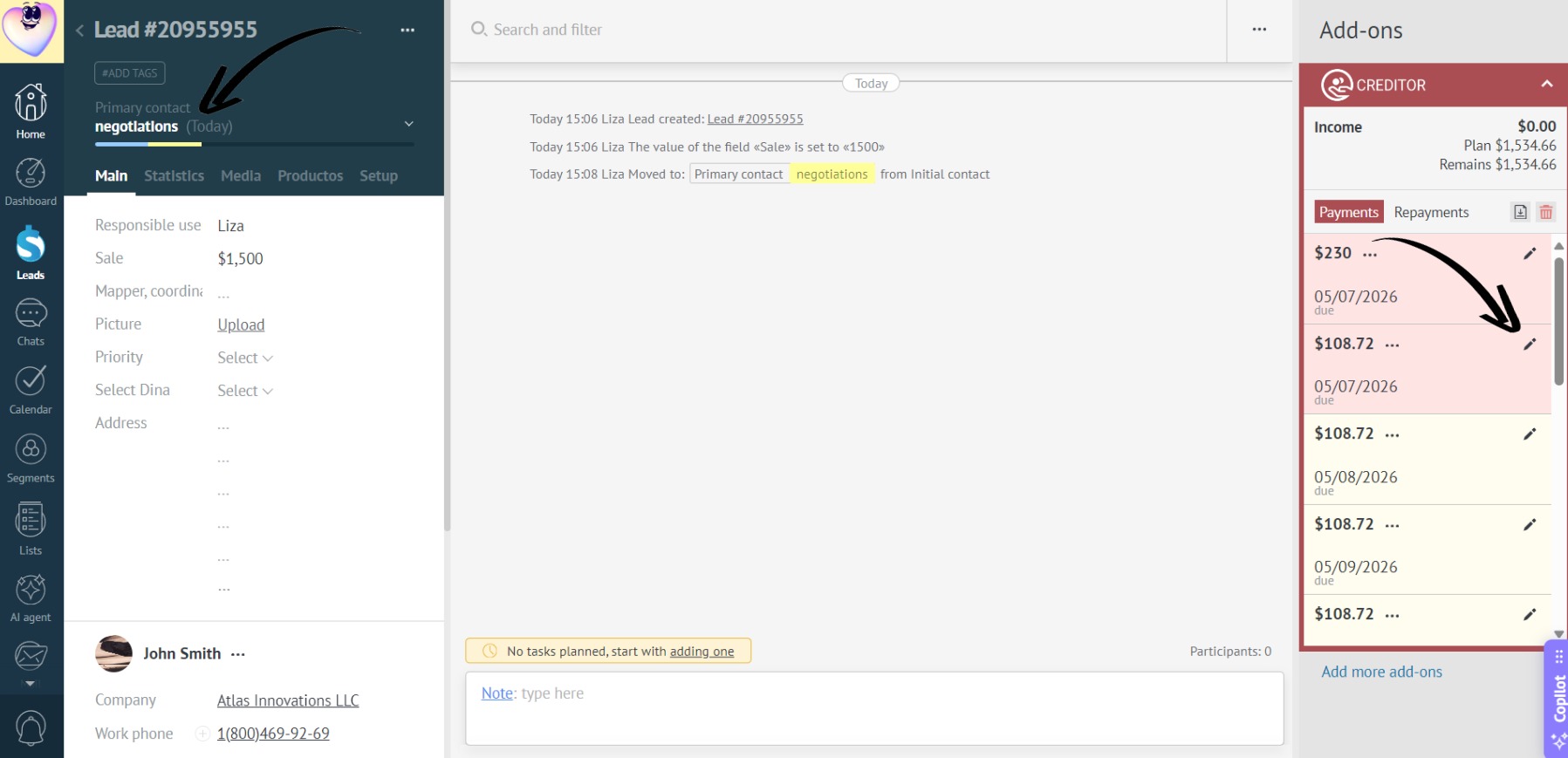
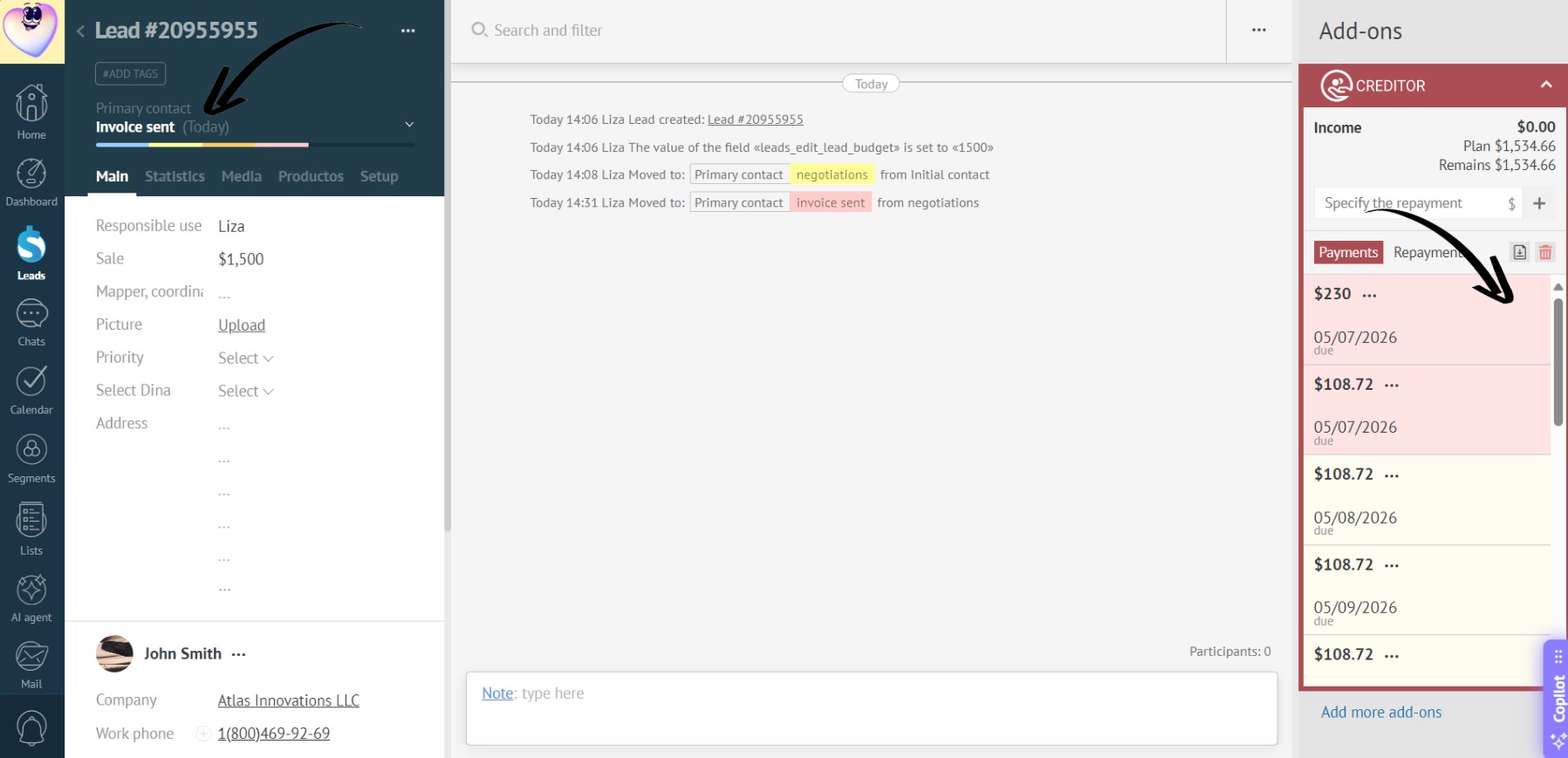
- If the manager opens a lead with a different status, the pencil icon will disappear — editing is restricted:
Restricting the “Deleting Loan” action for managers
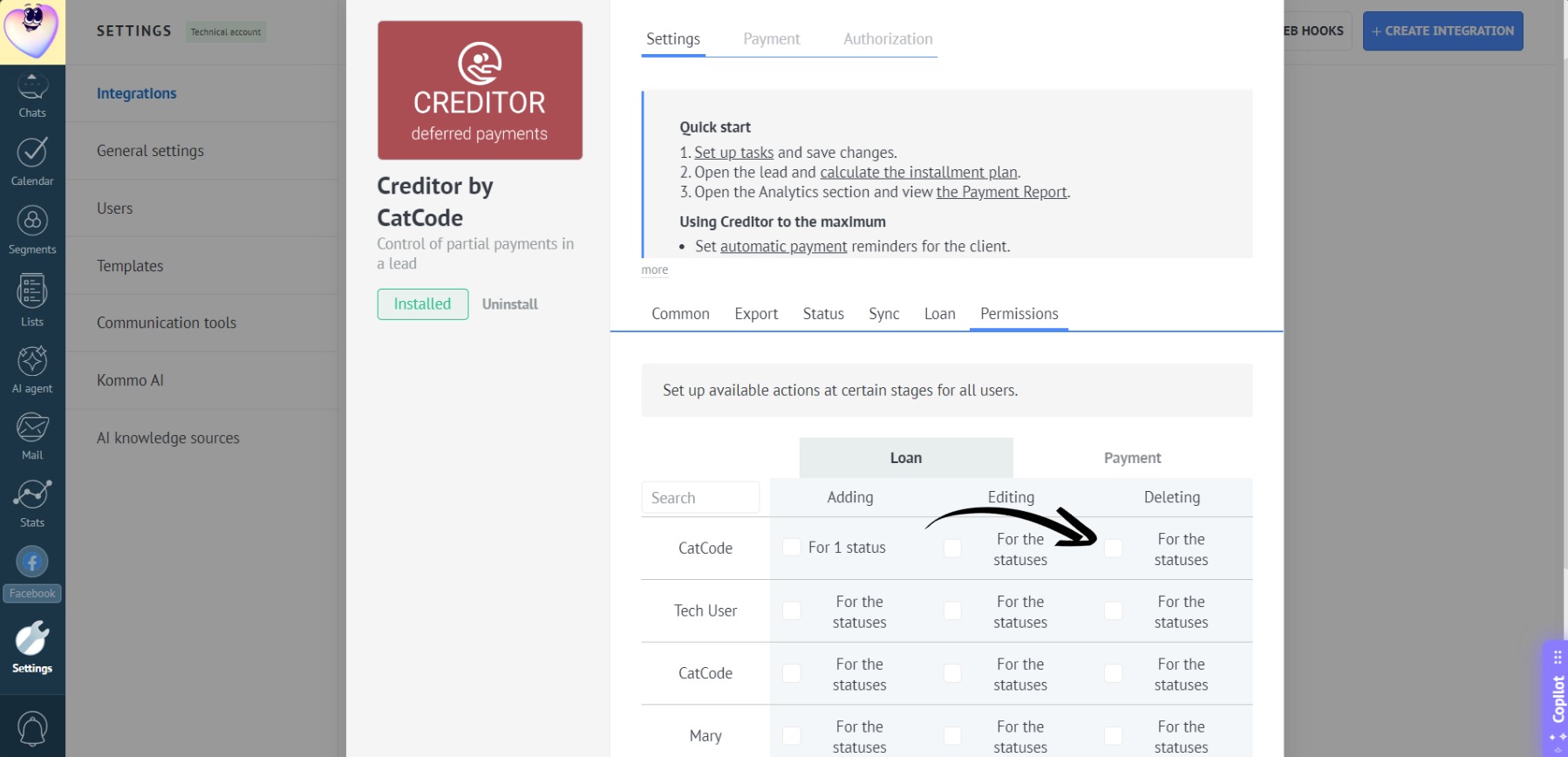
- In the app settings, go to the “Loan” tab, find the required manager, and click the checkbox in the “Deleting” column:
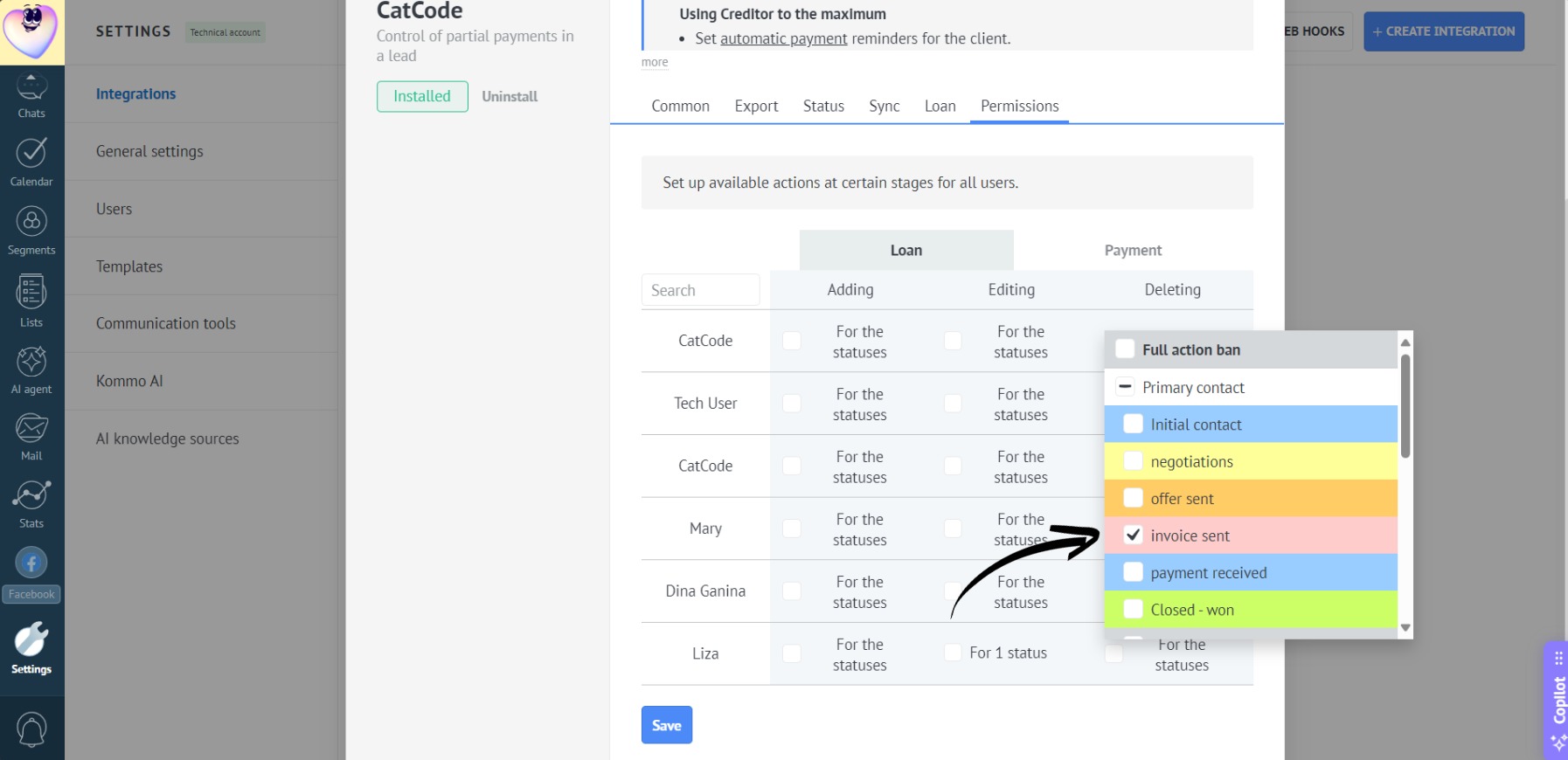
- In the list that appears, select the status, e.g., “Invoice sent”. Don’t forget to click “Save”:
- Open a lead in the “Invoice sent” status — the trash icon next to the installment will be active:
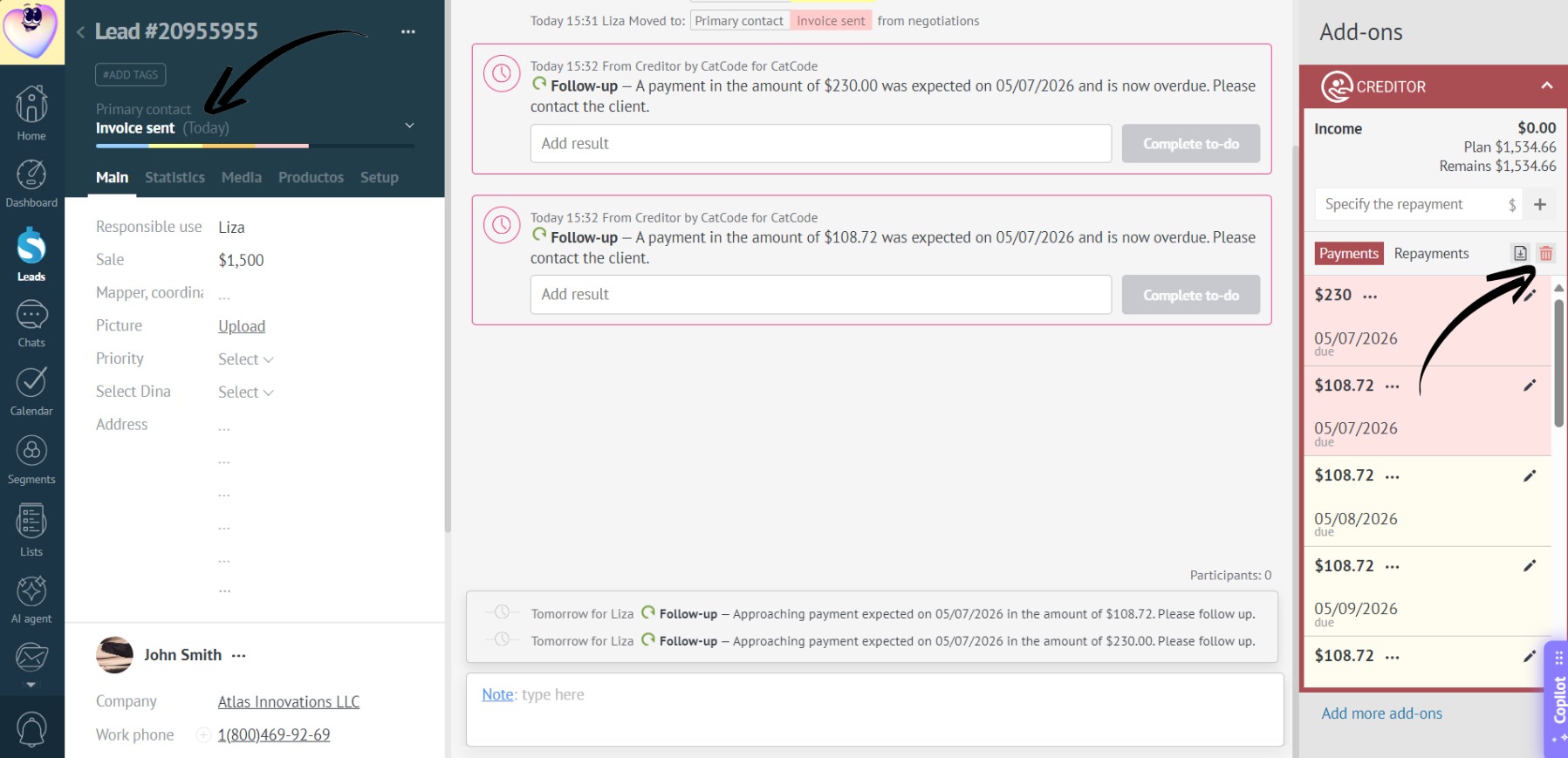
- However, if the lead is set to any other status, the icon will disappear:
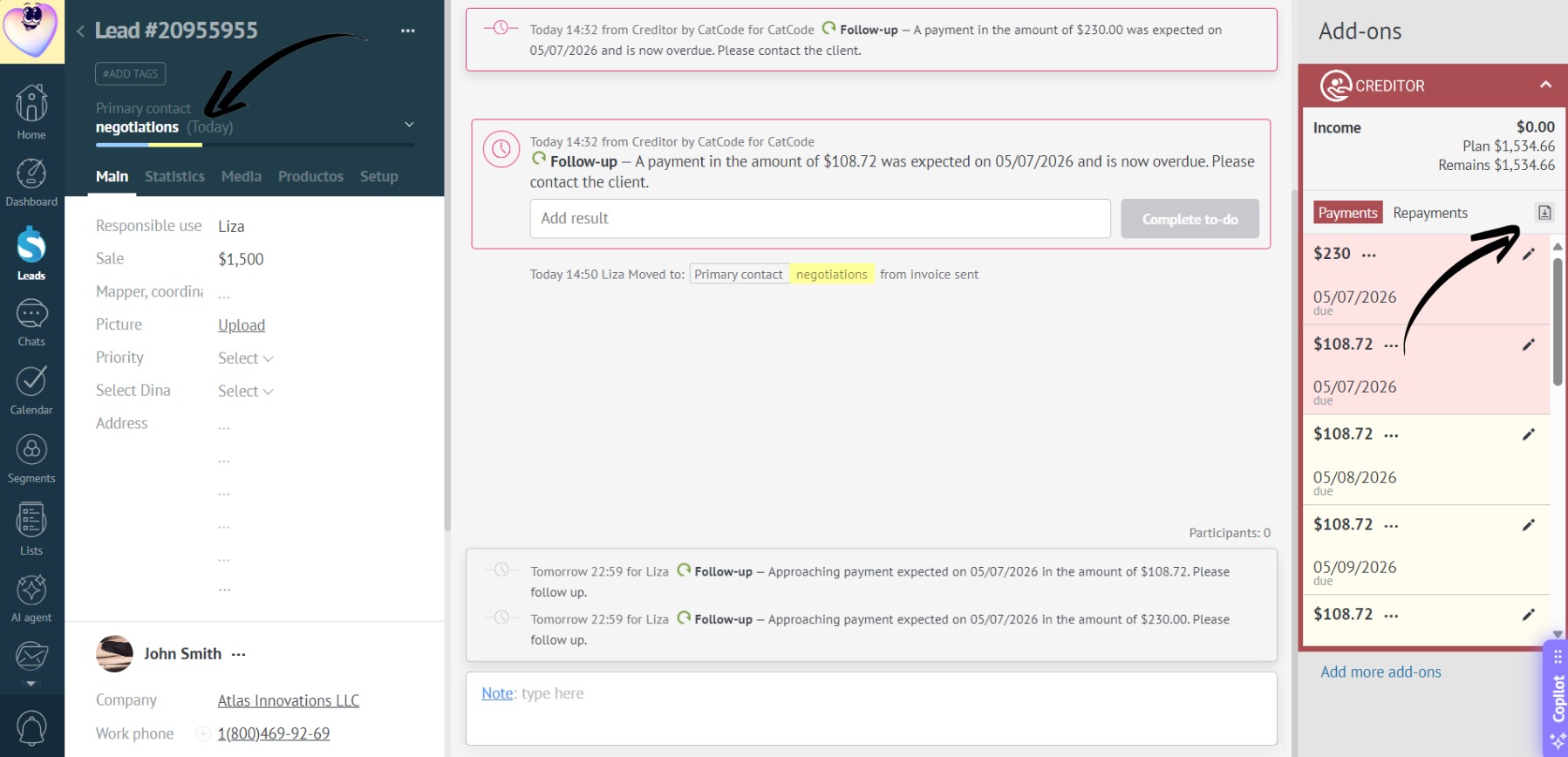
Restricting the “Adding Payment” action for managers
- In the app settings, go to the “Payment” tab, find the required manager, and click the checkbox in the “Adding” column:
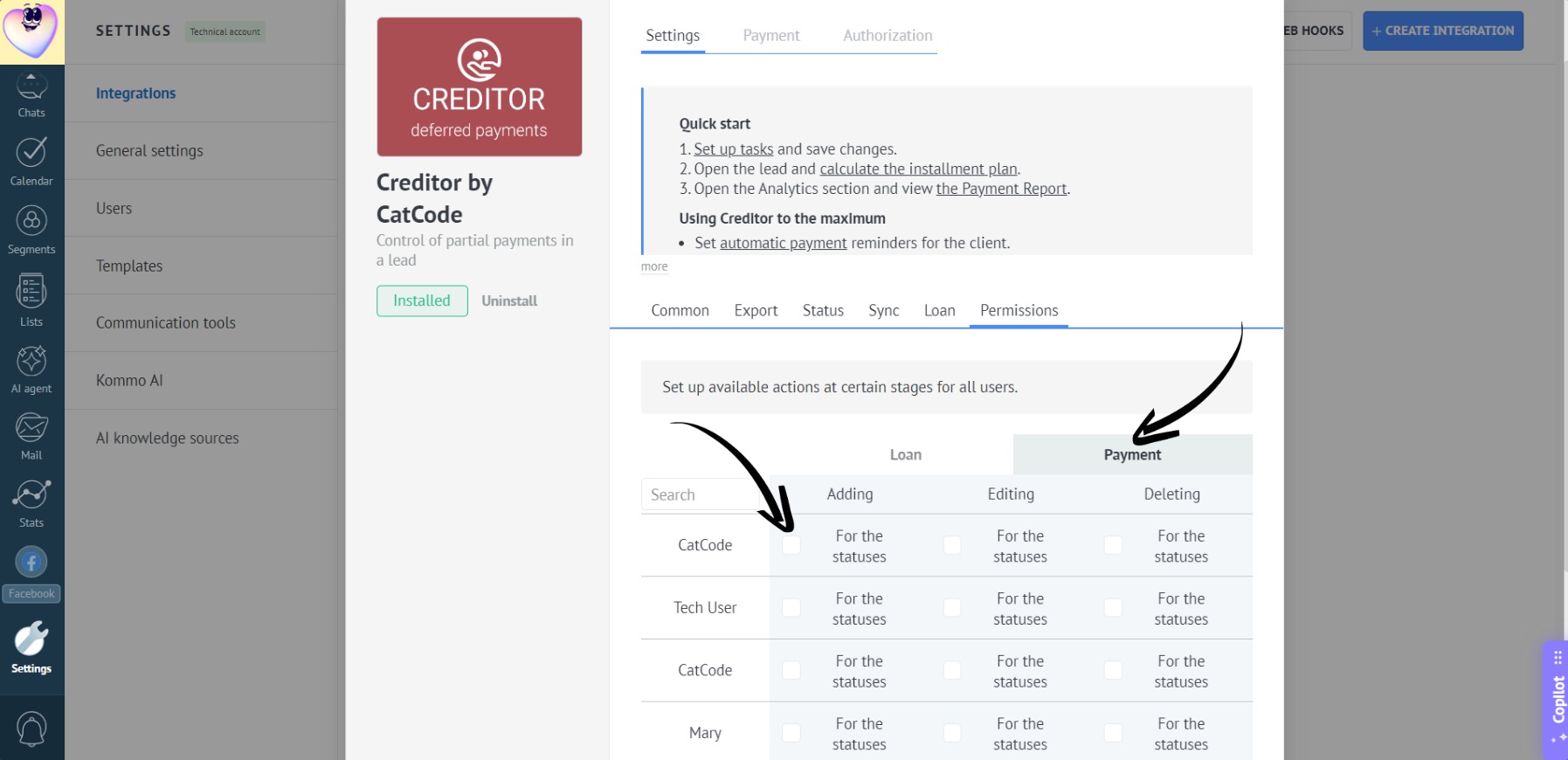
- In the list that appears, select the status, e.g., “Negotiations”. Don’t forget to click “Save”:
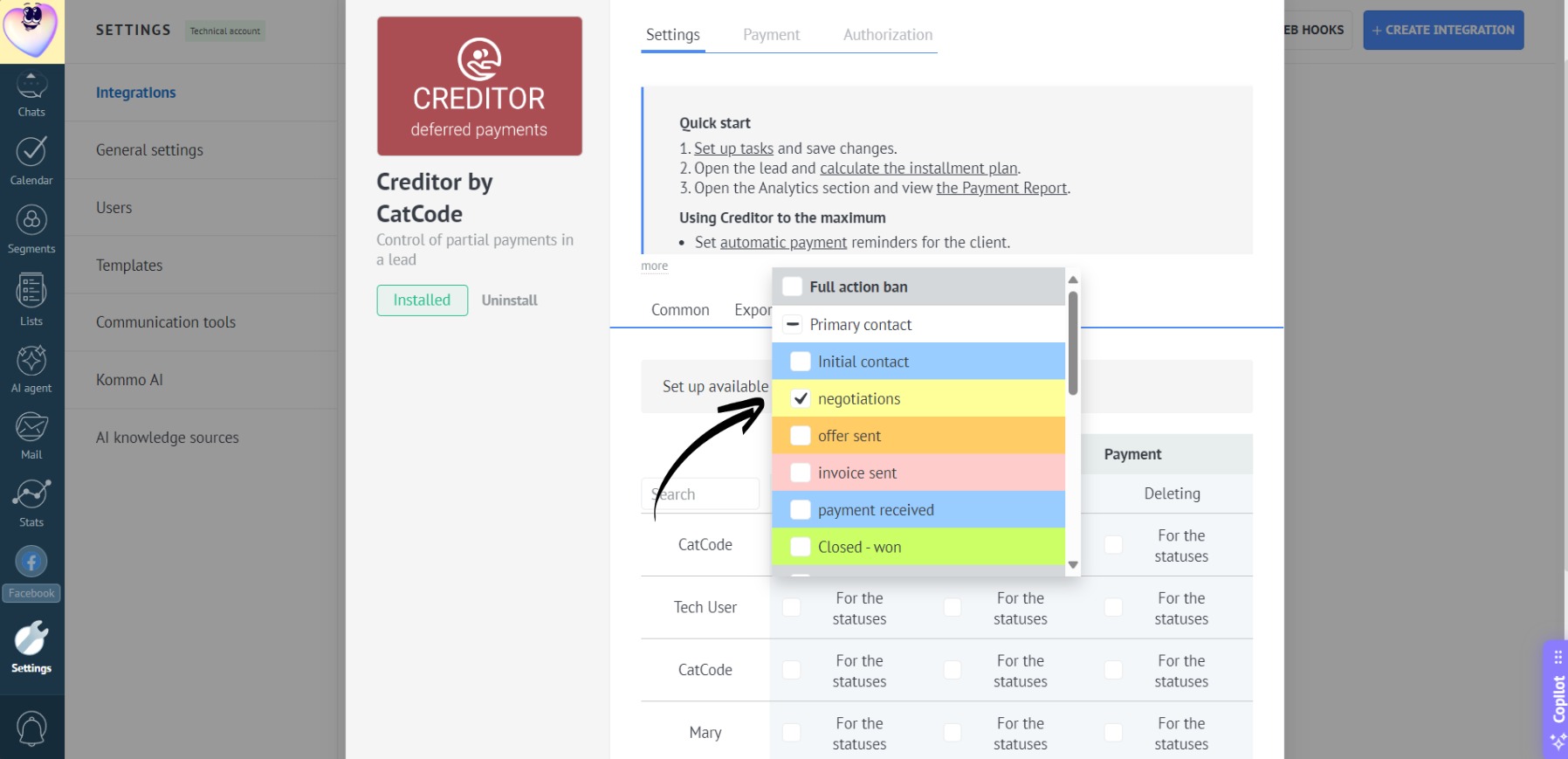
- Now, if a manager opens a lead in the “Negotiations” status, the window for adding a payment will be active:
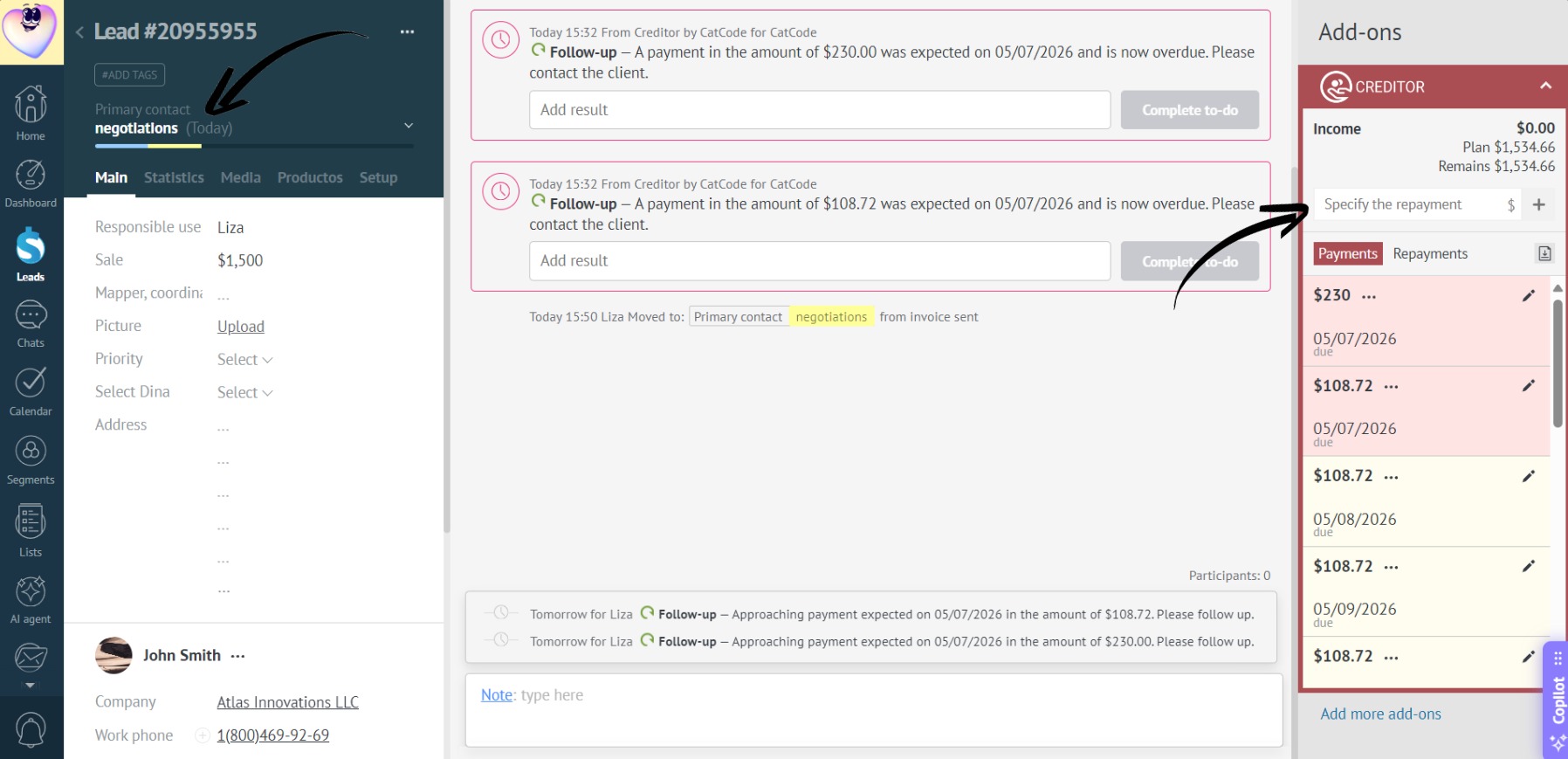
- If the lead is moved to a different status, such as “Initial contact”, the button will become unavailable — adding a payment is not allowed in this status:
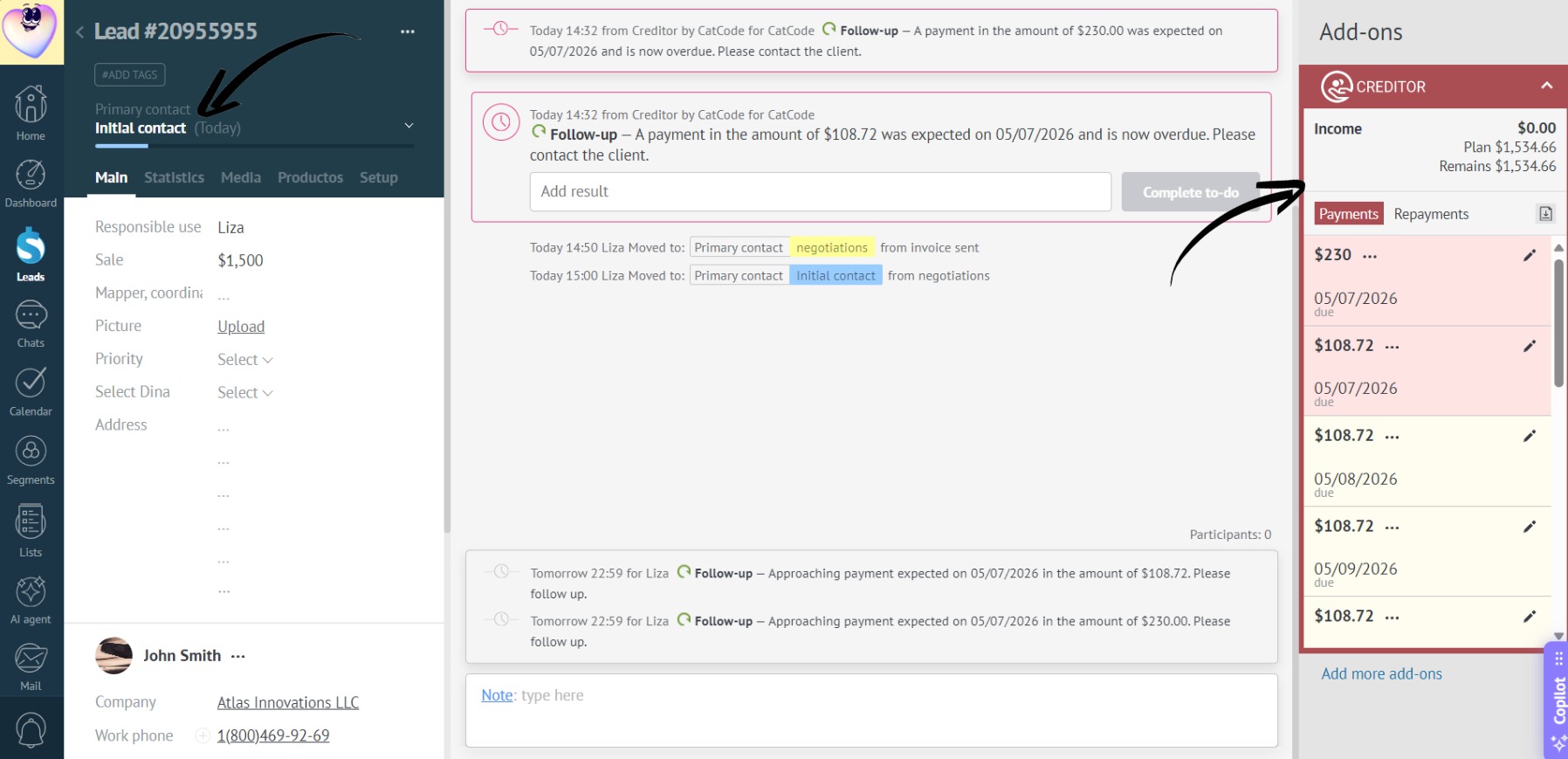
Restricting the “Editing Payment” action for managers
- In the app settings, go to the “Payment” tab, find the required manager, and click the checkbox in the “Editing” column:
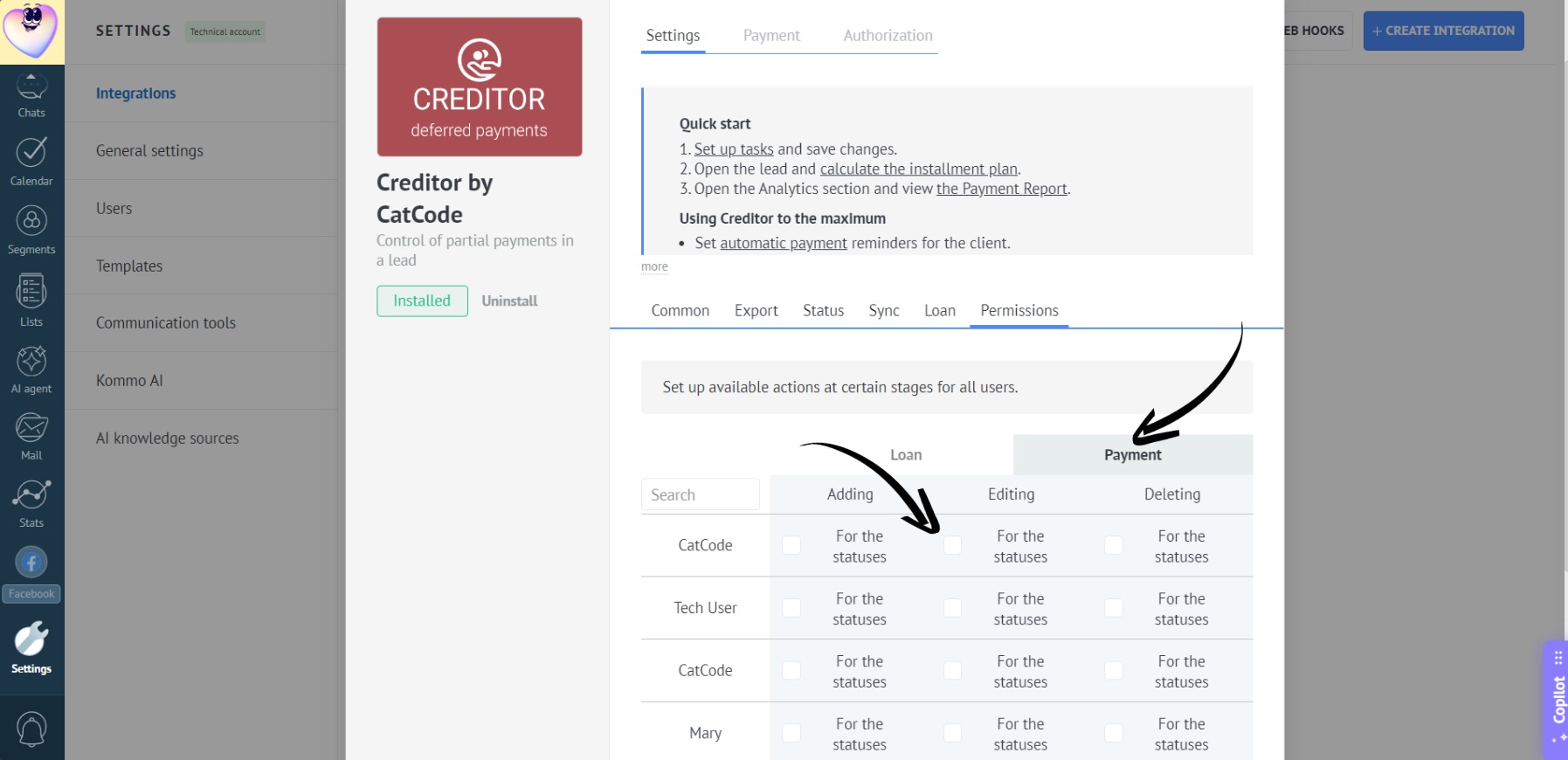
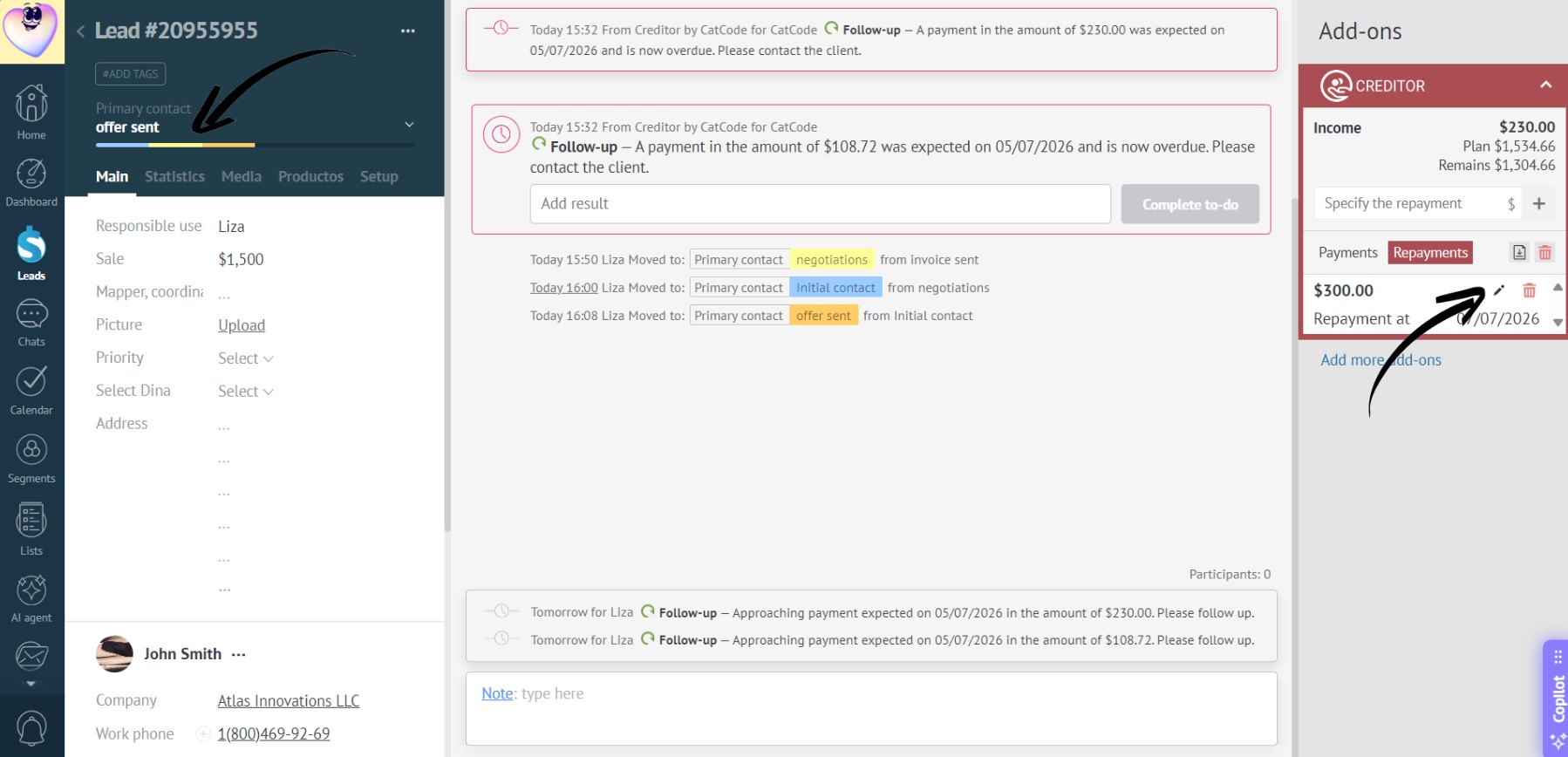
- In the list that appears, select the status, e.g., “Offer sent”. Don’t forget to click “Save”:
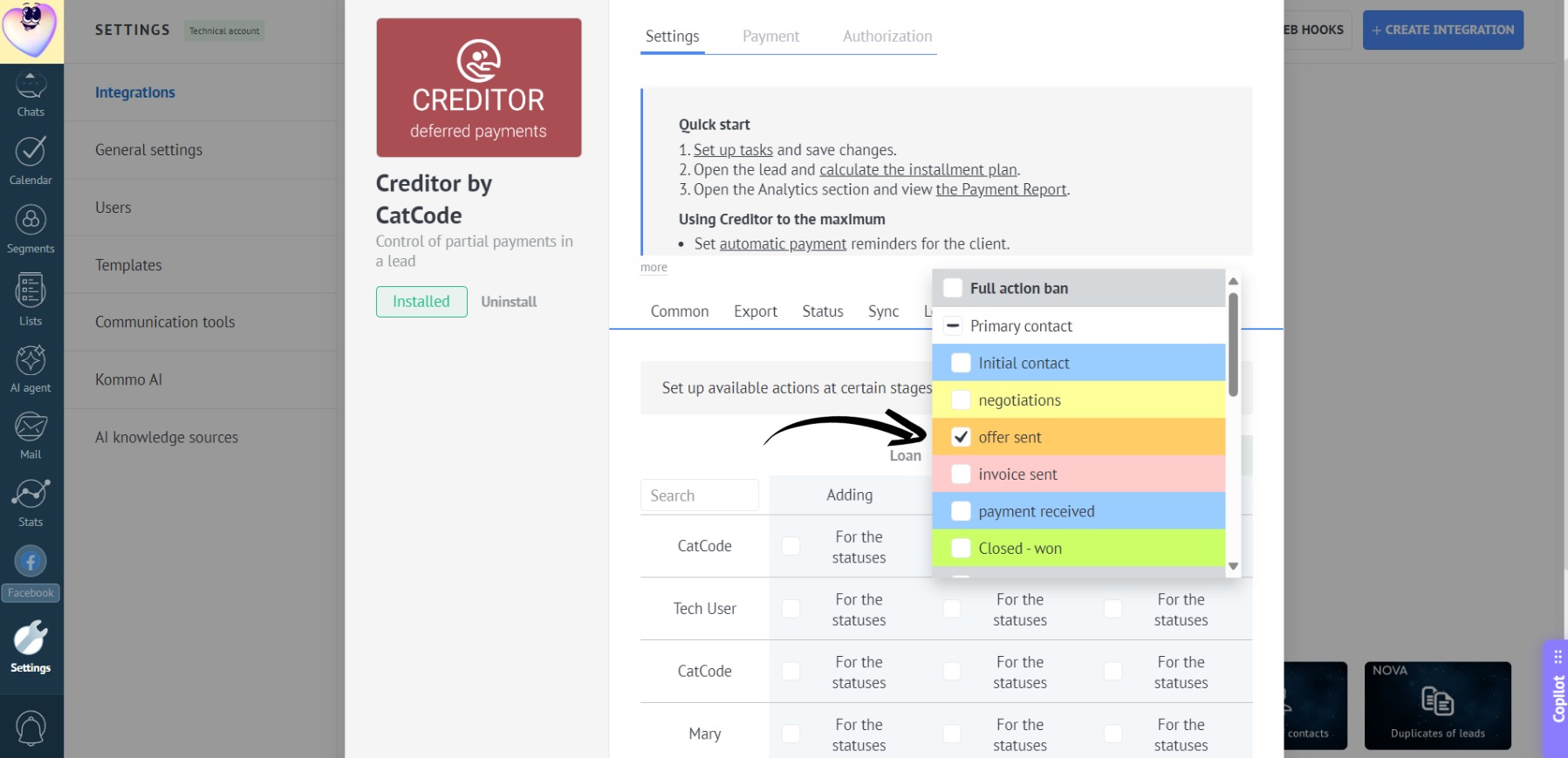
- “Now, if a manager opens a lead in the “Offer sent” status, the repayment edit icon (pencil) will be available:
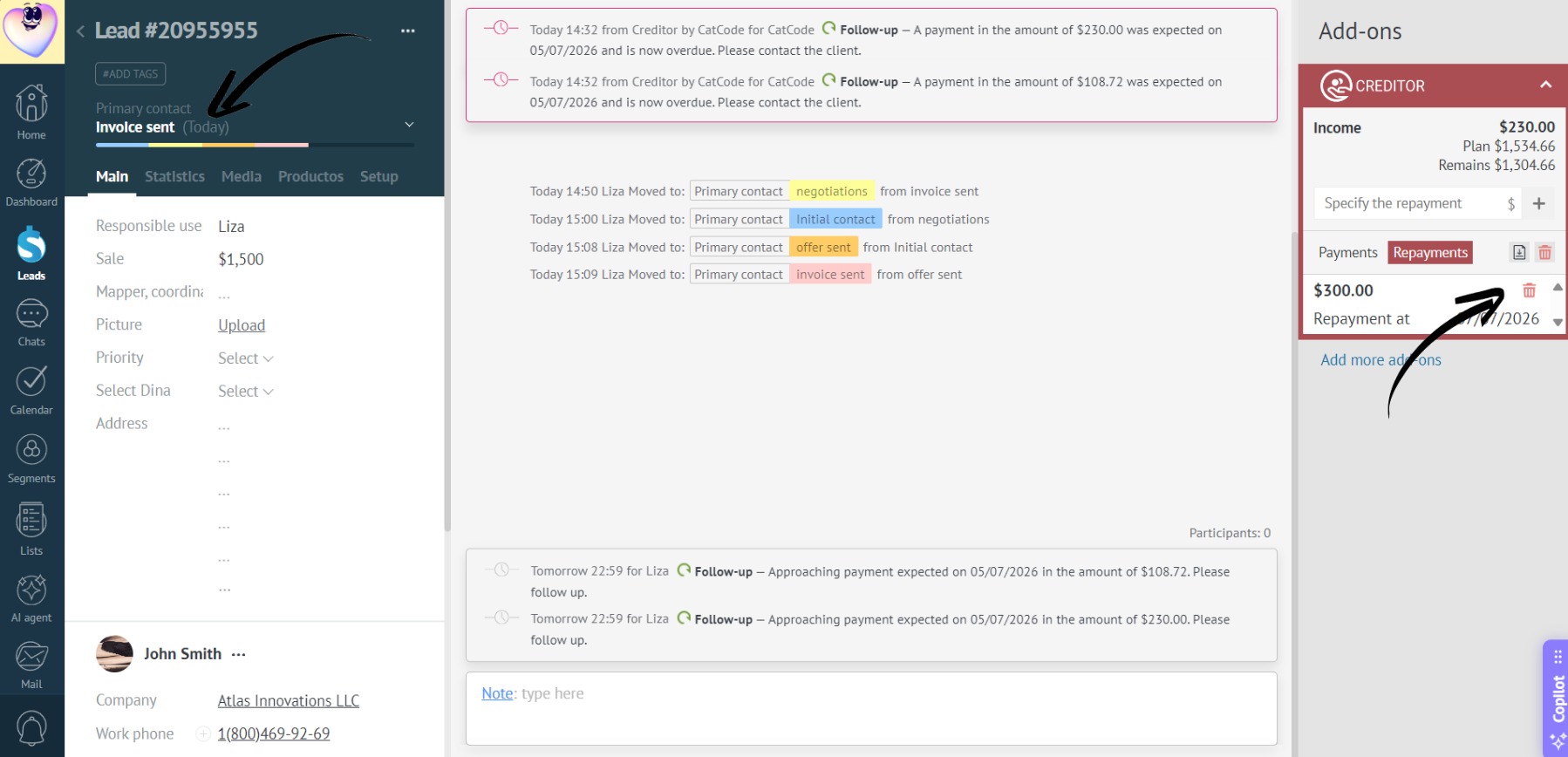
- If the manager opens a lead with any other status, the icon will disappear or become inactive — editing is restricted:
Restricting the “Deleting Payment” action for managers
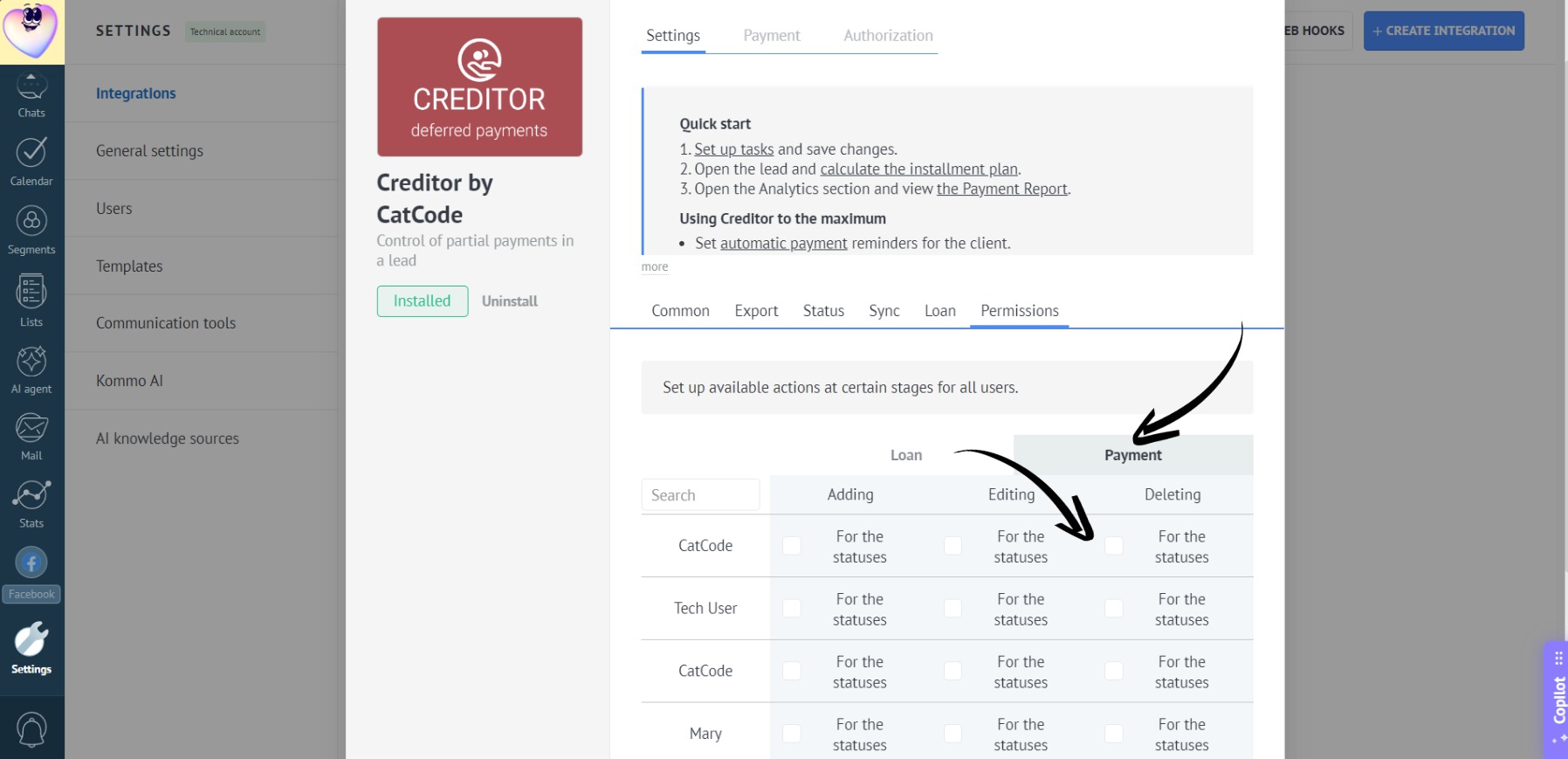
- In the app settings, go to the “Payment” tab, find the required manager, and click the checkbox in the “Deleting” column:
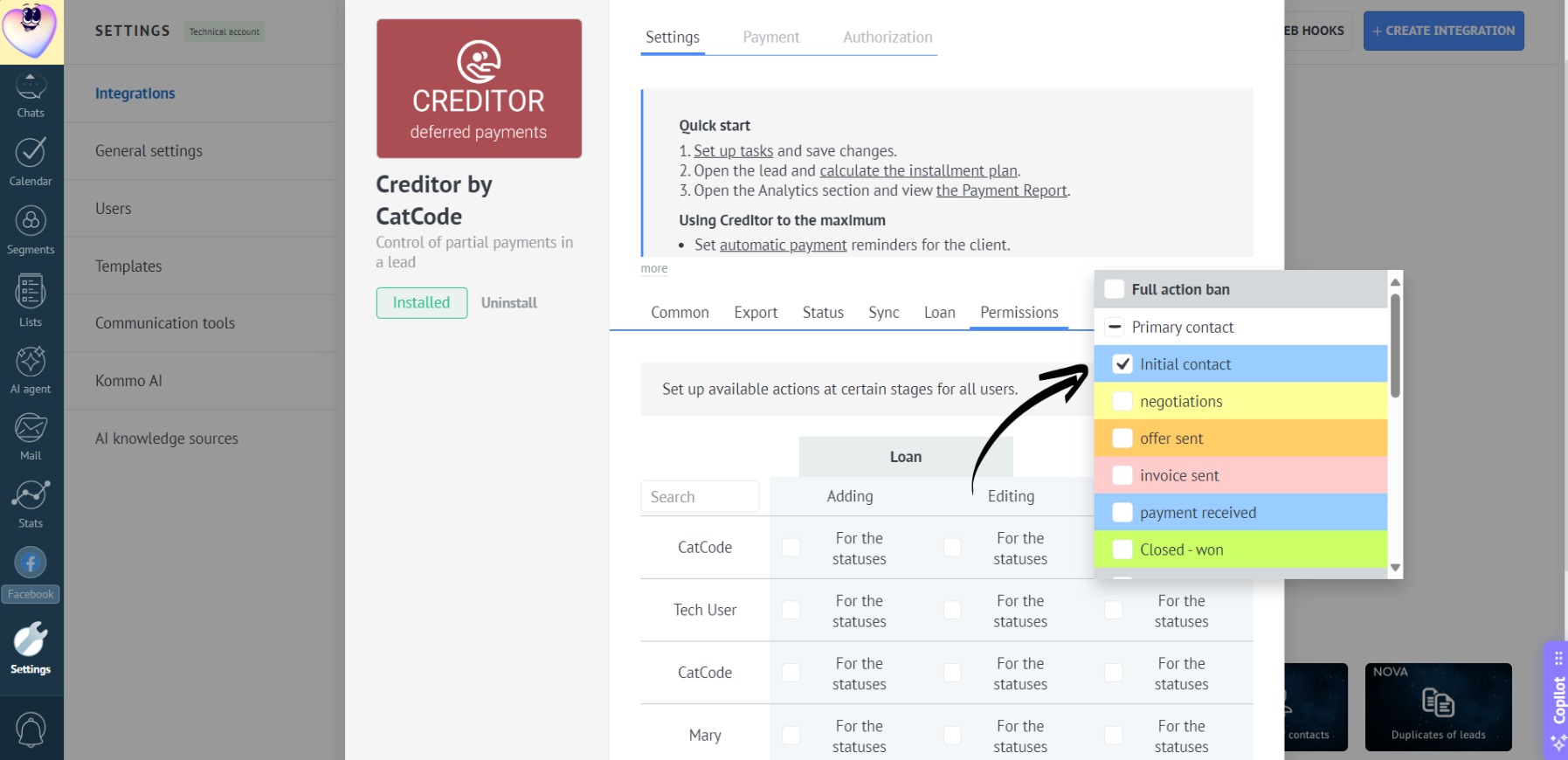
- In the list that appears, select the status, e.g., “Initial contact”. Don’t forget to click “Save”:
- Now, if a manager opens a lead in the “Initial contact” status, the trash icon next to the repayment will be active:
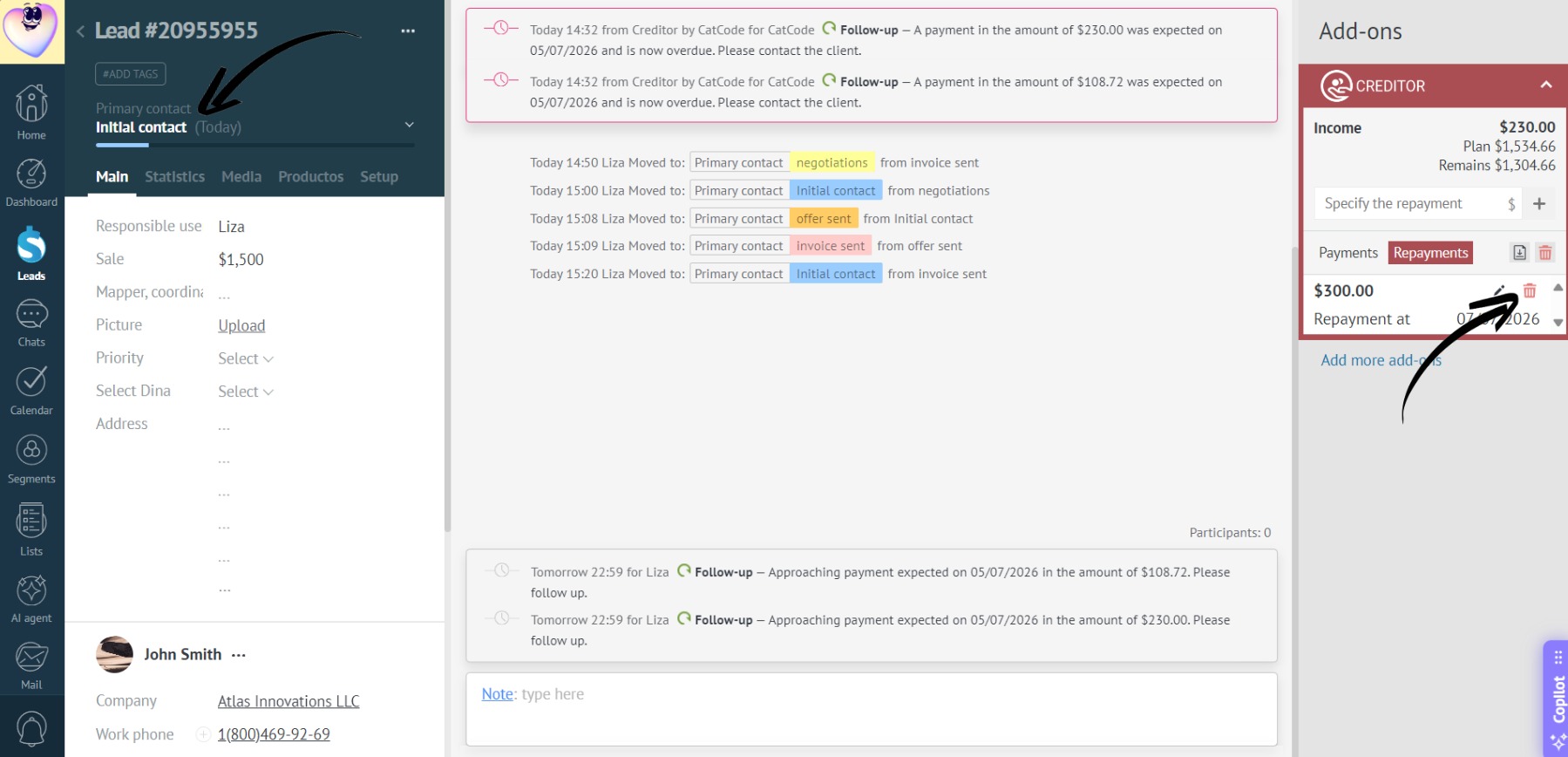
- However, if the lead is set to any other status, the trash icon will disappear or become unavailable: