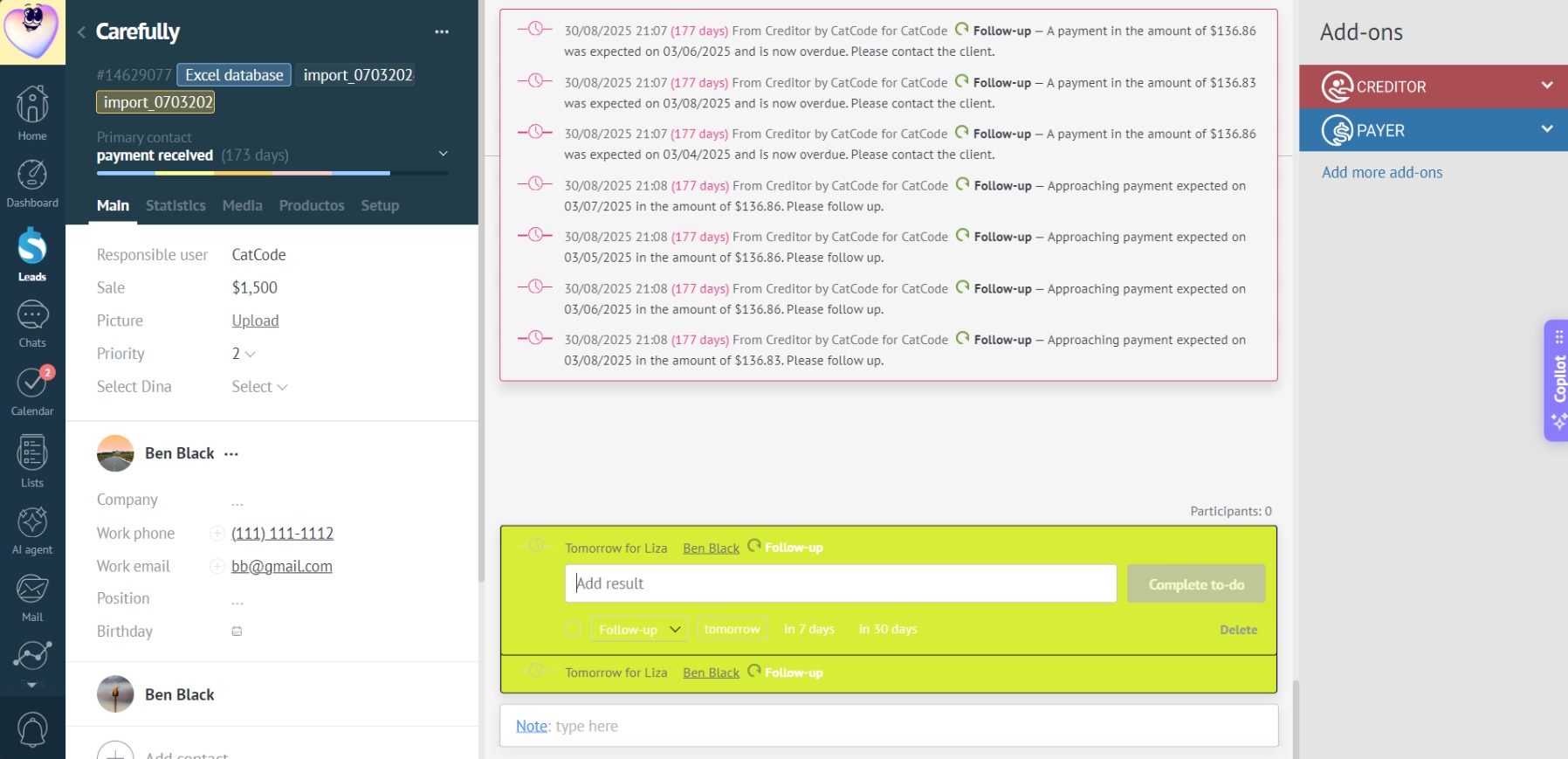
Task Coloring
The manager will be able to control deadlines faster, highlight overdue tasks, and separate calls/meetings by color.
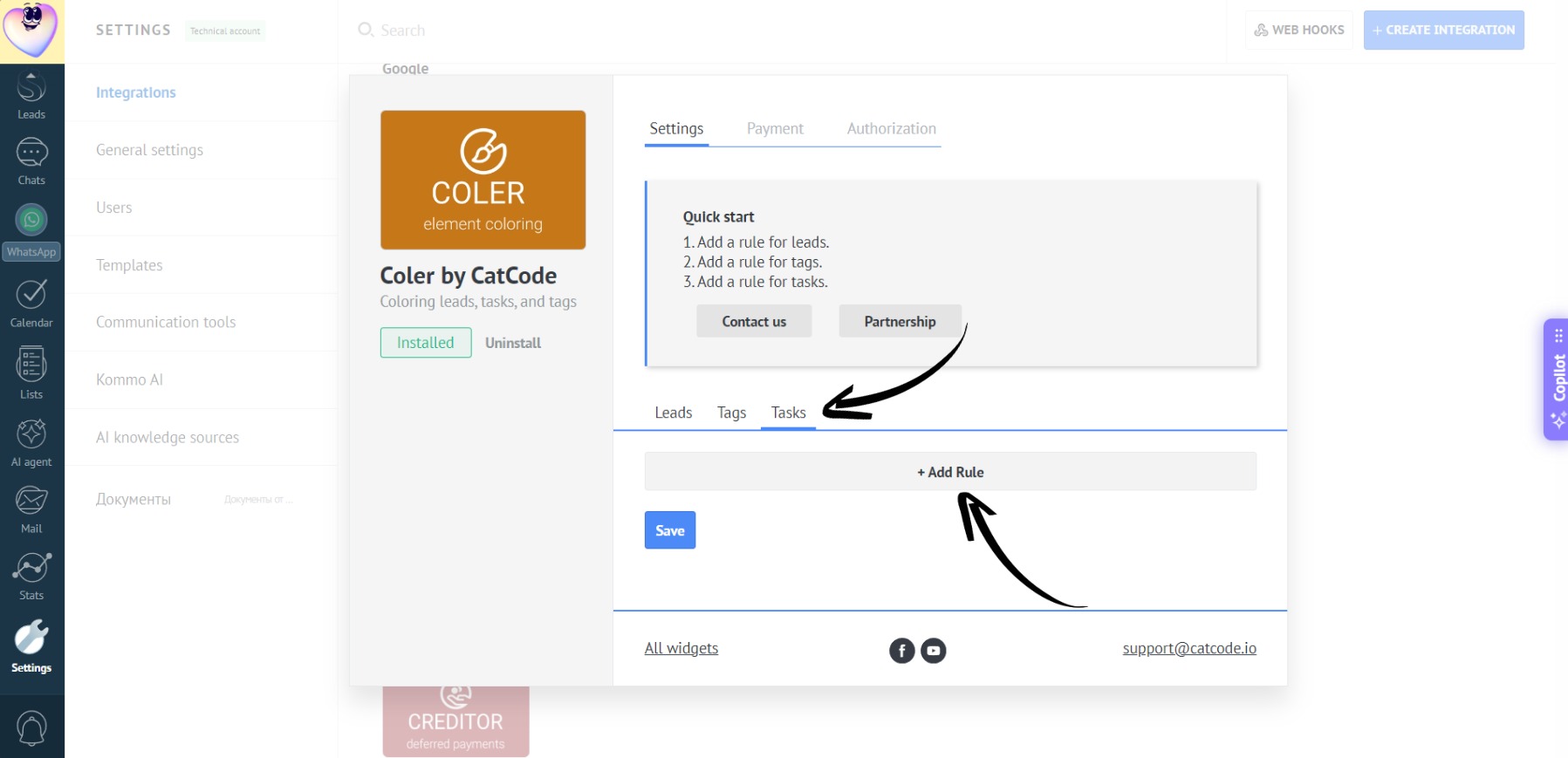
- In Coler’s settings, select “Tasks” and click “Add Rule”:
- Enter the rule name and its priority:
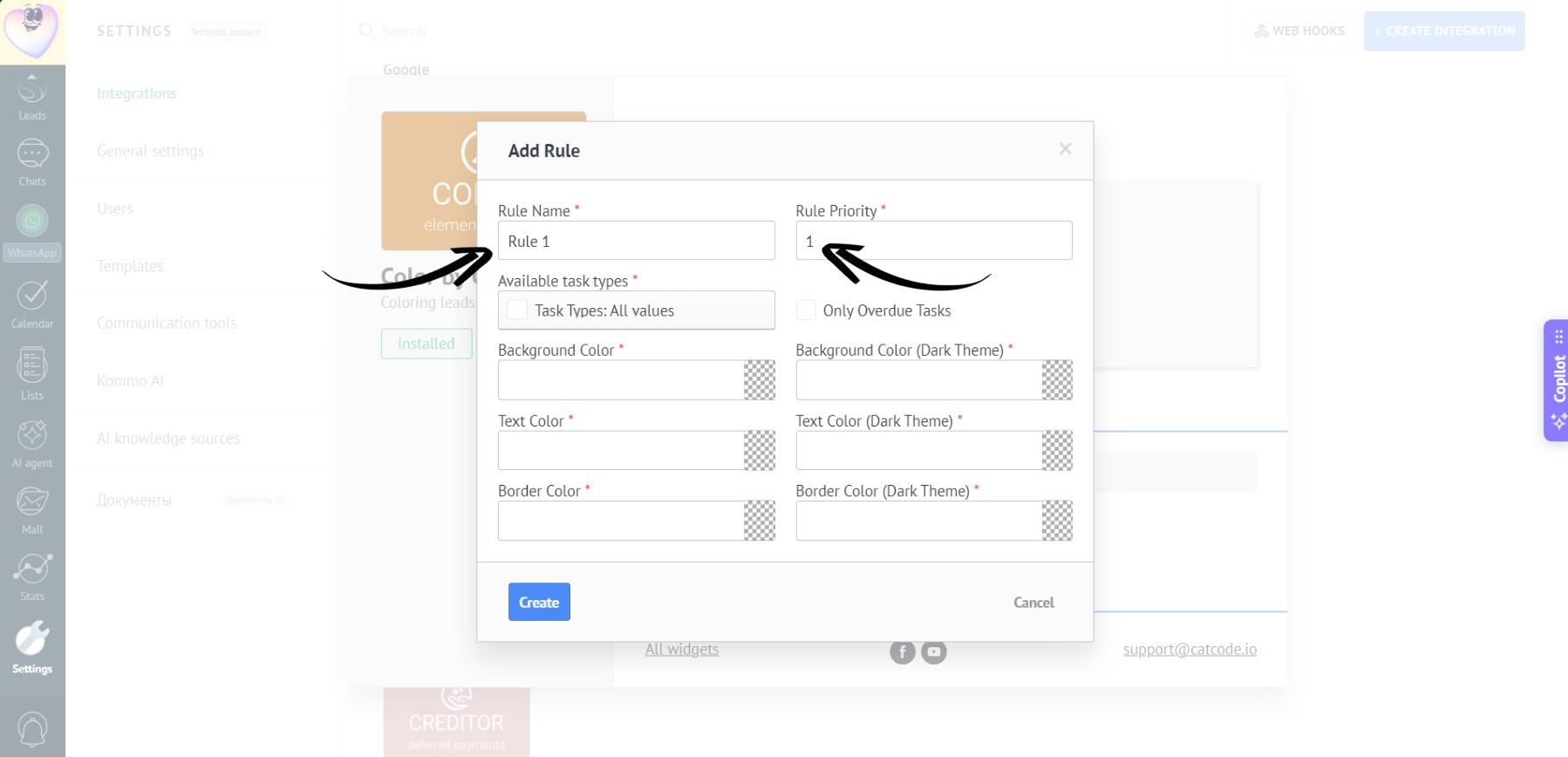
This name will be displayed in the list of rules, so you and your colleagues can easily understand the purpose of the rule.
If multiple rules match a lead, the one with the higher priority will be applied.
- Select the task type - for example, “Meeting”:
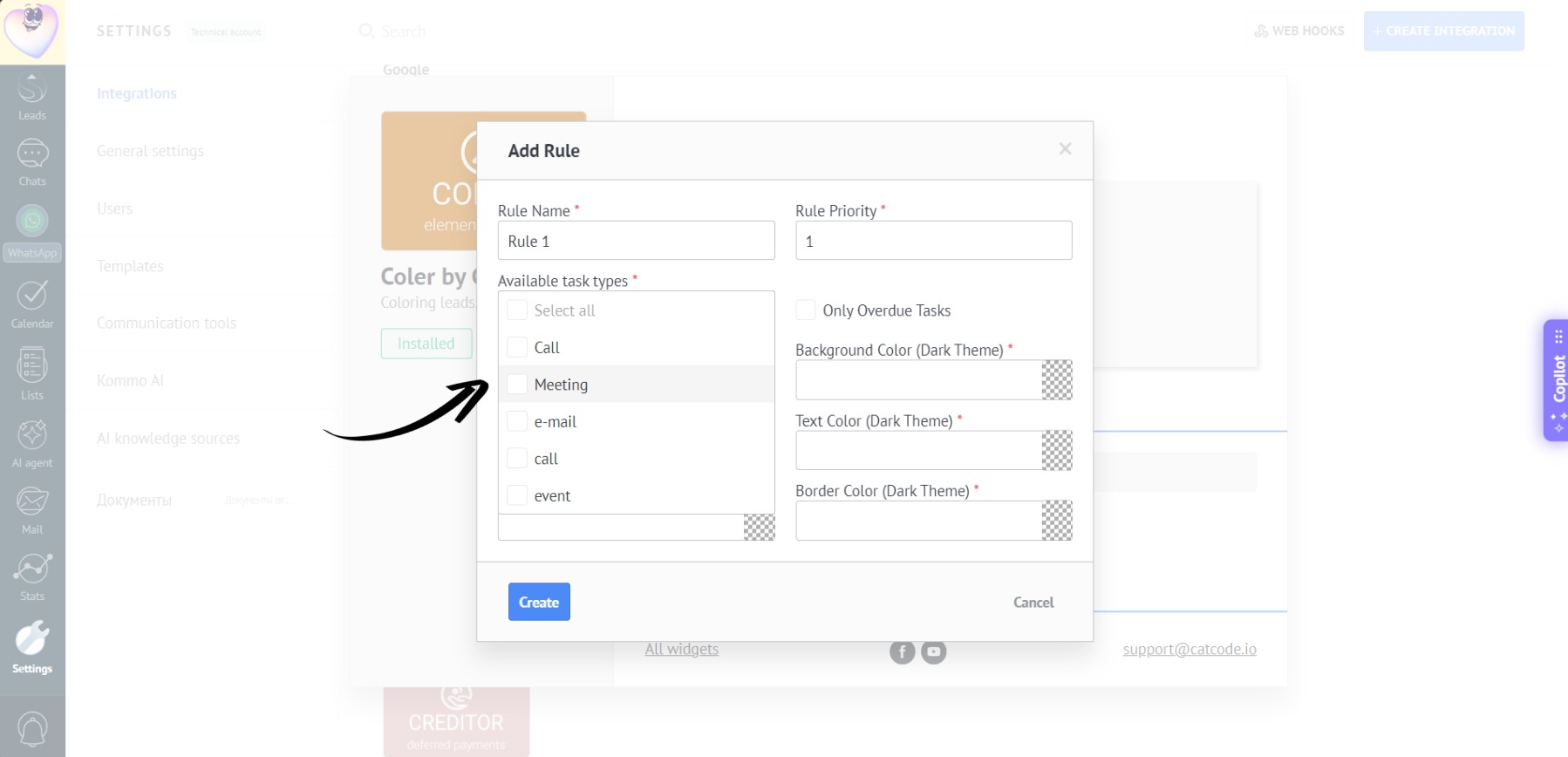
- If necessary, check the box if you want the rule to apply only to overdue tasks:
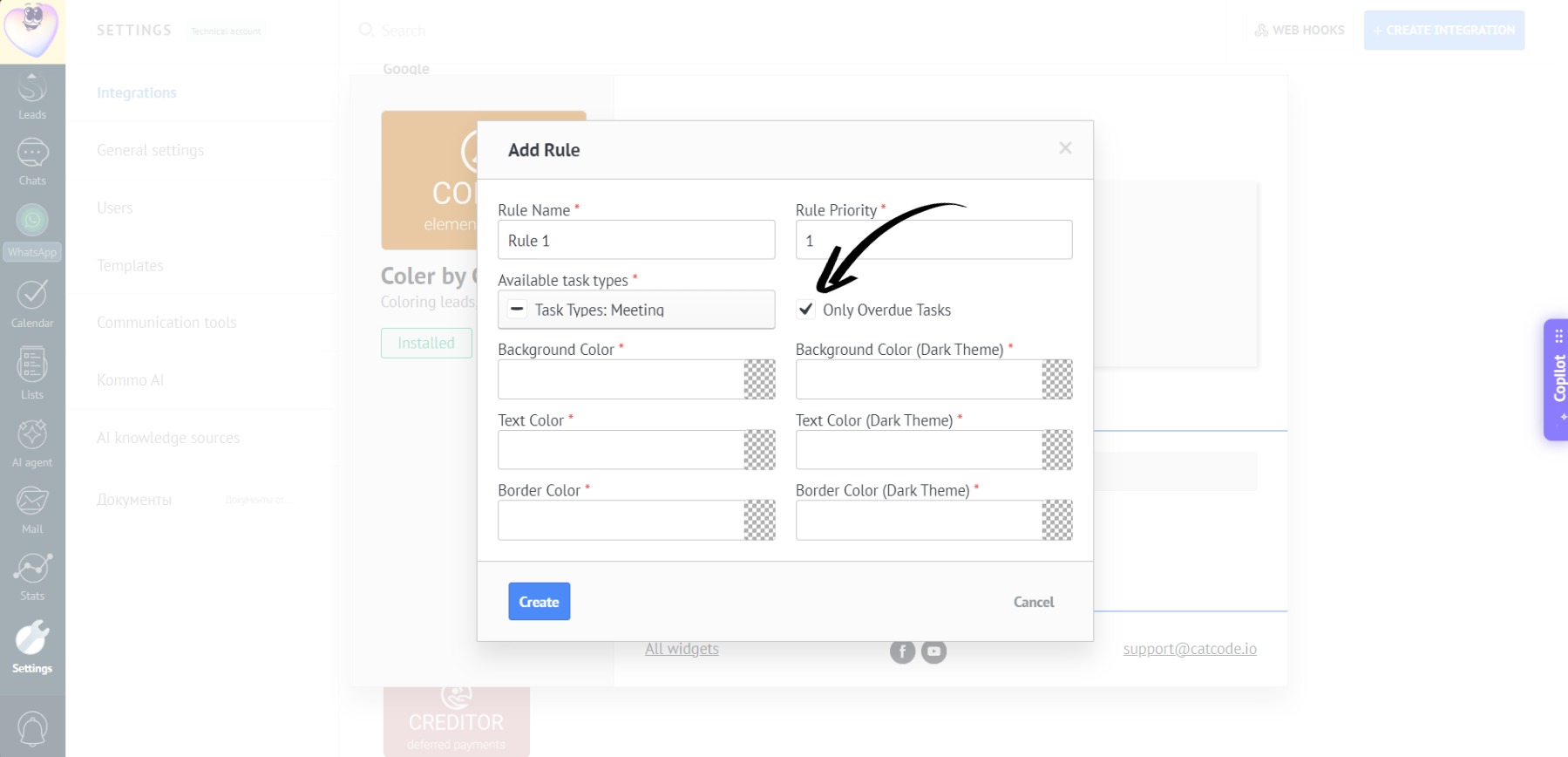
- Set up the colors and click “Create”:
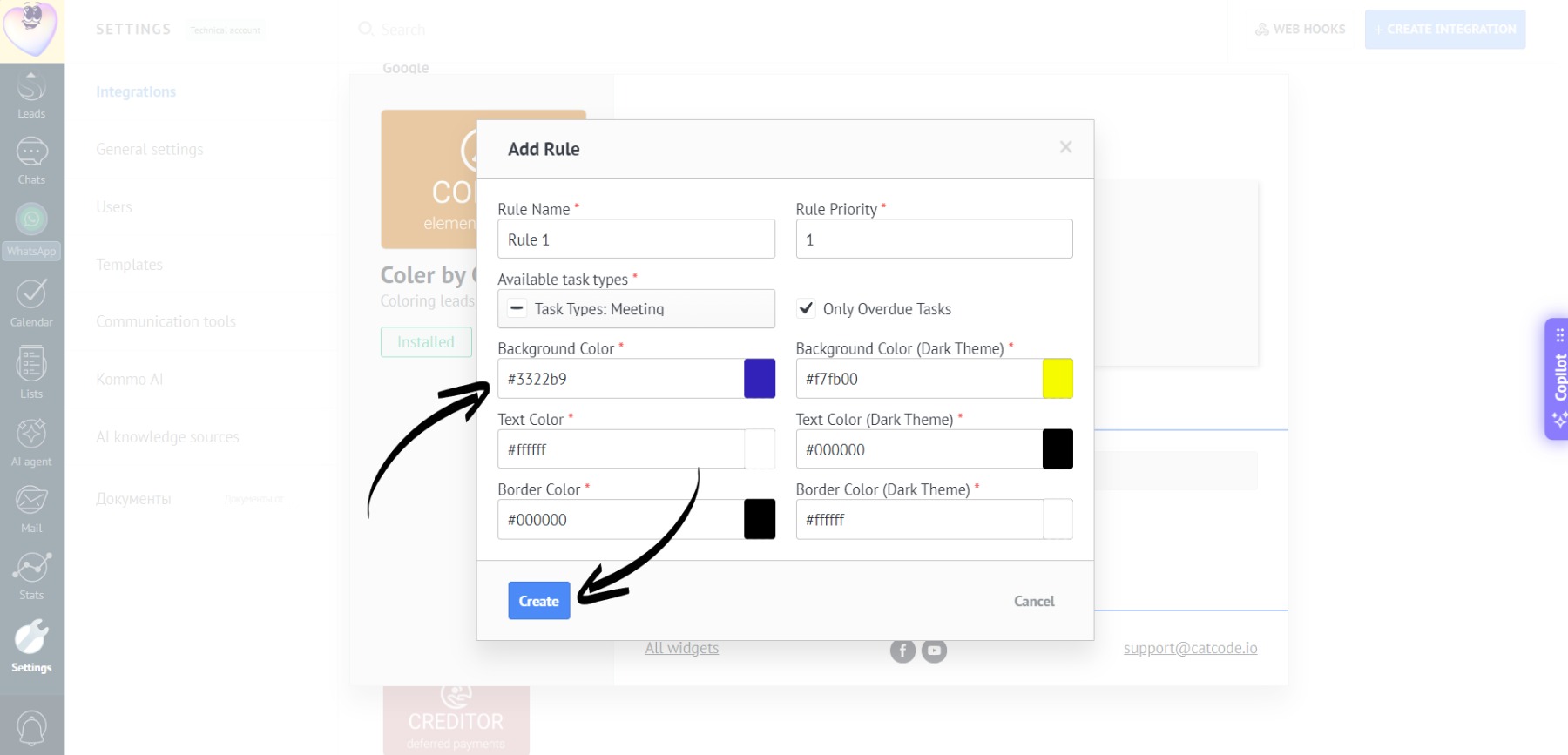
At this stage, colors can be set individually for Kommo’s light and dark modes.
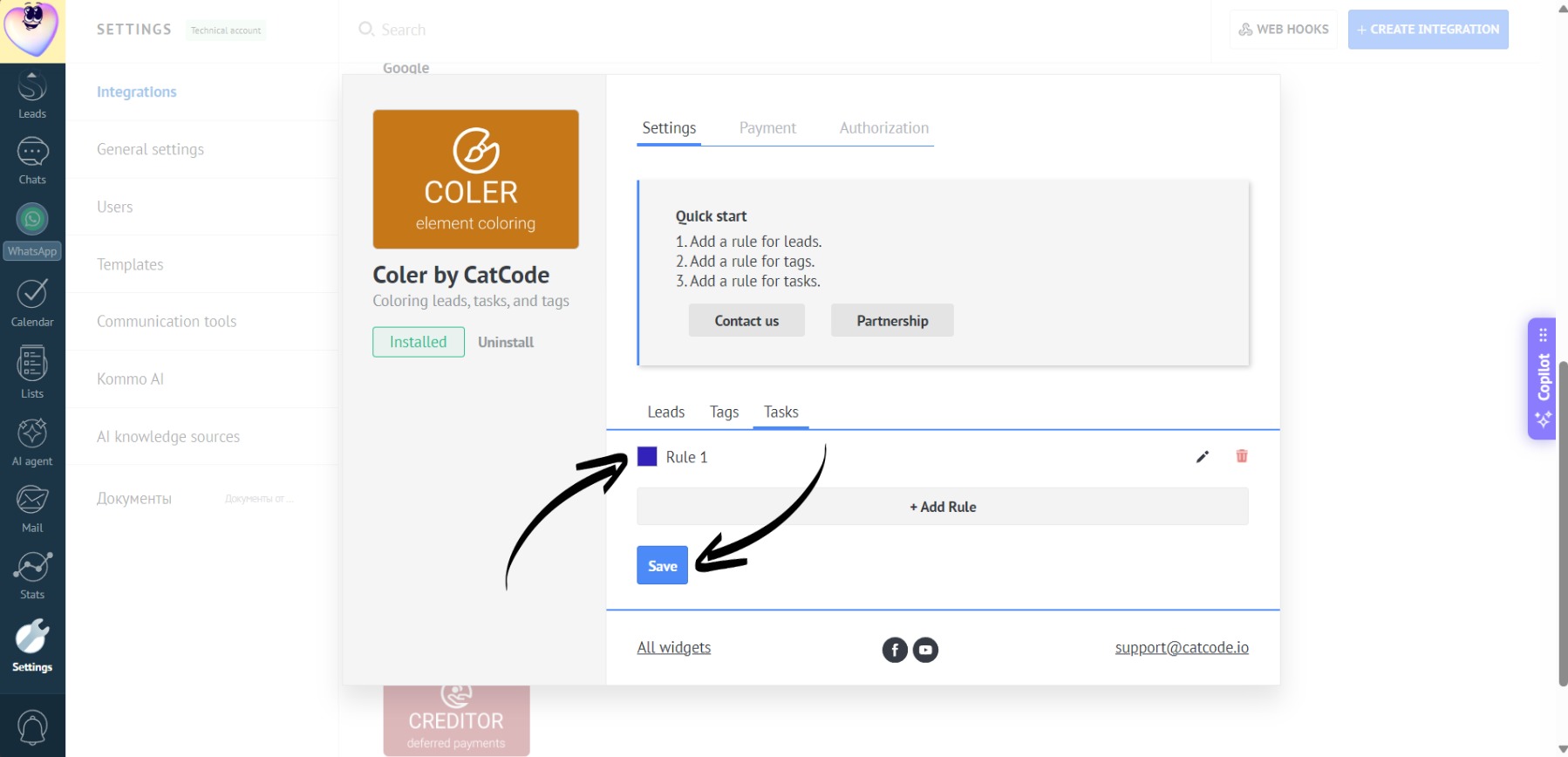
- Then click “Save”:
- Here’s how the color-coded leads will look in the light mode:

- And in dark mode:
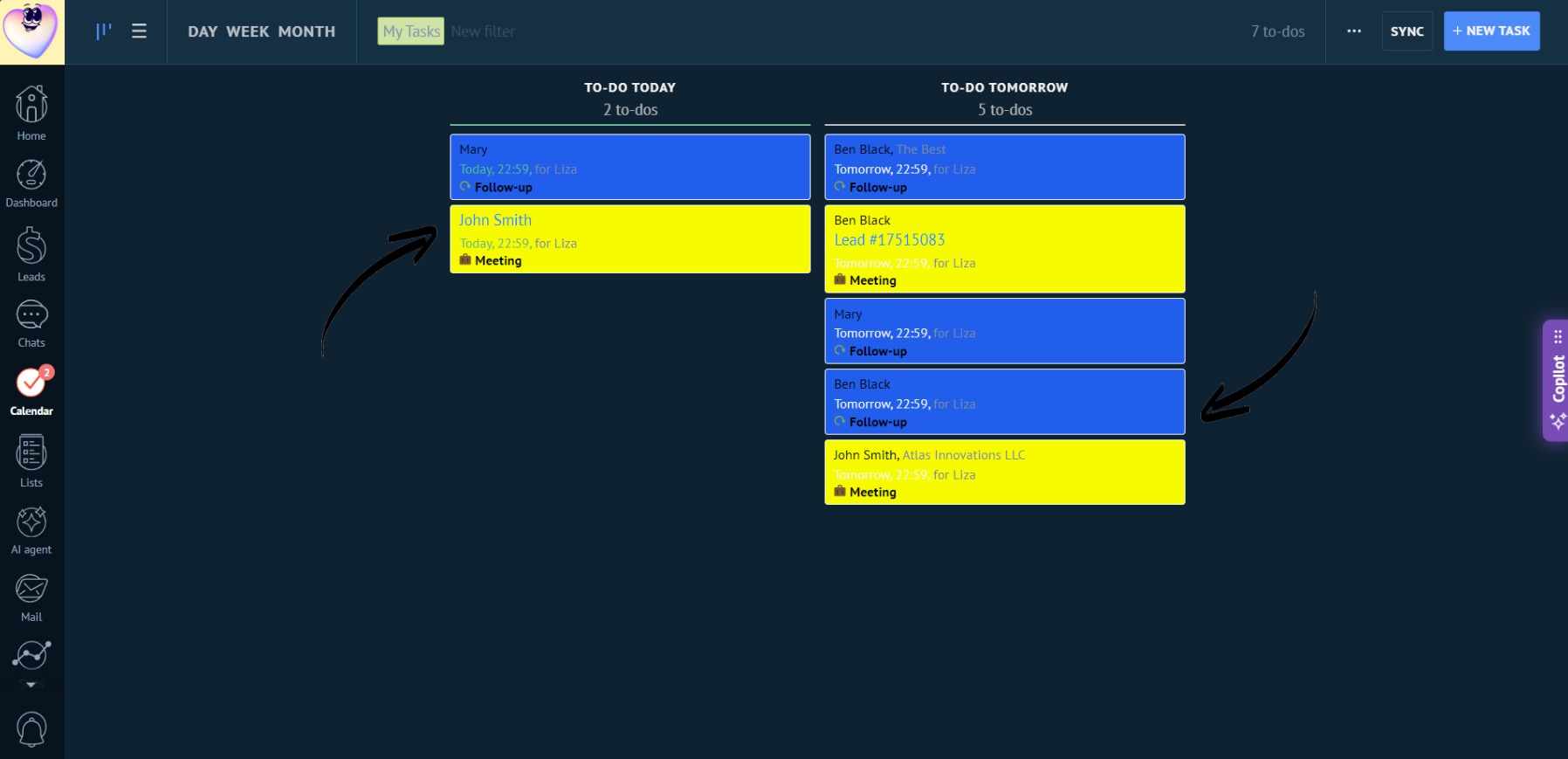
- Task coloring in a lead: