Lead Coloring
Color-coding of leads is useful for prioritizing urgent projects and monitoring lead statuses (e.g., In Progress, Shipped, etc.).
Coler marks leads based on custom fields. Below is an example of how to set this up using a “List” field. You can work with other custom field types in a similar way.
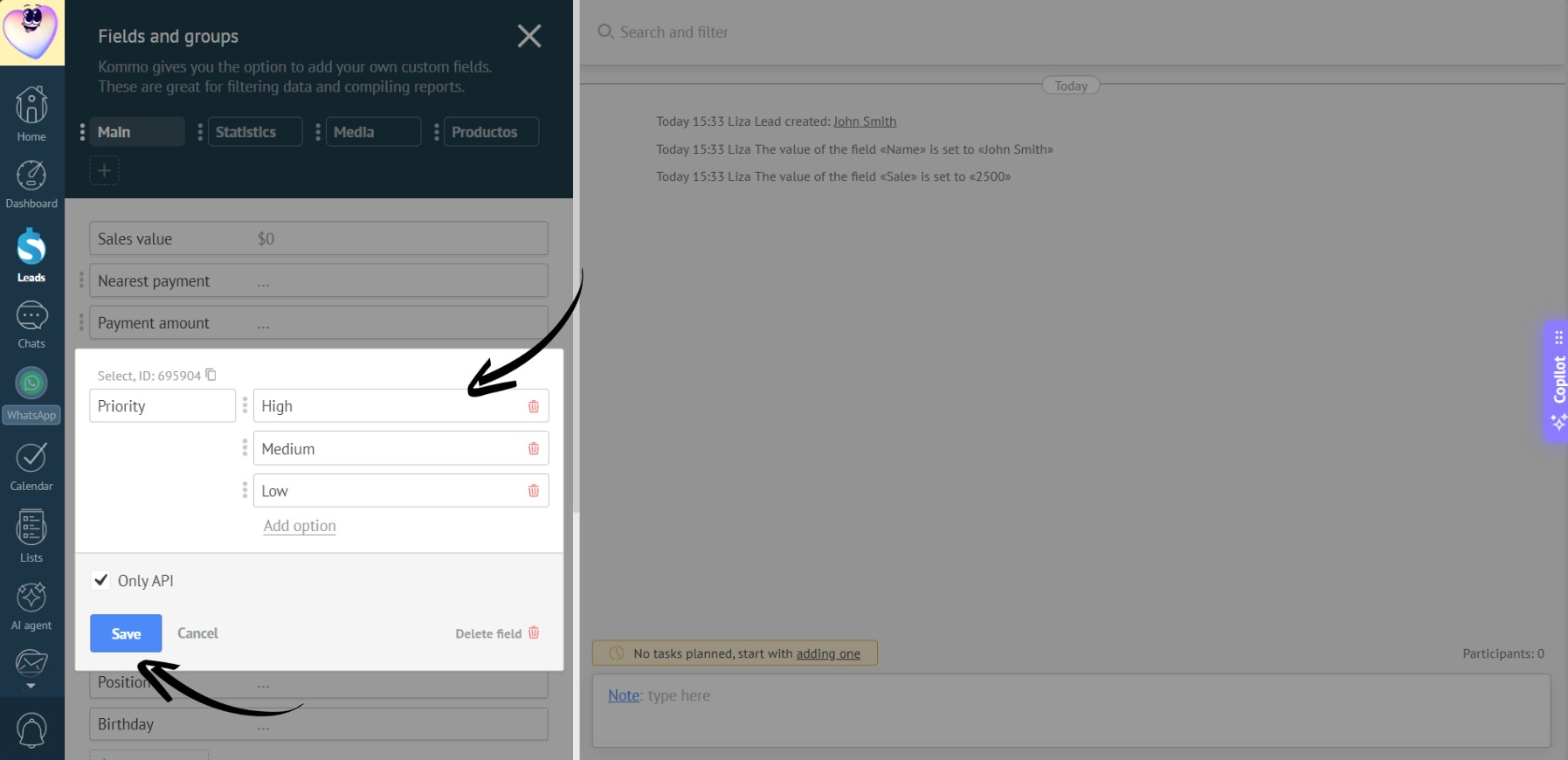
- A lead has a “Priority” field of the “List” type with the following options: “High”, “Medium”, and “Low”:
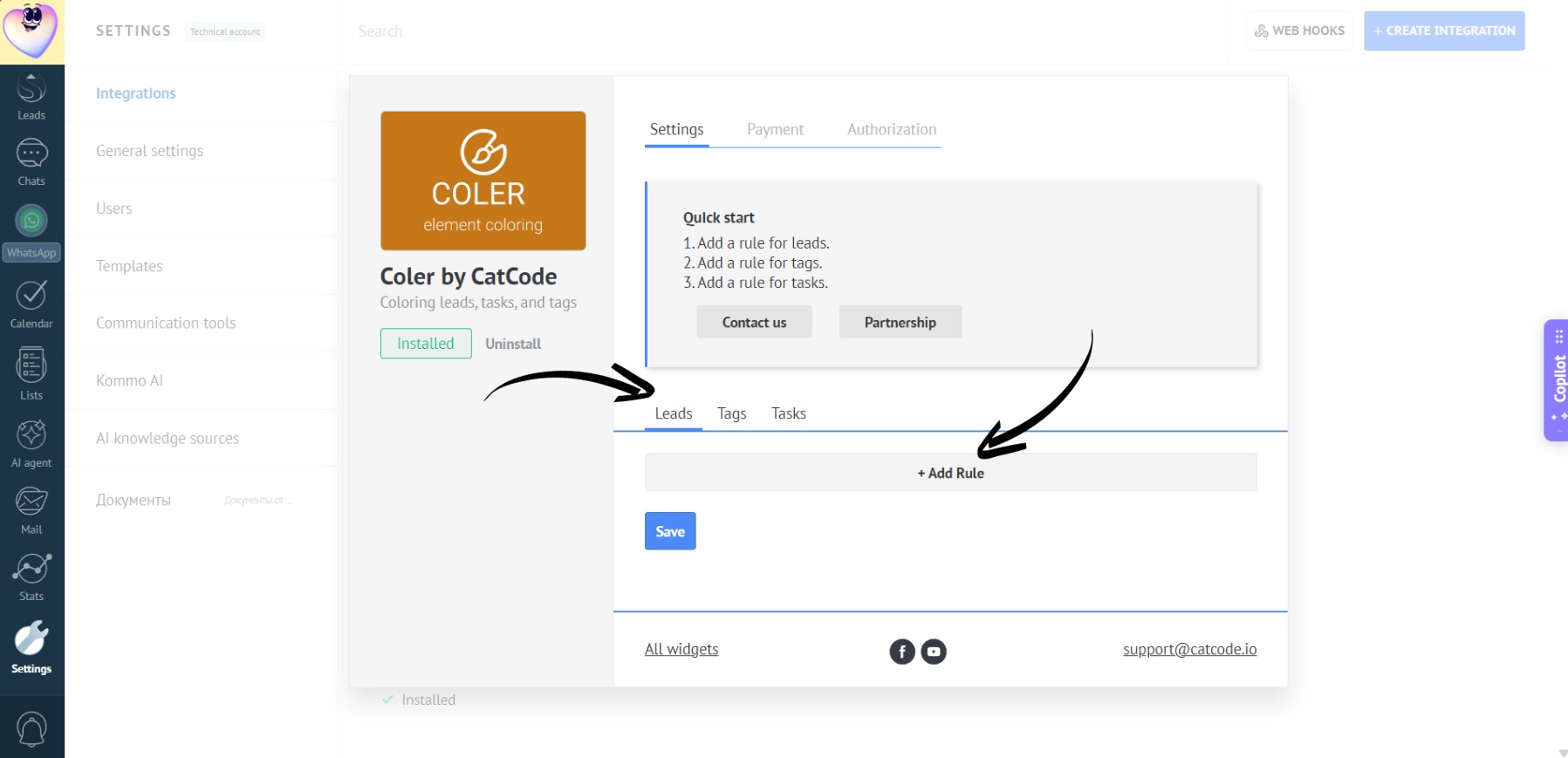
- In Coler’s settings, select “Leads” and click “Add Rule”:
- Name it (e.g., “Rule 1”):
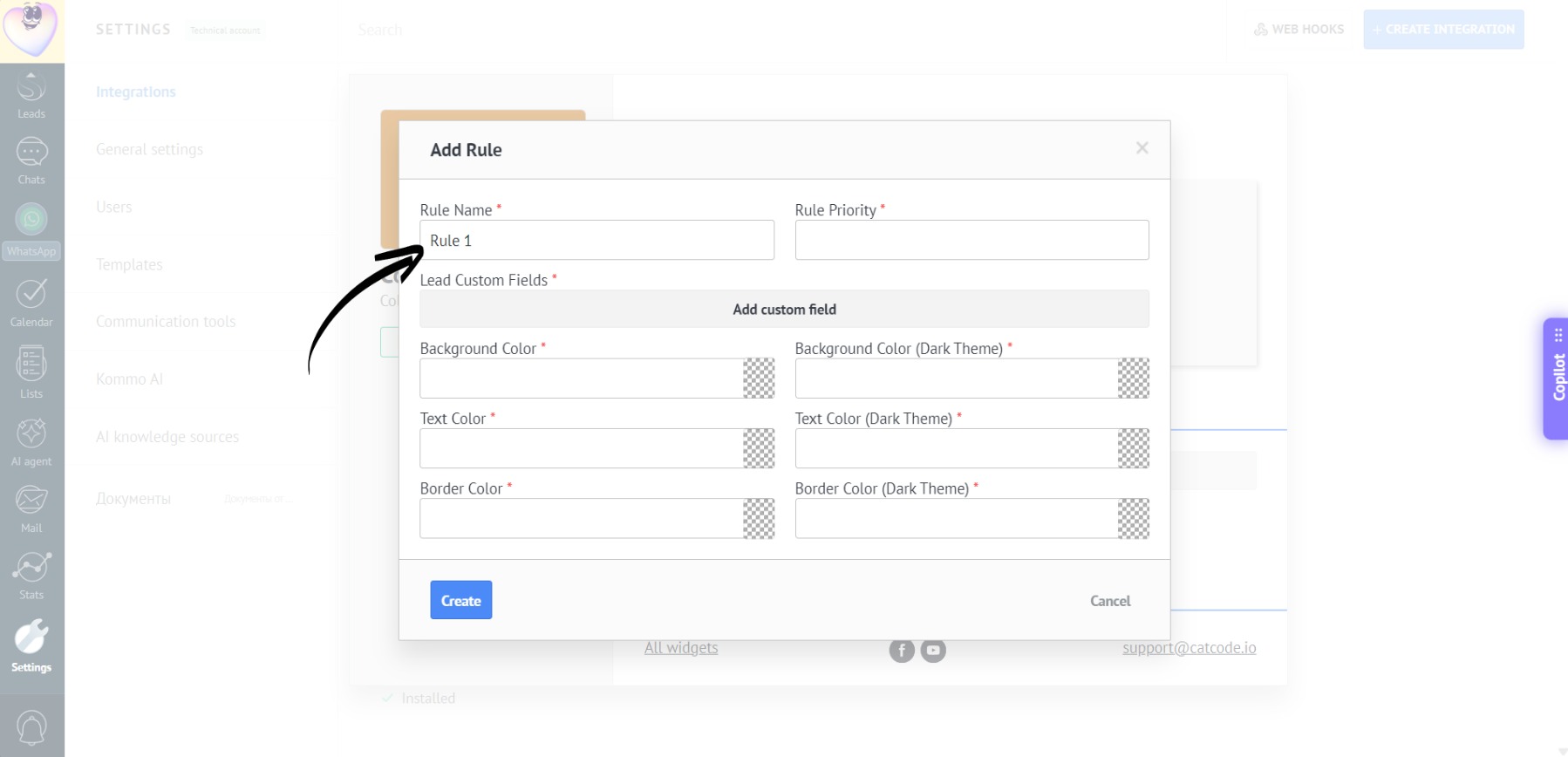
This name will be displayed in the list of rules, so you and your colleagues can easily understand the purpose of the rule.
- Next, set the rule’s priority (1 is the highest priority):
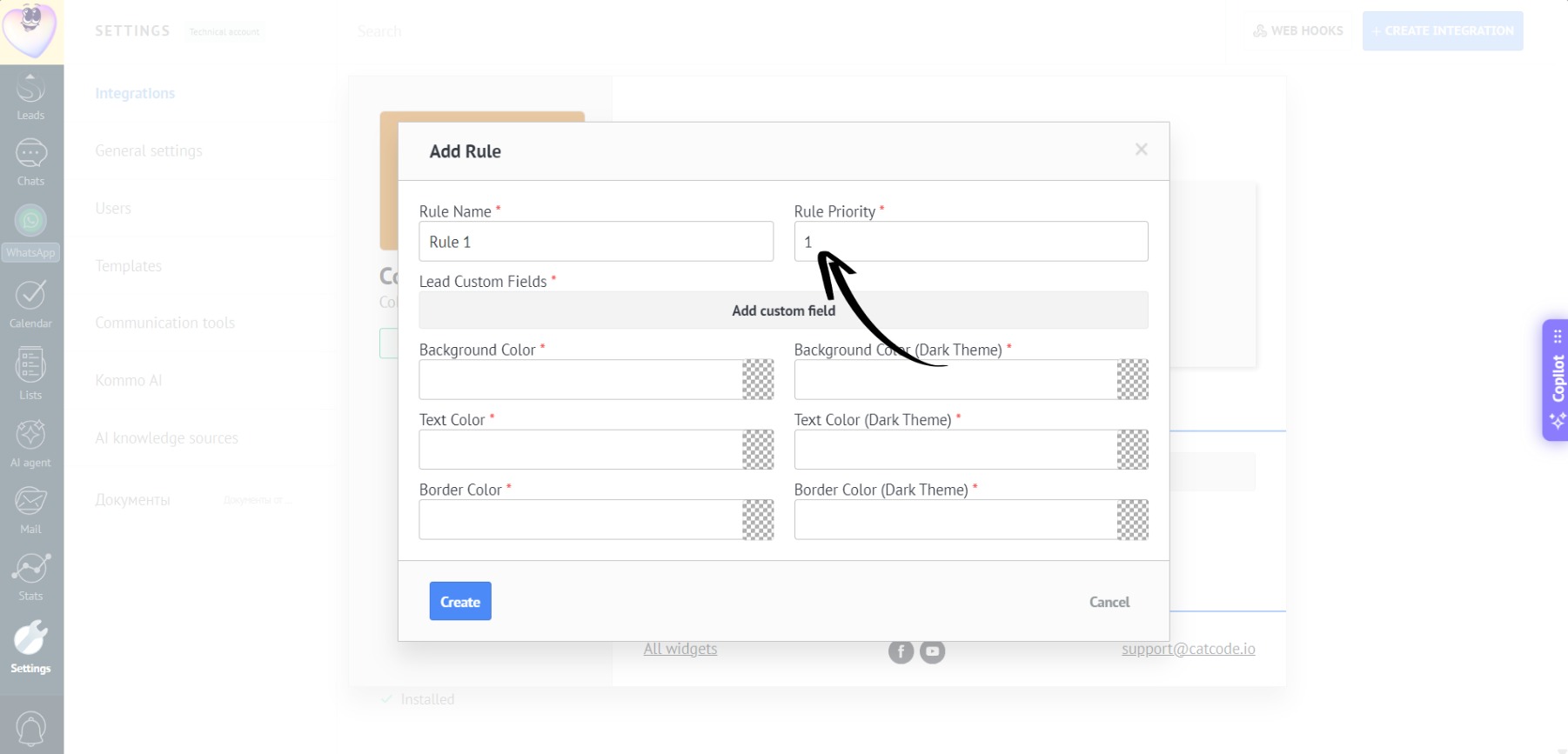
If multiple rules match a lead, the one with the higher priority will be applied.
- Select the desired field:
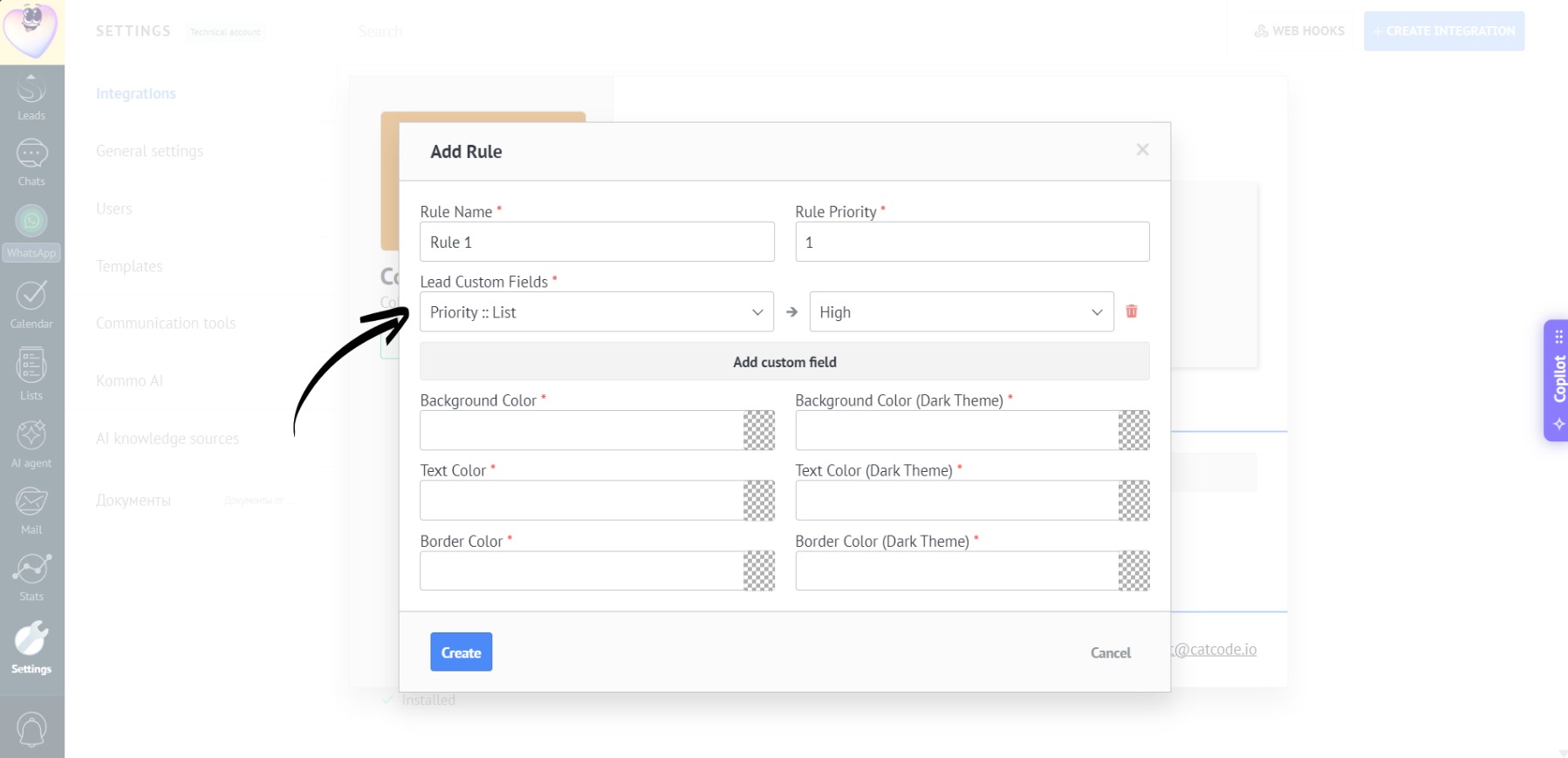
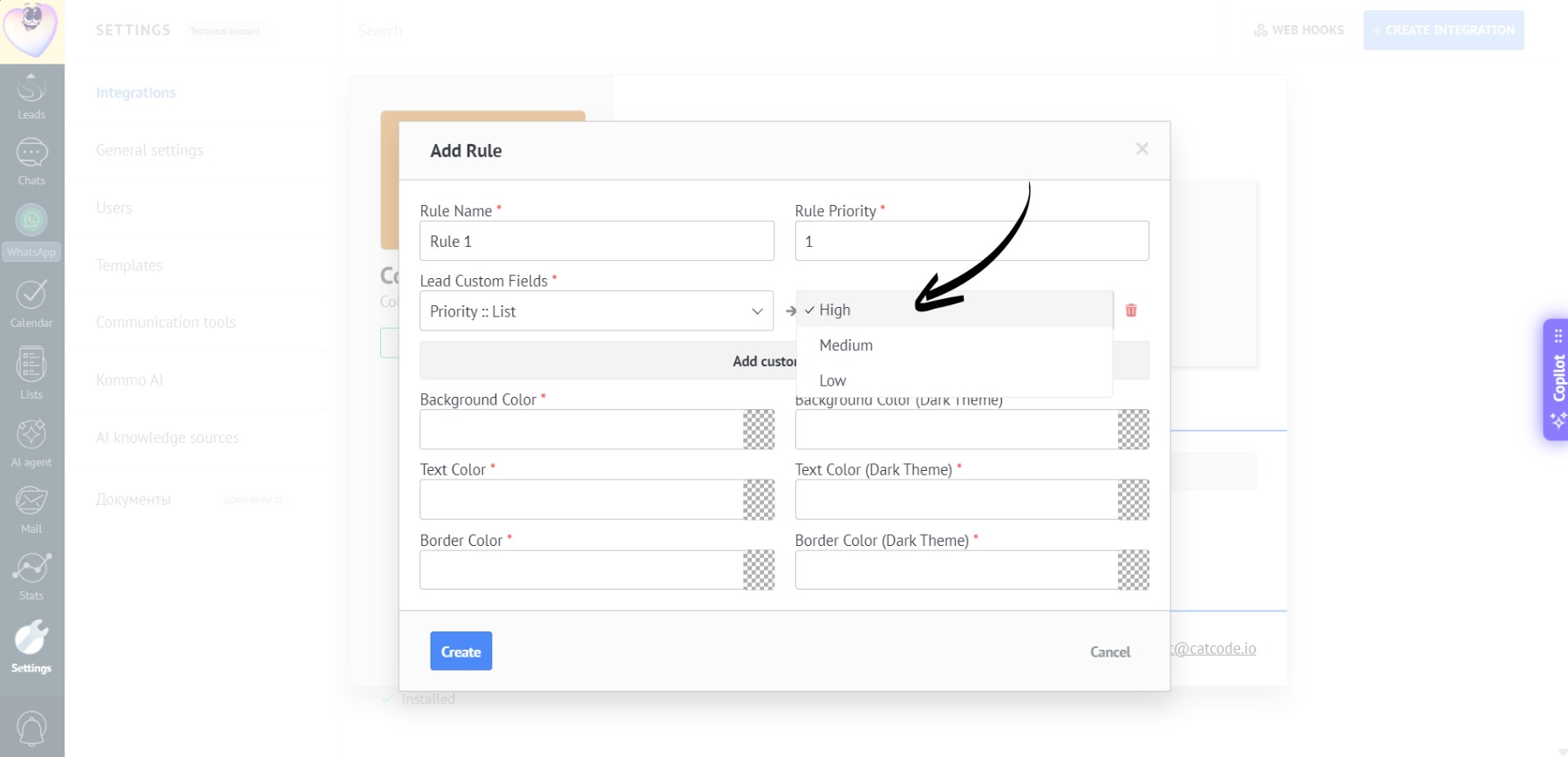
- For the value, enter, for example, “High”:
- Set up the colors and click “Create”:
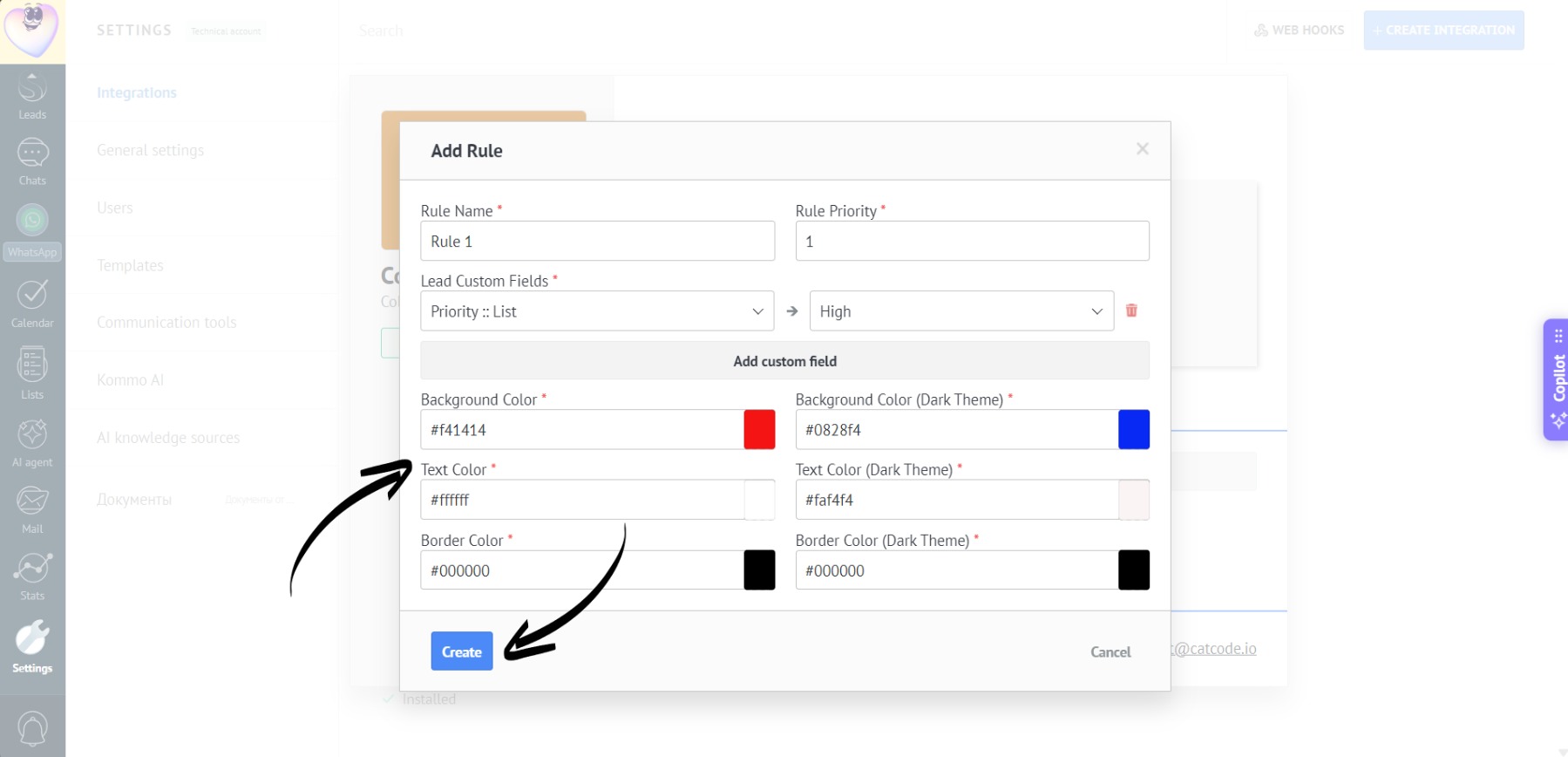
At this stage, colors can be set individually for Kommo’s light and dark modes.
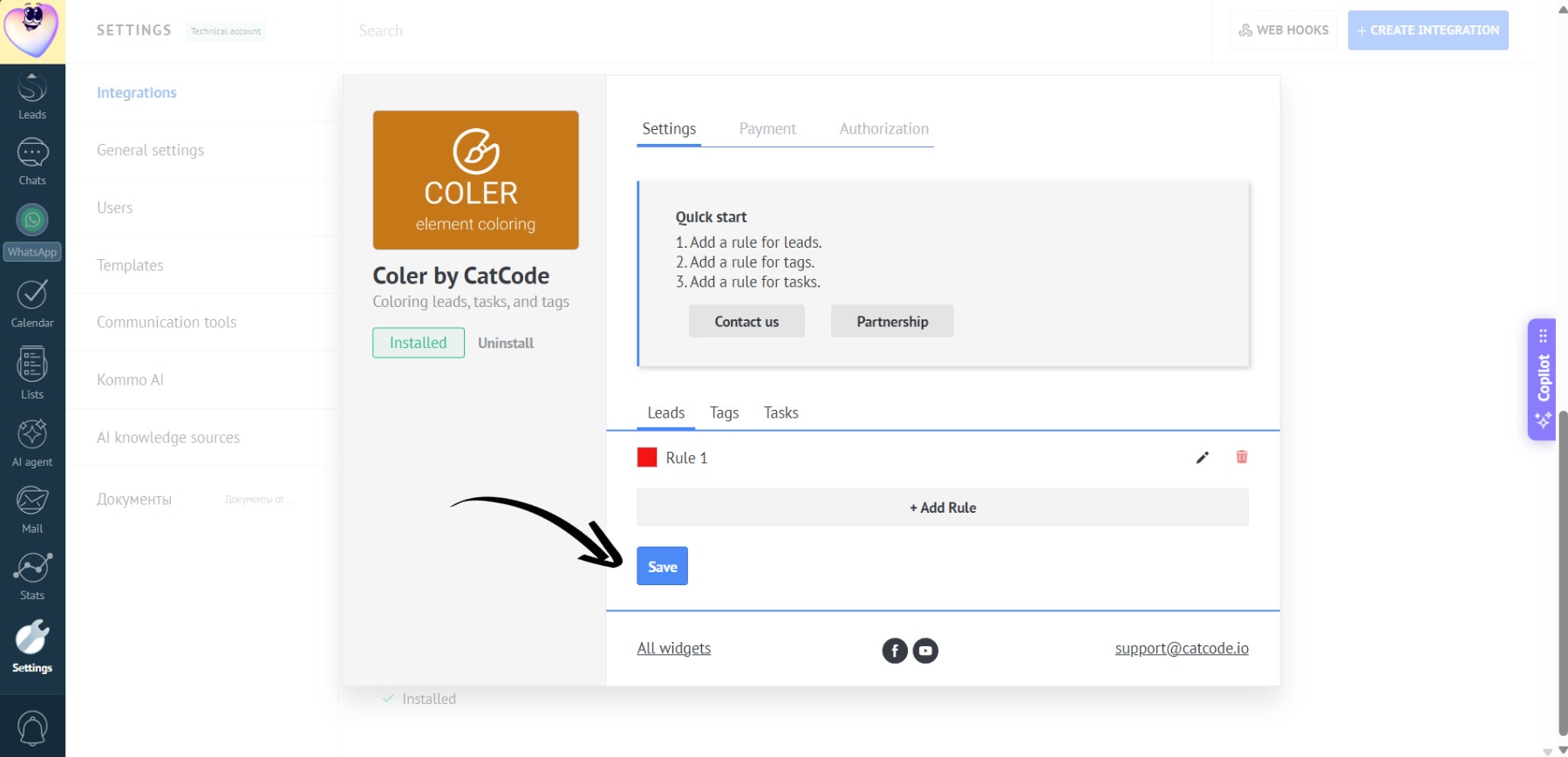
- Then click “Save”:
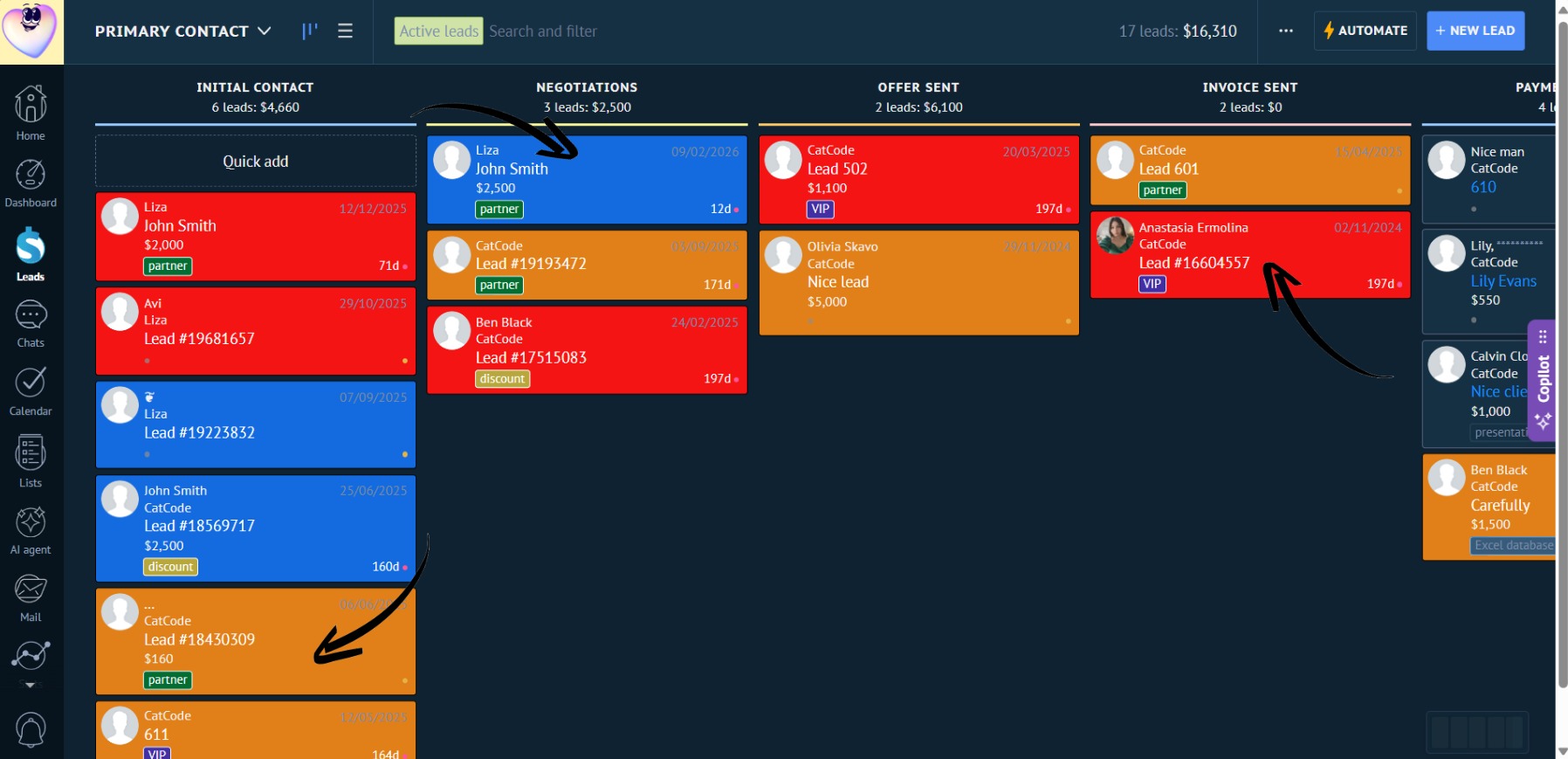
- Here’s how the color-coded leads will look in the light mode:
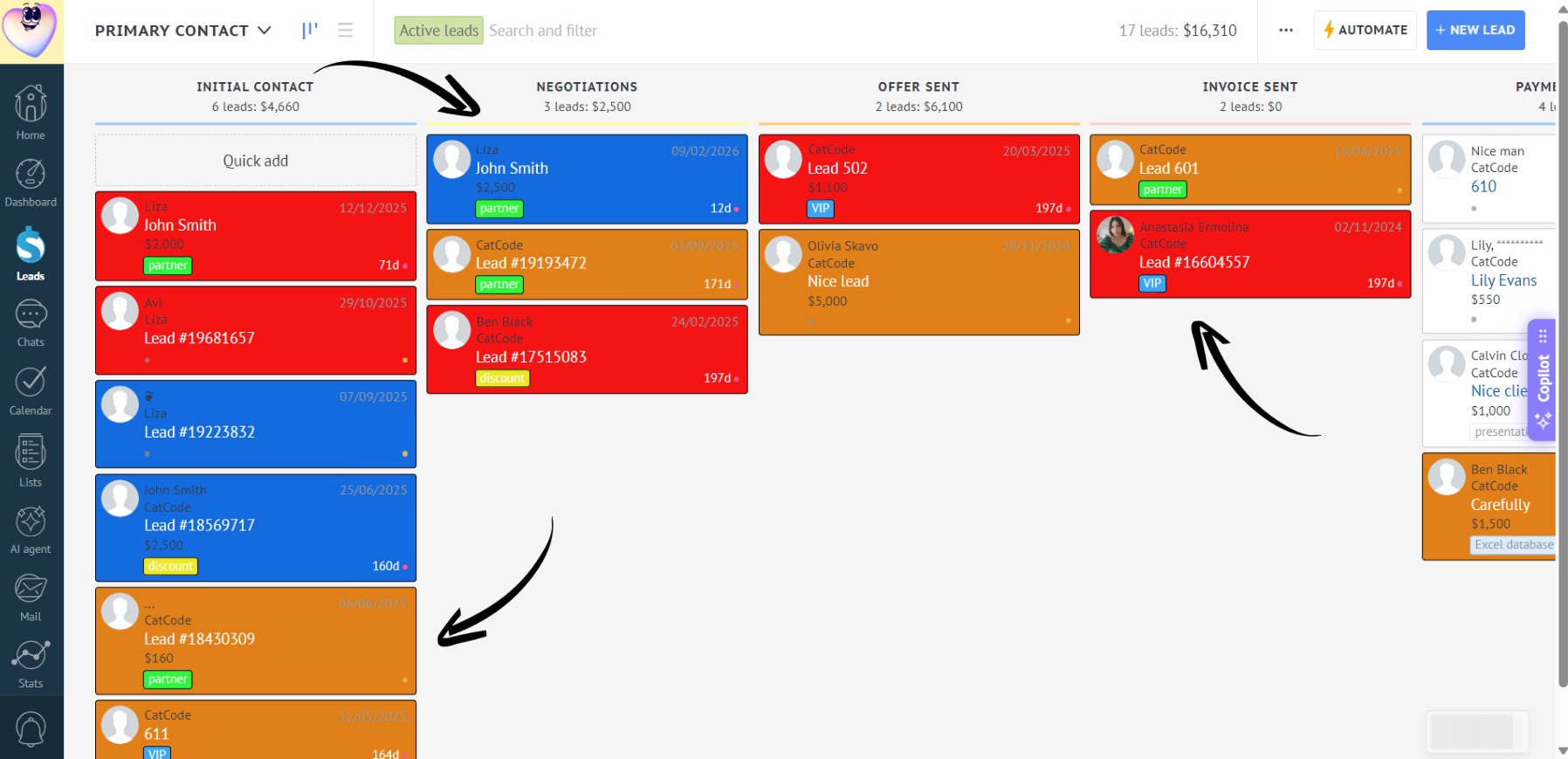
Leads with high priority are highlighted in red, medium priority in orange, and low priority in blue. The manager opens the pipeline and immediately sees what to focus on first.
- And in dark mode: